Agency library and branding
Keep the language your staff reuse for every client in one agency library, and put your agency's name and logo on the exports your clients download.
- 5 min
- Agency plan
- Uses 1 AI action
Screens from October 2026
The agency library
Select Library in the agency workspace. It's your agency's own answer library: approved language such as your evaluation approach, team bios and standard partnership terms. It works like a workspace's library, with categories, search, Add an entry and Build from past proposals.
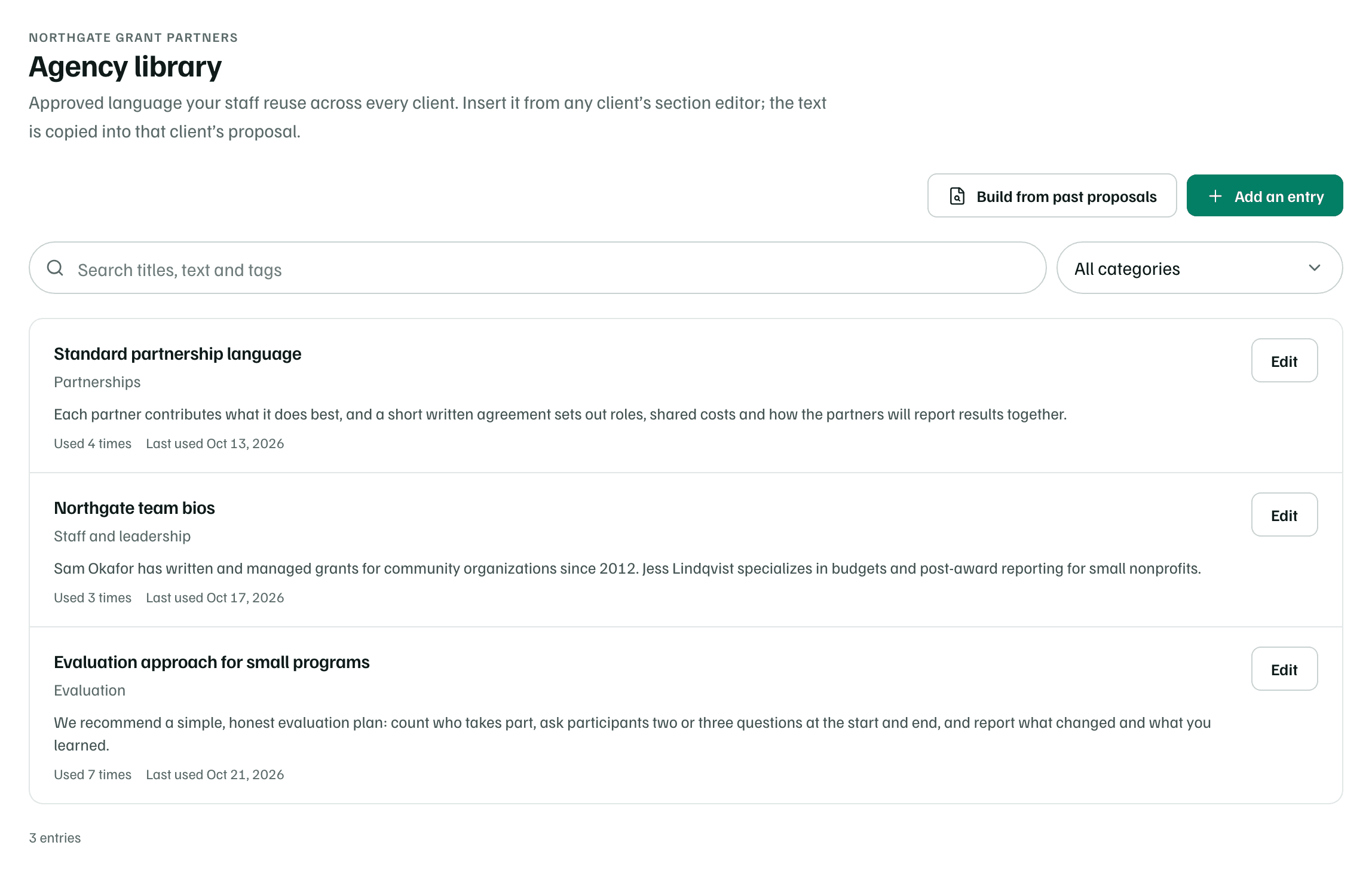
- The agency's owner, admins and editors can add and change entries. Viewers can read them.
- Build from past proposals reads documents uploaded to the agency workspace. Each document it reads uses one AI action from the agency workspace, and workspace AI has to be on there.
- Keep names, figures and anything else that belongs to one client out of agency entries.
See Answer library for categories, review dates and writing entries.
Use it in a client's proposal
Open the library from a section
In a client's proposal, select Library in a section's editor. Agency staff see two tabs: Client library and Agency library.
Choose an entry
Select an entry to preview it against the section's limits. An agency entry says it comes from your agency's library.
Insert it
Select Insert at cursor or Replace section text. The text is copied into the client's proposal, so later edits to the entry don't change it.
Adapt with AI drafts a version of the entry for the section first, using one of the client's AI actions. Check every fact, and fill any bracketed placeholders, such as [ADD: …], before you approve the section. For an agency entry, workspace AI has to be on in both the client's workspace and the agency's.
When AI drafts a section from your documents, it reads only the client's own library, not the agency's.
Save a section to the agency library
In a client's section editor, open the ⋯ menu and choose Save to library. If you can edit your agency's library, choose where it goes under Save to: This client’s library, or the one named for your agency, such as Northgate Grant Partners library. Name the entry, check its category and tags, then select Save to agency library.
Check first
Branding on client exports
In the app:Settings, then Agency profile and branding
While a client is linked to your agency, its board report, proposal Word file and ZIP packages say who prepared them. Owners and admins set this up in Agency profile and branding: select Branding on Clients, or open it from the Agency card in Settings.
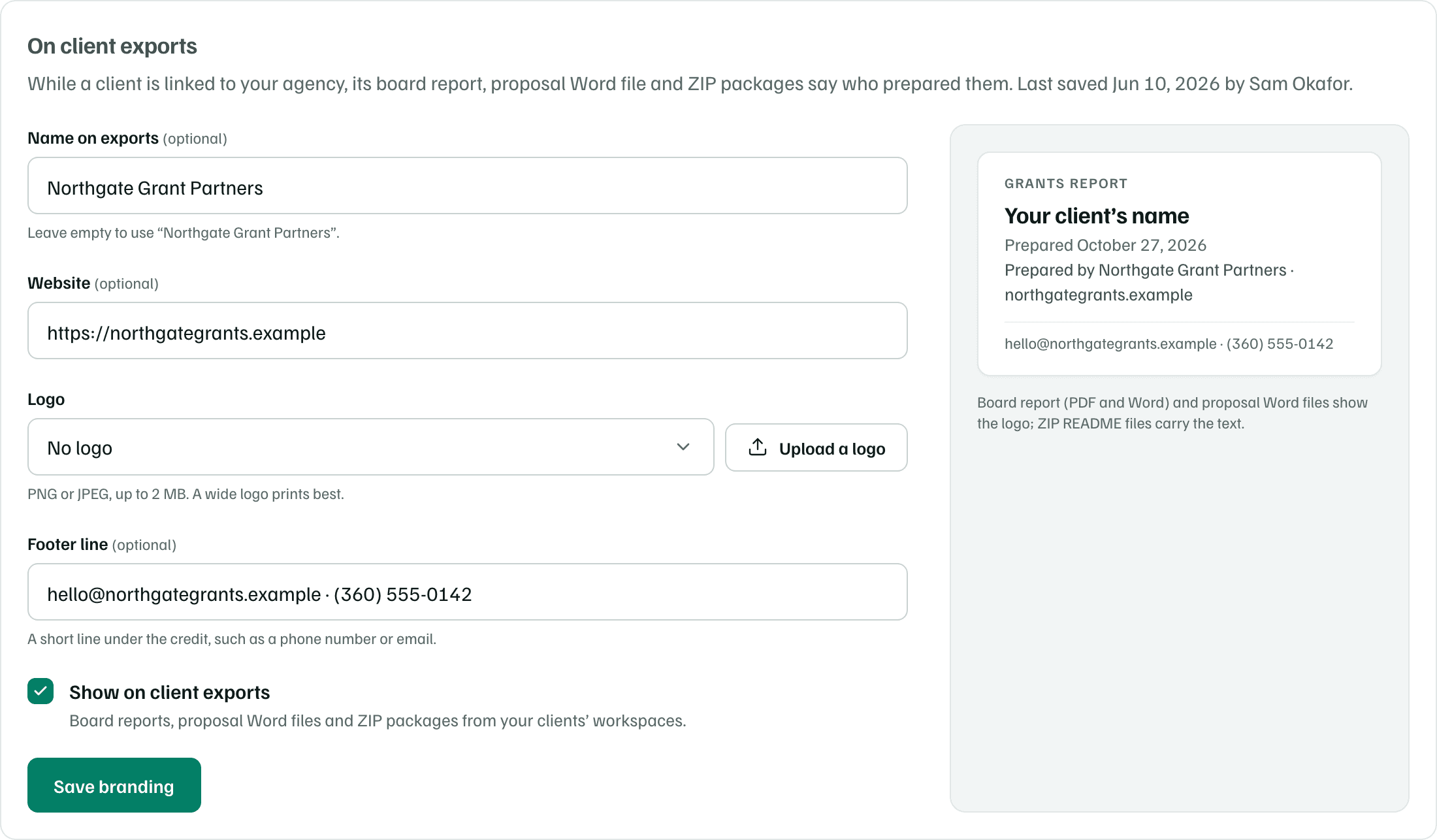
- Name on exports: leave it empty to use the agency's name.
- Website: printed after the name.
- Logo: choose one of the agency's documents, or select Upload a logo. Use a PNG or JPEG of up to 2 MB. A wide logo prints best.
- Footer line: a short line under the credit, such as a phone number or email.
- Show on client exports: turn it off to keep your agency's name off client exports.
Select Save branding. The board report, in PDF and Word, and proposal Word files show the logo. ZIP packages carry the text in their README file. Other staff see the preview but can't change it.