Add grants and funders
Track a grant, sponsorship or other ask you already know about. You can also start from a spreadsheet, a published opportunity, your research or a funder's guidelines.
- 4 min
- Every plan
Screens from October 2026
In the app:Pipeline, then Add funding
Every funding record starts from Add funding at the top of Pipeline. Owners, admins and editors see the button. Viewers don't.
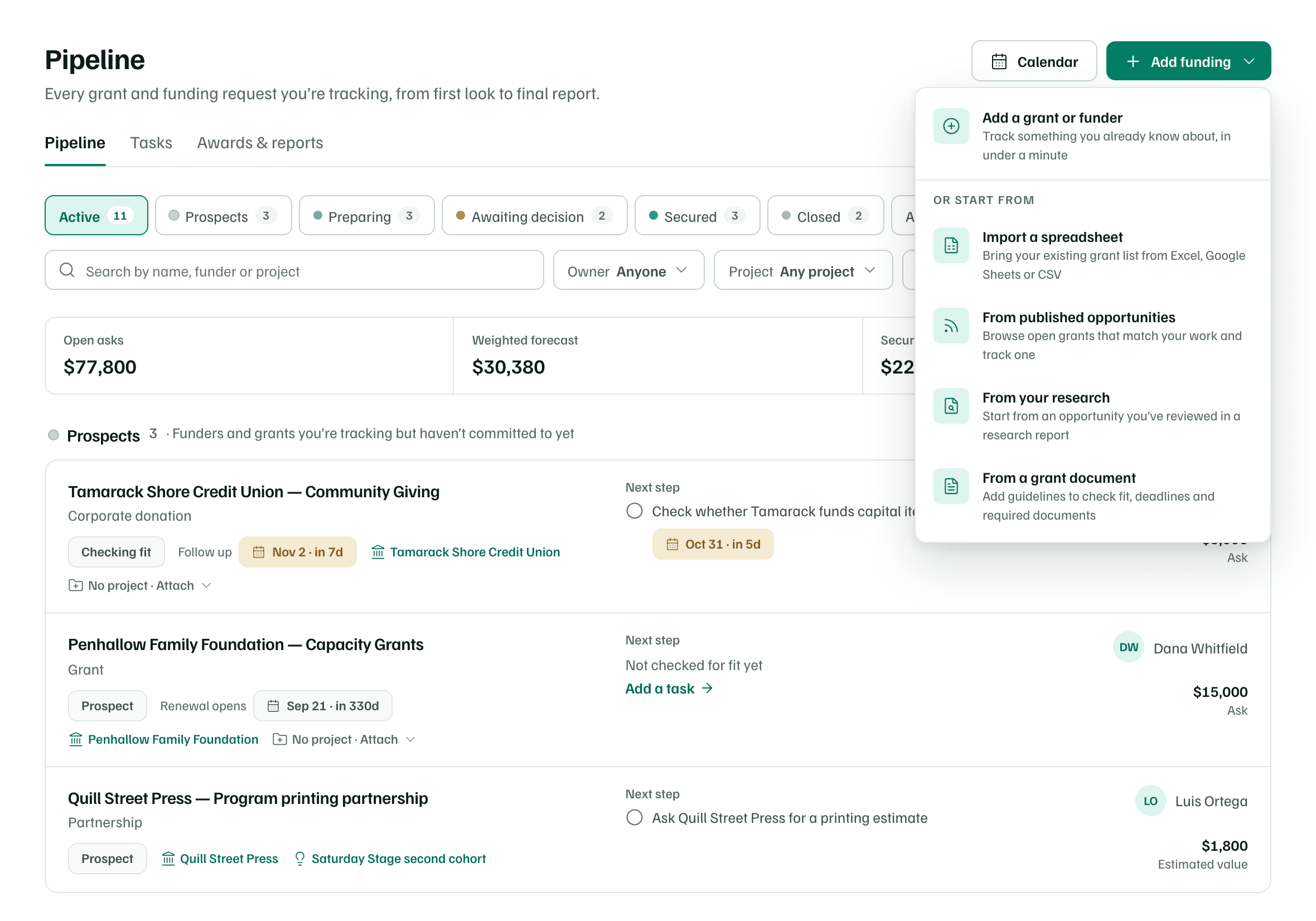
Add a grant or funder
Open the dialog
Select Add funding, then Add a grant or funder.
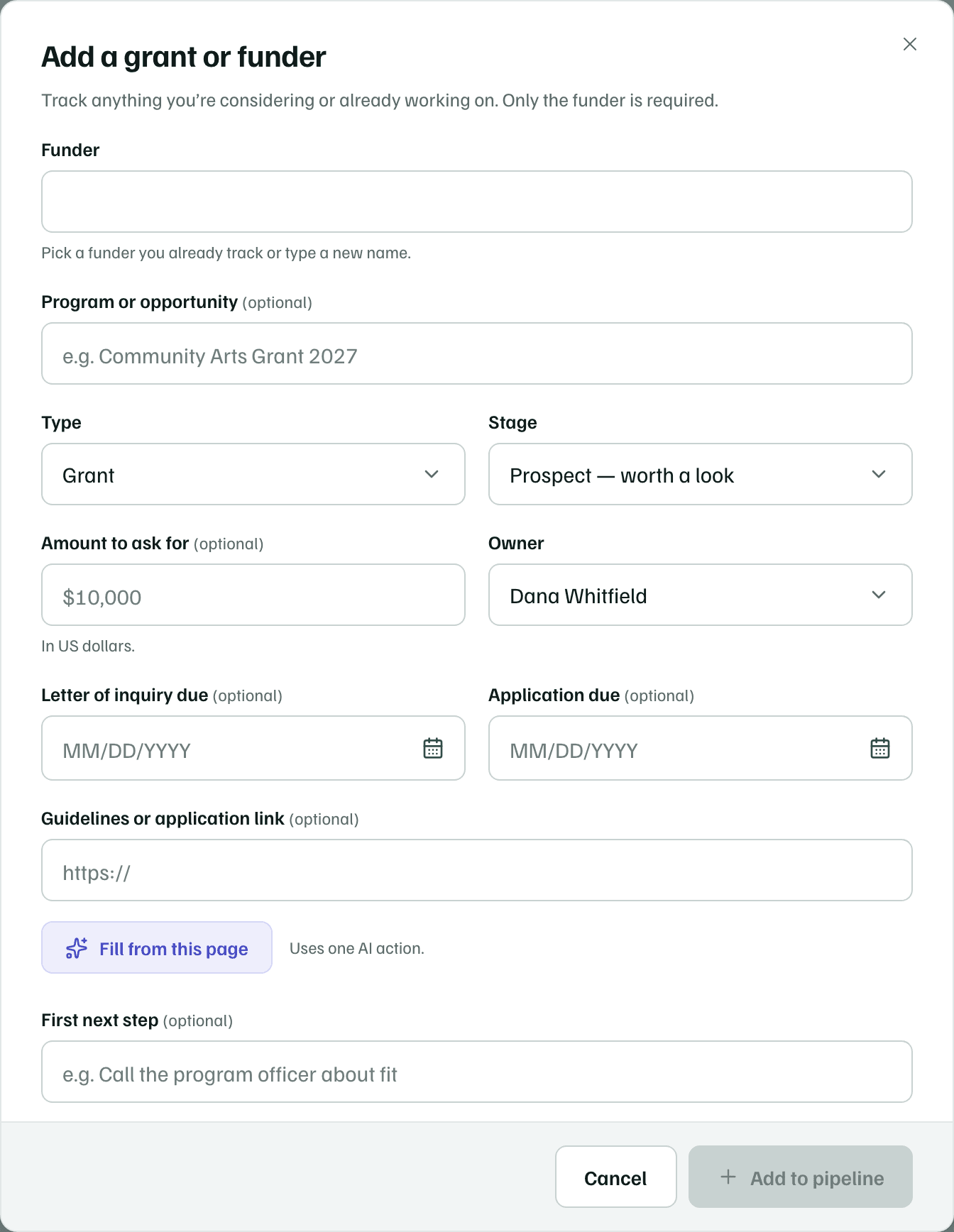
Example workspace · fictional data Name the funder
In Funder, pick a funder you already track or type a new name. A new name also adds the funder to Funders, marked Researching. The funder is the only field you have to fill in.
Add what you know
Fill in whatever you have now, using the table below. The rest can wait. You can change any of it later with Edit plan on the record.
Add it to the pipeline
Select Add to pipeline. GrantFlex says Added to your pipeline and opens the new record.
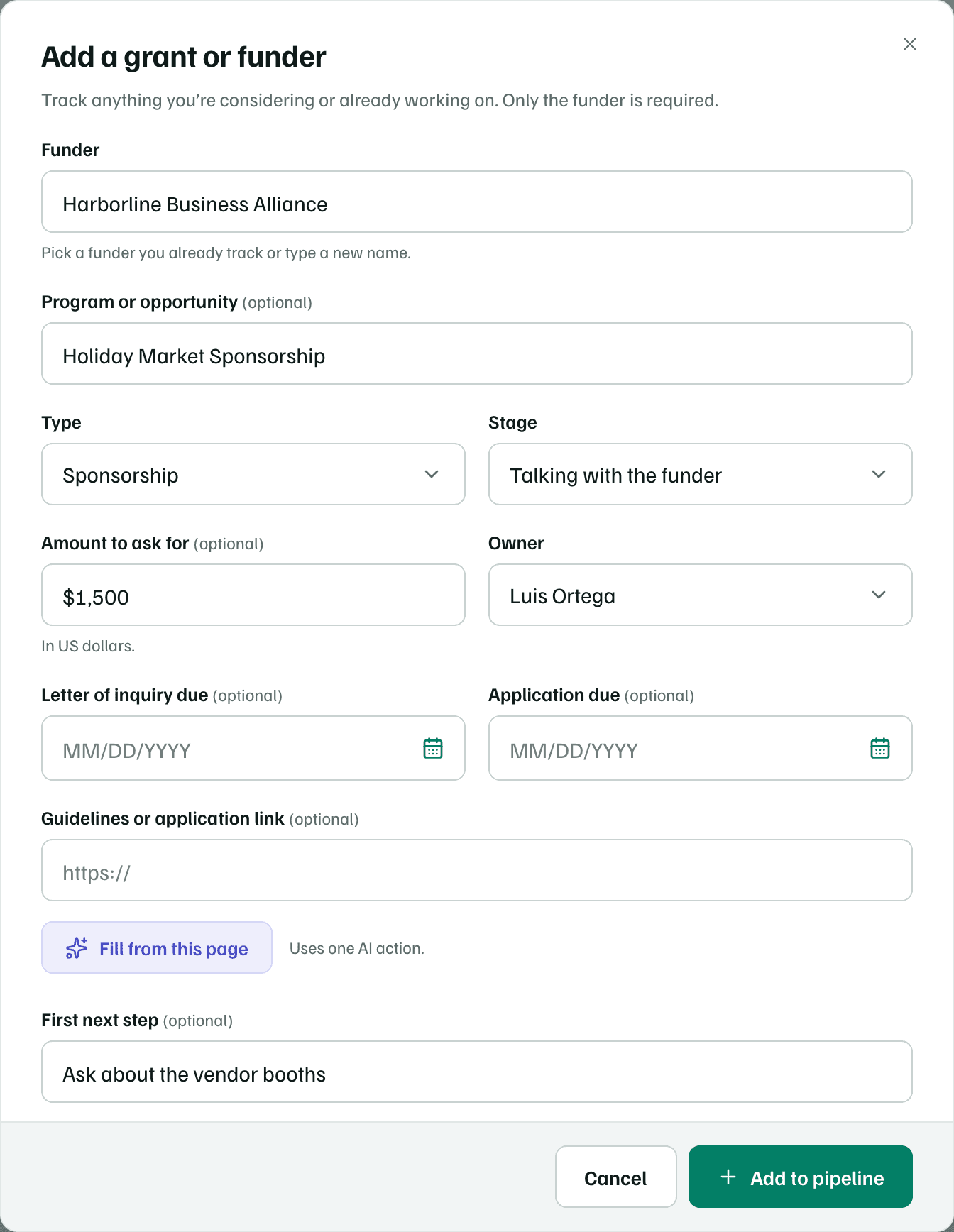
Example workspace · fictional data
| Field | What it does |
|---|---|
| Funder | Required. A funder you already track, or a new name. |
| Program or opportunity | The program or funding round. The record is named after the funder and the program, like Alderglen Community Foundation — Arts Access Grant. |
| Type | The support type: Grant, Sponsorship, Corporate gift, Donated goods or services, Individual gift, Partnership or Other. It decides which materials the record suggests. |
| Stage | Where it stands today, from Prospect — worth a look to Submitted, awaiting decision. Each choice is one of the pipeline's stages. |
| Amount to ask for | In US dollars. It counts toward Open asks and the Weighted forecast. |
| Owner | Who leads the work. It starts as you. Choose a teammate or Unassigned instead. |
| Letter of inquiry due and Application due | Funder dates. They go on the record's Deadlines card and on your calendar. |
| Guidelines or application link | The funder's page for this opportunity. The record keeps it, so you can check or watch the page later. |
| First next step | Becomes the record's first task, assigned to the owner. |
| Notes | Becomes the first note on the record's Activity tab. |
Tip
Fill from this page
Paste the funder's page into Guidelines or application link, then select Fill from this page. GrantFlex reads the page with AI. It fills only the fields you left empty: the funder, the program, the amount, the letter of inquiry and application dates, and a short summary in Notes. When the page gives a range of awards, the amount is the top of the range and the range goes in the notes.
An AI label lists the fields it filled and asks you to check each one before you add the record. Nothing is saved until you select Add to pipeline.
Uses one AI action
Check first
Other ways to start
Under Or start from, the menu offers four more ways in:
- Import a spreadsheet: bring the tracker you keep in Excel, Google Sheets or a CSV file. You match its columns and review every row first. See Import a spreadsheet.
- From published opportunities: browse open and forecasted grants from Grants.gov and the California Grants Portal, then select Track in pipeline on one. See Browse published opportunities.
- From your research: open your research report and decide what to do with an opportunity. Choices such as Start application, Get ready to apply and Plan outreach add it to the pipeline. See Decide what to do with an opportunity.
- From a grant document: upload a funder's guidelines to review them. After you read the summary, Start application creates a proposal and its record. See Review a grant document.
Note
What you get
A new record at the stage you chose, with its dates on your calendar. From there, the record is where the work happens.