Ask the funder
Ask the funder drafts a short email or a call script from what your report found. You edit it and send it yourself, then GrantFlex reminds you to follow up. GrantFlex never contacts a funder for you.
- 6 min
- Every plan
Screens from October 2026
AI actions
Open Ask the funder
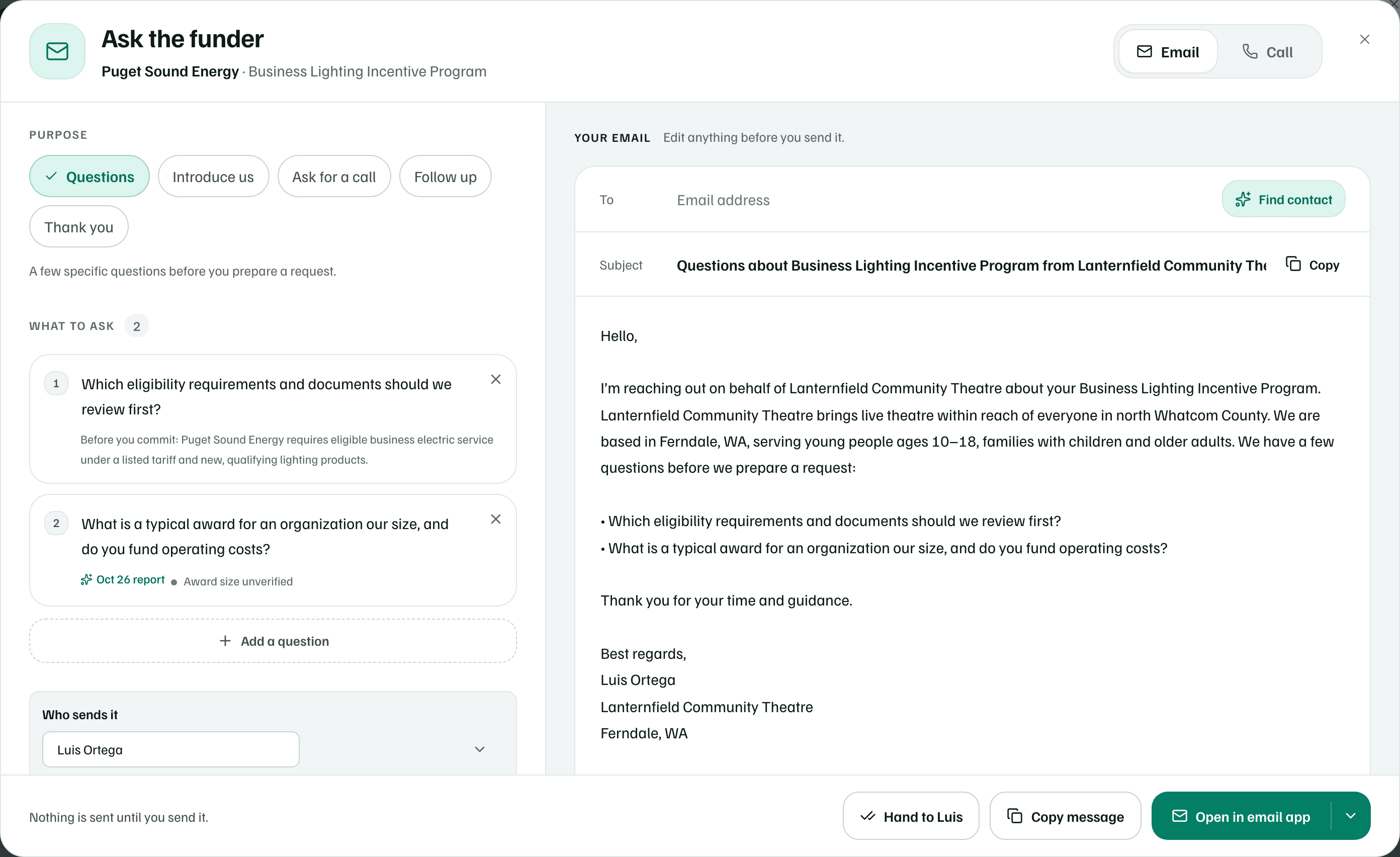
Open an opportunity in your report and select Ask the funder in its Next step box. The dialog opens with a purpose, the questions to ask and an email, all filled in from the report.
Choose a purpose
| Purpose | What it's for |
|---|---|
| Questions | A few specific questions before you prepare a request. |
| Introduce us | Who you are and what you’re raising money for, with a soft ask. |
| Ask for a call | A short call to check fit before you apply. |
| Follow up | One polite note when an earlier email got no reply. |
| Thank you | Thanks for a reply, and what you’ll do next. |
| Warm intro | A note to your own board: does anyone know someone there? |
Warm intro appears only for opportunities marked Relationship first. It drafts a note to your own board, not to the funder. Changing the purpose rewrites the email but keeps your questions, and Undo reset brings back what you had.
Edit the draft
- What to ask lists the questions, each with the reason it's there. Edit one in place or remove it.
- Select Add a question to choose from questions worth asking. The email updates as you go.
- Edit the subject and the message directly. Reset draft starts again from the report.
- Fill in before you send: lists anything still in brackets. Select one to jump to it.
What happens in this clip
Open Ask the funder from an opportunity. Choose Introduce us, then Ask for a call. The email changes each time. Go back to Questions, switch to Call and back to Email, then add a question from the list, which joins the email. Nothing is sent.
Find a contact
The To field is optional. Find contact has AI read the funder's public pages, using only the funder's and the program's names and the public pages your report cited. It can suggest an email address, a contact form or a phone number, each with the page it came from. Your draft and notes stay private.
Review the source, then select Use this email if it's the right person. If the funder asks not to be contacted about applications, the dialog says so.
Check first
Email or call
Switch from Email to Call for a call script in three parts: Introduce yourself, Ask your questions and Wrap up. Your questions become a checklist. Find contact also looks for a published phone number.
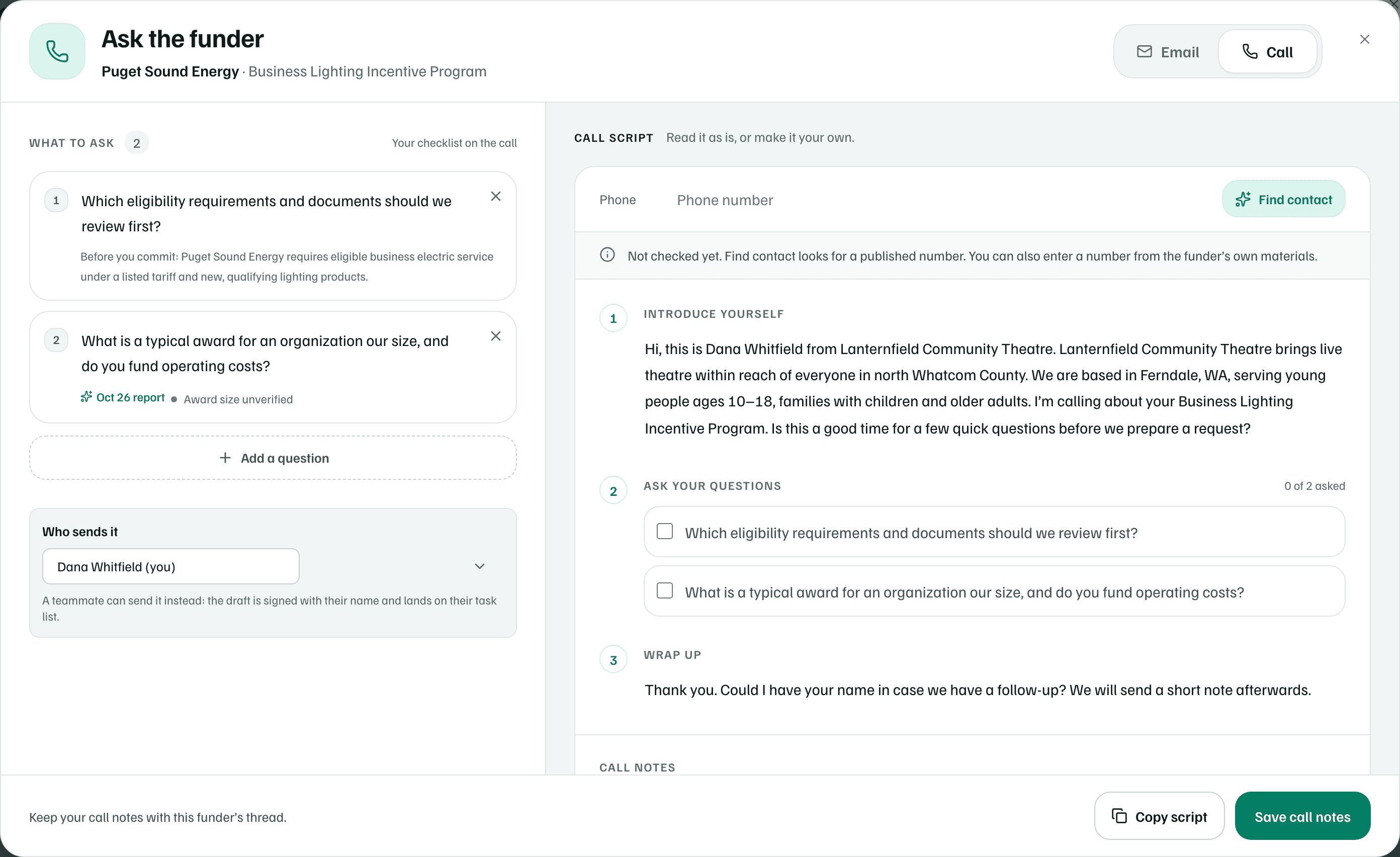
After the call, fill in Call notes: When, Who you spoke with, Their role and What they said. Then select Save call notes.
Send it yourself
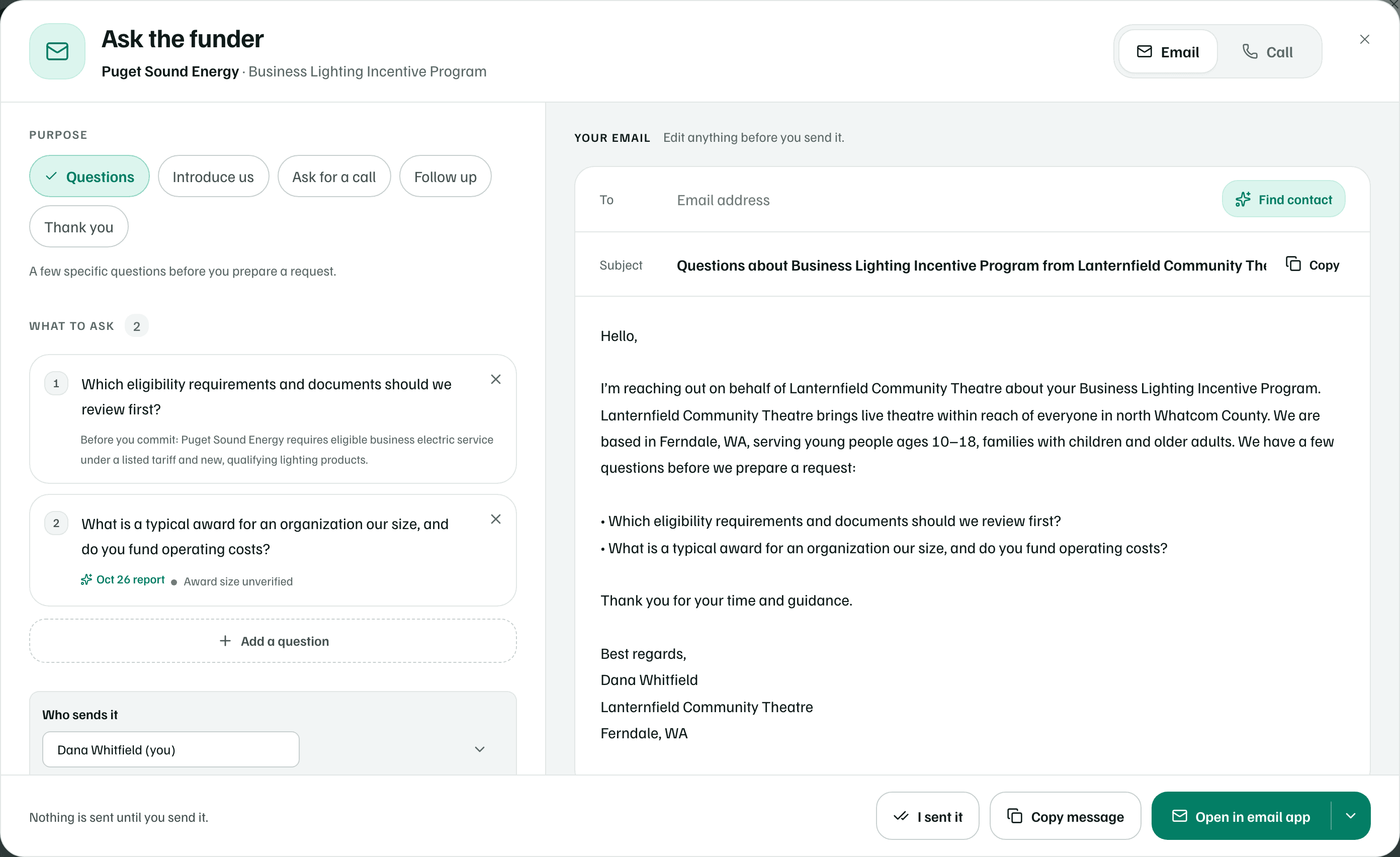
- Open in email app starts a new message in your email app with the draft filled in. The arrow beside it switches to Gmail or Outlook on the web, and this browser remembers your choice.
- Copy message copies the text to paste anywhere. A message too long for a link is copied for you to paste.
Nothing is sent until you send it. GrantFlex only opens your email app or copies the text.
Record what you sent
Once the email has gone, select I sent it. Check Sent on and Follow up by, then select Save. The follow-up date starts 10 business days after you sent it, or 3 business days before the funder's deadline if that's sooner.
GrantFlex adds a task to follow up if there's no reply, due on that date. The opportunity shows Waiting on the funder, and its card shows when you asked.
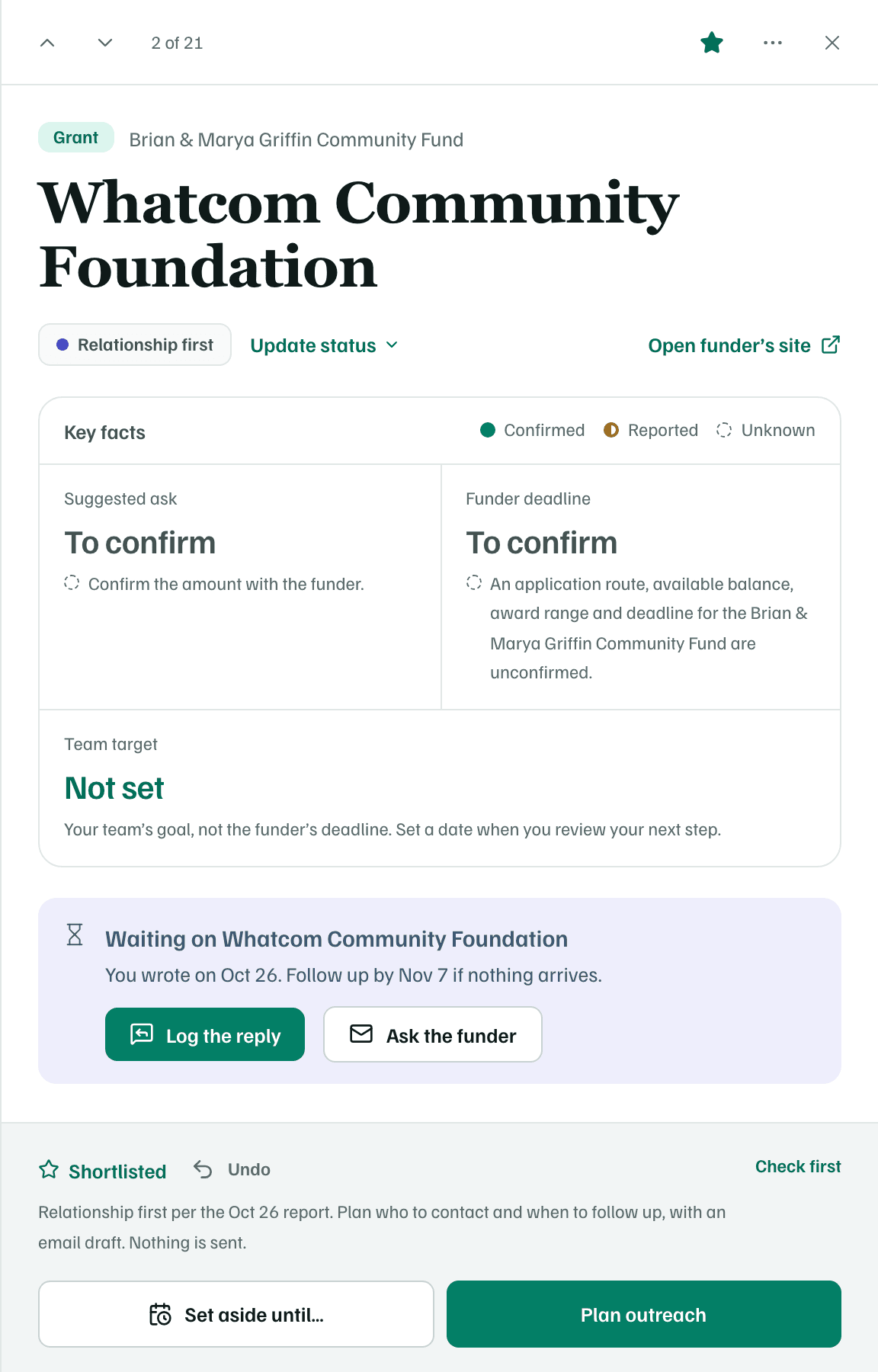
- When the date passes, select Send a follow up. One follow-up is enough. After that, No reply · move on closes the thread.
- When the funder answers, select Log the reply and paste what they said. Pull out the facts with AI suggests what to keep, such as a new status or a contact. To skip AI, select Continue without AI.
Plans
Hand it to a colleague
In a team, choose someone else under Who sends it. The draft is signed with their name. Select the Hand to button with their first name, and the draft becomes a task on their list. They send it from their own email and select I sent it.