Decide what to do with an opportunity
Open an opportunity to see what the research found, check it, and choose what happens next: start work, check first, set it aside, or decide it's not for you.
- 7 min
- Every plan
Screens from October 2026
Open an opportunity
In your report's Opportunities tab, select an opportunity's name. Its details open beside the list. The arrows at the top move to the previous or next opportunity without closing the details.
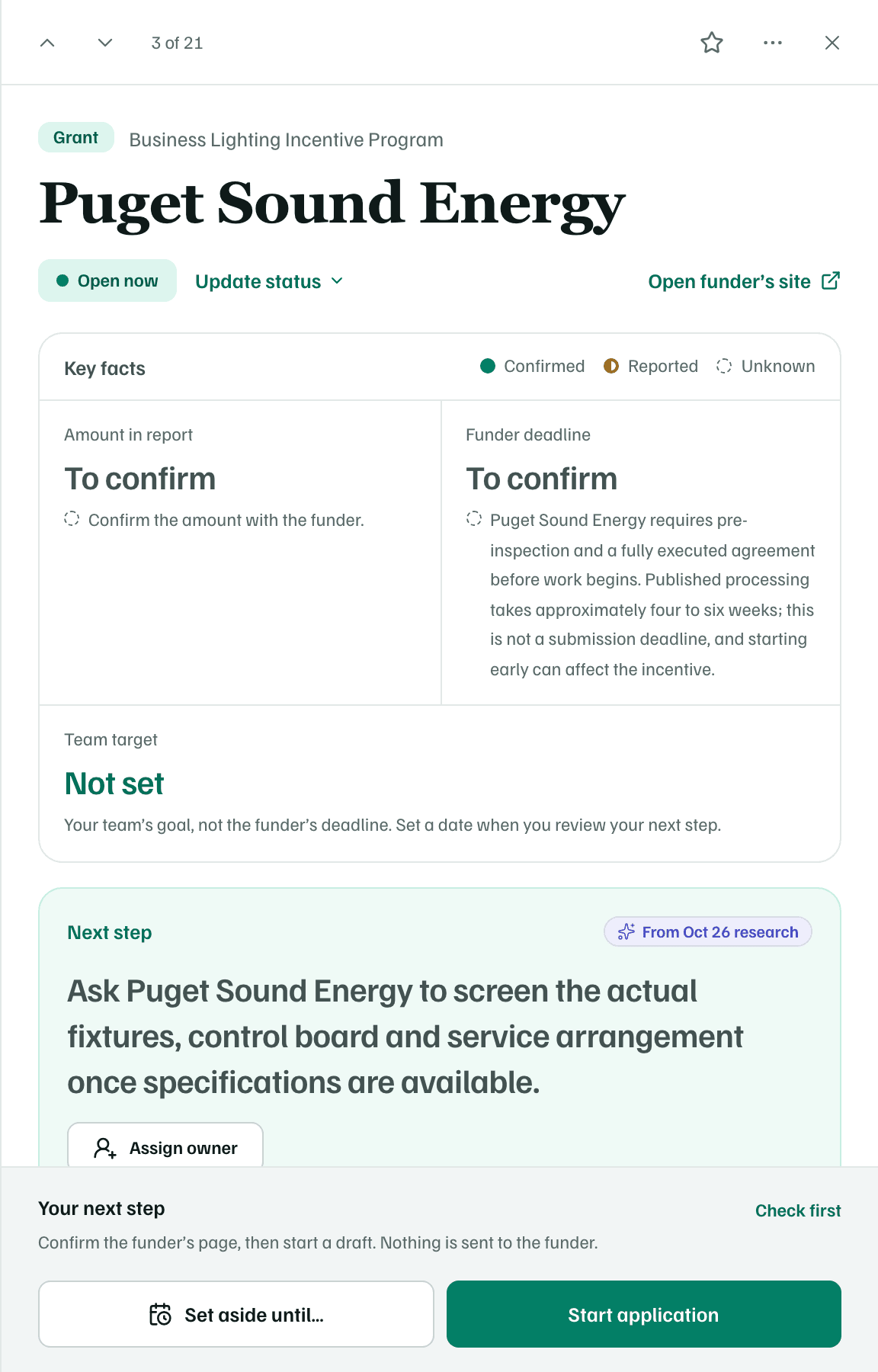
- The top shows the kind of support, the program, the funder and the funder's status as the report read it. Open funder’s site opens the funder's page.
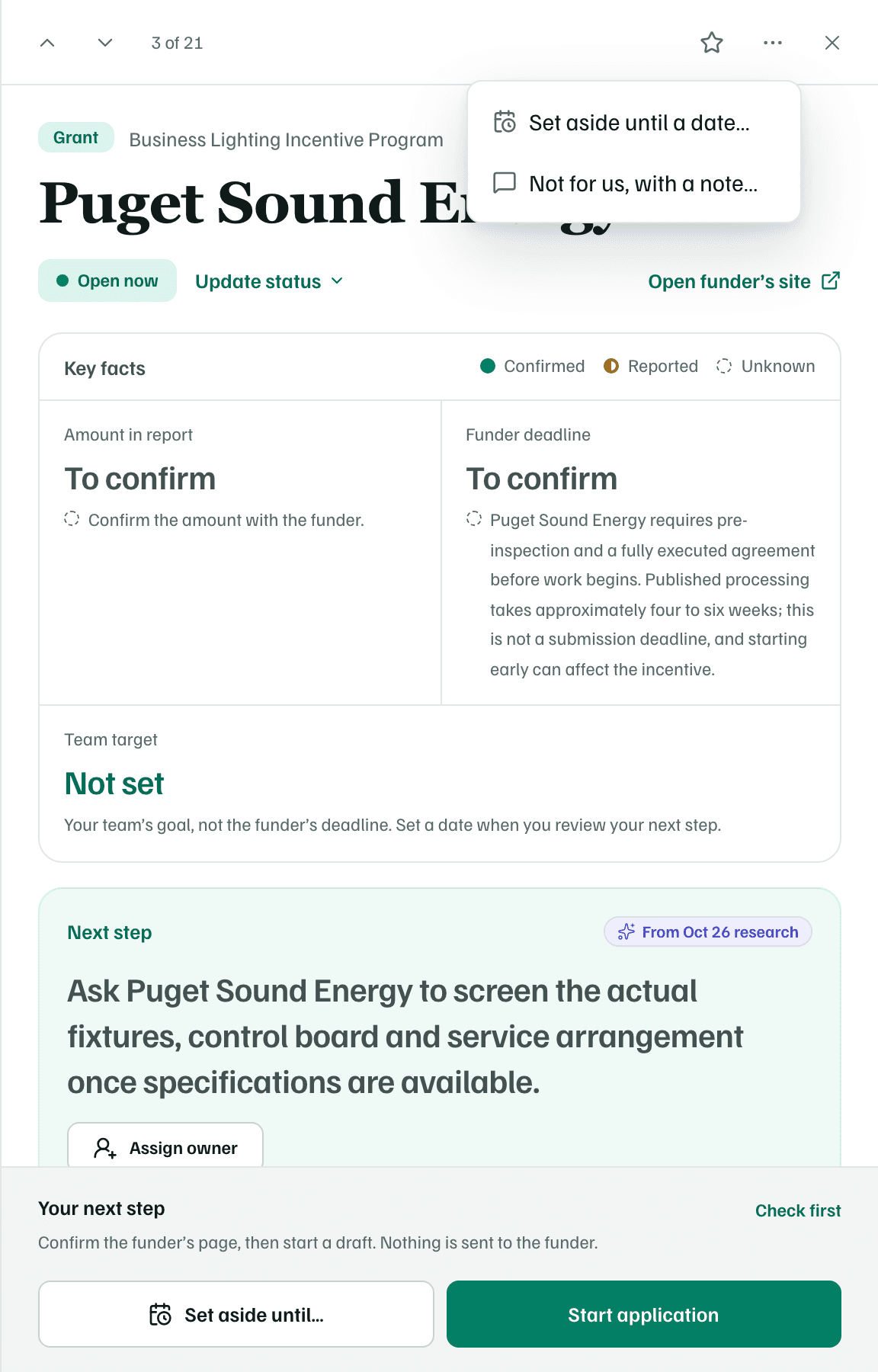
- Key facts gives the amount, the deadline or next round, and your team's target date.
- Next step says what the research suggests doing first, with points to cover in a short call or email.
- The buttons at the bottom are your decision.
What happens in this clip
Open an opportunity. Its details slide in. Select Eligibility, Open questions and Sources, then Overview. Select Set aside until…, look at the date, and select Cancel.
Key facts
Each fact has a mark that says how sure the research is. A fact the research couldn't find reads To confirm.
- Confirmed: the research checked it.
- Reported: the report states it, but it hasn't been checked.
- Unknown: the research couldn't establish it.
Team target is your team's goal, not the funder's deadline. You set it when you choose a next step.
The tabs
- Overview: Why this could fit, Why we’re not sure with the research's caveats, and The request.
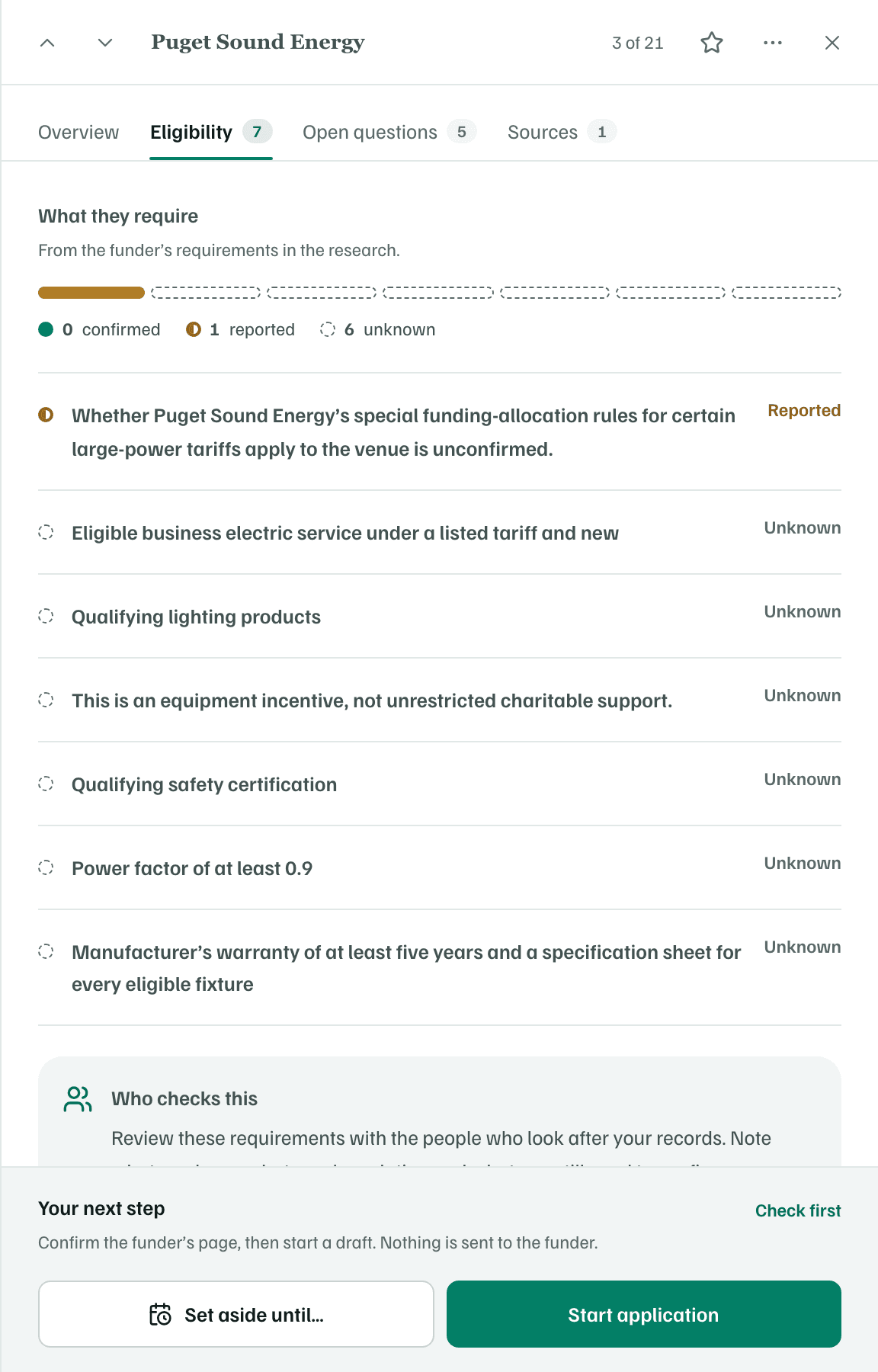
- Eligibility: what the funder requires, each with its mark, and who on your team should check it.
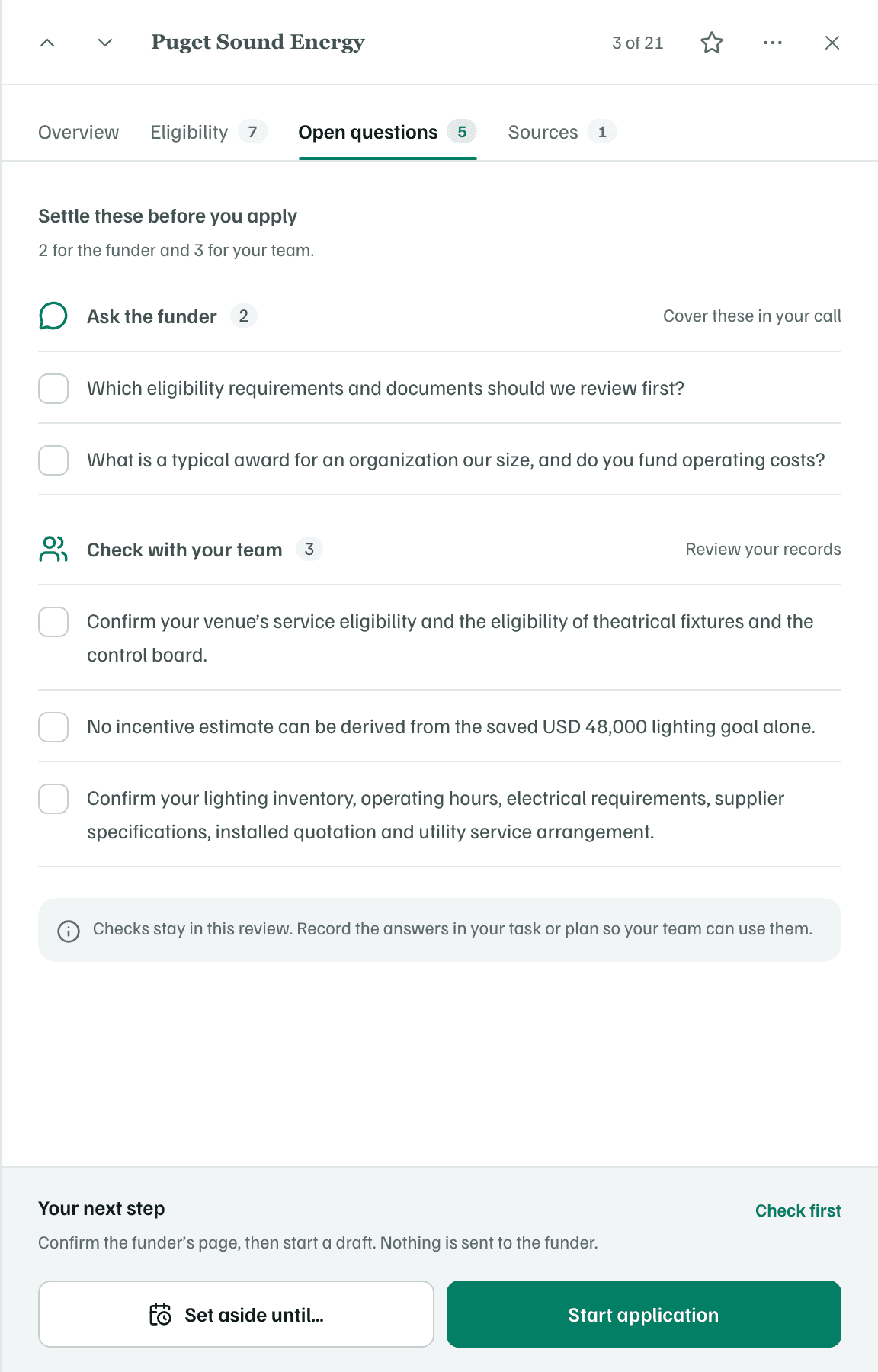
- Open questions: questions for the funder and checks for your team.
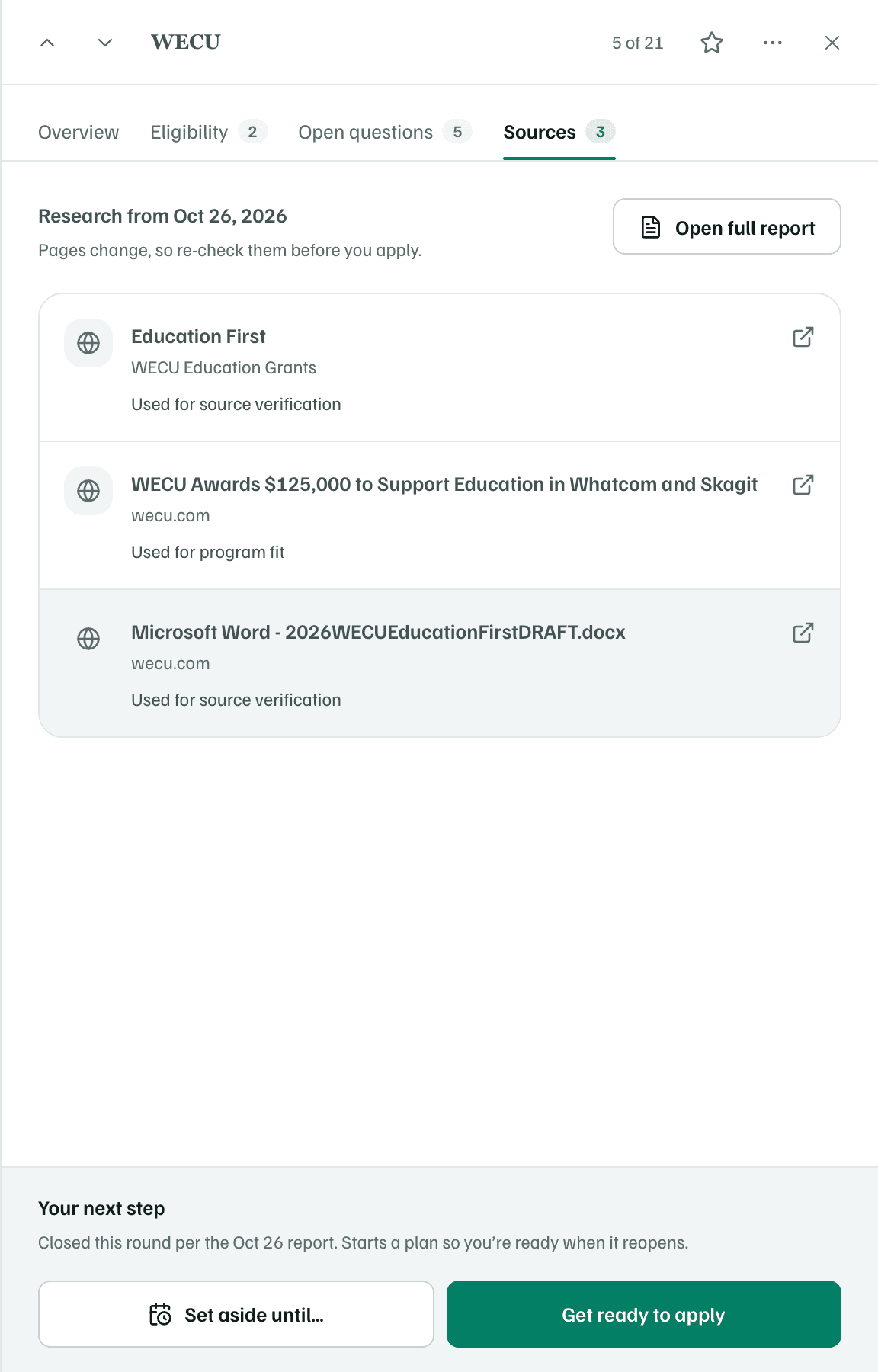
- Sources: the pages the research used and what each one was used for.
Choose a next step
The bottom of the details shows Your next step, a line saying what it does, and a main button. The button depends on the funder's status:
| Funder status | Main button | What it does |
|---|---|---|
| Open now | Start application | Opens an application draft and creates your first task. When the report says to prepare first, the button is Get ready to apply instead. |
| Status unclear | Check first | Adds a task listing the questions to ask. |
| Opens later or Closed this round | Get ready to apply | Starts a plan with tasks, notes and materials, kept together until you apply. |
| Relationship first | Plan outreach | Starts a plan for contacting the funder and following up, with an email draft. |
| No round announced | Set aside until a date | Sets it aside until a date you pick. |
Other kinds of support get their own wording, such as Plan your request or Plan the partnership. A link beside the line offers the other path, such as Check first.
Selecting the main button opens a short review, Filled in from your report. Change anything you like, then confirm. To start an application, you first confirm on the funder's page that applications are being accepted. Nothing is sent to the funder.
After Check first, the opportunity shows Checking until you note what you found out and select Choose next step.
Shortlist, set aside or pass
- Select the star to shortlist an opportunity. It's a marker for you and your team, and it doesn't create anything.
- Select Set aside until… and pick a date. The opportunity moves to Set aside at the end of the list. On that date it returns to its place in the ranking, marked Back from set-aside, and you get a notification.
- Open More options and choose Not for us, with a note… to tell your team why. On a card, the same menu also has Not for us, which skips the note.
A shortlist, a set-aside date and Not for us each have Undo. After Not for us, you can also choose In 3 months, In 6 months or Pick a date… to come back to it.
Update the status
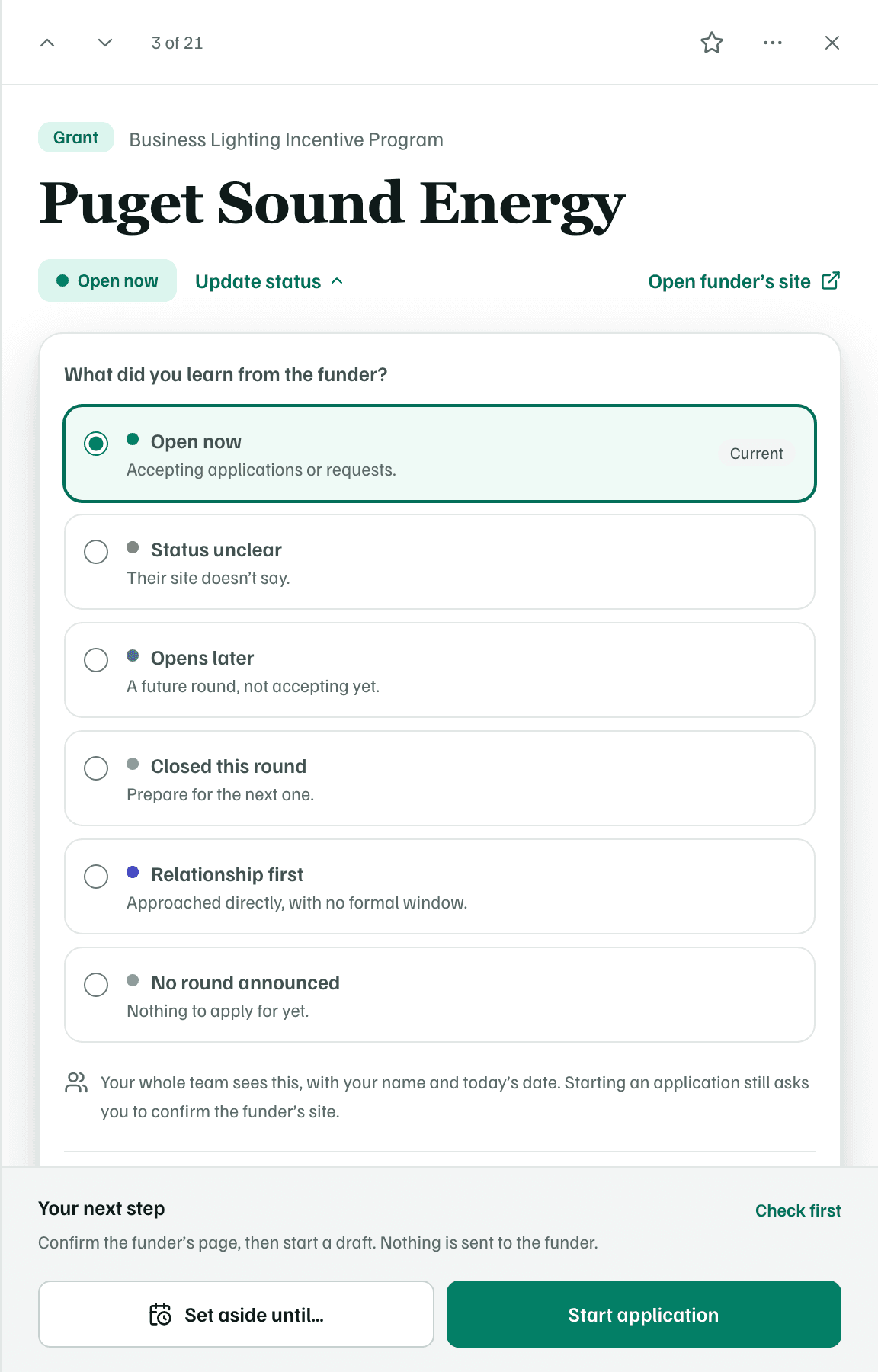
If you learn something from the funder, such as a new round, select Update status and choose what you learned. Your whole team sees the new status, with your name and the date. Reset to the report’s reading undoes it.
Note