The project workspace
Each project has four tabs: Overview, Plan & tasks, Funding and Files. The header keeps the project's stage, target date and lead in view, with the AI coach and Edit brief.
- 8 min
- Every plan
- Uses 1 AI action
Screens from October 2026
In the app:Projects, then Project
Select a project's name on the Projects page to open it. Under the name, chips show its stage, Target date and who it's Led by, with when it was last updated. Editors see AI coach and Edit brief beside the name. Without workspace AI, the first is Review & approve.
Overview
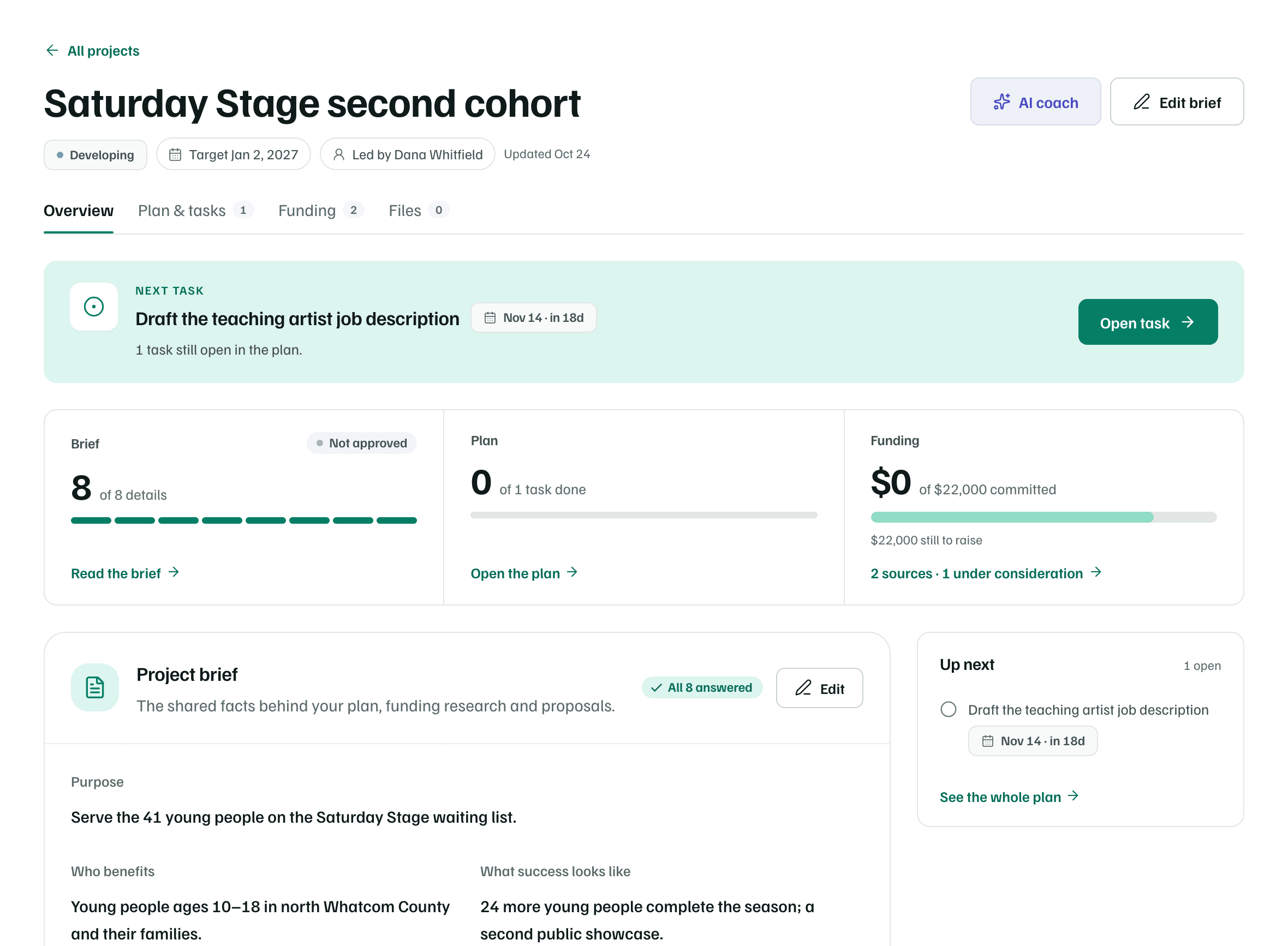
The card at the top recommends one thing to do next. It's the first of these that applies:
- A linked application is due, or a follow-up you planned with a funder falls, within 30 days or has passed: Due soon, Due today or Overdue.
- The brief has no description yet.
- No funding is linked or under consideration: Find funders for this project.
- An application is linked but the brief isn't approved: Approve the brief for proposals.
- Funding is only under consideration: decide which sources to pursue.
- An application is linked and the brief is missing a detail proposals need.
- Next task: the open task due soonest.
- No tasks yet: Plan the work.
- Otherwise, a gap to fill in the brief, notes to confirm, or Wrap up the project once every task is done.
Projects that are archived, completed or on hold say so instead. Project cards show the same step, apart from approval, which only the Overview checks.
Below it, three cells show progress. Brief counts the details you've filled in and whether the brief is Approved, Changed since approval or Not approved. Plan counts tasks done. Funding shows what's committed against the working budget and what's still to raise.
The Project brief card lists the brief's details, with Add beside anything missing. Up next shows the next three open tasks, and From your research links the report idea a project started from.
| Detail | Essential | Why it matters |
|---|---|---|
| Purpose | Yes | Everything else in the brief builds on why this project matters. |
| Who benefits | Yes | Funders look for a clear picture of the people this project reaches. |
| What’s included | Yes | A clear scope keeps your tasks, budget and proposals telling the same story. |
| What’s not included | No | Clear boundaries keep the work focused and reviewers from guessing. |
| What success looks like | Yes | Specific results make the case for funding and make reporting easier. |
| Working budget | Yes | A budget shows how much to raise and lets you track funding against it. |
| Budget assumptions | No | Quotes and assumptions make a budget credible to funders. |
| Target completion | Yes | A date helps you sequence the work and match funders’ grant periods. |
Plan & tasks
The plan is a set of milestones, each a card with its tasks and how many are done. Tasks without a milestone share Other tasks. Filter with All, To do and Done.
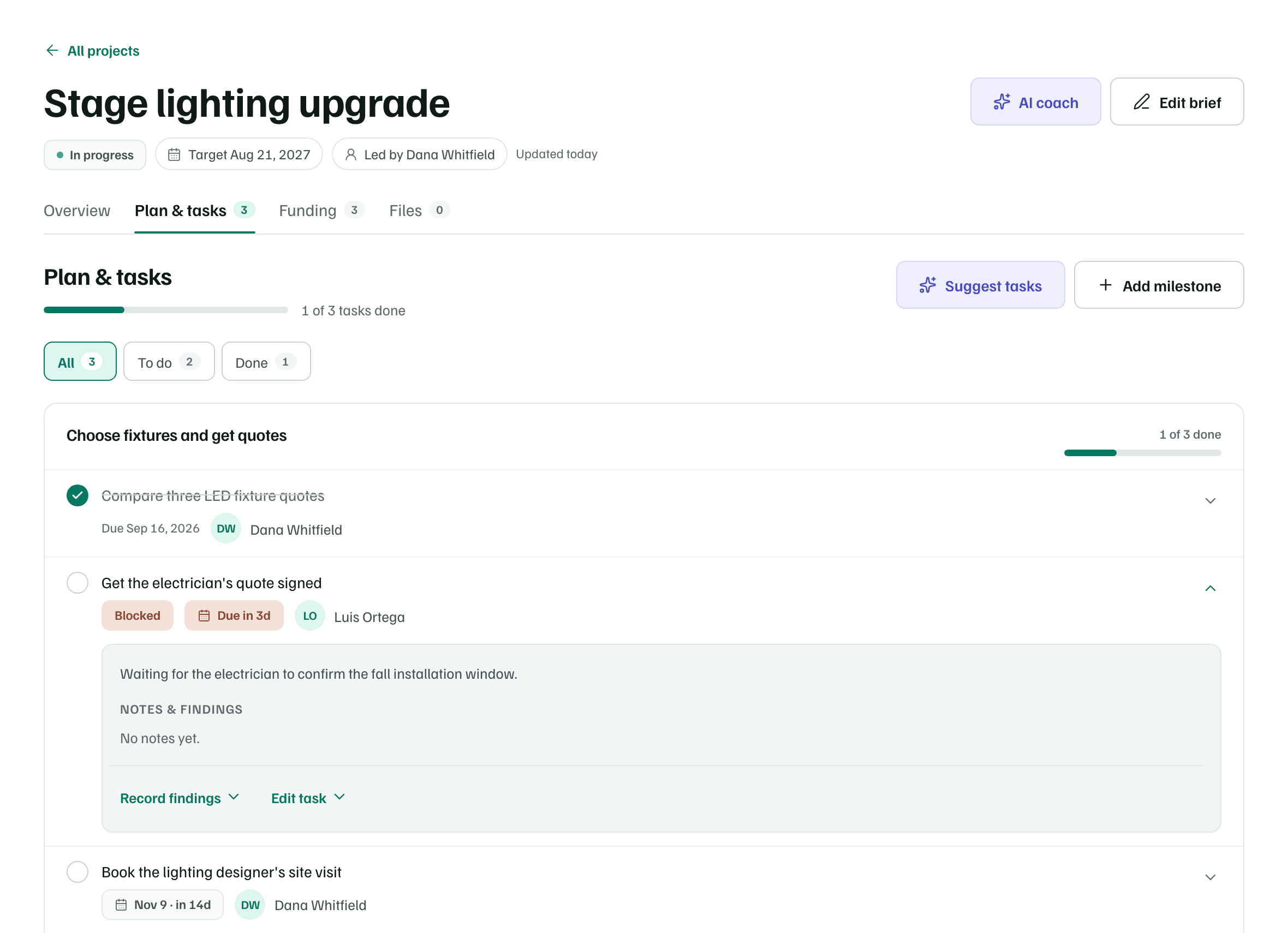
- Tick the circle beside a task to mark it done, or tick it again to reopen it.
- Open a task to read its notes, Record findings or Edit task.
- Type in Add a task at the foot of a milestone to add one. Edit milestone renames it or says what it achieves, and Add milestone starts a new one.
- Bring in an existing task adds a task that isn't part of another project or application, keeping its notes, dates and status.
An empty plan offers Suggest a plan with AI or Use the starter template: three milestones and six common tasks. Preview template shows them before Add starter template adds them. Project tasks also appear in Pipeline's Tasks view. See Plan and track tasks.
Suggest tasks with AI
Select Suggest tasks. AI reads the saved brief and the names of your tasks, then suggests what's missing. Add an optional Focus, like permits or volunteer training, and select Suggest tasks again. Task notes, files and owners aren't sent.
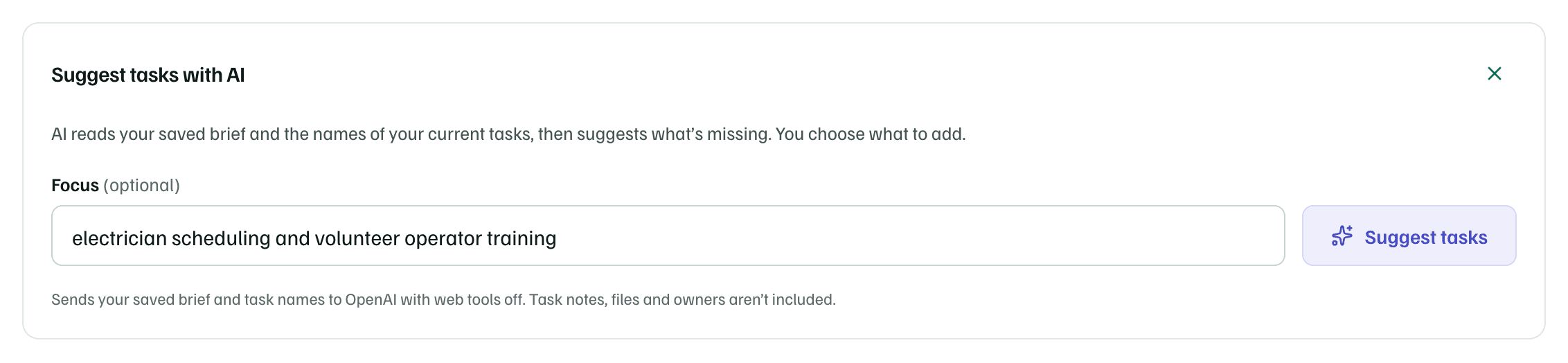
Suggestions come grouped by milestone, some under a New milestone, each with a reason. Tick the ones you want, rename them if you like, and select Add 2 tasks, or however many you chose. Nothing is added until then. Suggest again asks for more, and Discard clears them.
AI actions
Funding
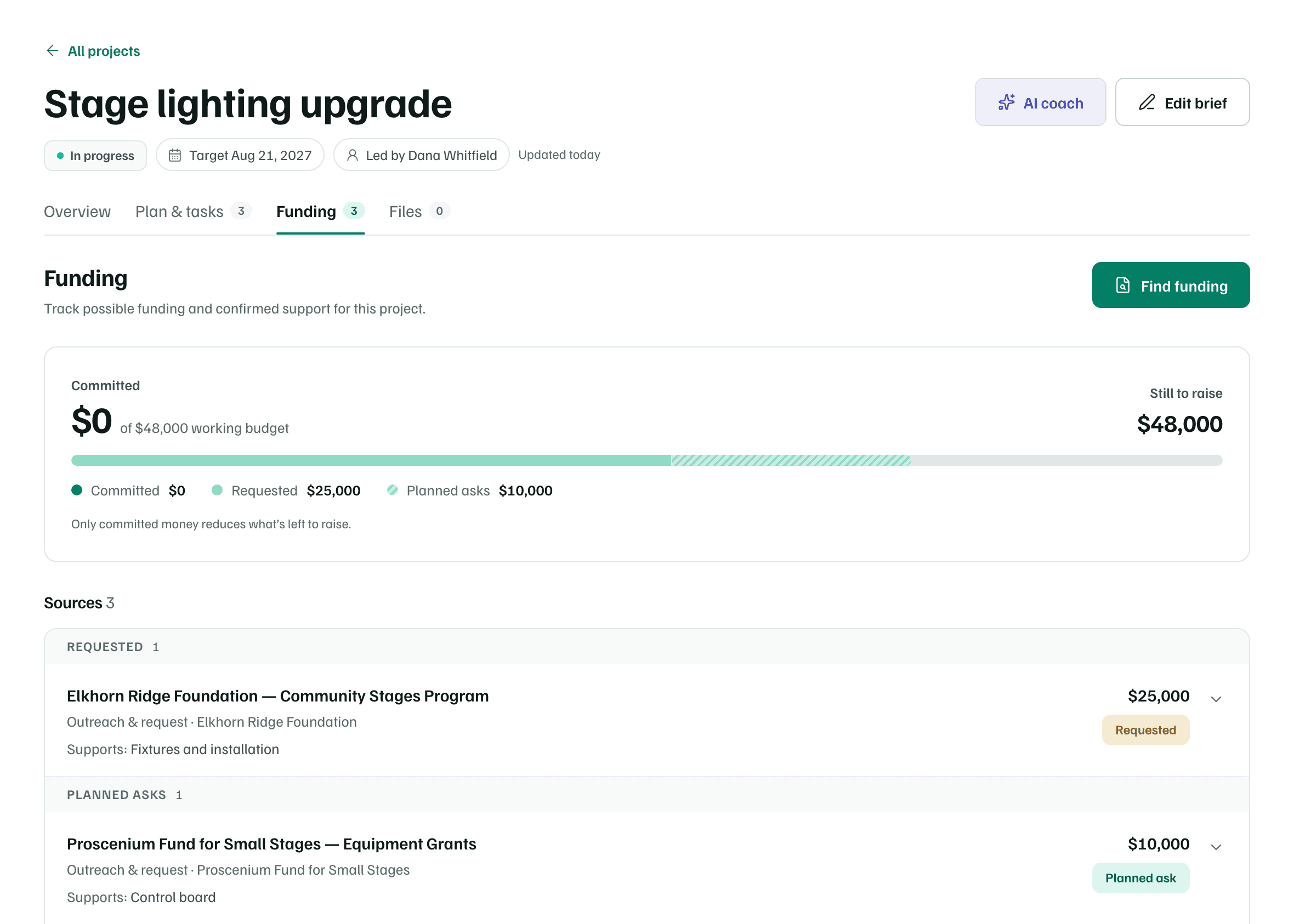
The Funding tab shows what's Committed against the working budget and what's Still to raise. The bar adds requested money and planned asks beside committed money, but only committed money lowers what's left to raise.
| Status | In the totals |
|---|---|
| Committed | Counts as committed and lowers Still to raise. |
| Requested | Shows in the bar as requested. It doesn't lower Still to raise. |
| Planned ask | Shows striped in the bar. It doesn't lower Still to raise. |
| Considering | Listed, but left out of the totals. |
| Not proceeding | Listed, but left out of the totals. |
A source without an amount isn't counted until you add one. If two links point to the same source, neither is counted until you keep just one.
- Select Link a source and choose an application, a request from Pipeline or a funder from your research. Fill in What would it support?, the Amount for this project and the Status, then select Link to project. Linking doesn't start an application.
- In Pipeline's list, a record without a project shows No project · Attach, or Attach to the project when there's only one. Choosing a project opens this form with the record selected.
- Open a source to see what it supports and its conditions, Edit amount and status, or Remove from project.
- Find funding opens research for this project. See Research funding for one project.
Files
Files keeps a project's supporting documents, such as quotes, plans and letters. They live in your documents library and are linked here, so one quote can back several projects and keeps its AI permissions. Open Link from your library and select Link, or Upload documents first. What funders often ask for lists common documents to gather.
Edit the brief
Select Edit brief to change any detail, or the Stage. Select Save brief when you're done. If the brief was approved for proposals, approve it again after saving before you draft from it.