Board summary and board report
The board report is a PDF or Word file of the figures on Insights for the period you choose. Write a short board summary first, yourself or with AI, and it goes at the top.
- 4 min
- Every plan
- Uses 1 AI action
Screens from October 2026
In the app:Insights, then Board report
Choose the period on Insights first. The report is built from the same records and worked out the same way, so it matches the page. See Insights for how each figure is counted.
Write the board summary
The Board summary card on the right of Insights holds a short paragraph about the figures for your board. There are two ways to start one:
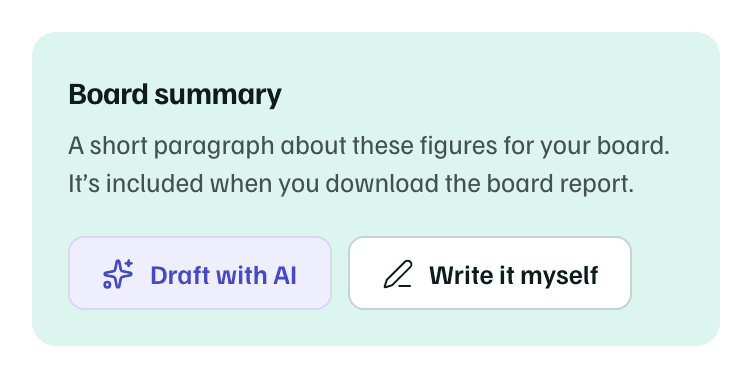
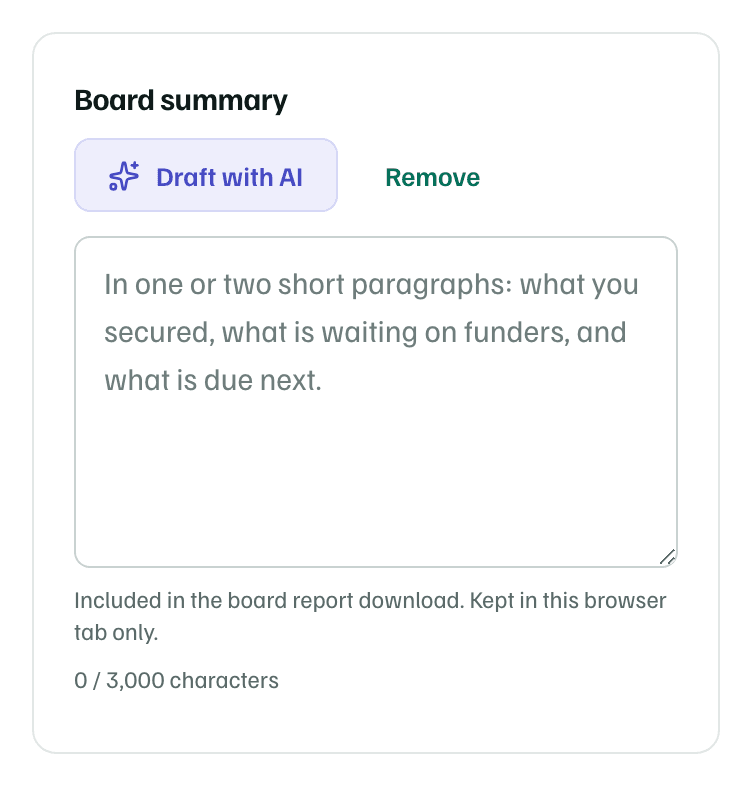
- Write it myself opens an empty box for up to 3,000 characters. Anyone in the workspace can write a summary.
- Draft with AI drafts one or two short paragraphs from the period's figures. Owners, admins and editors see it when workspace AI is on.
AI sees counts and dollar totals only. No funder, person, program or record names leave GrantFlex for this draft, and the AI is told to use only the figures it's given. The draft says where it came from, such as Drafted with AI from the figures for Fiscal year 2027. Read and edit it before you share it.
- Draft again with AI writes a new draft, and Undo brings back the one before.
- Remove clears the summary.
- If the figures change after an AI draft, a note says so. Check the numbers or draft again.
AI actions
Check first
Download the board report
Select Board report beside the period switch, then PDF to share or print, or Word document to edit before the meeting. The menu says whether the summary on the page goes in. Anyone in the workspace can download the report.
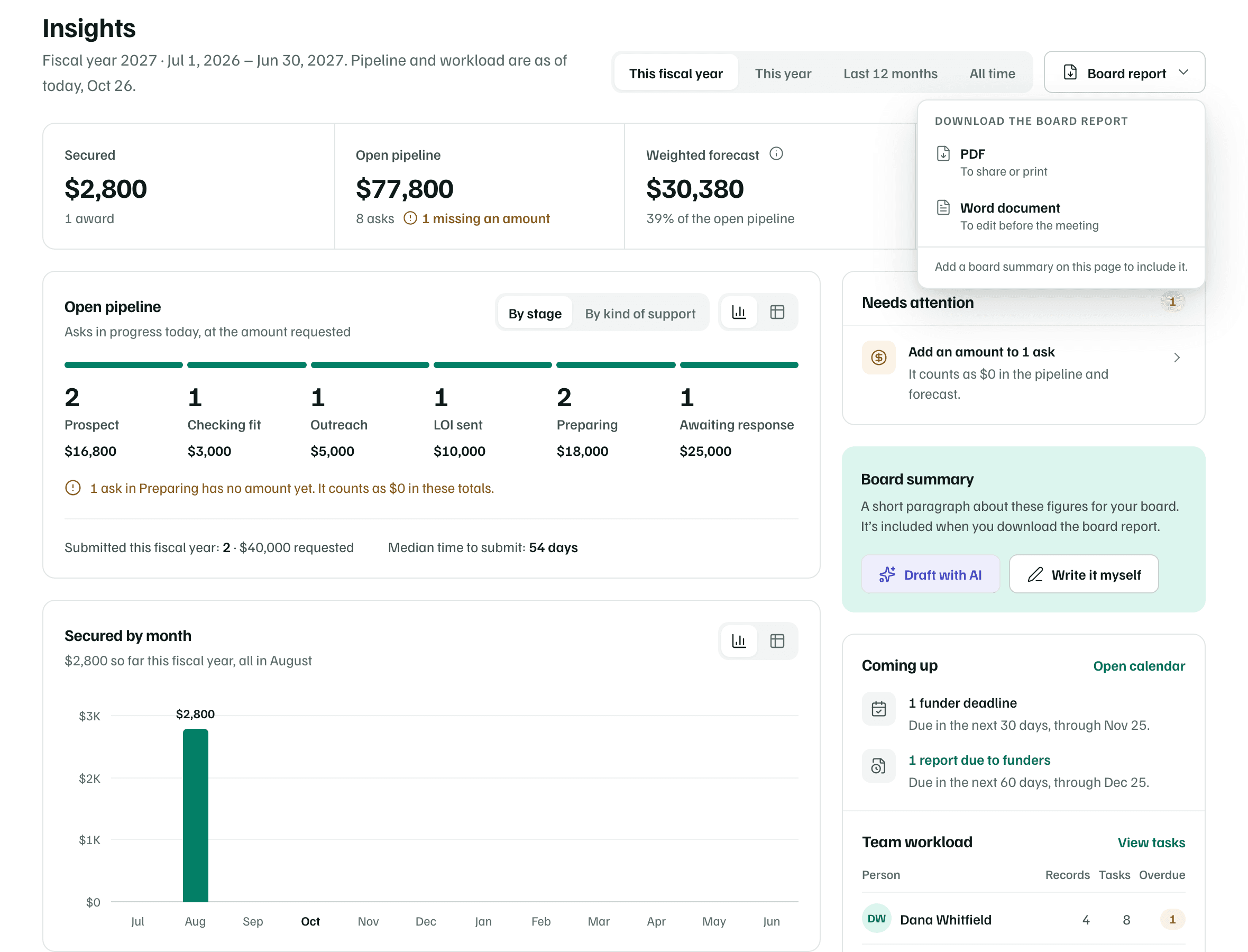
The file is named with your organization and the date. The PDF and the Word file hold the same content, and the Word file uses headings, so you can add your own notes before a meeting.
What's in the report
- A title, Grants report, with your organization, the period and its dates, and the day it was prepared.
- Summary, when you wrote one.
- Key figures: secured, the average award, submitted, decided, win rate, open pipeline, weighted forecast, days to submit, funder renewal and what's coming up, each with what it counts.
- Open pipeline by stage: the asks, amount and weighted amount at each stage.
- Awards secured: each award's funder, amount and date, and whether it's restricted.
- Submitted and waiting: requests at LOI sent or Awaiting response, with the amount and when they were sent.
- Coming up in the next 60 days: deadlines and report dates.
- Declines: each decline's funder, amount requested, date and reason.
- A note on where the figures come from. When the summary began as an AI draft, the note says so.
Each list shows up to 20 rows and says how many more are in GrantFlex. The lists name your funders, which the AI summary never sees.
If an agency manages your workspace and shows its branding on exports, the report also carries Prepared by with the agency's name, its logo and its footer line. See Agency library and branding.
Check first