Members, roles and invitations
Invite colleagues into a workspace and choose what each person can do. Each plan includes a number of members, and invitations expire after 14 days.
- 5 min
- Paid plans
Screens from October 2026
In the app:Settings, then Members & access
Paid plans
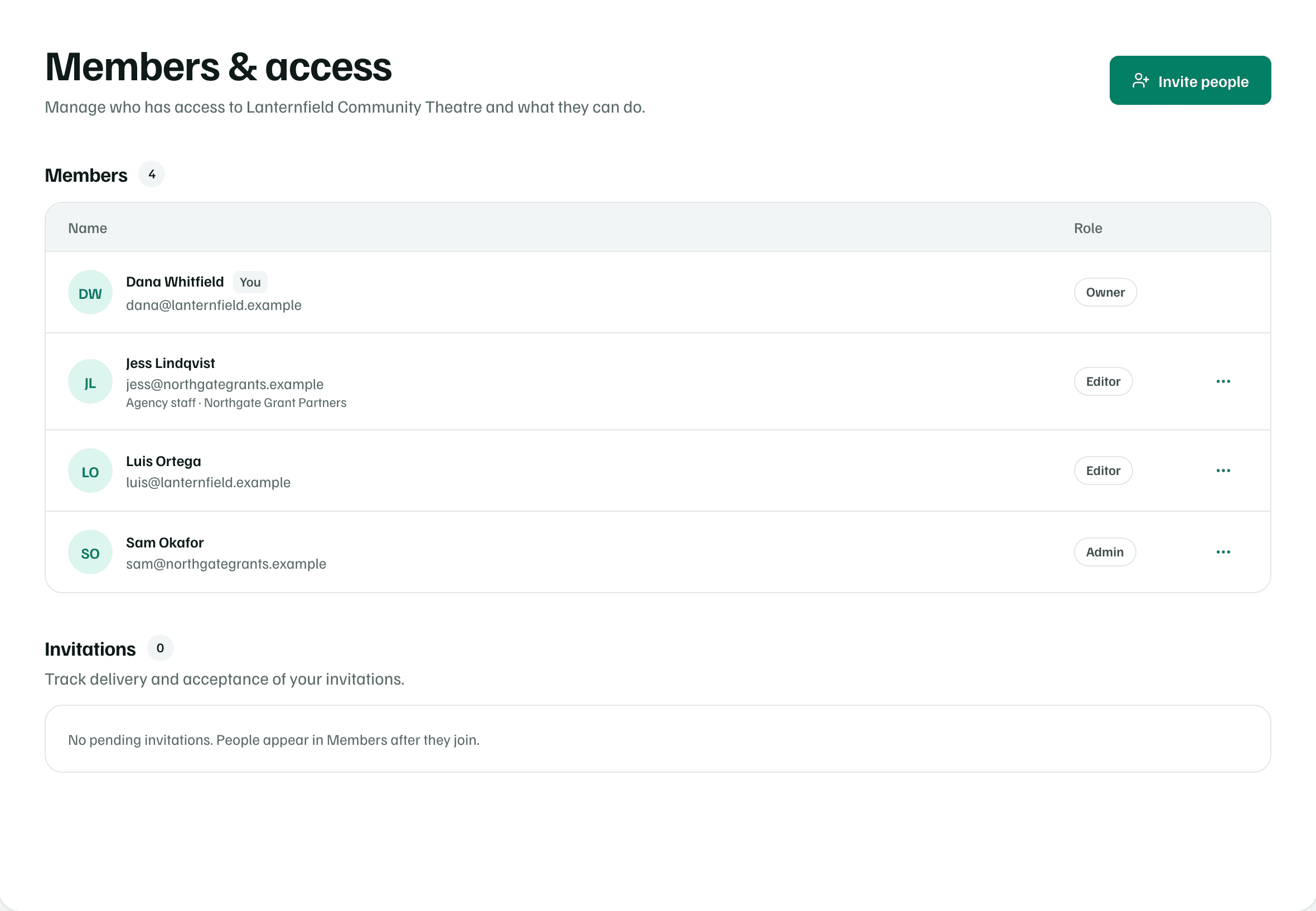
Members & access lists everyone in the workspace and their role. In Settings, select Manage members & invitations to open it. Owners and admins can invite people and change roles. Everyone else can see who has access.
Roles
- Owner: created the workspace or was given it. Each workspace has one owner, who chooses the plan.
- Admin: Edit work, manage access, and update settings.
- Editor: Create and edit projects, drafts, and documents.
- Viewer: View work without making changes.
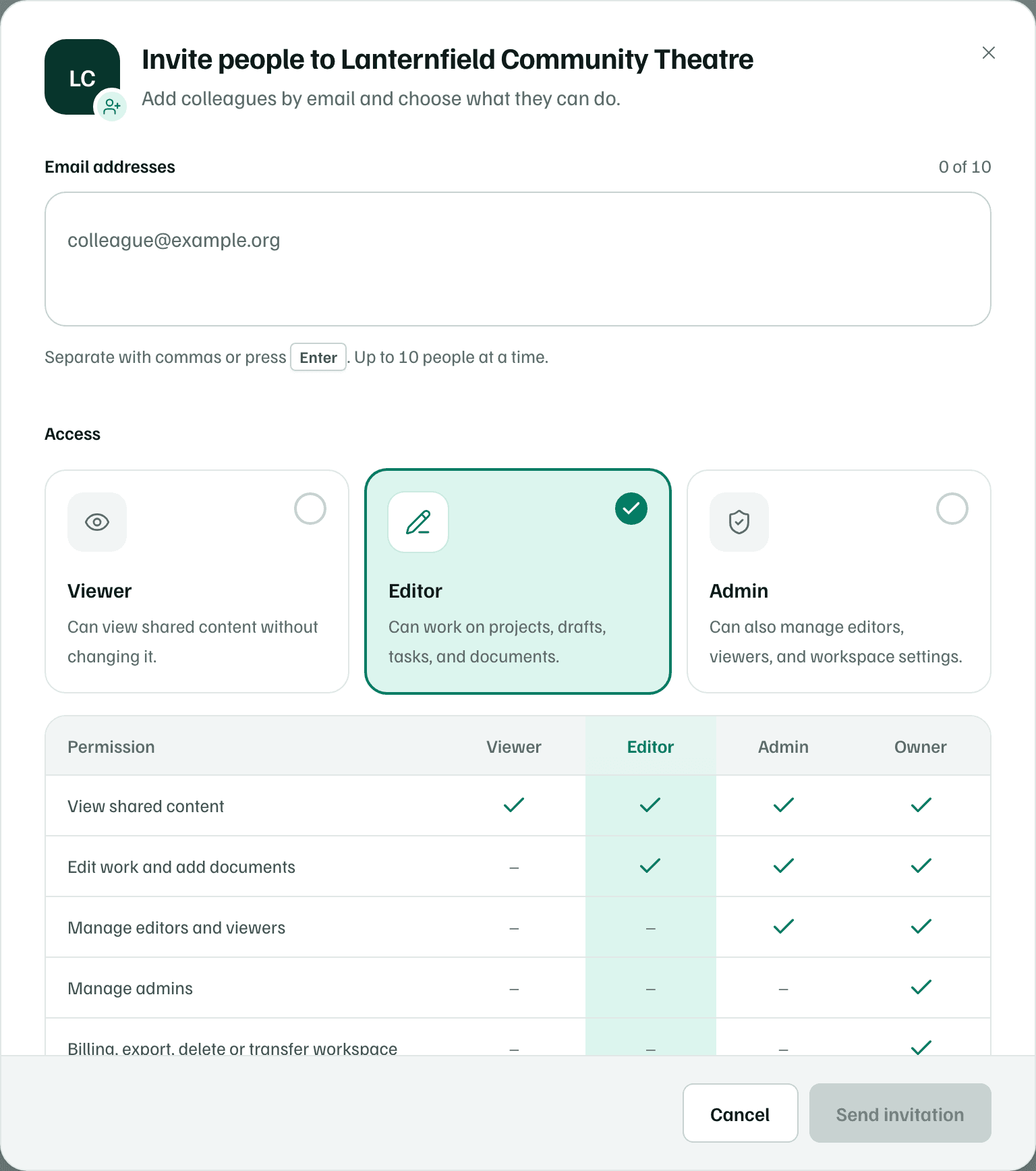
| What they can do | Viewer | Editor | Admin | Owner |
|---|---|---|---|---|
| Read projects, grant drafts, and documents | Yes | Yes | Yes | Yes |
| Create and edit work, and add documents | No | Yes | Yes | Yes |
| Add, remove, or change access for editors and viewers | No | No | Yes | Yes |
| Add, remove, or change access for admins | No | No | No | Yes |
| Manage billing, download all data, delete the workspace, or change its owner | No | No | No | Yes |
Invite people
Open the invite form
Select Invite people on Members & access. The button is also on the Organization page and in the workspace menu.
Add email addresses
Enter up to 10 addresses, separated by commas or by pressing Enter.
Example workspace · fictional data Choose their access
Choose Viewer, Editor or Admin. Only the owner can invite admins, and billing and ownership stay with the owner.
Send the invitations
Select Send invitation, which reads Send 3 invites when you add three people. Each person gets an email with a link to join. They get access to this workspace only, never your other workspaces.
Invitations
Under Invitations, each invitation shows whether its email was delivered and whether the person has joined. A pending invitation expires 14 days after it's sent.
- Resend emails a new link, and the previous link stops working.
- Revoke cancels the invitation, so the person can't join with it.
- Send new invitation replaces one that expired.
The person must join with the email address you invited. If an invitation shows Email bounced, check the address before you send it again.
Seats on each plan
| Plan | Members |
|---|---|
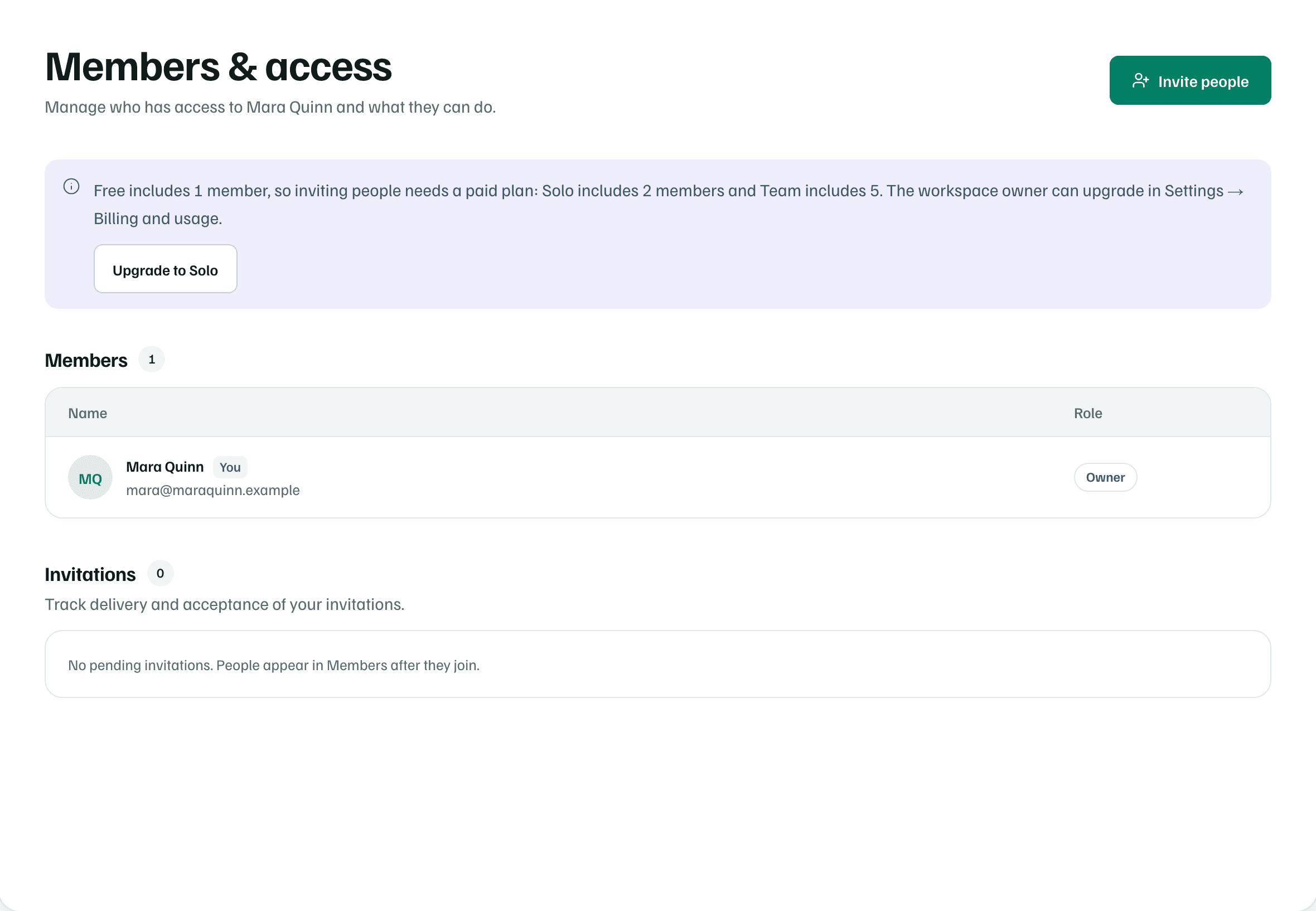
| Free | 1 |
| Solo | 2 |
| Team | 5 |
Pending invitations hold a seat until they're accepted, revoked or expired. When every seat is in use, Members & access says so, and only the owner can change the plan.
Change a role or remove someone
Select the ⋯ menu on a member's row, then choose an option such as Change to Editor, or Remove member. Someone you remove loses access right away. Their work stays in the workspace.
Note