Answer library
The answer library keeps approved language you reuse across proposals, such as your mission, history and program descriptions. Insert it into any proposal section, and save strong sections back to it.
- 5 min
- Every plan
- Uses 1 AI action
Screens from October 2026
In the app:Organization, then Library
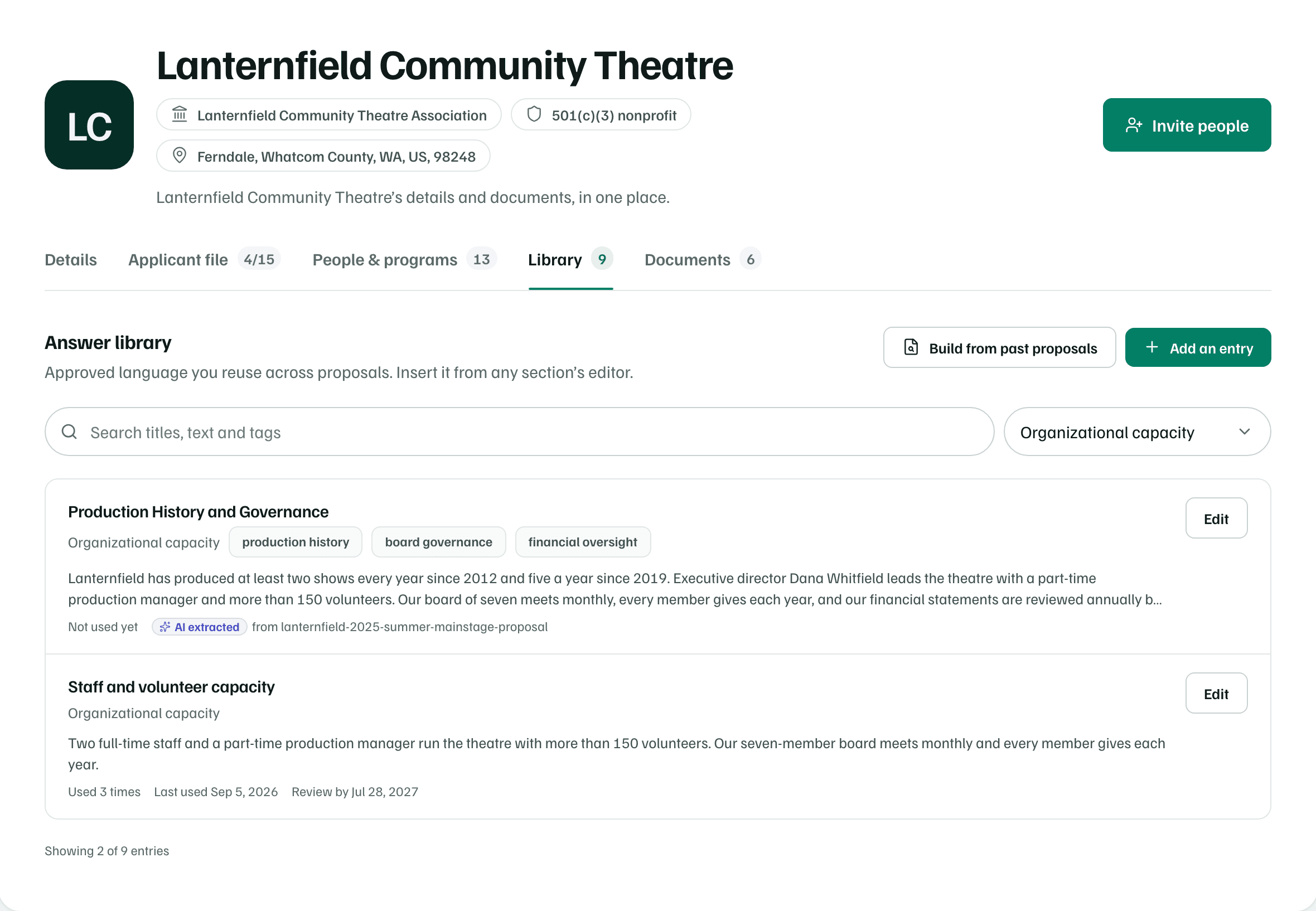
The answer library lists each entry with its category, tags and text. Under the text, you see how often it's been used, when it was last used and when to review it. Review due marks an entry whose review date has passed, since its numbers or names may be out of date.
Categories and search
Every entry has one of 13 categories: Mission, History, Statement of need, Program design, Outcomes, Evaluation, Organizational capacity, Staff and leadership, Budget, Sustainability, Equity and inclusion, Partnerships and Other.
To narrow the list, choose a category from the menu that starts on All categories. Search looks through titles, text and tags.
What happens in this clip
Choose Program design from the category menu: two entries remain. Then type Saturday in the search box: only the Saturday Stage program summary remains.
Add an entry
Select Add an entry. Give it a Title you'd search for, a Category and optional Tags, then write the Text. Write it the way you'd want it to read in any proposal, and keep funder-specific details out.
- Review by: the date its numbers or names may go out of date.
- Written for: the funder, if you wrote it for one.
Select Add entry to save it. To change it later, select Edit on its row.
Build from past proposals
If you've uploaded past proposals, AI can find passages worth reusing. Select Build from past proposals, choose a document, then select Find reusable passages.
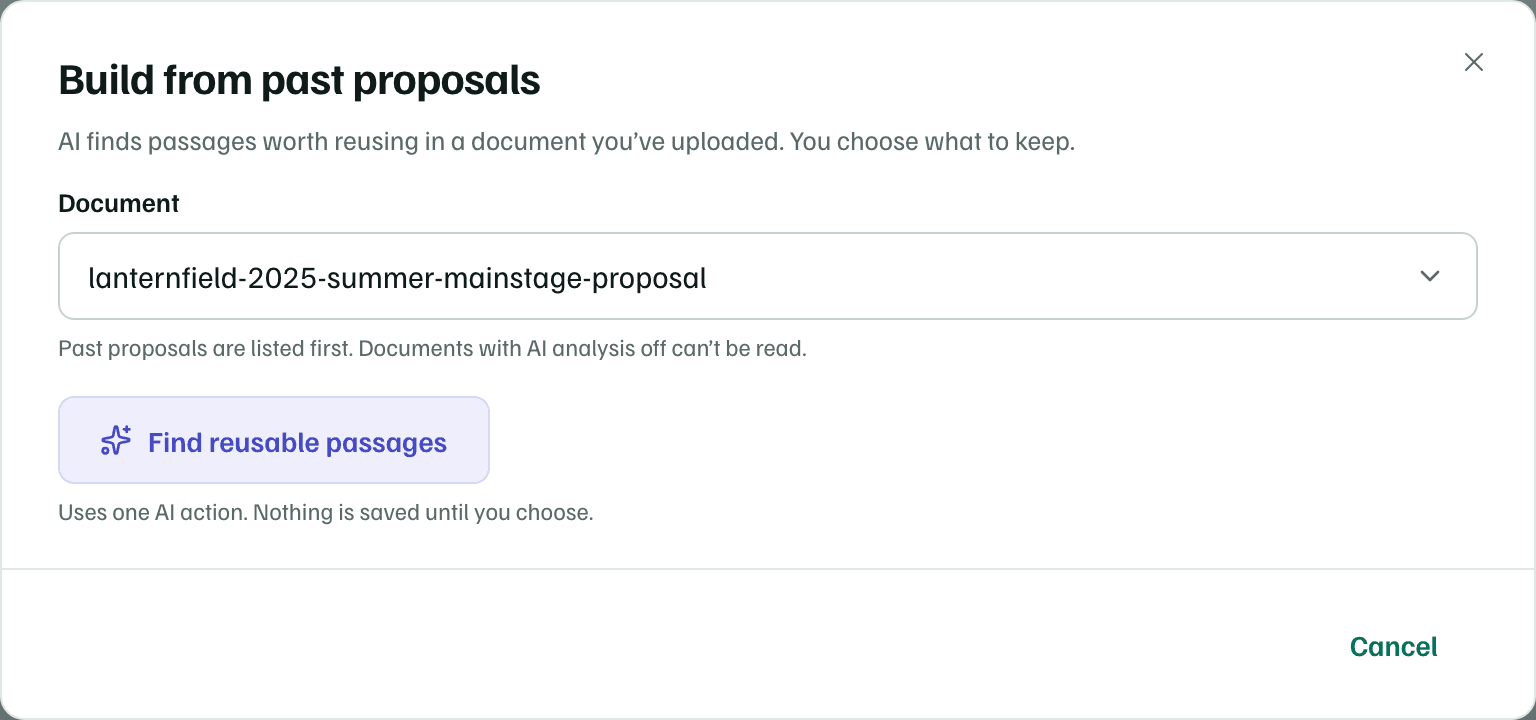
Keep the passages you'd reuse, fix their titles and tags, and trim anything specific to that funder. Then save them. Nothing is saved until you choose, and saved entries are marked AI extracted with the document they came from.
Note
Insert into a proposal
Open the library from a section
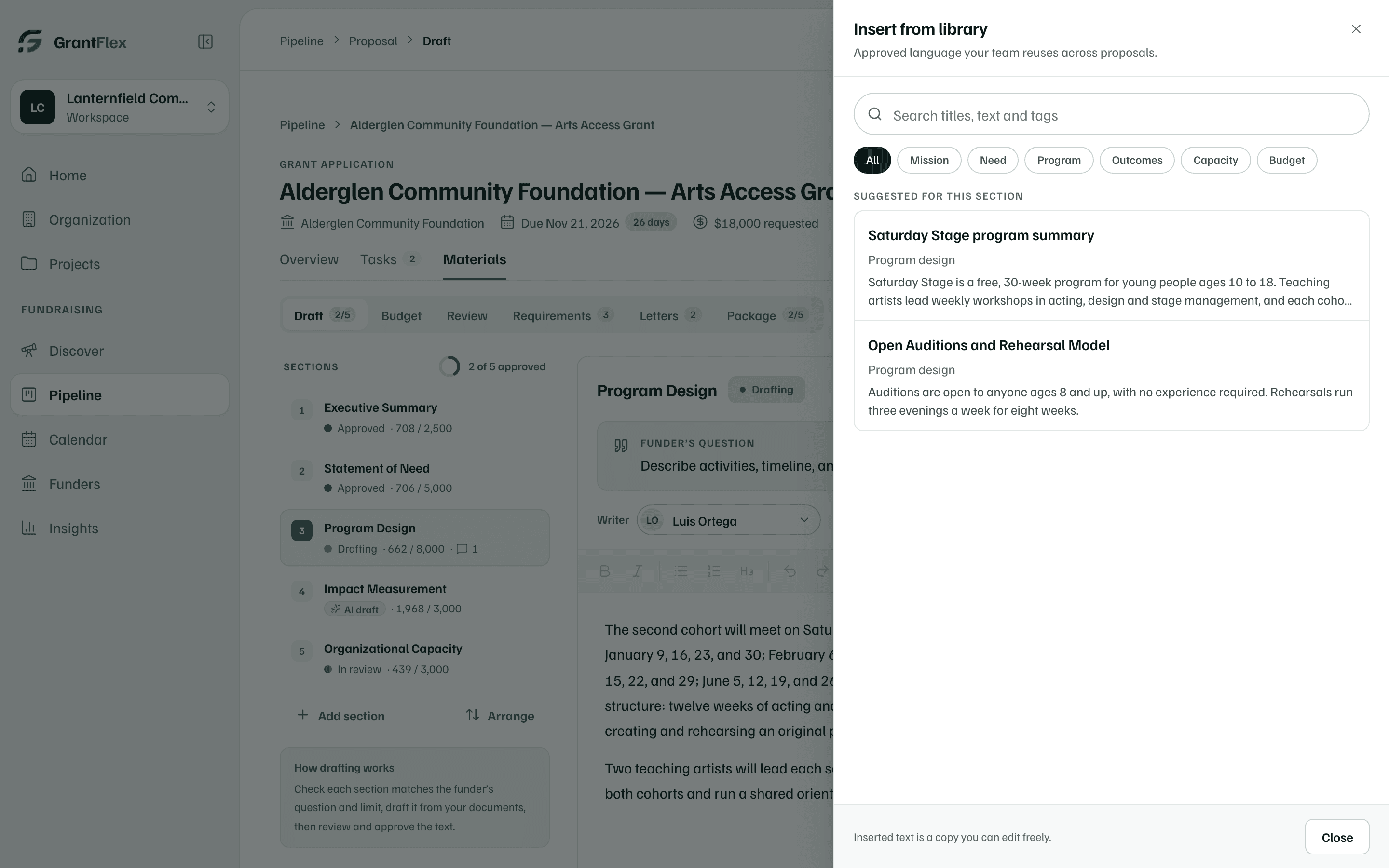
In a proposal section's editor, select Library. Entries that match the section appear under Suggested for this section. Search to see the rest.
Example workspace · fictional data Preview an entry
Search, or filter by category, then select an entry. The preview shows how its length compares with the section's limit.
Insert it
Select Insert at cursor or Replace section text. The text is a copy, so editing it never changes the library entry.
Adapt with AI rewrites the entry for this section first. It uses one AI action, and you review the result before you insert it.
When AI drafts a section, it also reads up to three library entries that match it.
Save a section to the library
When a section reads well, keep it. In the section's editor, open the ⋯ menu and choose Save to library. Name it, check its category and tags, remove anything specific to this funder, then select Save to library.