Read your research report
A finished report has two tabs. Opportunities ranks what the research found by fit, with a next step for each one. Full report is the written report, with its sources.
- 8 min
- Every plan
Screens from October 2026
In the app:Discover
Discover opens your latest report, titled Funding opportunities for your organization. Older reports are in Research history.
The top of the report
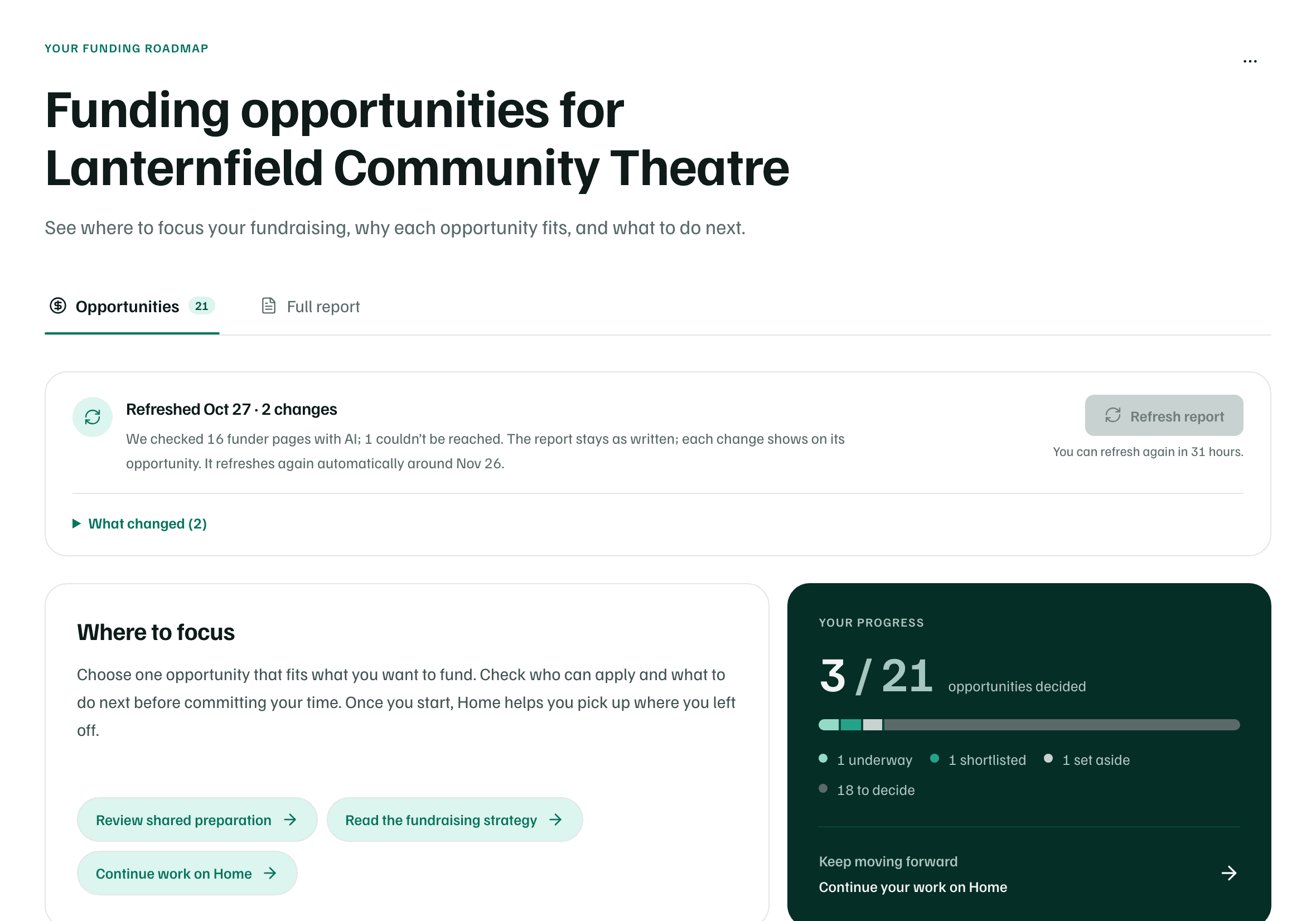
- The tabs: Opportunities, with how many there are, and Full report.
- The refresh panel says when the funders' pages were last checked. See Keep a report current.
- Where to focus suggests how to begin, with links to Read the fundraising strategy in the full report and Continue work on Home.
- Your progress counts the opportunities you've decided, with a segment for each kind of decision and how many are left to decide.
Ranked by fit
Opportunities are listed under Ranked by fit, strongest match first. Each card shows its rank, the kind of support, such as Grant or Donated goods or services, and the funder's status as the report read it.
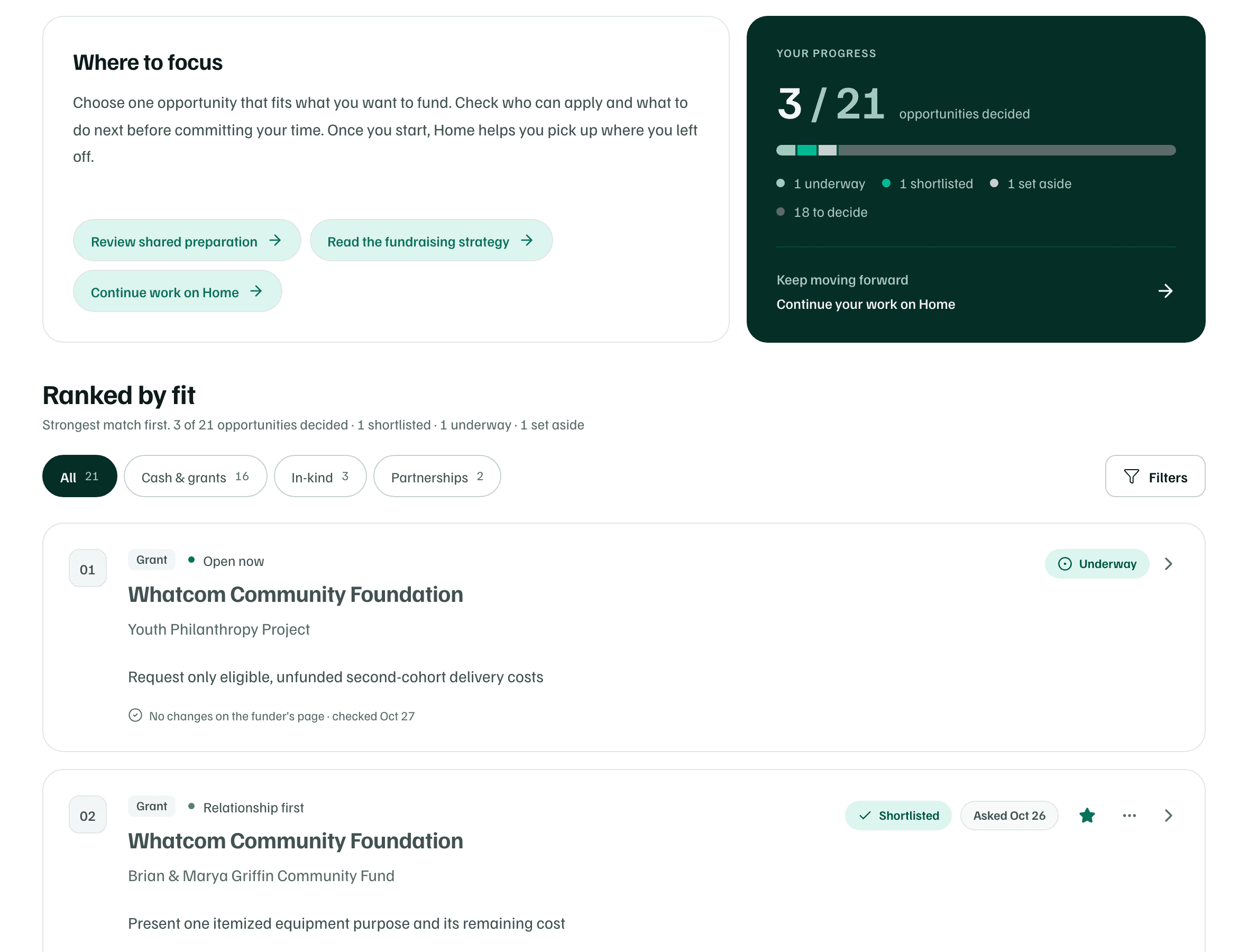
- Your decision, once you make one: Underway, Shortlisted, Checking, Set aside until a date, or Not for us. After you record an Ask the funder message, a chip such as Asked Oct 26 shows too.
- One line of guidance on where to start.
- Suggested request or Amount in report, and Funder deadline in report or Timing in report, when the report found them.
- A small shield beside an amount or date means it's Not yet confirmed on the funder’s site.
- The latest refresh, such as No changes on the funder’s page and the day it was checked.
| Status | What the report read |
|---|---|
| Open now | Accepting applications or requests, per the report. |
| Status unclear | The report could not tell from the funder’s page. |
| Opens later | A future round, not accepting yet. |
| Closed this round | Prepare for the next one. |
| Relationship first | Approached directly, no formal window. |
| No round announced | Nothing to apply for yet. |
Check first
Narrow the list
The switch above the cards shows All, Cash & grants, In-kind and Partnerships, each with a count. Select Filters for more ways to narrow it.
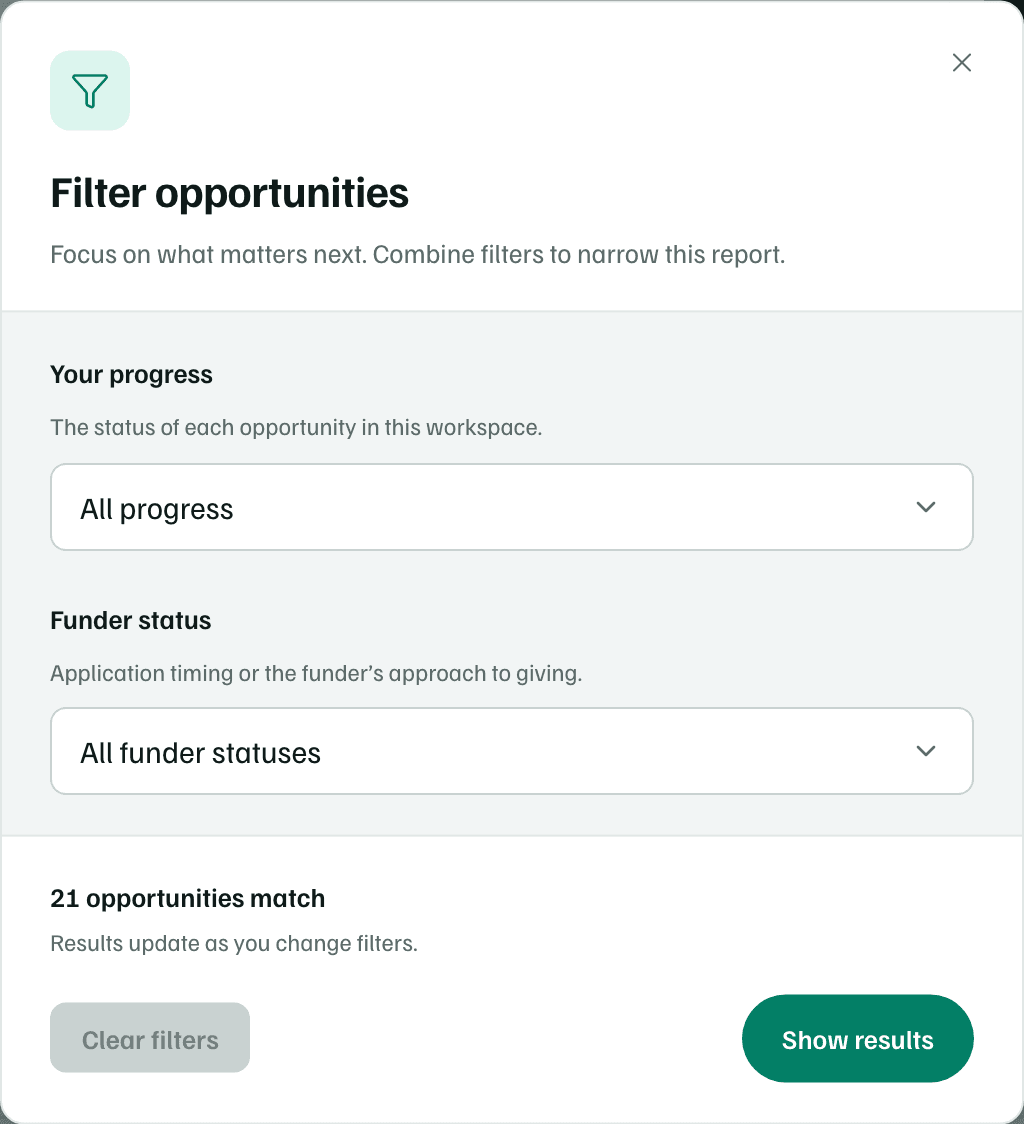
- Your progress: To review, Shortlisted, Checking, Underway, Set aside or Not for us.
- Funder status: any of the statuses in the table above.
- Found by: the full report or your quick searches. It appears once a quick search has added an opportunity.
Select Show results. The line under the heading then says how many opportunities match. Clear filters removes the filters.
Set aside and more ways in
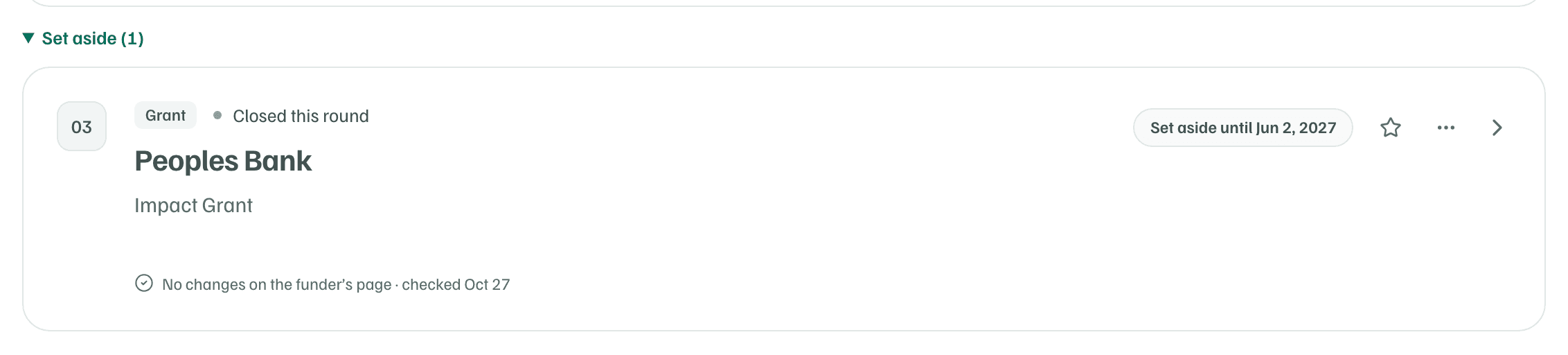
Opportunities you set aside move into Set aside at the end of the list, with how many there are. When the date you picked comes, each one returns to its place in the ranking, marked Back from set-aside. Opportunities marked Not for us stay in the list, dimmed.
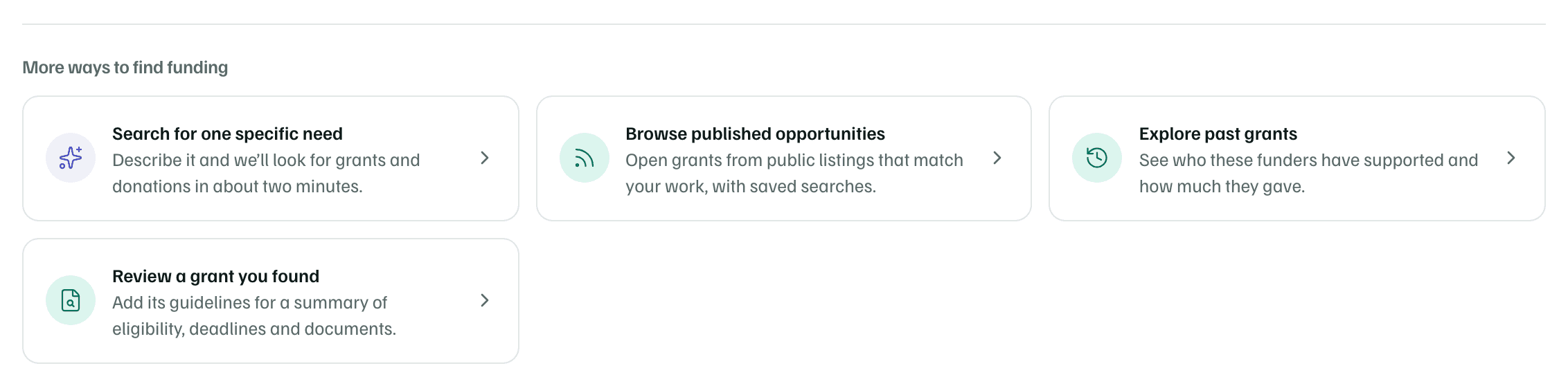
Under the list, More ways to find funding links to quick search, published opportunities, Explore past grants and grant document review.
The Full report tab
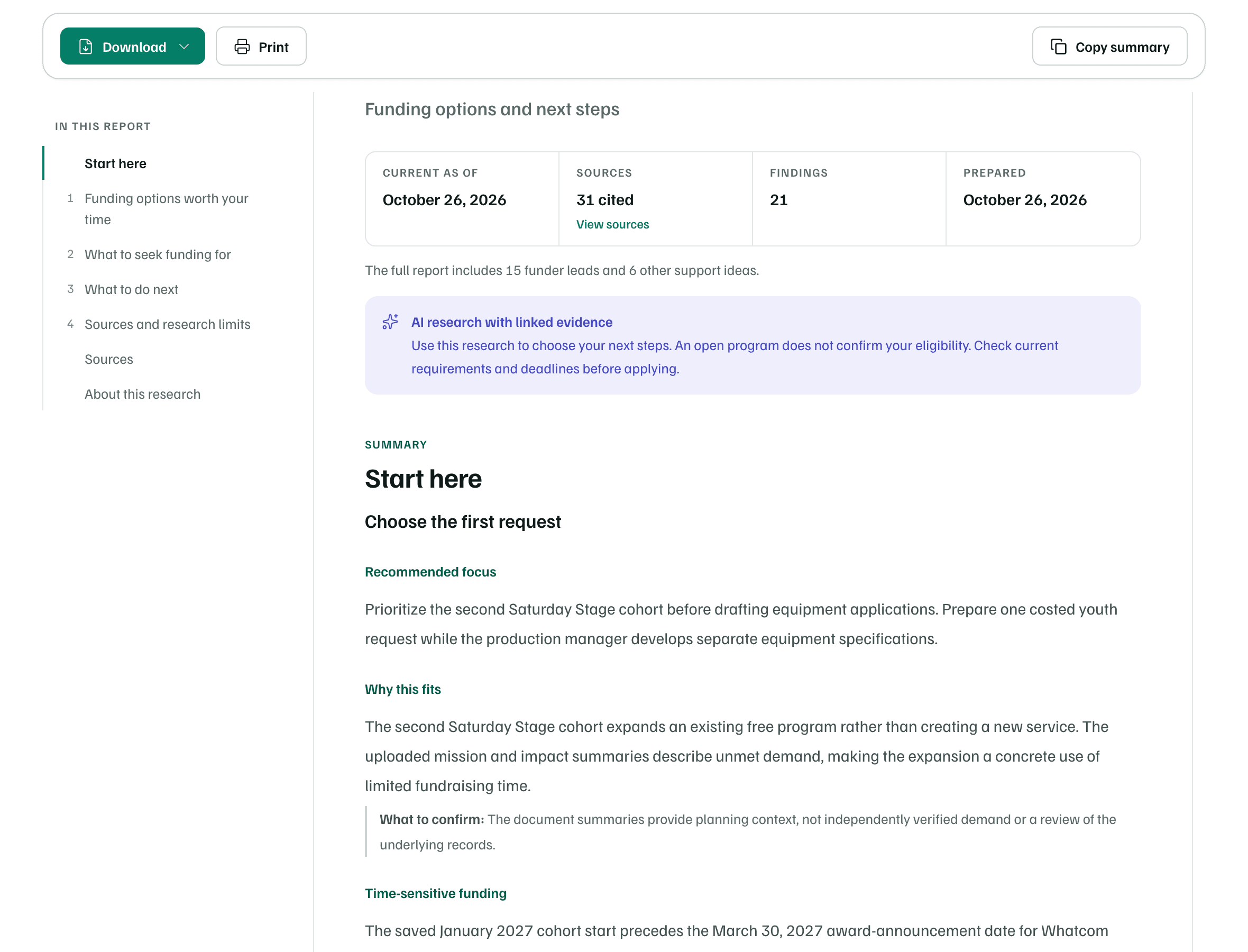
Full report sets the report out as one document, the way its PDF reads. In this report lists the sections, and selecting one jumps there. The bar at the top has Download, Print and Copy summary.
The report opens with its date, how many sources it cites and how many findings it has. Start here follows: a summary of where to focus, why it fits and what to confirm first. Numbered sections come next, such as Funding options worth your time, What to seek funding for and What to do next. It ends with Sources and About this research.
Numbered markers in the text link to the sources at the end. Each source opens the page itself.
AI research with linked evidence