The five setup steps
Setup asks five short sets of questions about who you are, what you need funding for and who has supported you. Only the workspace name is required, and you can change every answer later.
- 8 min
- Every plan
Screens from October 2026
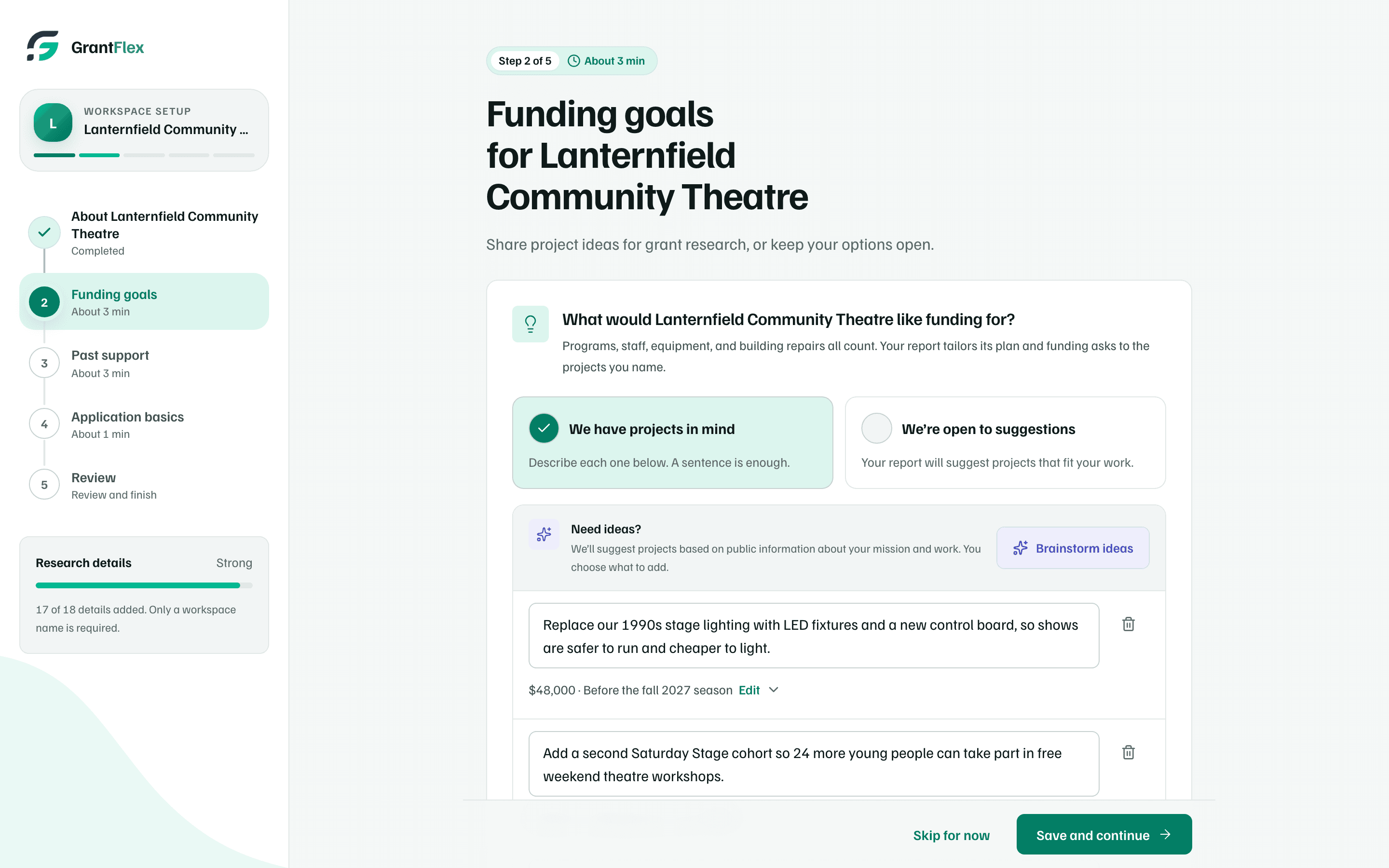
A new workspace opens setup on its own. The rail on the left shows each step and about how long it takes. Under it, the Research details meter fills as you answer: Just started, Good start, Strong and Complete.
| Step | In the rail | What it asks | Time |
|---|---|---|---|
| 1 | About your organization, or Your work | Who the workspace is for, its name, links and location, what it does, and its focus areas | About 2 min |
| 2 | Funding goals | Your project ideas, budget range, kinds of support and any building or equipment needs | About 3 min |
| 3 | Past support | Past funders, partners, how you raise money now, your work in numbers, and documents | About 3 min |
| 4 | Application basics | Organization type, fiscal sponsor, location, tax ID (EIN) and SAM.gov registration | About 1 min |
| 5 | Review | Your answers at a glance, suggestions from your documents and what research can read | About 1 min |
Only the owner sees setup
Moving through setup
- Save and continue saves the step and opens the next one.
- Skip for now opens the next step without saving the one you're on.
- Finished steps in the rail are links, so you can go back to any of them.
Your second workspace
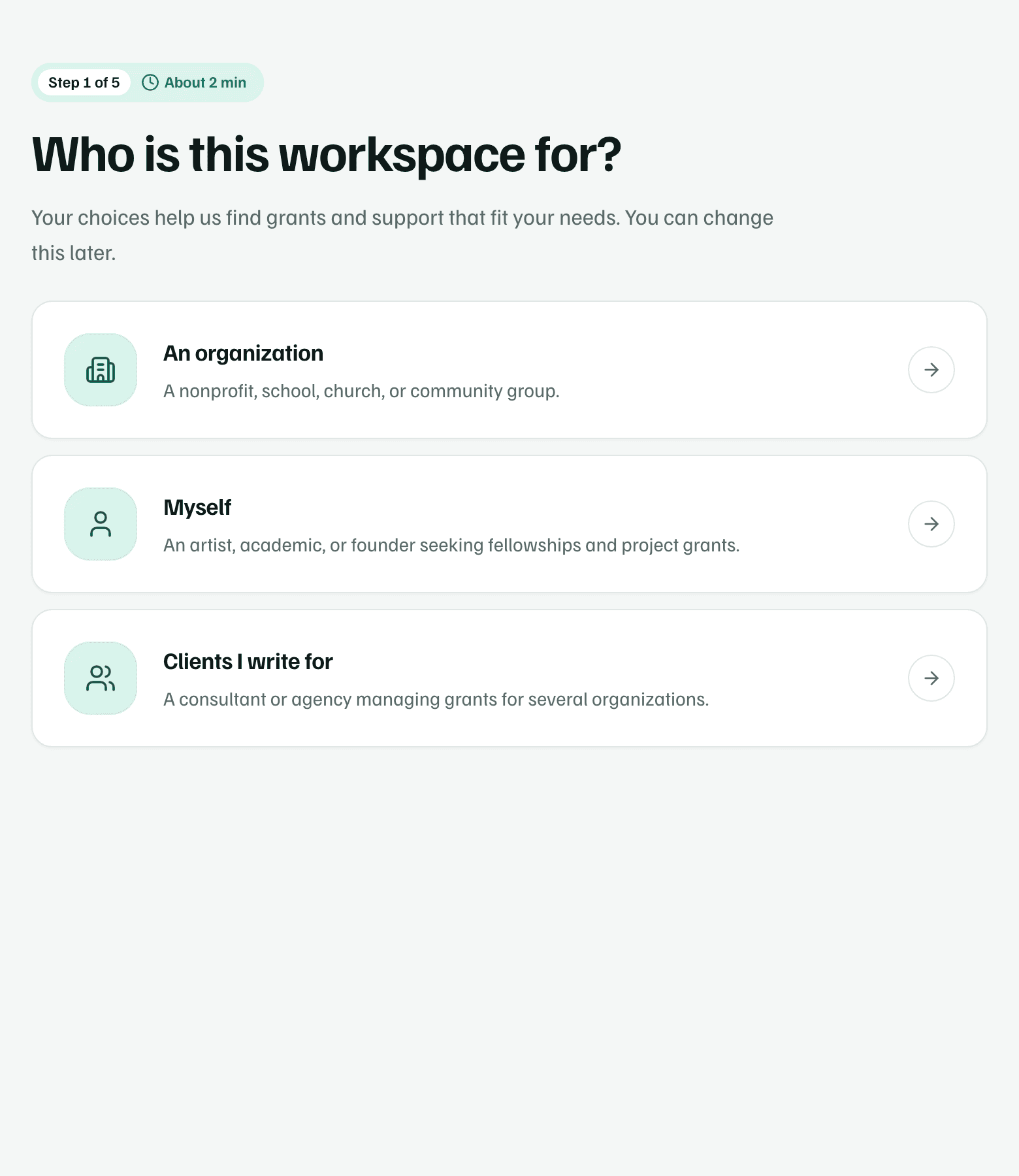
Step 1: who the workspace is for
Choose An organization, Myself or Clients I write for. The choice changes the questions that follow. To change it later, select the link above the form, such as An organization — change.
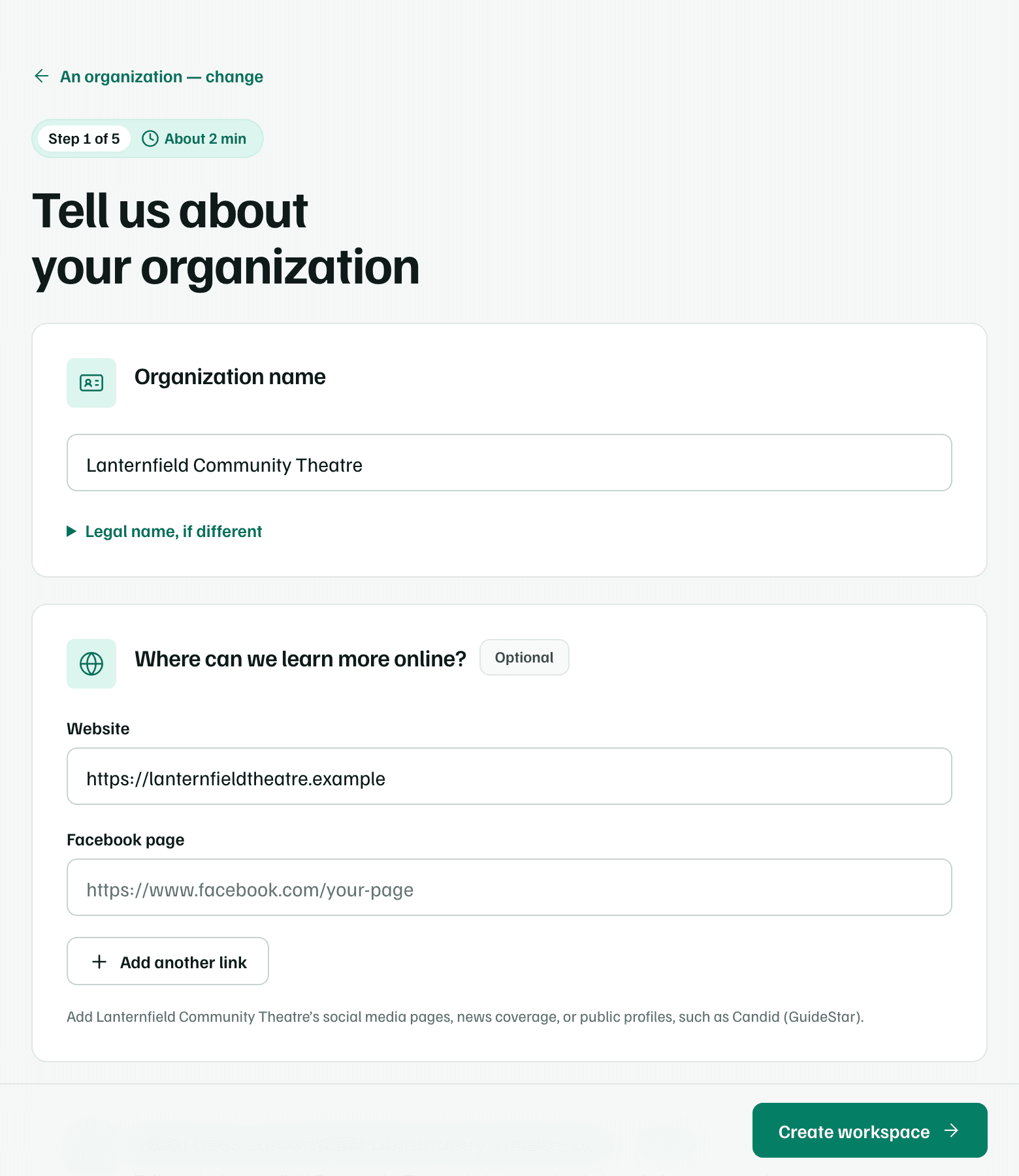
Then fill in the basics. Only the name is required:
- Organization name. If the name on tax forms differs, add it under Legal name, if different.
- The Facebook page, the Website and up to five more public links, such as a Candid (GuideStar) profile. A Facebook page alone is fine.
- City or town and State, where the organization is based. Many funders give only in certain places.
- What the organization does, in a sentence or two.
- Up to six focus areas. Search the list or add an area in your own words.
For yourself or a client, the labels change to match, such as Your name and What you do. See Organization, yourself, or clients you write for.
Look up mission
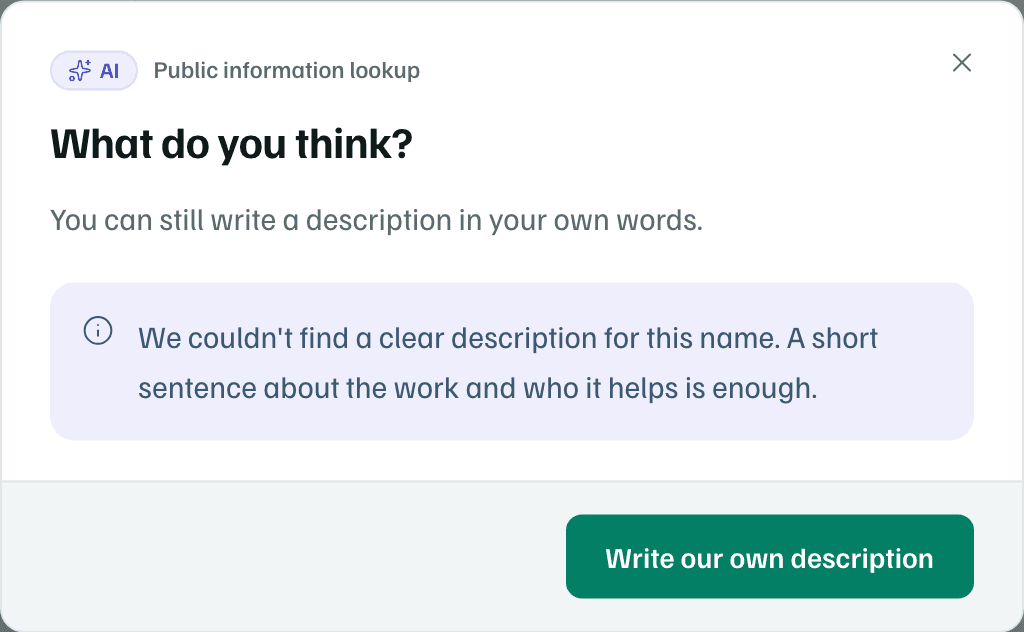
Look up mission searches public web pages with the name, location, website and Facebook page you entered, and drafts a short description. A dialog shows the draft with its sources. Check them, then choose Yes, use these details to copy it into the form, where you can edit it.
A new group may not have many public pages yet. If the search finds nothing clear, choose Write our own description. A sentence about who you help and what you do is enough.
Step 2: Funding goals
Say what you'd like funding for. Choose We have projects in mind and describe each one in a sentence, or We’re open to suggestions and let your report suggest some.
- Add up to 6 project ideas. Add amount and timing takes a rough cost and when you need the money. Estimates are fine.
- Brainstorm ideas suggests projects based on public information about your work. Select the ones that fit, add them, then rewrite them in your own words.
- What kinds of support would help? covers grants, sponsorships, donated goods or equipment, professional help and partnerships.
- An optional annual budget range, or typical project size for individuals. Your existing selection is kept when you revisit earlier steps.
- Buildings, land, and equipment asks whether you need money for equipment or property, since those grants come with extra requirements.
Note
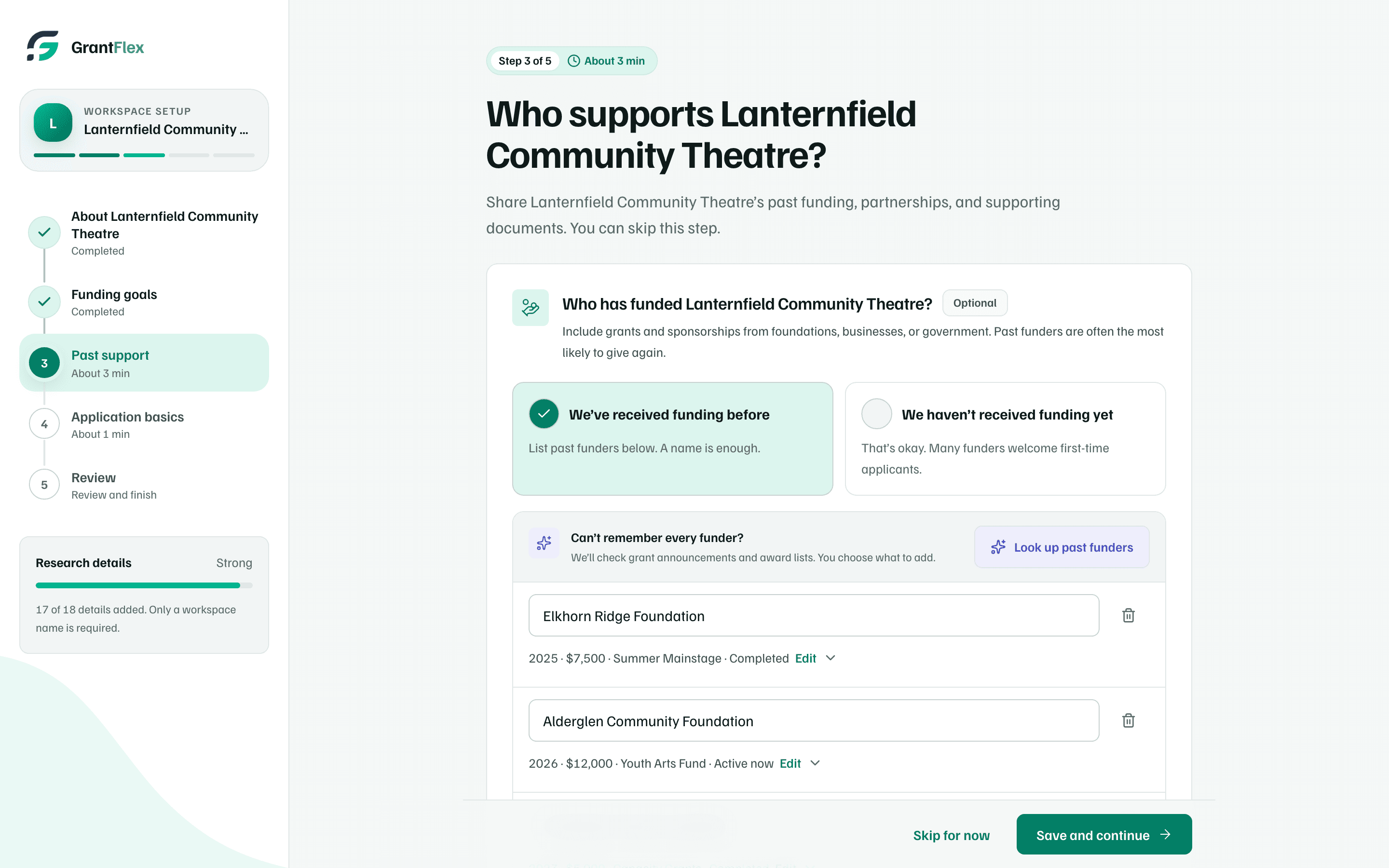
Step 3: Past support
This step is optional. Past funders are often the most likely to give again, so list them if you can.
- Past funders, up to 10. Each can have a Year, Amount, What it funded and Status. Look up past funders checks grant announcements and award lists.
- Partners, up to 8, such as schools, businesses or local agencies. Look up partners checks partner pages, joint projects and announcements.
- How you raise money now, such as events, a donor list or ticket sales.
- Your work in numbers: people served or reached, events and activities, and volunteers last year.
- Any supporting documents to share?: files such as a budget or an annual report. See Documents and AI permissions.
Both lookups list what they find with sources. Select the ones you recognize, then check the details before you save. Public records often miss funders, so add the rest yourself.
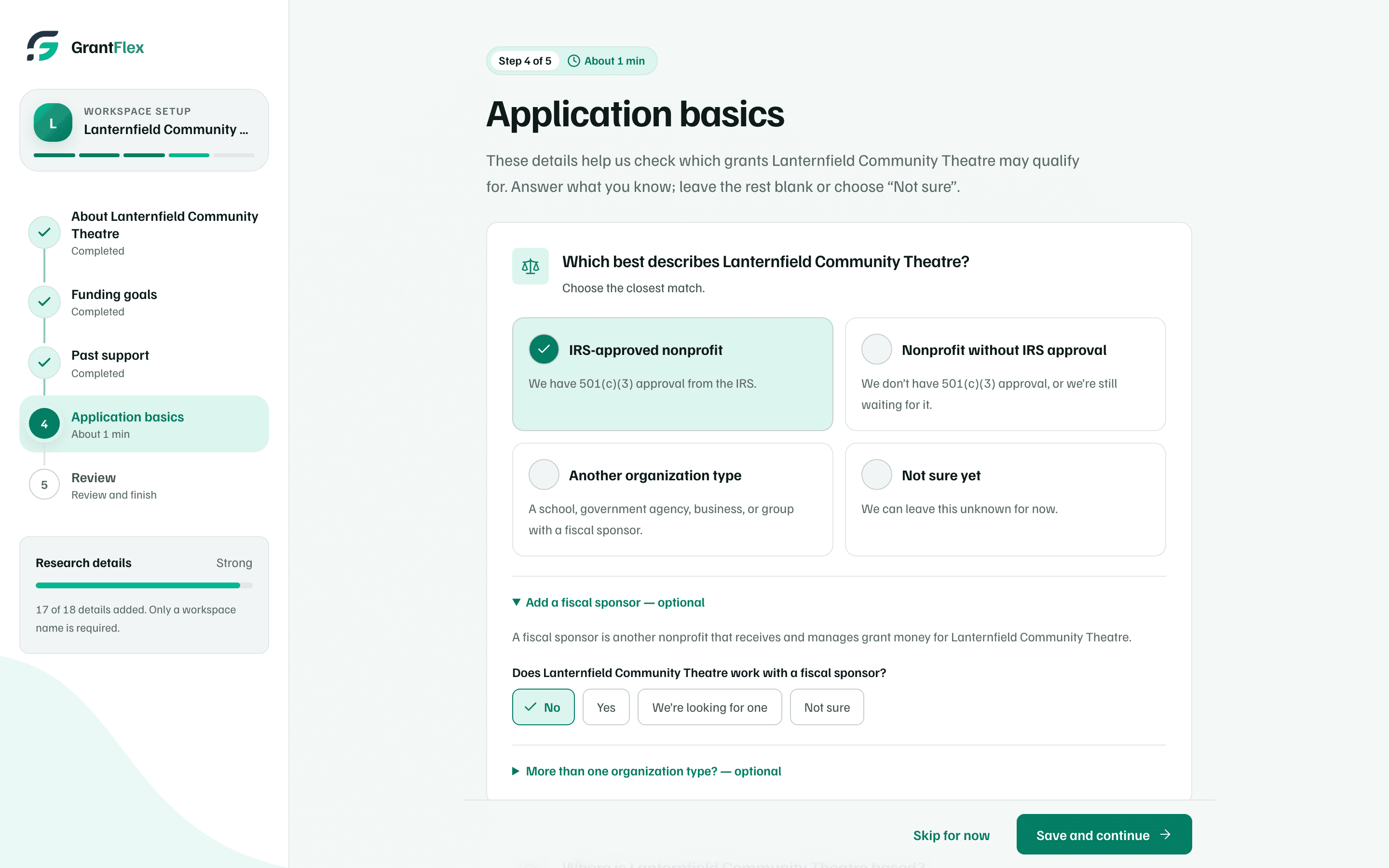
Step 4: Application basics
These answers help research check which grants you may qualify for. Answer what you know, and leave the rest blank or choose Not sure.
- The organization type, such as IRS-approved nonprofit. If a fiscal sponsor manages your grant money, open Add a fiscal sponsor — optional.
- Where you're based: city or town, state and county. Other places served adds the other places you work.
- Your federal tax ID (EIN). Untick Use this EIN for research to keep it out of research.
- Your SAM.gov registration and Unique Entity ID, if you apply for federal grants.
EIN suggestion
If you leave the EIN blank, GrantFlex checks public IRS records for an organization with your name in your city and state. A likely match appears with Needs your review and a link to the record. Choose Accept EIN for research, Enter my own EIN or Remove EIN. Nothing is saved or used unless you accept it.
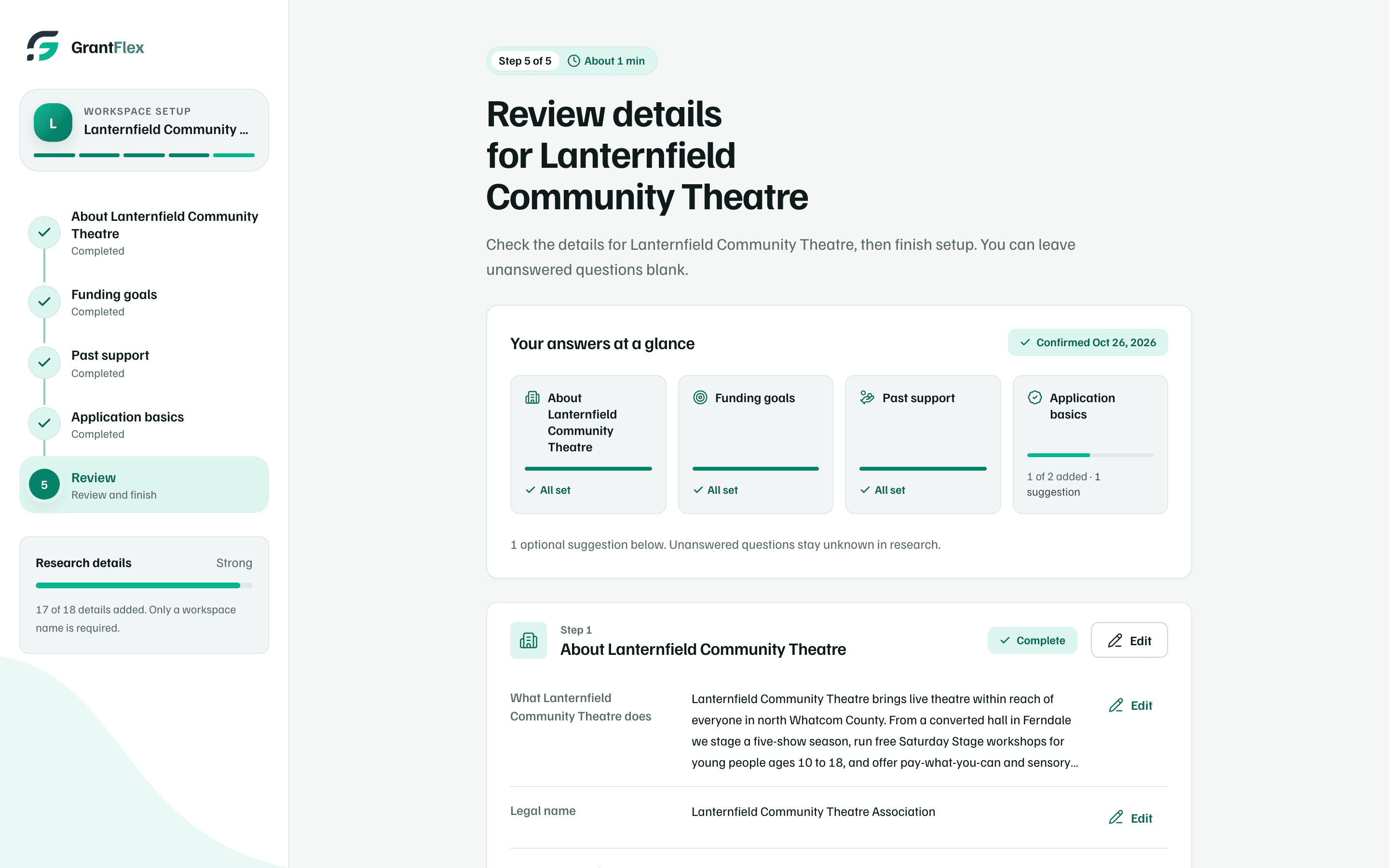
Step 5: Review
Your answers at a glance has a tile for each of the first four steps, with how much of it you've filled in. Select a tile to jump to that step's card. A card's Edit button opens its answers in a dialog, so you can change them without leaving Review.
What happens in this clip
On Review, select the Funding goals tile to jump to its card. Select Edit on the card: the funding goals open in a dialog. Select Cancel to close it without changes.
- Suggestions from your documents appears once a file is processed. Create suggestions uses one AI action. The suggestions don't change your answers.
- Edit specific details changes any one answer without going back through the steps.
- Tick up to 8 document summaries for research to read. Leave them unticked to keep your files out of research.
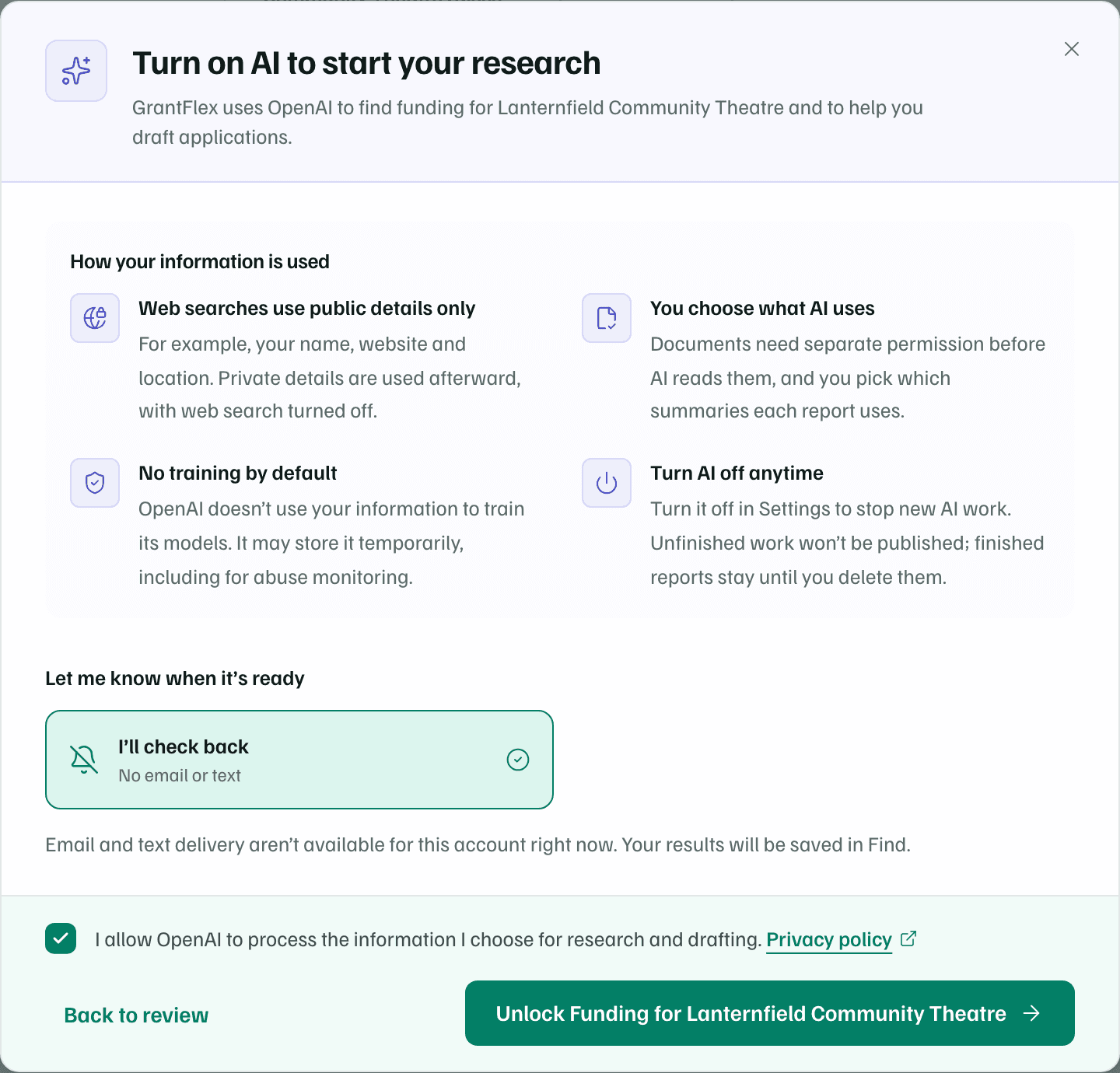
The last button depends on your workspace. A new workspace shows Looks good, which opens the AI consent dialog before your free introductory research starts. Otherwise it reads Finish setup and start report or Confirm and finish setup.
What the lookups use
| Lookup | Step | What it reads | What you do |
|---|---|---|---|
| Look up mission | 1 | Public pages found with your name, location and links | Use the draft or write your own |
| Brainstorm ideas | 2 | Public information about your work | Select ideas, then edit them |
| Look up past funders | 3 | Grant announcements and award lists | Select the funders you recognize |
| Look up partners | 3 | Partner pages, joint projects and announcements | Select the partners you recognize |
| EIN suggestion | 4 | Public IRS records for your name and place | Accept it, enter your own or remove it |
Lookups only suggest. Nothing joins your answers until you choose it, and they don't use any of your AI actions. They read public information, so check each source before you rely on it.
Changing answers later
Your answers live on in the workspace. Edit them on the About the Organization page, and edit funding goals and document choices in Edit research setup.