Work a funding record
Each funding record keeps one ask in one place: its stage and amounts, the next step, the funder's dates, the proposal, tasks, materials and what has happened so far.
- 7 min
- Every plan
Screens from October 2026
In the app:Pipeline, then Funding plan
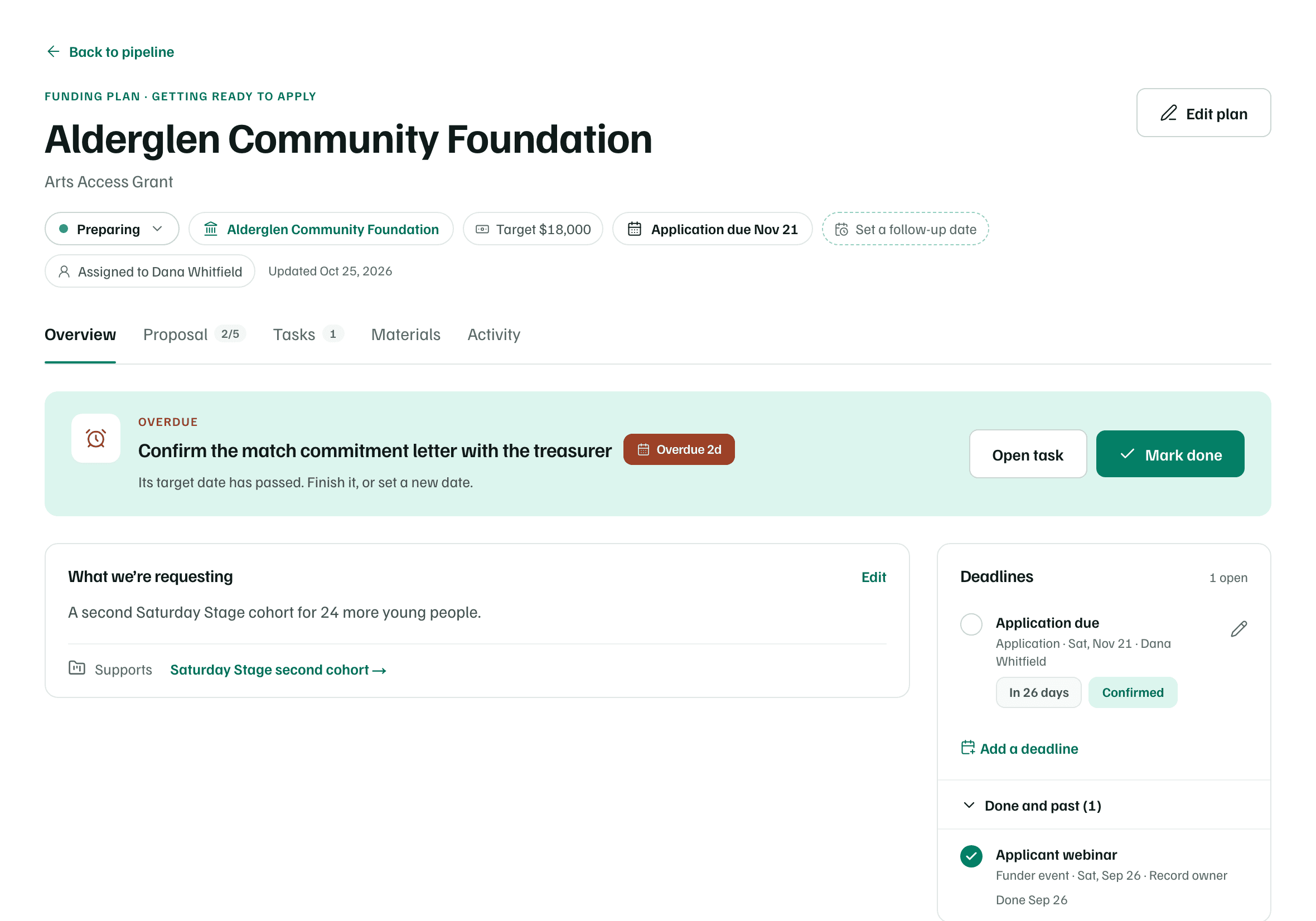
Select a record's name in Pipeline to open it. The page is titled with the funder, with the program underneath. The line above says what the record is for, such as Funding plan · Getting ready to apply or Funding plan · Waiting on the funder.
The header
A row of chips under the title sums up the record. Editors select a chip to change it.
- The stage, like Preparing. It opens the stage menu. See Change stage and record decisions.
- The funder, which opens its page in Funders.
- The amount: Target for what you plan to ask, Requested once you record what you asked for, and Awarded once you record the award.
- The next funder date, like Application due Nov 21. An estimated date says (estimate). It's hidden once the record is secured or closed.
- The follow-up date, your team's own reminder, like Follow up Oct 29 · in 3 days. Without one, it says Set a follow-up date.
- The owner, like Assigned to Dana Whitfield. It shows in workspaces with more than one member.
Edit plan
Select Edit plan to change the record's details. A chip opens the same dialog at its own field. Select Save changes when you're done. Viewers see the details read-only, under Plan details.
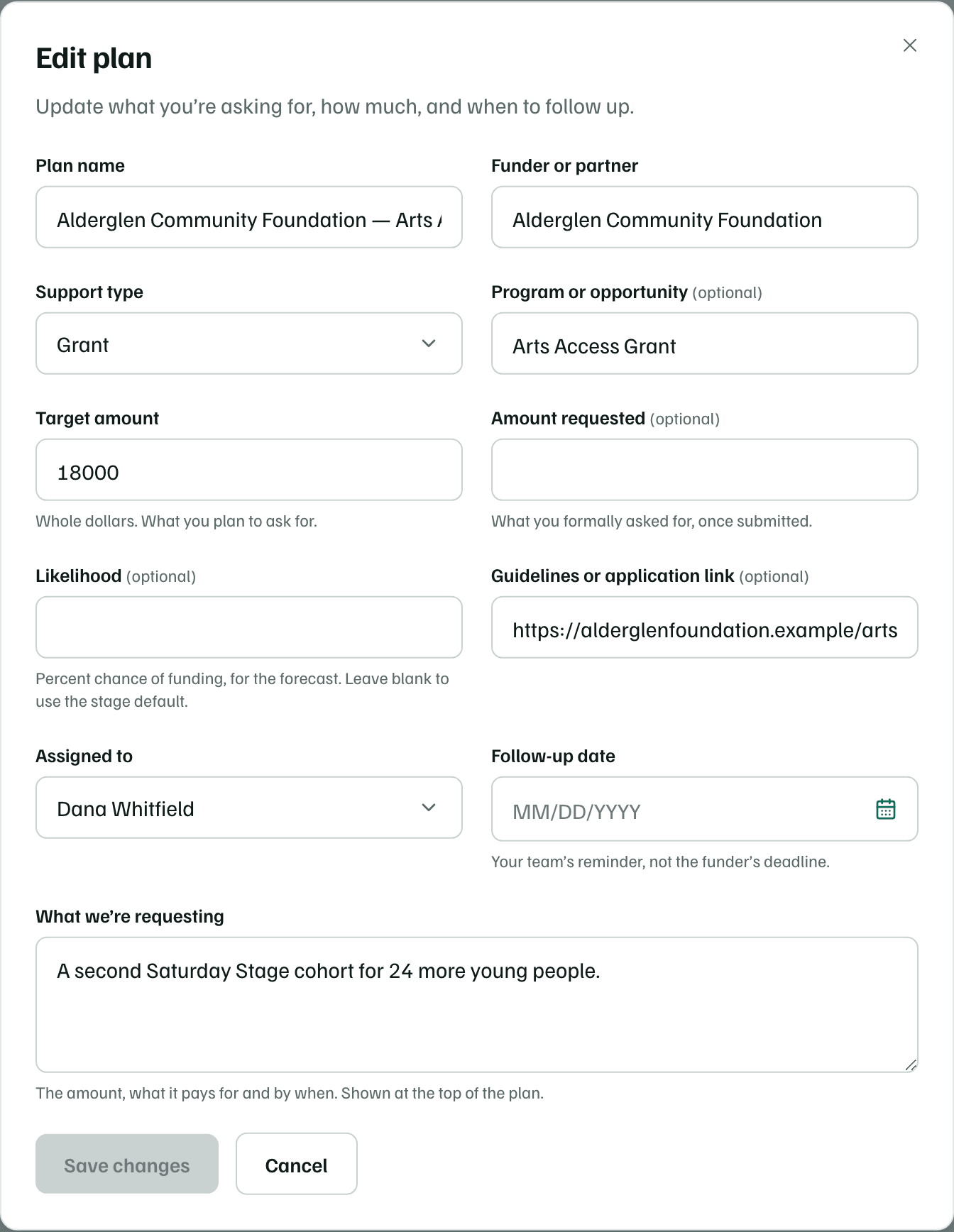
- Target amount is what you plan to ask for. Amount requested is what you formally asked for, once you've submitted.
- Likelihood is the chance of funding, as a percentage, for the Weighted forecast. Leave it blank to use the stage's default.
- Follow-up date is your team's reminder, not the funder's deadline.
- What we’re requesting is the amount, what it pays for and by when. It shows at the top of the Overview tab.
If the record came from a research report, the dialog shows the report's suggested ask and team date beside their fields. Select Use this date, or the button with the suggested amount, to fill them in.
Overview
The card at the top shows the one thing to do next: the earliest open task, a follow-up when you're waiting on a funder's reply or the next piece of material to finish. Select Mark done to finish a task right there, or Open task to see it.
- What we’re requesting shows the request in your words. A record from research shows a Suggested request until you select Make it yours.
- Once you've sent something or heard back, a card shows it: when and how you sent it, the award, or why the record closed.
- Deadlines lists the funder's dates and how sure each one is: Confirmed, From the report or Estimate. Select Add a deadline for another. Finished and past dates fold under Done and past.
- The task and Materials cards show what's open after the next step and how many pieces are ready.
The funder's page
The Funder’s page card works with the record's guidelines link. Check funder’s page reads the page with AI and shows what it says about the deadline, the amount and who can apply, quoting the page. Without a link, it asks for the page first. You choose what to keep, such as dates for the calendar, then select Save to record.
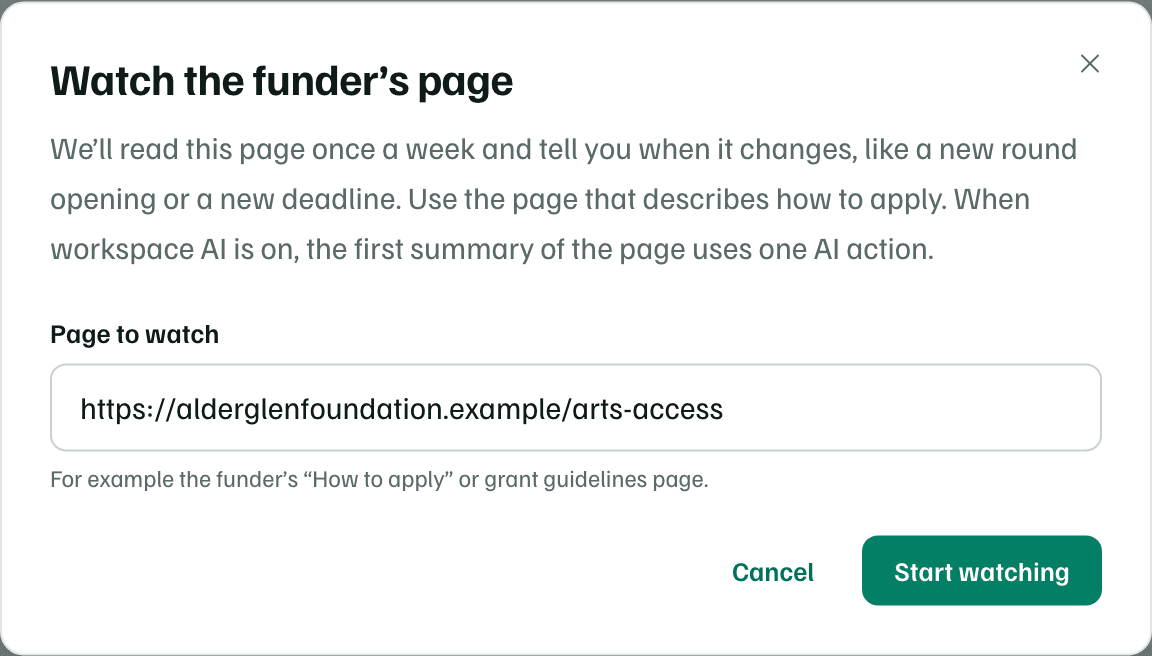
Watch for changes asks GrantFlex to read the page once a week and tell you when it changes, like a new round opening. Confirm the page and select Start watching. After that, the card's Watching menu can open, change, pause or stop the watch.
AI actions
Proposal
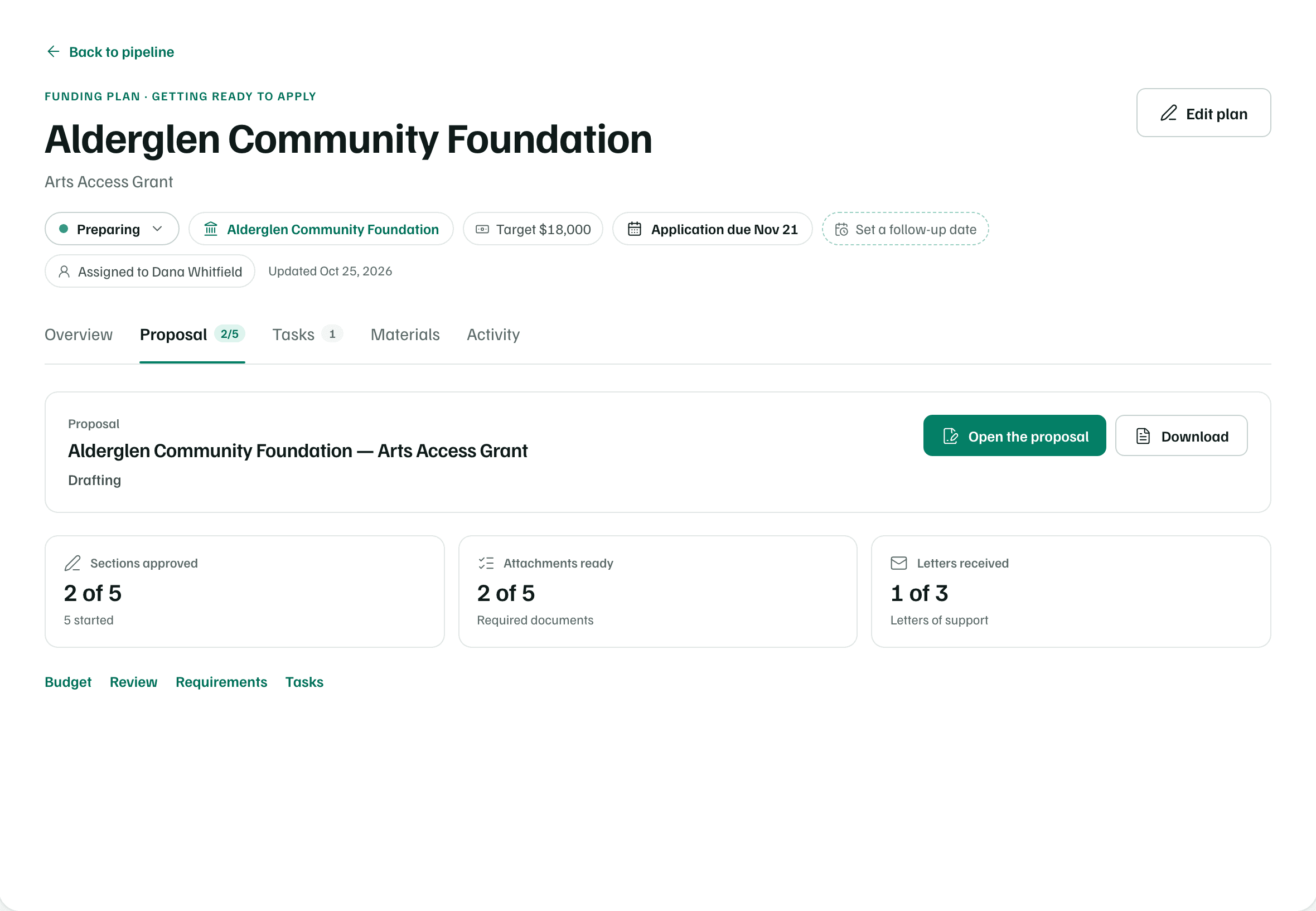
Grant records have a Proposal tab. Before a proposal exists, it offers Write the proposal. Choose where to start from, then select Start the proposal. Starting one moves an earlier record to Preparing. See Start a proposal.
Once it exists, the tab shows the proposal's status, Open the proposal, Download, and how many sections are approved, attachments are ready and letters have come in.
Tasks
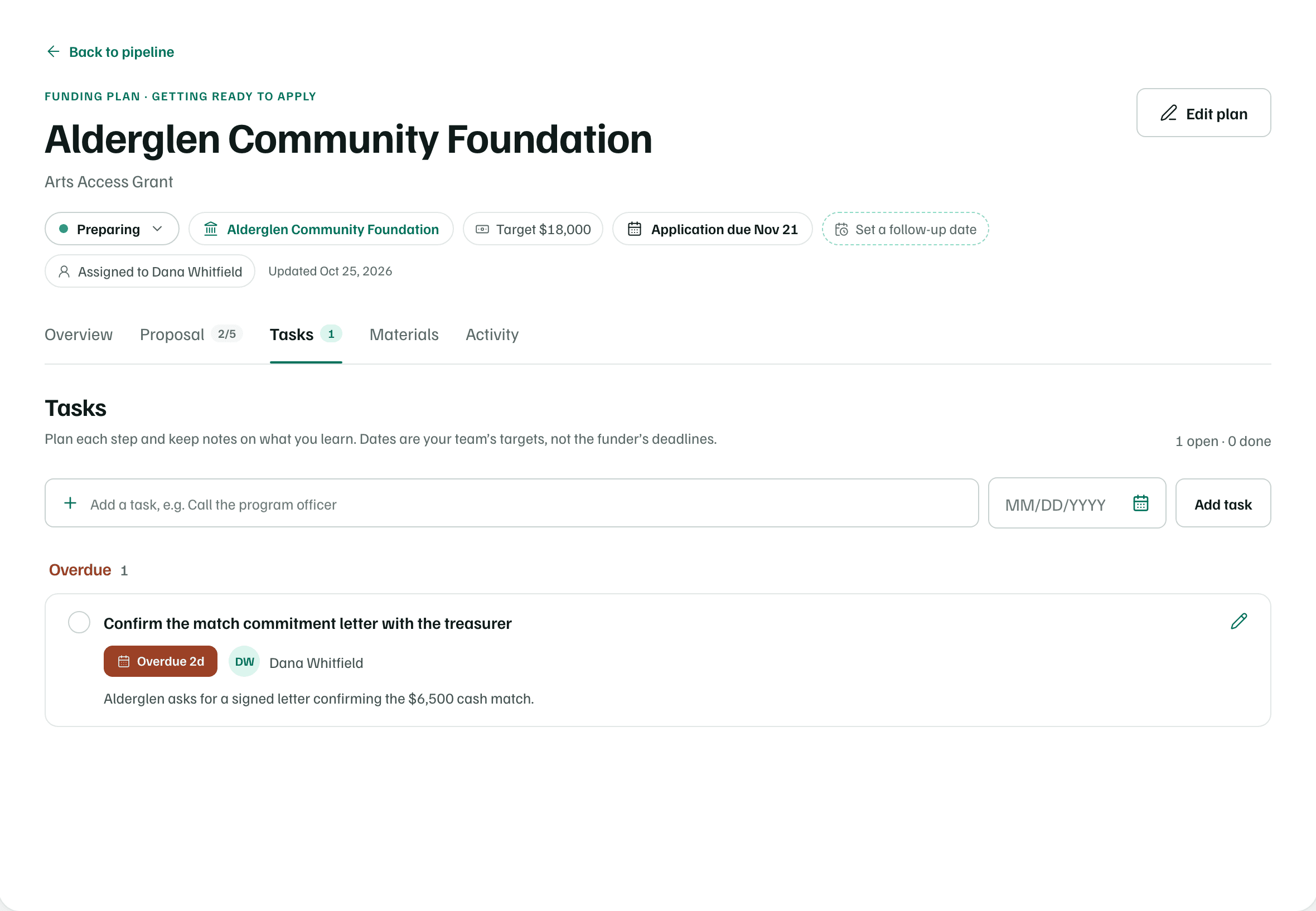
The Tasks tab holds the steps for this record, grouped by when they're due. Type a task, add a target date if you have one, and select Add task. Dates are your team's targets, not the funder's deadlines. See Plan and track tasks.
Materials
The Materials tab is the record's checklist of written responses, budget pieces and files. See Prepare materials.
Activity
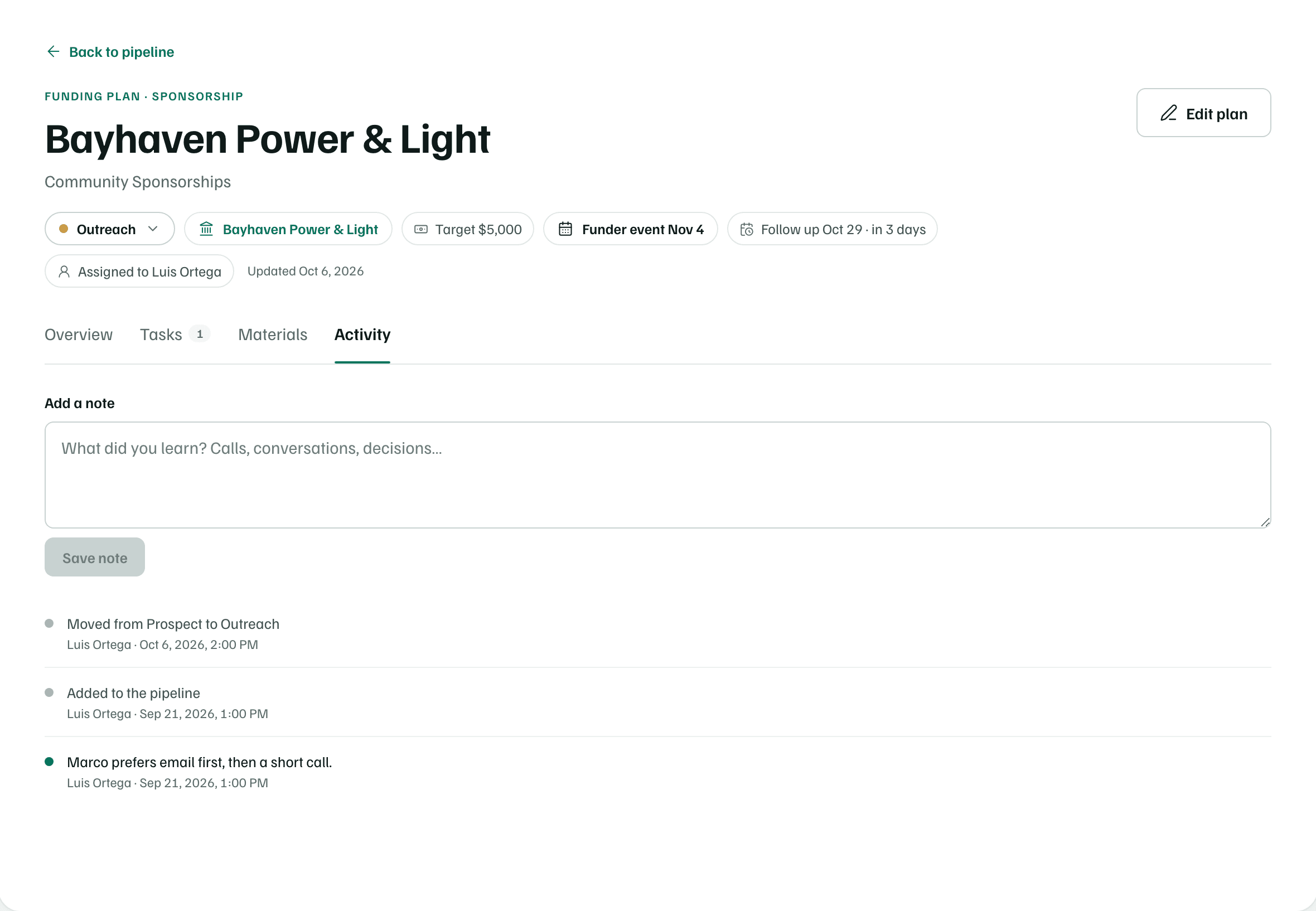
The Activity tab is the record's history, newest first: stage changes, submissions, awards, proposal events and notes. Write what you learn under Add a note and select Save note. Only a note's author can delete it.