Draft sections
Each section of a proposal answers one of the funder's questions. Write it yourself or have AI draft it from your documents, then get it reviewed and approve it.
- 8 min
- Every plan
- Uses 1 AI action
Screens pending
In the app:Pipeline, then Proposal, then Draft
The Draft tab lists the sections in the funder's order. Each shows its status, its length against the limit, such as 1,968 / 3,000, and any open comments. Select a section to open it beside the list. Text saves as you type.
![The Draft tab: five sections with their statuses, and Impact Measurement open as an AI draft with the funder's question, a 3,000-character limit and text citing [Source 1].](/_next/image?url=%2Fdocs%2Fscreens%2Fproposals-draft-outline.png&w=3840&q=75&dpl=dpl_EeJeTCt9AD9ztbaXqPNH46bzvyTs)
Section statuses
| Status | What it means |
|---|---|
| Empty | No text yet. The list shows the section's limit instead of a count. |
| AI draft | Text from AI that nobody has edited since it was inserted. |
| Drafting | Someone has written or edited the text. |
| In review | The reviewer was asked to look at it, and it hasn't been approved since. |
| Approved | A person approved the text. Editing it moves the section back to Drafting. |
When text runs past a limit, the list adds Over limit to that section.
The funder's question and limits
Above the text, Funder’s question shows what the section answers, and the chip beside it shows the limit, such as Limit 3,000 characters. Drafts and reviews answer this question, so copy it word for word from the funder's application.
Select Edit beside the limit to change the Section title, the Funder’s question or instructions, the Word limit and the Character limit. A funder can set words, characters or both. Leave a limit blank if there isn't one.
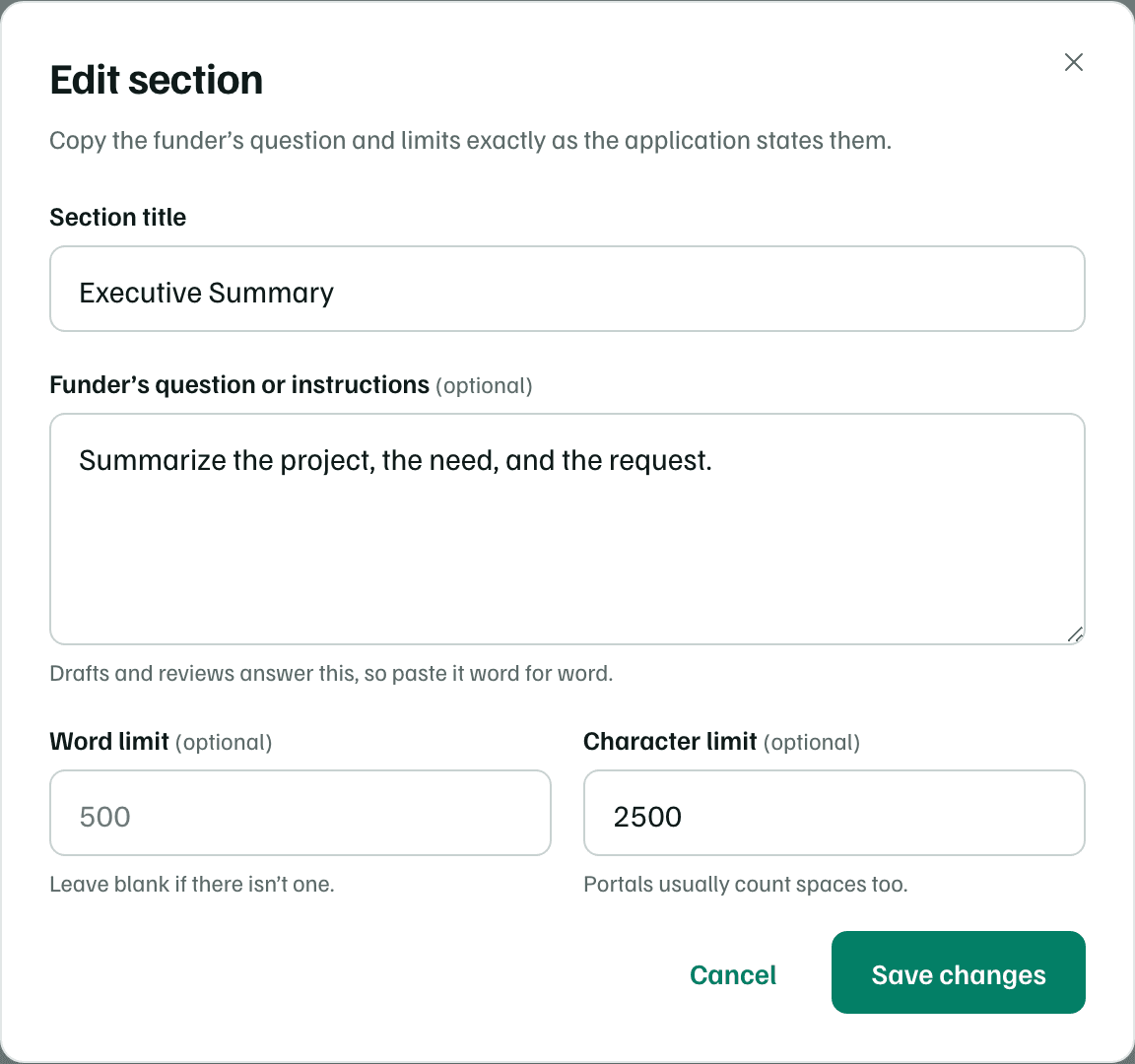
- Under the list, Add section adds a question and Arrange changes the order.
- A section's ⋯ menu has Edit title, question and limits, Save to library and Delete section.
- If GrantFlex has summarized the funder's guidelines, From the guidelines summary under the question shows the award range, deadline, your share of the costs and how the funder scores applications.
The counts under the text follow what you type, and characters include spaces, as most portals count them. You can keep writing past a limit, but you can't approve the section until it fits. The editor says what to cut, such as Shorten to 3,000 characters to approve.
Draft from your documents
AI reads the passages of your documents that best match the section, and what you've entered in GrantFlex, such as your organization's details, the other sections and approved library language. Then it drafts an answer to the funder's question within its limit. It can only read documents with AI analysis on. See Documents and AI permissions.
Start the draft
Select Draft from your documents, or Create first draft on an empty section. While AI writes, the panel reads Drafting using your documents…, and Cancel stops it. Each draft uses one AI action.
Check what it wrote
When it finishes, the panel reads Draft ready — review before use. Chips under the text name the documents it drew on. In the text, markers such as [Source 1] show which passage a fact came from, and [ADD: …] marks something it couldn't find.
Insert it or discard it
Select Insert into editor to put the draft in the section, or Discard. If the section has text, GrantFlex asks before replacing it and keeps the old text in version history. The section stays an AI draft until someone edits it.
Check first
Rewrite a passage
Select some text in the editor. A bar appears with Comment on selection and Rewrite selected text. Choose More formal, More specific or Simpler language. To cut a passage down, enter a number in Trim to… characters and select Shorten.
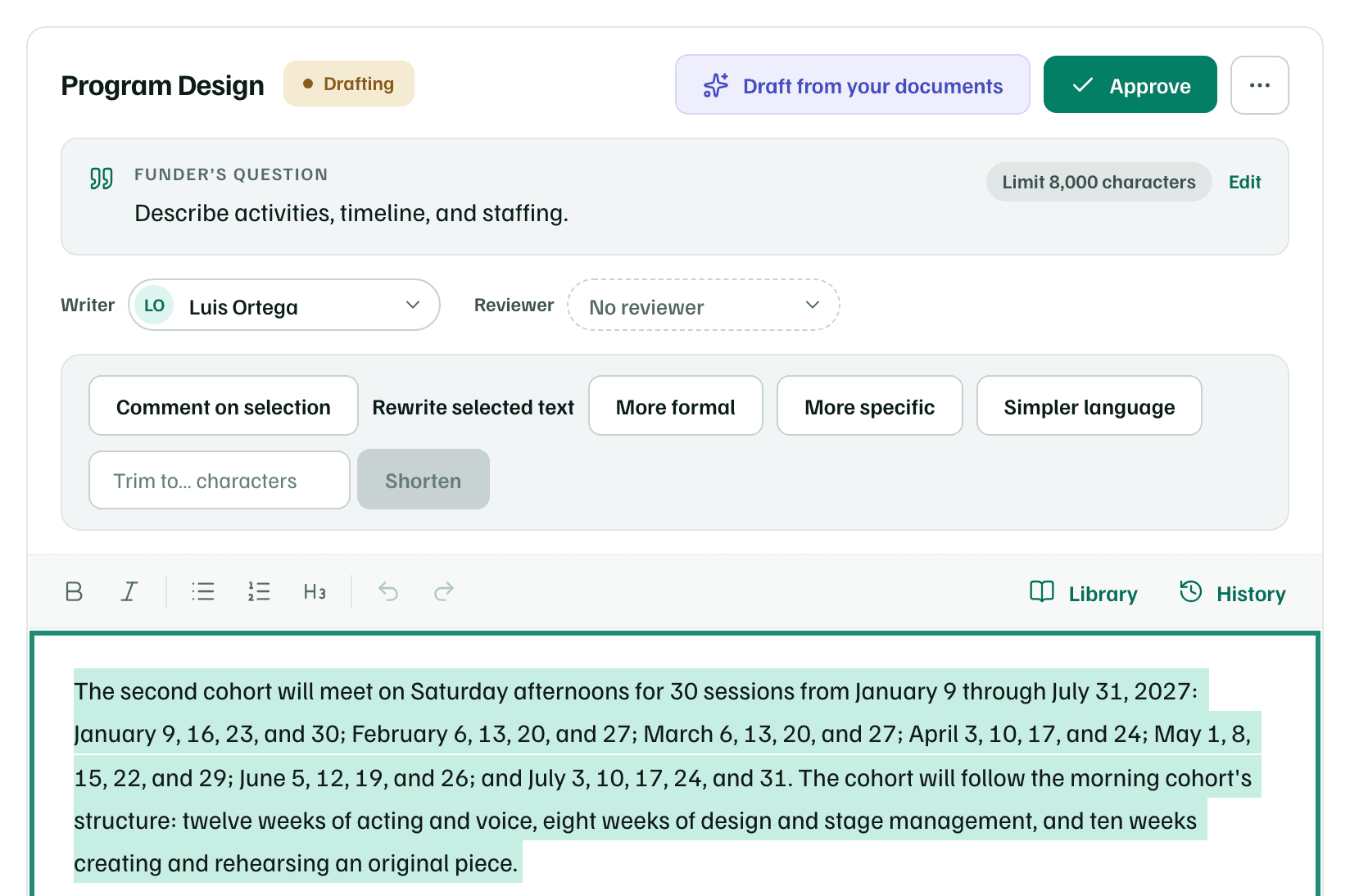
The Suggested rewrite shows your original beside the suggestion. Select Use this wording to swap it in, or Keep original. Each rewrite uses one AI action.
Library, in the toolbar, inserts approved language from your answer library. See Answer library.
Writer, reviewer and comments
Under the question, choose the section's Writer and Reviewer from the workspace's members. Once a reviewer is set, a button such as Ask Dana to review sends them a notification. An edited section then shows In review until someone approves it.
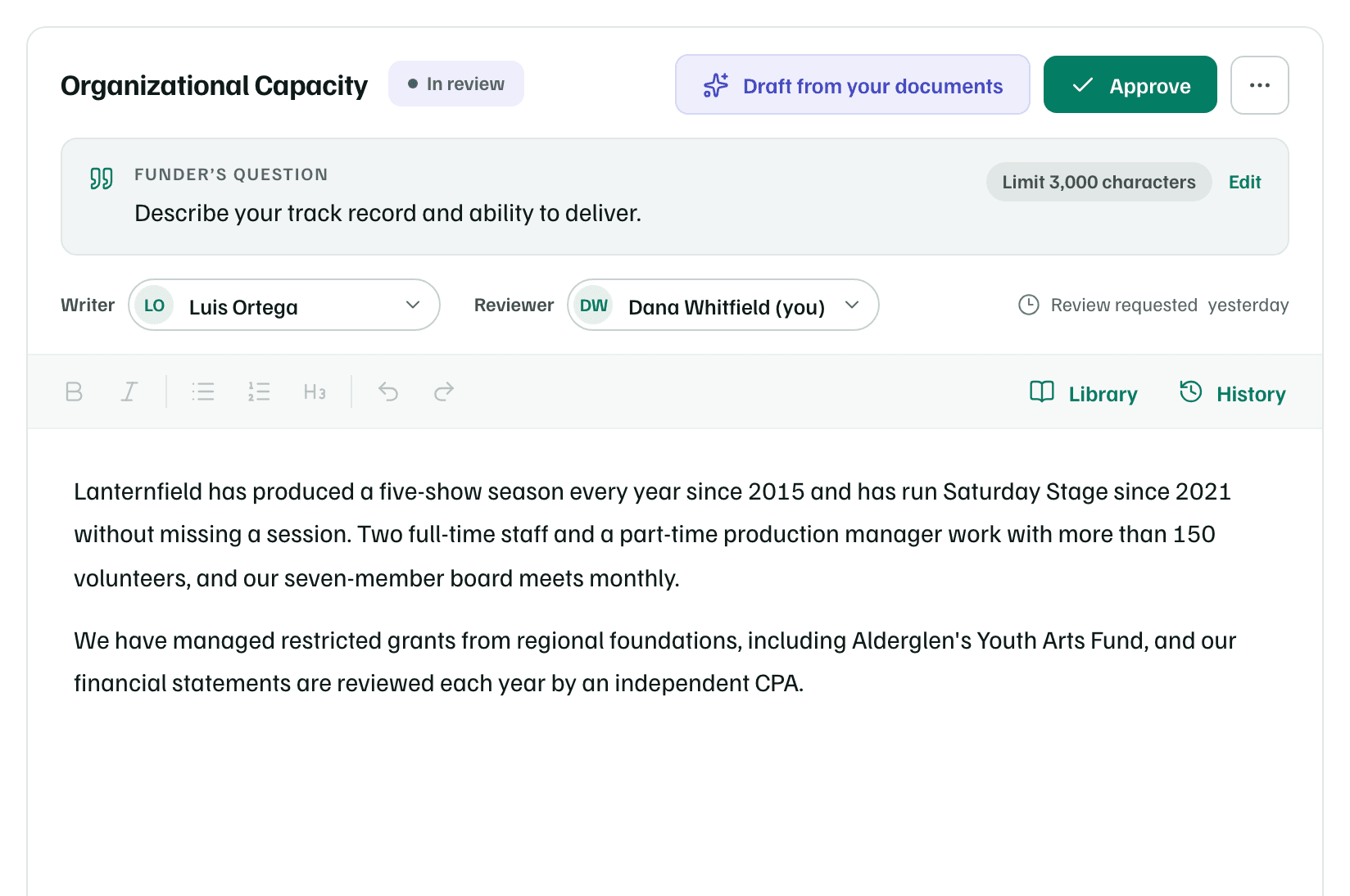
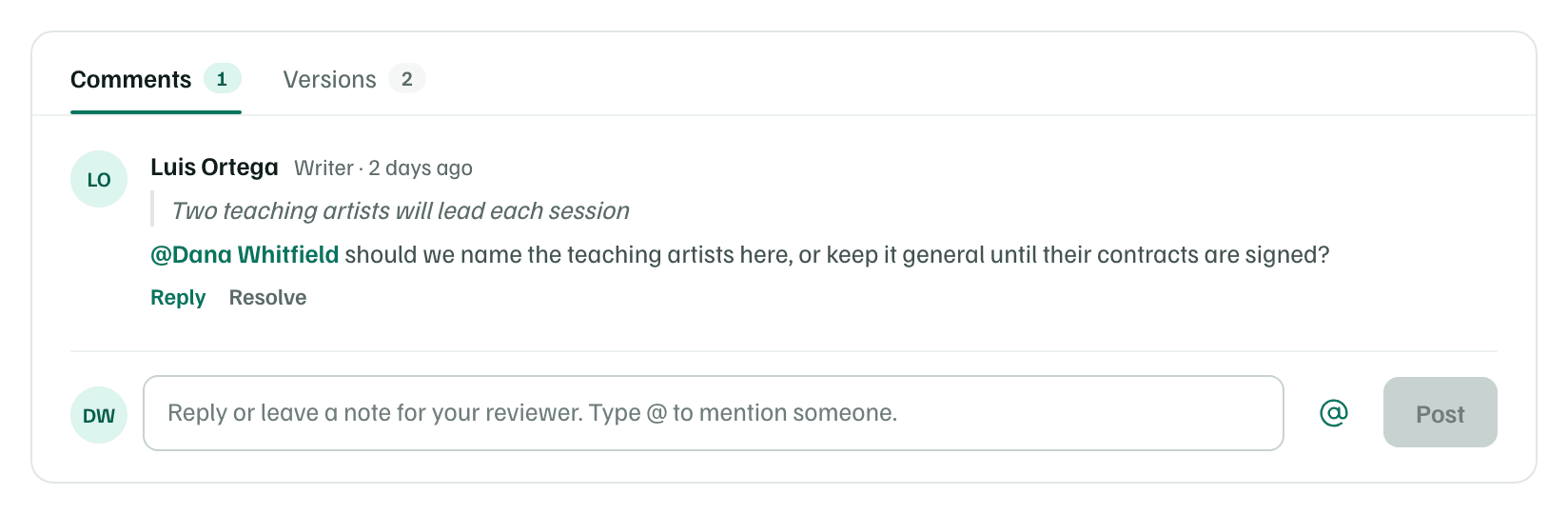
Comments are on the Comments tab under the editor. To comment on a passage, select it and choose Comment on selection, and the comment quotes it. Type @ to mention someone. The people you mention, the writer and the reviewer each get a notification.
Reply starts a comment that mentions the author. Resolve closes a comment. Closed ones fold away under Resolved, where Reopen brings one back.
Versions
GrantFlex keeps a version of a section each time someone inserts an AI draft, accepts an AI revision or approves it. To keep one yourself, select Save version under the text.
The Versions tab under the editor lists the latest ones. Select Open, or History in the toolbar, to see them all. Preview shows a version and Compare with current shows what's changed since. Restore… brings a version back after you confirm, and keeps the current text as a version first.
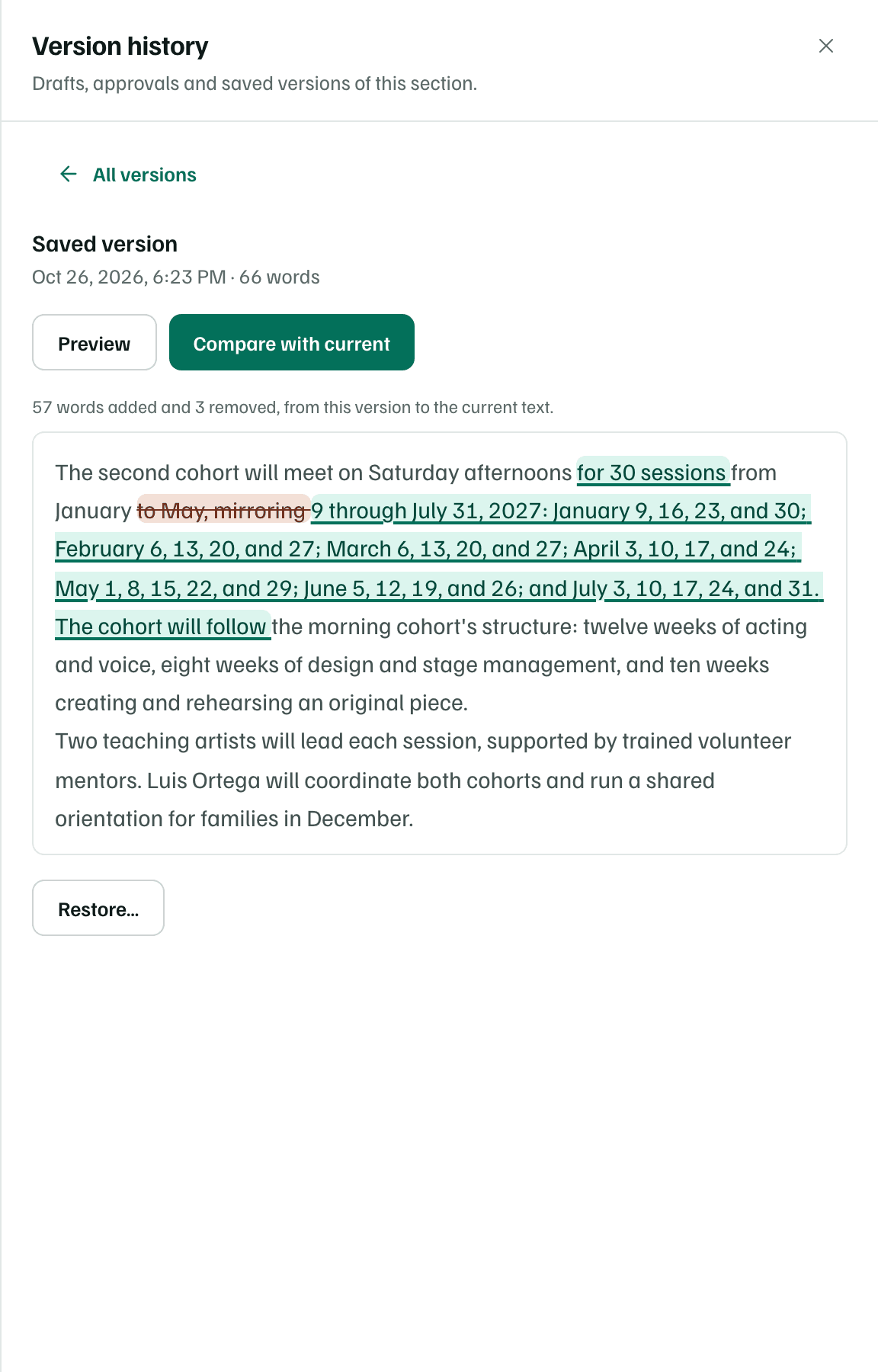
What happens in this clip
Select Program Design and scroll to Luis Ortega's comment. Then select Impact Measurement, an AI draft that cites [Source 1] and [Source 2], open its Versions tab, and open the accepted AI draft in version history.
Approve a section
When the text is final, select Approve. The section records who approved it and when, such as Approved by Dana Whitfield on Oct 20, 2026, and keeps that text as a version.
- You can't approve a section that's empty, over a limit or still being drafted.
- Editing an approved section moves it back to Drafting, so it needs approving again.
- Having every section approved is one of the checks on the Package tab.
Note