Applicant file
The applicant file keeps the standard documents funders ask for, such as an IRS determination letter, a W-9 and a board list. It shows what's current, what expires soon and what's missing, and downloads the set as one ZIP file.
- 6 min
- Every plan
Screens from October 2026
In the app:Organization, then Applicant file
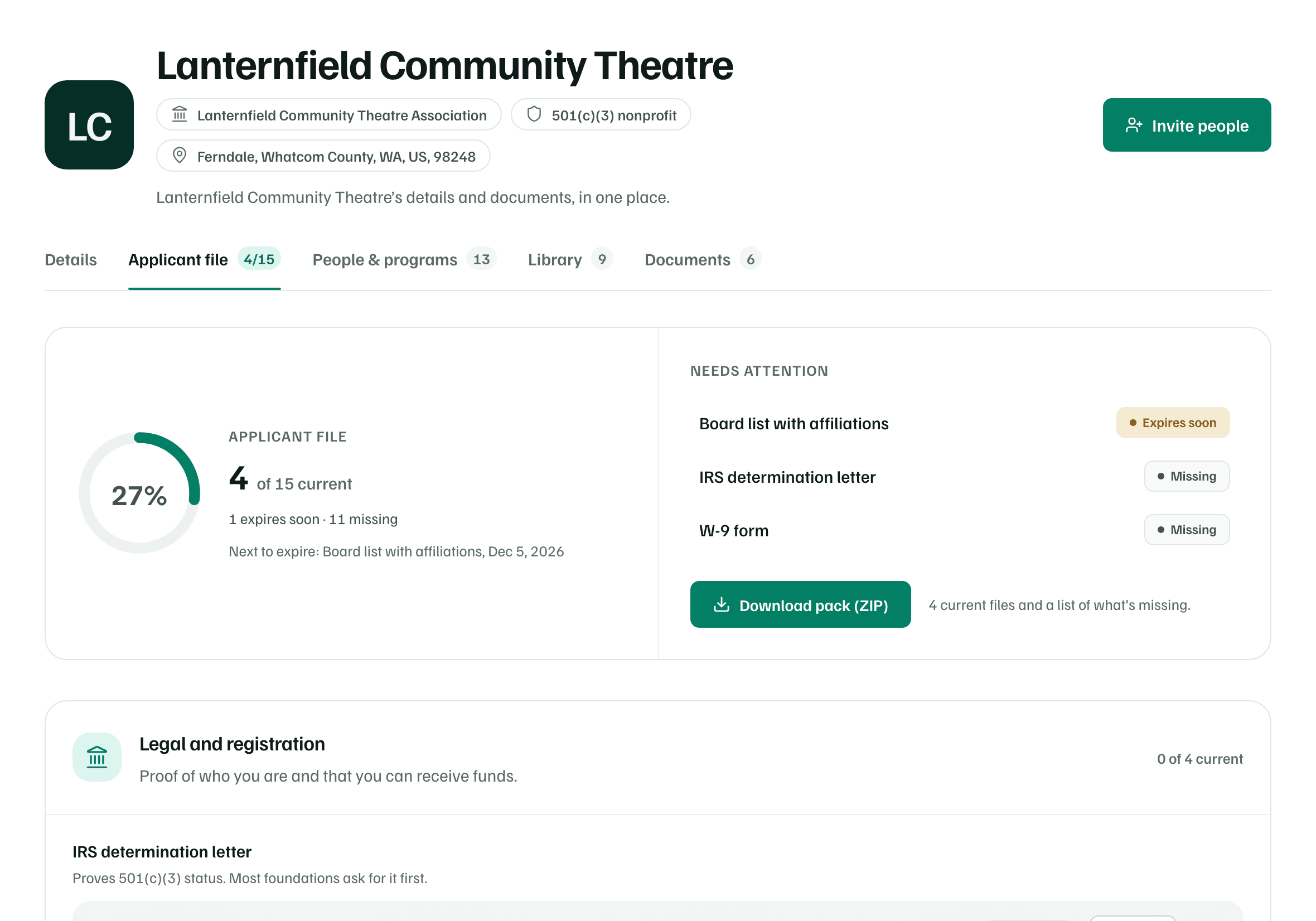
The applicant file links each standard item to a file in Documents and tracks how long it stays good. The tab's count, such as 4/15, is how many items are current.
The 15 standard documents
An organization's file has these items, in four groups. The last column is how long funders usually accept a copy after its date.
| Group | Document | Why funders ask | Usually good for |
|---|---|---|---|
| Legal and registration | IRS determination letter | Proves 501(c)(3) status. Most foundations ask for it first. | Doesn't expire |
| Legal and registration | W-9 form | Finance teams need it to pay you. Many want one signed in the last year. | 12 months |
| Legal and registration | SAM.gov registration (UEI) | Required for federal grants and many state grants. Renew it every year. | 12 months |
| Legal and registration | Certificate of insurance | Proof of liability coverage, and directors and officers (D&O) coverage if you have it. | 12 months |
| Finances | Current year organizational budget | Shows the size of your operations this year. Board-approved is best. | 12 months |
| Finances | Prior year financial statements | Income, spending and net assets for your last completed years. | 18 months |
| Finances | Audit or financial review | Independent assurance. Larger grants and budgets often require it. | 18 months |
| Finances | Latest Form 990 | The public tax return funders use to check your finances and governance. | 12 months |
| People | Board list with affiliations | Names, roles and the businesses or groups each member is part of. | 12 months |
| People | Organizational chart | Shows who does the work and who reports to whom. | 12 months |
| People | Key staff bios or résumés | Introduces the people who will lead the funded work. | 24 months |
| Plans and reports | Strategic plan | Shows your goals for the next few years and how you’ll reach them. | 36 months |
| Plans and reports | Annual report | What you did, who took part and what changed because of your work. | 12 months |
| Plans and reports | Anti-discrimination or DEI statement | Many funders ask how you prevent discrimination and include the people you serve. | 36 months |
| Plans and reports | Logo | Funders use it in announcements and on their websites. | Doesn't expire |
A workspace for yourself has 6 items instead, under Your work and Projects and eligibility, such as a CV, work samples and references.
Add a file
Open the item
Select Add file on its row, or Edit if it already has one.
Choose the file
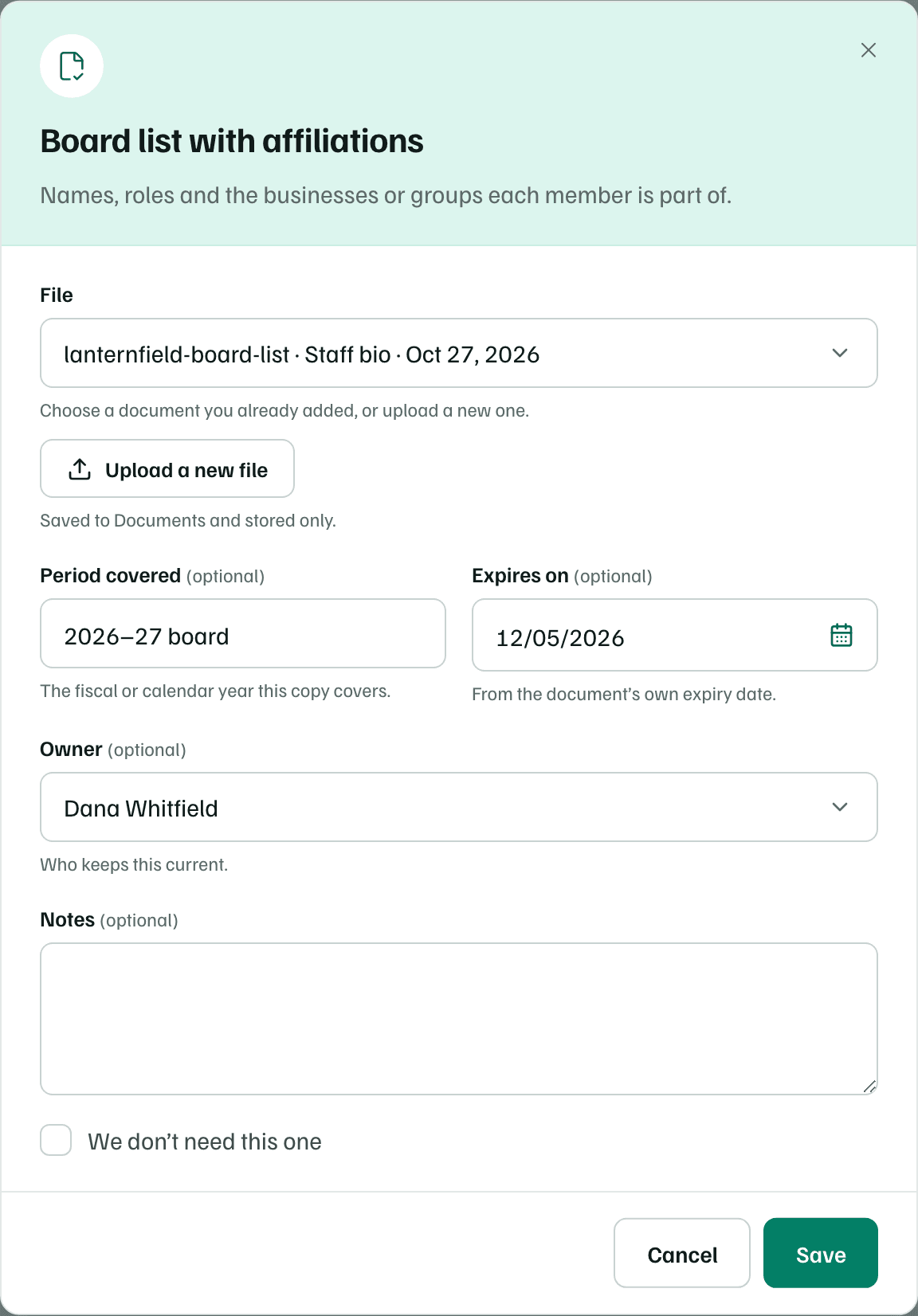
Under File, choose a document you've already added. Likely matches come first.
Or select Upload a new file. It's saved to Documents too, and AI reads it only if Analyze new uploads is on there.
Example workspace · fictional data Add the details
Add the Period covered, such as FY2026, and check Expires on. Choose an Owner to keep it current, then select Save.
If an item doesn't apply to you, tick We don’t need this one or choose Mark not applicable from the row's ⋯ menu. It then reads Not applicable and leaves the count. Mark as needed brings it back.
Expiry
Each item shows one of these statuses:
- Current: on file and in date.
- Expires soon: expires within 60 days.
- Expired: past its expiry date. Replace it before you send it.
- Missing: no file yet.
A date you enter in Expires on, or an expiry date saved on the document itself, always wins. Otherwise GrantFlex estimates one. It adds the usual period from the table to the document's date, or to the day you added the file, and marks the result (estimated). The dialog offers the estimate with Use this date.
Saved expiry dates also appear on the Calendar, under Documents.
Documents kept outside GrantFlex
Some documents shouldn't be uploaded. In a workspace for yourself, Proof of identity or residency takes a note instead of a file: what you have, where it's kept and when it expires. The row then reads Noted, kept outside GrantFlex.
Check first
Download the pack
Once a file is current, select Download pack (ZIP). The ZIP holds every current file, numbered in the order above so it's easy to attach to a portal. A README lists what's included, noted, expired, missing or not applicable.
Funders often ask for more than one year of financial statements and Form 990s. Select Add another year on those items, up to 5 years each.
Check first
Financials by fiscal year
Under the documents, Financials by fiscal year keeps the figures funders ask for. Select Add year and enter the Fiscal year, Revenue, Expenses and Net assets. Under Statements, say how they were checked, such as Audited or Reviewed by a CPA.
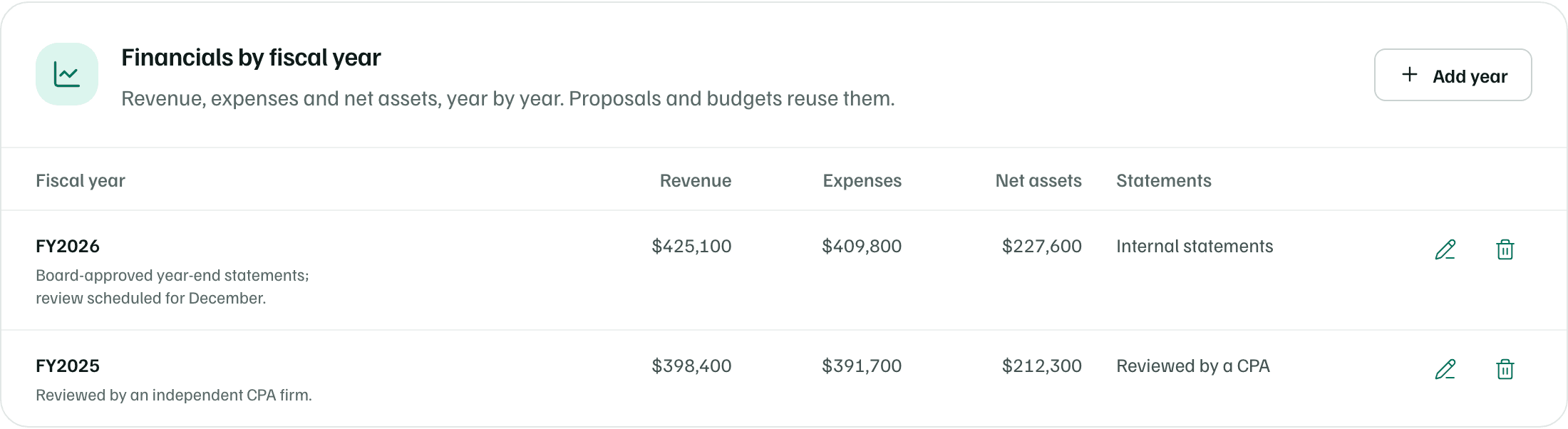
Proposals and budgets reuse these figures. When AI drafts a proposal section, it reads your two latest years.