Reminders, weekly summary and notifications
GrantFlex reminds the owner of each date before it's due, and once more if it slips. Choose your reminder days, email and the weekly summary in Settings.
- 4 min
- Every plan
Screens from October 2026
In the app:Settings, then Notifications
These choices are yours, for this workspace only. Teammates set their own, viewers included. Changes save as you make them.
Who is reminded
A date's owner gets its reminders. That's the person set on the date or, when nobody is, the owner of the record it belongs to. When nobody owns a date, the workspace's owners and admins are reminded instead. People who leave the workspace aren't reminded.
When reminders come
Under Remind me, choose any of 30 days before, 2 weeks before, 1 week before, 3 days before, The day before and On the day. Until you change them, you're reminded 2 weeks before, 1 week before, The day before and On the day.
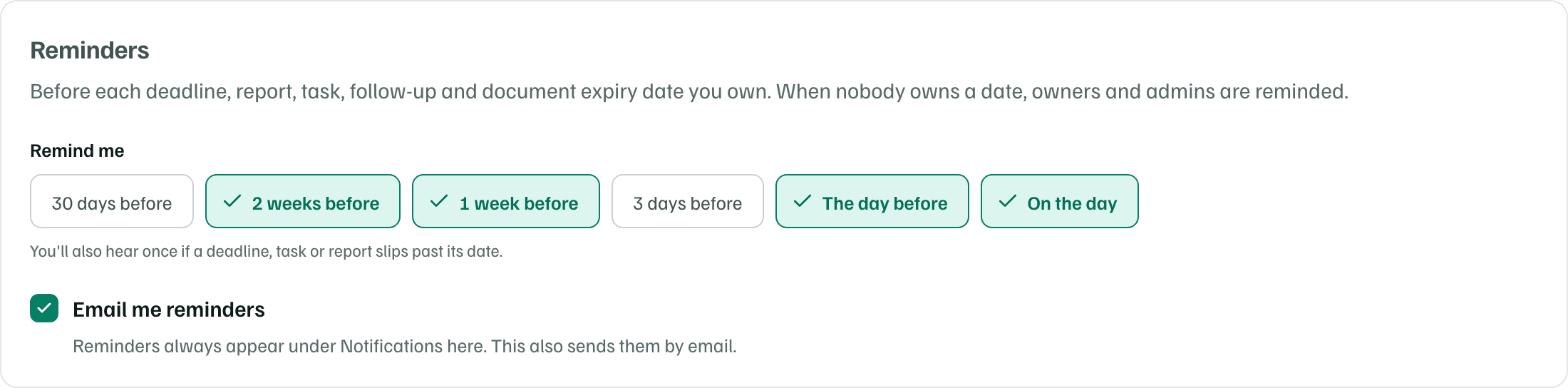
- When a deadline, task or report slips past its date, its owner hears once more the next day, even with no reminder days chosen.
- A reminder about an estimated date says so, and one about a date from research asks you to confirm it with the funder.
- A report marked Awaiting acceptance gets no more reminders, and neither does any report on a closed award.
Reminders always appear under Notifications in GrantFlex. Email me reminders sends them by email too.
Weekly summary
Email me a weekly summary sends one email with what's overdue, the next two weeks, requests waiting on a decision and your open tasks. Choose the day under Send it on. It arrives in the morning, Eastern time, and is skipped when there's nothing to report.

Other email
- Mentions and comments: when a teammate mentions you or asks you to review a section.
- Research reports: when a research report you started is ready, and when a monthly refresh finds changes in a report.
- Search alerts and page changes: new matches for your saved searches, and changes on funder pages you watch.
- Monthly summary: a short look back at the month, with what was submitted and awarded and what's coming.
Turning an email off doesn't stop the notification. Each one still appears under Notifications.
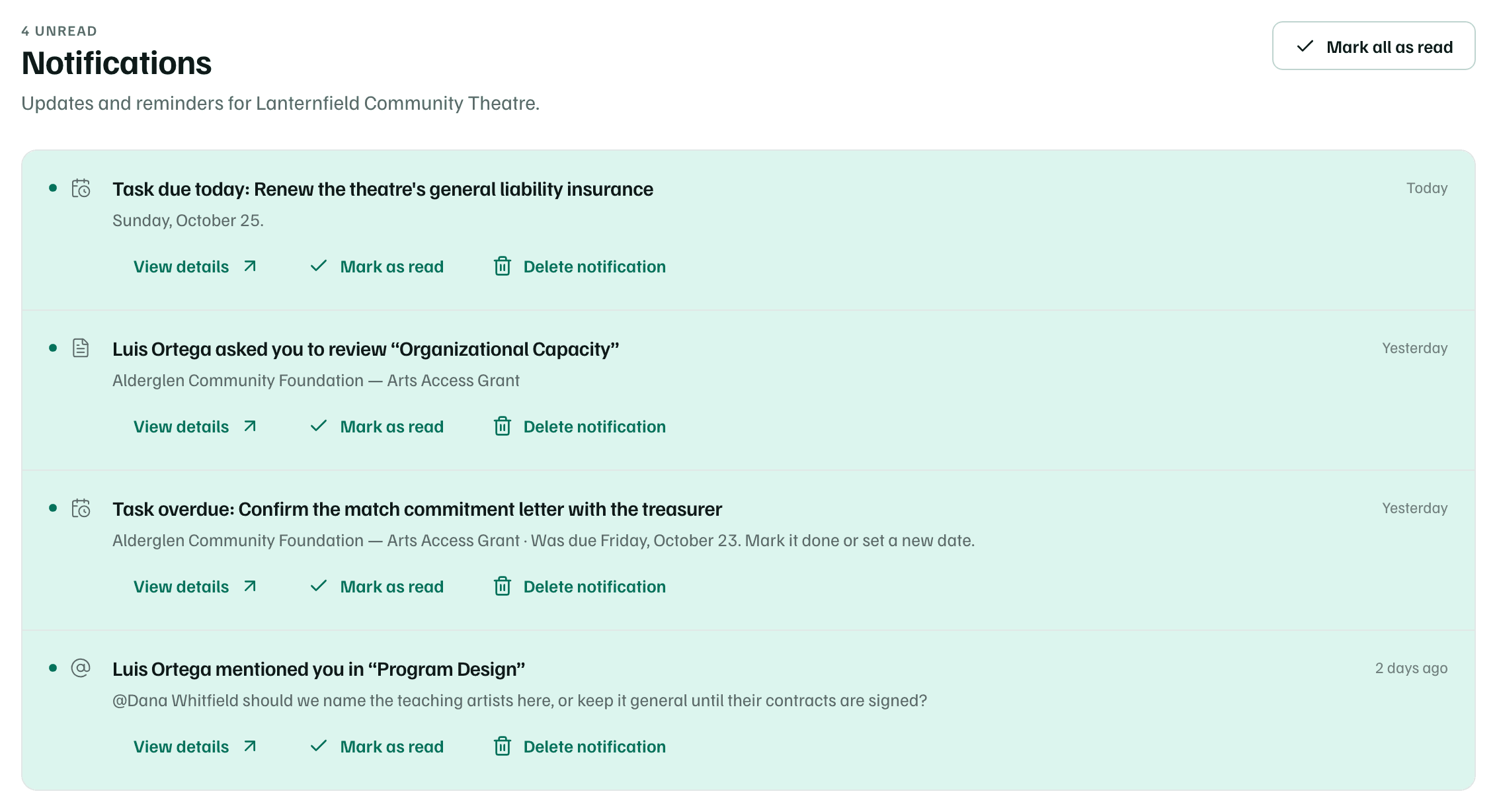
Notifications in GrantFlex
Select the bell at the top of any page, or Notifications in the sidebar. Unread items are tinted. Each has View details, which opens what it's about, plus Mark as read and Delete notification. Mark all as read clears the count.