Set up an agency workspace
An agency workspace sits above the workspaces of the clients you write for. It lists every client with what's due, and it's where you add new clients or link the workspaces you already run.
- 6 min
- Agency plan
Screens from October 2026
Each client keeps its own workspace, with its documents, research, pipeline and members. The agency workspace holds your staff, your agency library and your branding. Its sidebar has Clients, Pipeline, Calendar and Library.
Before you subscribe
Research still runs in each client's workspace, because a report is built from the profile of the organization that applies. Open a client to research funding for it.
Create the agency workspace
Open Set up your agency
When you run a client workspace and have no agency yet, All workspaces shows Managing grants for several clients?. Select Set up your agency there. A client workspace's Settings also offers Set up an agency workspace on its Agency card.
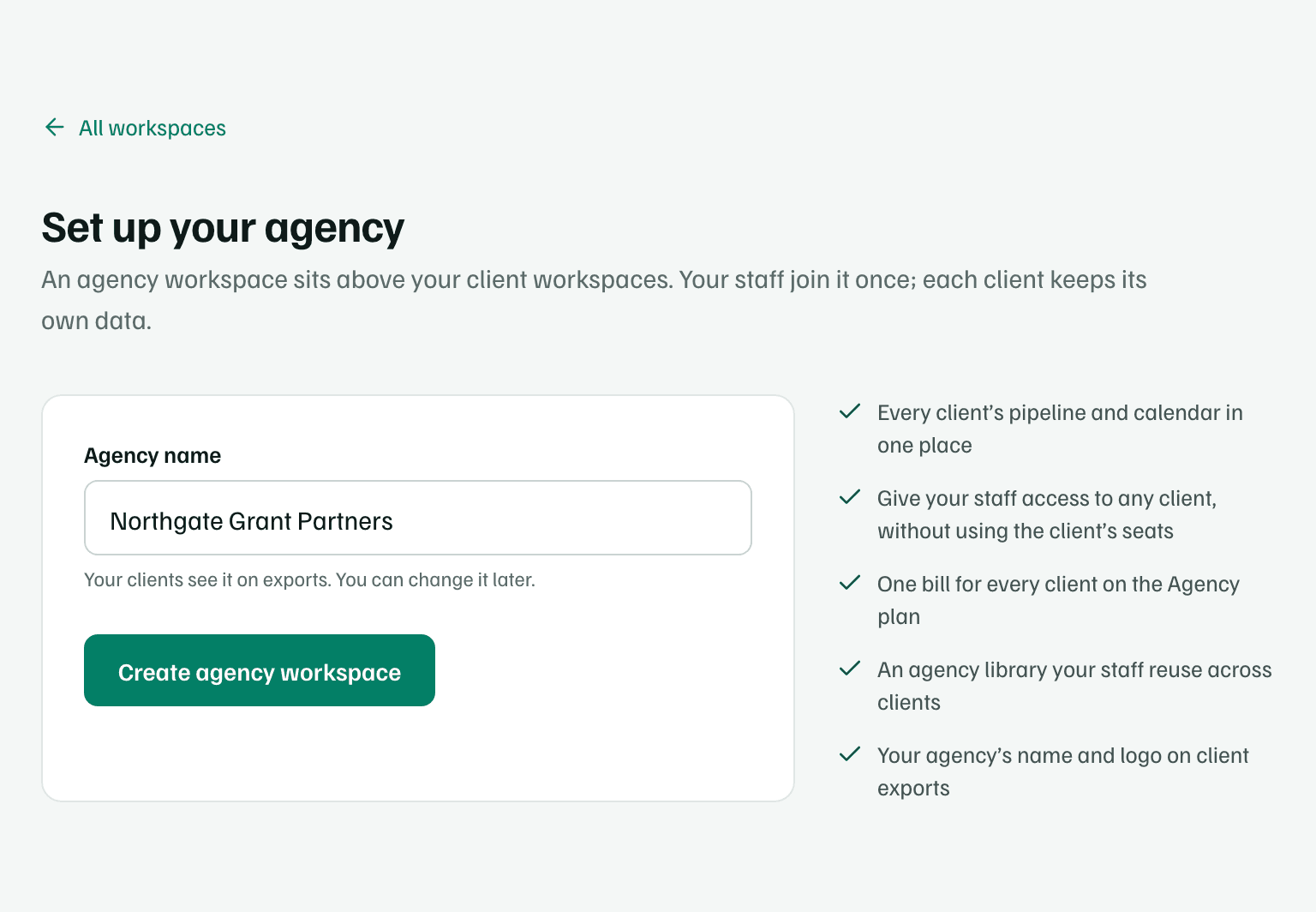
Example workspace · fictional data Name your agency
Enter the Agency name, up to 120 characters. Your clients see it on exports, and you can change it later.
Choose the clients to bring in
Under Clients to bring in, select the workspaces to link. The list shows the workspaces you own or administer, and client workspaces start out selected. One that's already linked to another agency says so and can't be chosen.
Create it
Select Create agency workspace. You become its owner, and its Clients page opens with Your agency workspace is ready. The notice says if a workspace couldn't be linked, and suggests inviting your staff and setting your branding next.
The Clients page
Clients is the agency workspace's home page. Four totals sit at the top:
- Clients: how many are linked, and how many your agency plan covers.
- Open asks: what your clients' open funding records ask for.
- Due in the next two weeks: funder dates across your clients.
- Overdue: overdue tasks and missed dates.
Open asks, dates and overdue work count only the clients you can open.
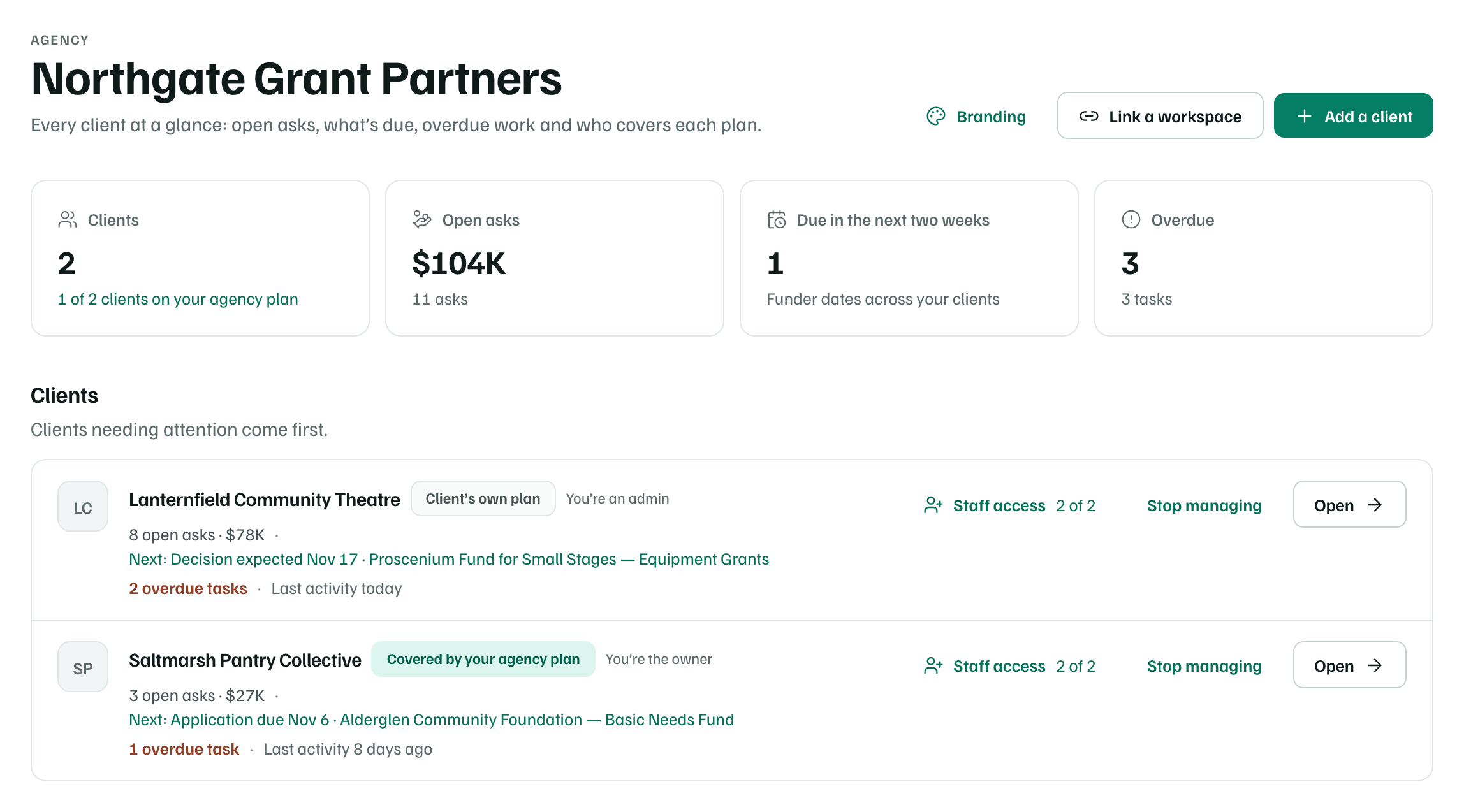
Below them, each client shows who pays for its plan, your role there, its open asks, its next funder date, overdue work and its last activity. Clients with overdue work come first, then the ones with the soonest date. Select Open, or the client's name, to work in its workspace.
The badge beside each name says who pays: Covered by your agency plan, Client’s own plan or Not covered. You see a client's numbers only if you can open its workspace. If you can't, its row says You don’t have access to this workspace yet. See Staff access and seats.
Add a client or link a workspace
Owners and admins of the agency bring clients in from the top of Clients, in one of two ways.
Add a client
Select Add a client to create a workspace for a new client, and enter its Client organization name. What does your client do? and Location are optional. Then select Create client workspace.
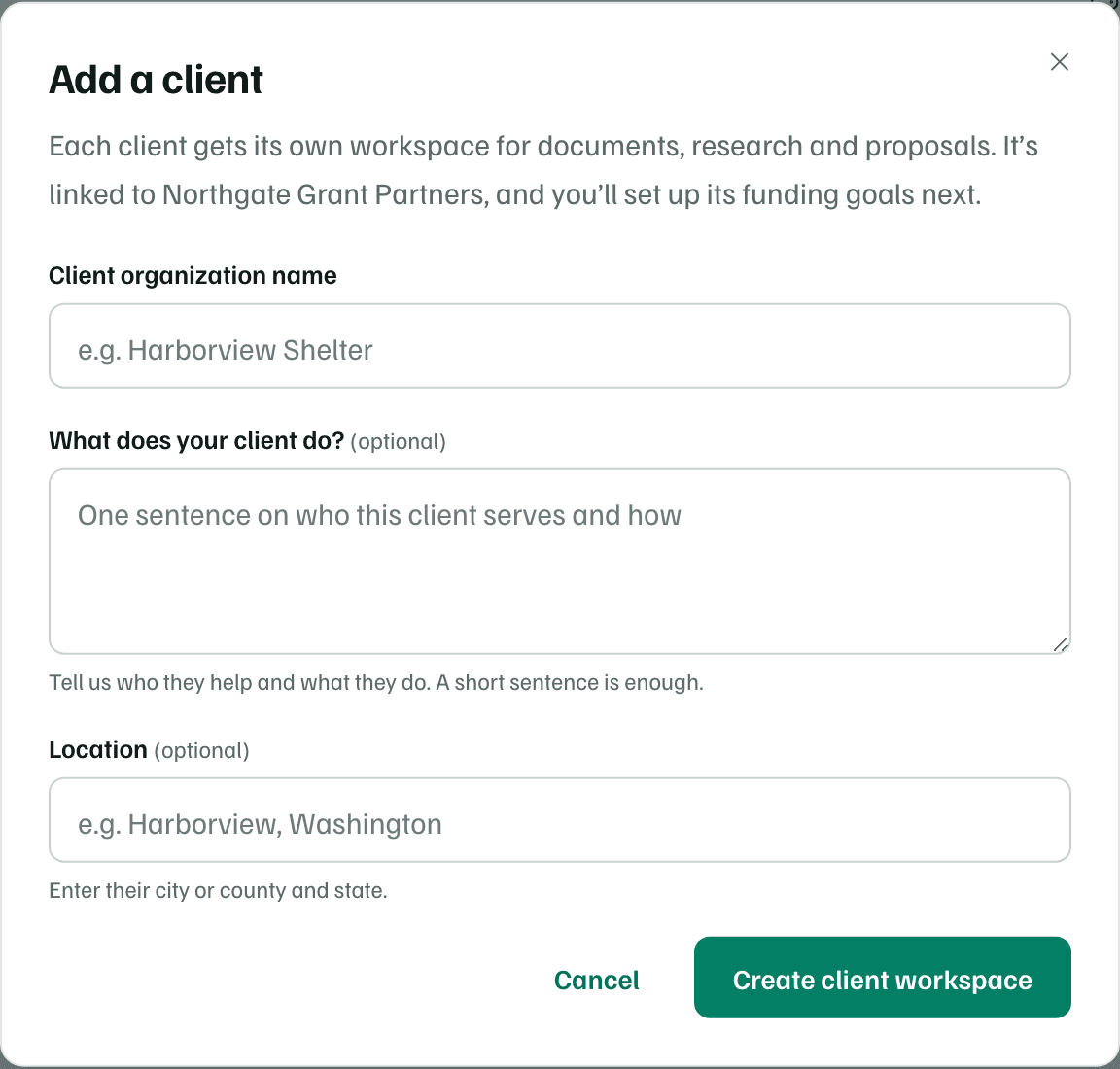
You own the new workspace, and it's linked to the agency straight away. Setup then carries on for the client from its funding goals. See The five setup steps.
Link a workspace
Select Link a workspace to bring in a workspace you already own or administer, then select Link beside it. It keeps its data and members, and your agency's plan can then cover it. A workspace linked to another agency is listed but can't be linked.
From a client workspace's own Settings, the Agency card offers a button named for your agency, such as Link to Northgate Grant Partners.
Note