Get an AI review
An AI review reads every drafted section against the funder's scoring criteria, or standard criteria when the funder doesn't publish any. It scores each one and suggests what to fix before a person reads the draft.
- 5 min
- Every plan
- Uses 1 AI action
Screens from October 2026
In the app:Pipeline, then Proposal, then Review
Run a review
Before the first review, the tab explains what a review does. What will be reviewed lists each section with its length, and the budget explanation if there is one. Sections without text show Skipped · empty, since the review reads only what's written.
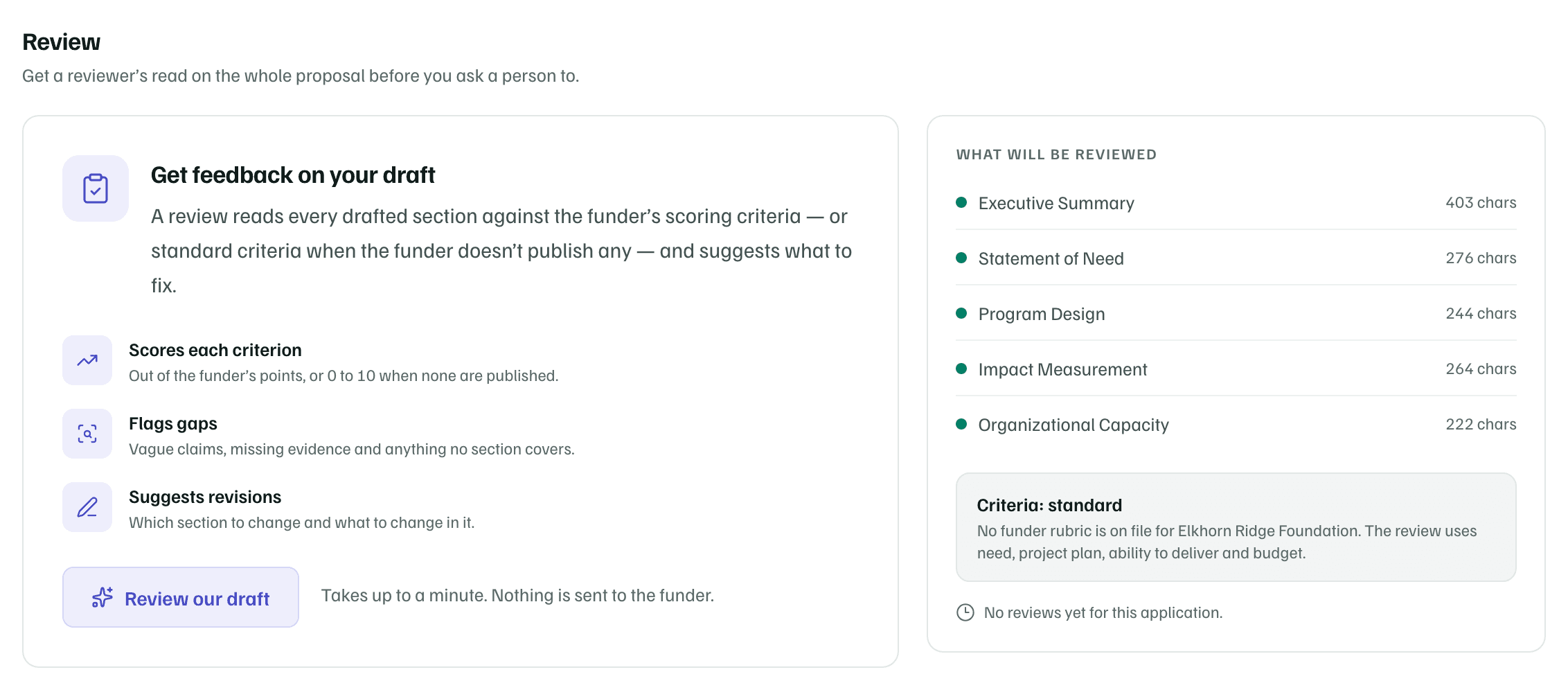
Select Review our draft. A review takes up to a minute and uses one AI action. Nothing is sent to the funder. If you're applying as an individual, the button reads Review my draft. After the first review, it reads Review again.
Which criteria it uses
If GrantFlex has summarized the funder's guidelines and found scoring criteria, the review uses them, with their points. Otherwise it uses standard criteria: need, project plan, ability to deliver and budget. The box under What will be reviewed says which, as Criteria: from the funder’s guidelines or Criteria: standard.
Each criterion is scored out of the funder's points, or out of 10 when the funder publishes none. When every criterion has points, the review adds them up, such as 22 / 40 pts.
Read the scoresheet
The scoresheet starts with a verdict: Looks submission-ready, Needs work or Not ready. A short summary says why, and the total score follows.
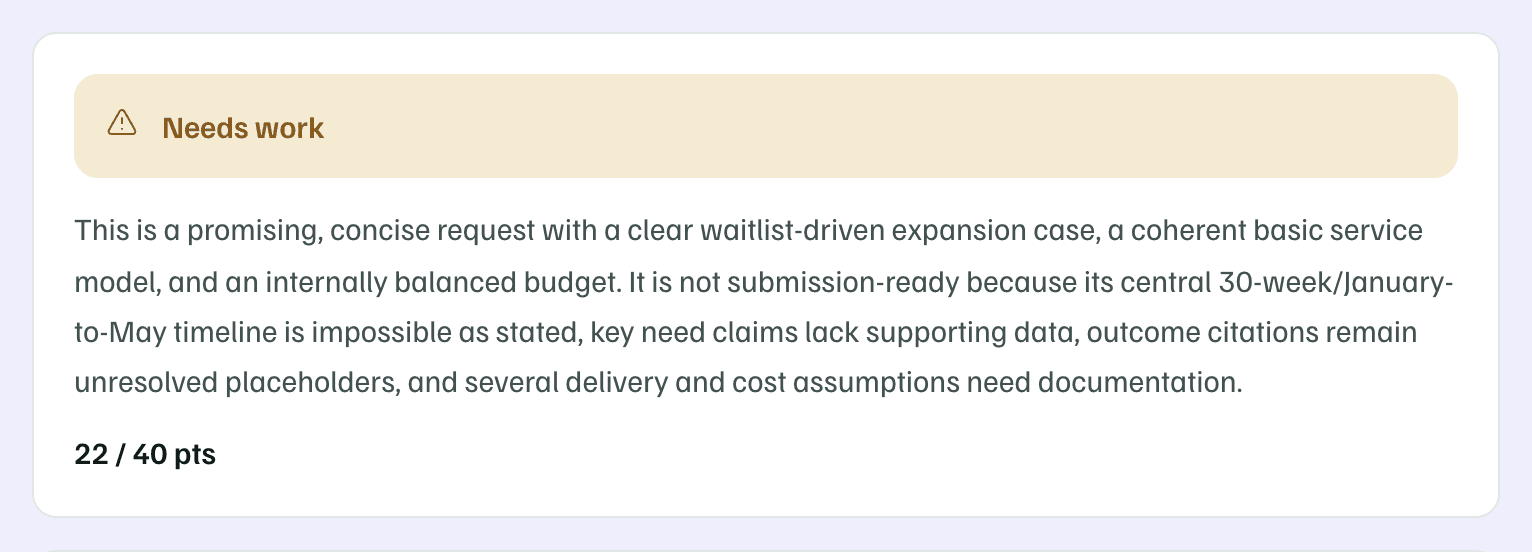
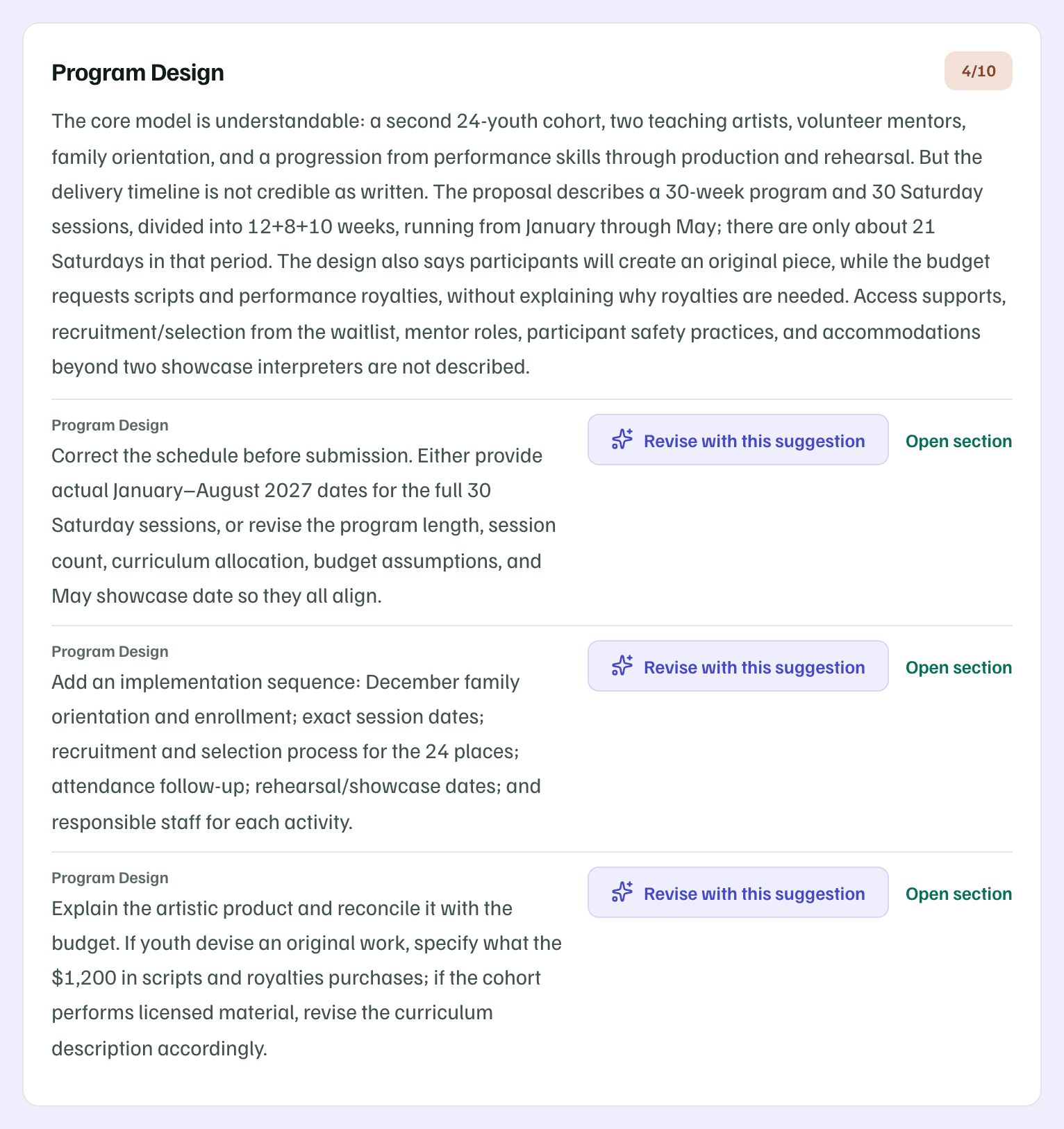
Below the verdict, each criterion has its score, a critique of what the draft says or leaves out, and fixes. Each fix names the section to change. At the end, Not addressed anywhere lists what no section covers.
If the proposal is long, the review may leave some sections out to fit. A note at the top names them, so you can check those yourself.
Check first
Revise with a suggestion
Beside each fix, Open section opens the section so you can edit it yourself. Revise with this suggestion has AI rewrite the section to apply that one fix. It's offered when the fix names one of your sections, that section has text and the proposal isn't locked.
- A dialog shows the fix, then the current section and the revision with the changes marked, and the new length against the limit.
- Fill any [ADD: …] placeholders the revision adds before you approve the section.
- Select Use this revision to save it, or Keep current text. Edit the section yourself opens the section instead.
Each revision uses one AI action. The text it replaces stays in the section's version history. On the Arts Access proposal, Program Design's schedule fix was applied this way, and its history shows the change as AI revision accepted.
Review history
Every review is kept. Once there are two or more, Review history lists each run with its date and verdict, so you can see whether your changes moved it. Select a run to see its scoresheet again.