Your free introductory research
The owner of a new workspace gets one free research run. GrantFlex looks for funders that fit your work, ranks what it finds and shows you the top three opportunities in full.
- 5 min
- Every plan
- No AI actions
Screens pending
Free on every plan
What starts it
It starts when you finish setting up a workspace. On the last step, select Looks good, then Unlock Funding in the dialog that asks you to allow AI. The button includes your organization's name.
If setup ends without it, the research starts on its own the next time the owner opens Discover. Workspace AI needs to be on. Only the owner can start it.
In the app:Discover
While it runs
The page says We’re finding funding for and your organization's name. Research usually takes about 30 minutes. There's nothing you need to do, and you can close the tab.
A dark card says what's happening now. Below it, four steps show how far the research has got, each marked Done, Now or Next:
- Prepare your brief: your goals, location and applicant details come together so the search is specific to you.
- Find opportunities: the research looks for grants, funders and donated support that fit your work.
- Check the evidence: sources, eligibility, deadlines and amounts are checked before anything reaches your report.
- Build your report: what was found becomes recommendations and a place to start.
The steps move only when the research does, so there's no percentage or countdown. If some findings need stronger evidence, the status reads Checking details again for a while.
Under the card, We’ll email you when it’s ready confirms one email with a link to your report. Select Turn off email if you'd rather not get it, or Email me when it’s ready to turn it back on. When the report is ready you also get a notification in GrantFlex, Your introductory research is ready.
Your free preview
When the research finishes, the page becomes your report, titled Funding opportunities for your organization. A Free preview card says how many funder leads and other support ideas the research found, and how many of them you can see now.
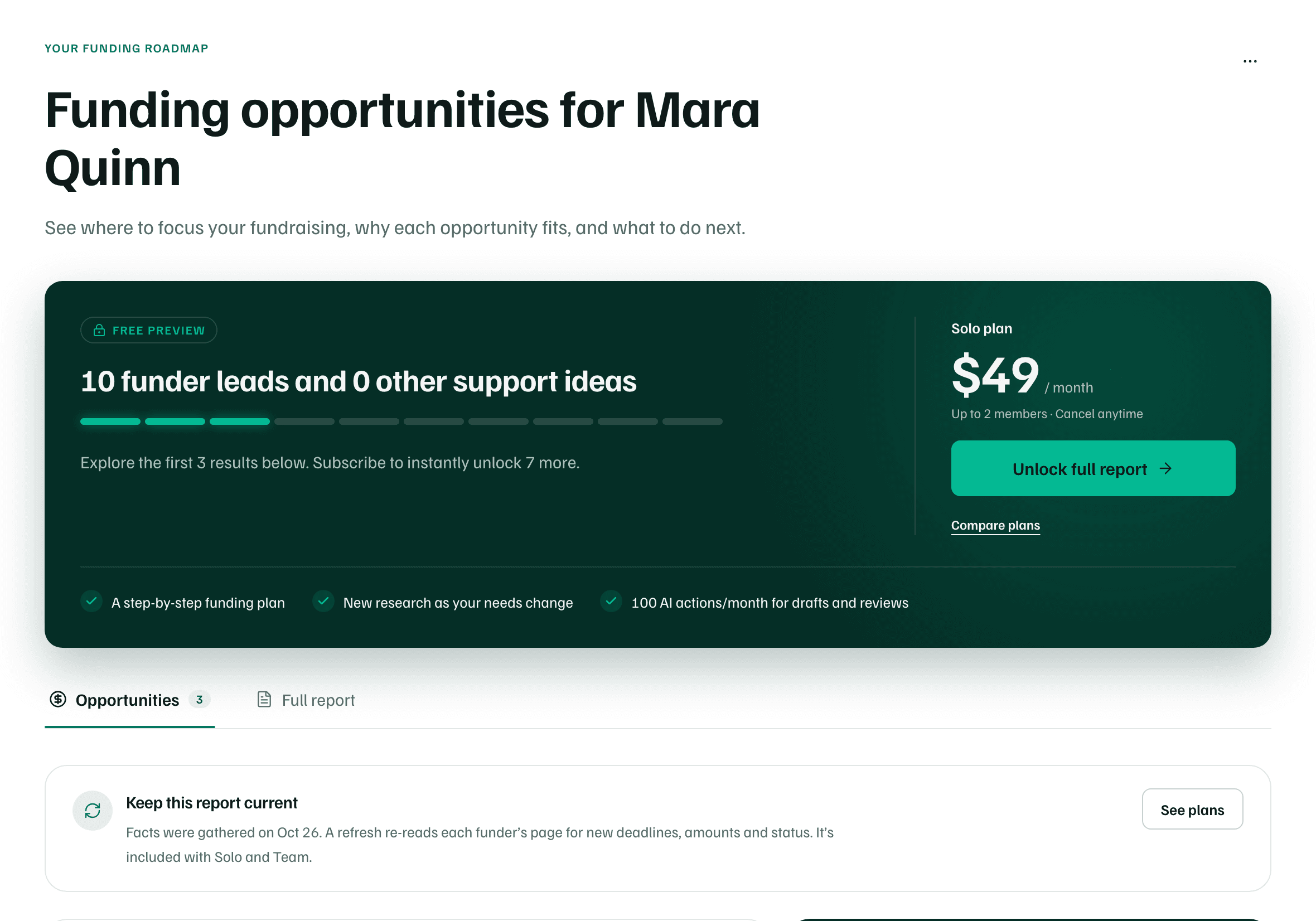
The Opportunities tab shows the top three in order of fit. The Full report tab has the written report. Some of its sections end with More details in this section are available with a subscription.
Read the three opportunities
Each card shows its rank, the kind of support, such as Grant, and the funder's status as the report read it, such as Open now. Under the funder and the program, one line of guidance says where to start. When the report found an amount or a deadline, the card shows it too.

- Select a card to see why it could fit, what the funder requires, the questions to ask and the sources the research used.
- Select Open funder’s site and confirm the deadline and who can apply there. Research can be out of date or wrong.
- Select the star to shortlist an opportunity, or choose a next step at the bottom of its details, such as Start application. See Decide what to do with an opportunity.
Unlock the rest
Below the three cards, the other results keep their place in the ranking, starting at #4. They're already researched, but nothing about them shows until the workspace subscribes.
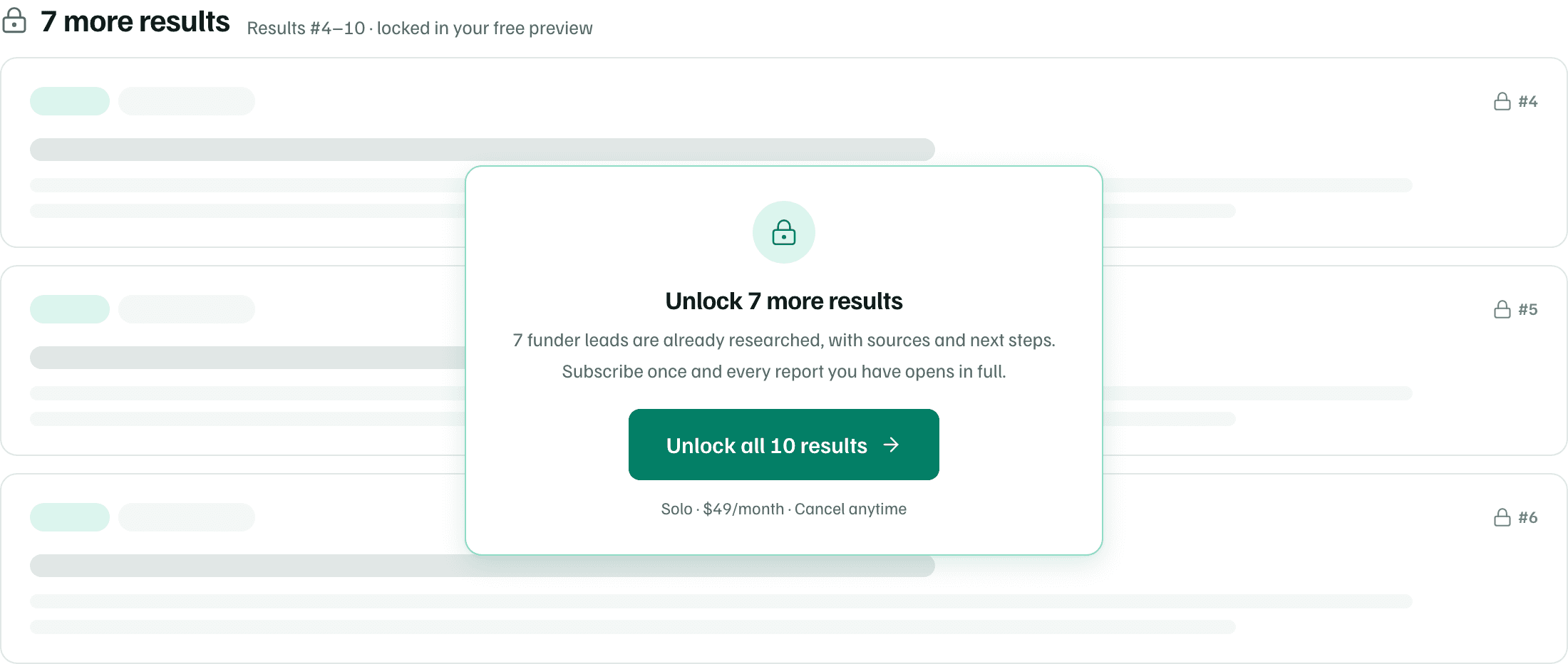
The owner can select Unlock full report on the preview card, or the button under the locked results, such as Unlock all 10 results. Checkout brings you back to the same report, now in full. Other members see a note asking the owner to subscribe.
What a subscription adds