Package and record your submission
The Package tab checks that the proposal is ready, lays out each response to paste into the funder's portal and downloads the files. After you submit through the funder's own process, you record the submission here.
- 6 min
- Every plan
Screens from October 2026
In the app:Pipeline, then Proposal, then Package
GrantFlex never submits for you
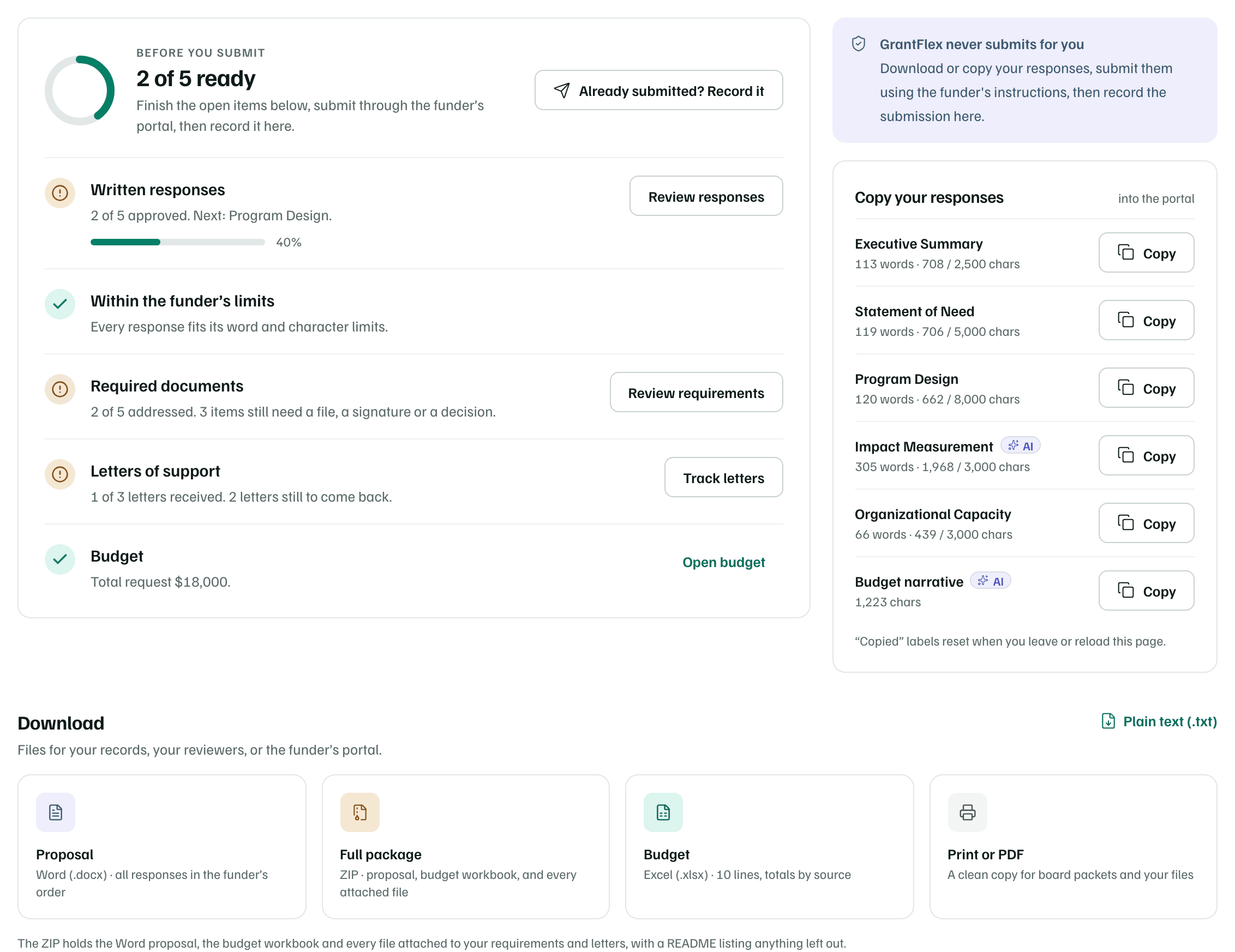
Readiness checks
Under Before you submit, each check says what it found, with a button to fix it, such as Review responses.
| Check | Ready when |
|---|---|
| Written responses | Every section is approved. |
| Within the funder’s limits | Every section fits its word and character limits. It's shown when any section has a limit. |
| Required documents | Every requirement is attached, waived or done, and every document the guidelines list is on your checklist. |
| Letters of support | Every letter is received or declined. It's shown when you track any letters. |
| Budget | The budget has at least one line. |
When every check is met, Mark ready to submit sets the proposal to Ready to submit. If its funding record is still at an earlier stage, the record moves to Preparing.
Copy your responses
Copy your responses lists each section as plain text, in the funder's order, with its word and character counts. The budget narrative is at the end. Select Copy beside a section, then paste it into the matching field of the funder's portal.
Each row you copy shows Copied, so you can keep your place, until you leave or reload the page. A section over its limit says so in red.
Download the package
| File | What's in it |
|---|---|
| Proposal (Word) | Every response in the funder's order. |
| Full package (ZIP) | The Word proposal, the budget workbook and every file attached to your requirements and letters, with a README listing anything left out. |
| Budget (Excel) | The budget lines, with totals by who pays. It needs at least one line. |
| Print or PDF | A clean copy in a new tab, for board packets and your files. |
| Plain text (.txt) | Every response and the budget narrative as text. |
The header's More actions menu also has Download proposal (Word) and Print or save as PDF. Downloading doesn't send anything to the funder.
Record the submission
Open the form
After the proposal has gone to the funder, select Record submission. While some checks are still open, the button reads Already submitted? Record it.
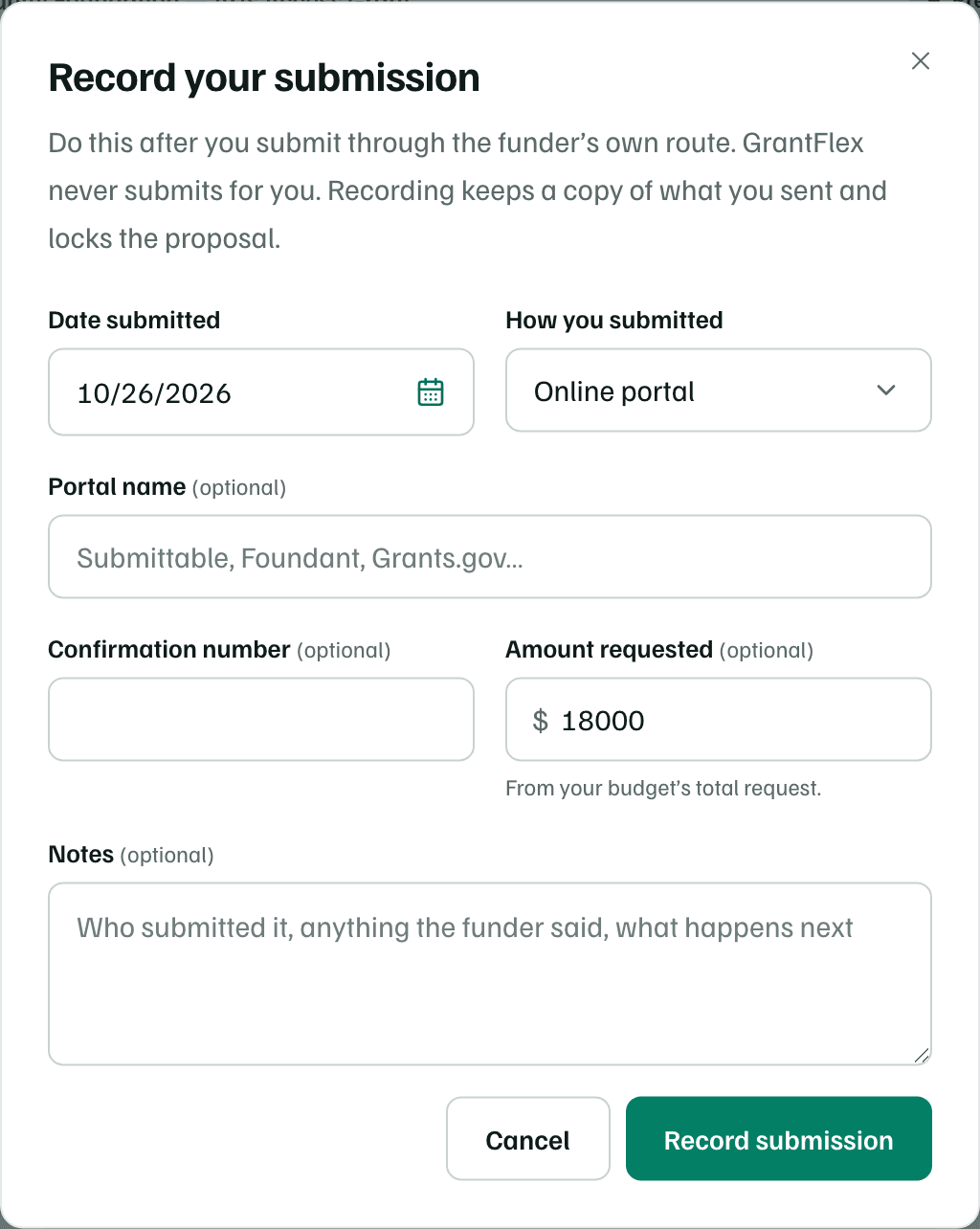
Example workspace · fictional data Say how and when it went in
Enter the Date submitted and choose How you submitted: Online portal, Email, Mail, In person, Other. Add the Portal name, the Confirmation number and any Notes. Amount requested starts at the budget's total request.
Save it
Select Record submission at the bottom of the form.
What happens in this clip
Select Already submitted? Record it. The dialog opens with today's date, Online portal and the budget's total request filled in. Type a portal name and a confirmation number, then select Cancel. Nothing is saved, and the proposal stays open for edits.
What recording changes
- The proposal becomes Submitted.
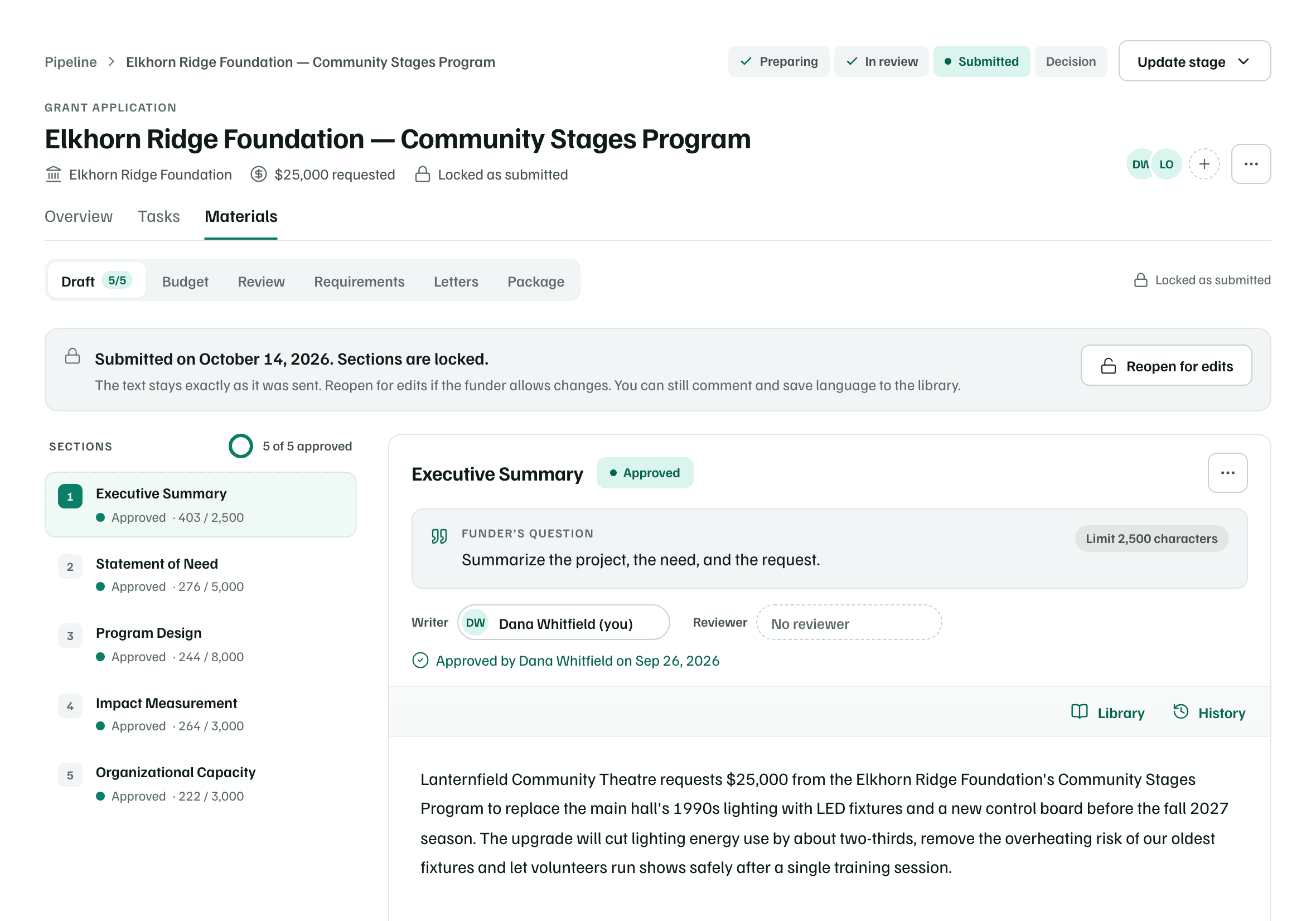
- Its sections and budget lock, so they stay exactly as sent. You can still comment and save language to the library.
- GrantFlex keeps a copy of what went in: each response, the budget totals, and every attachment and letter with its status.
- Its funding record moves to Awaiting response, with the date and amount you entered. The record's application deadline is marked done.
Check first
View what was submitted
Afterward, the Package tab shows the record: the date, how it went in and the confirmation number. Select View what was submitted to read each response as sent, the budget totals, and the attachments and letters.
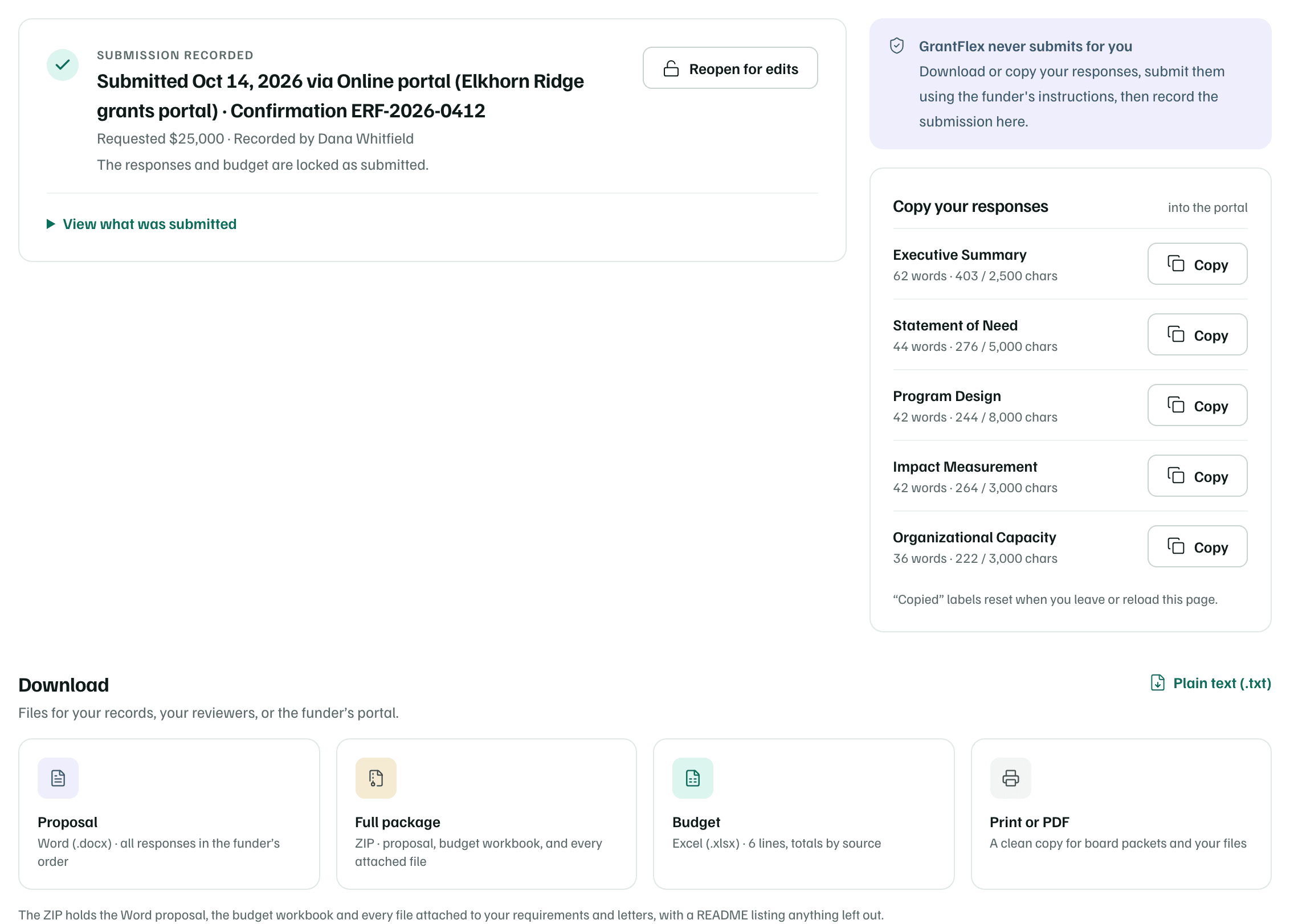
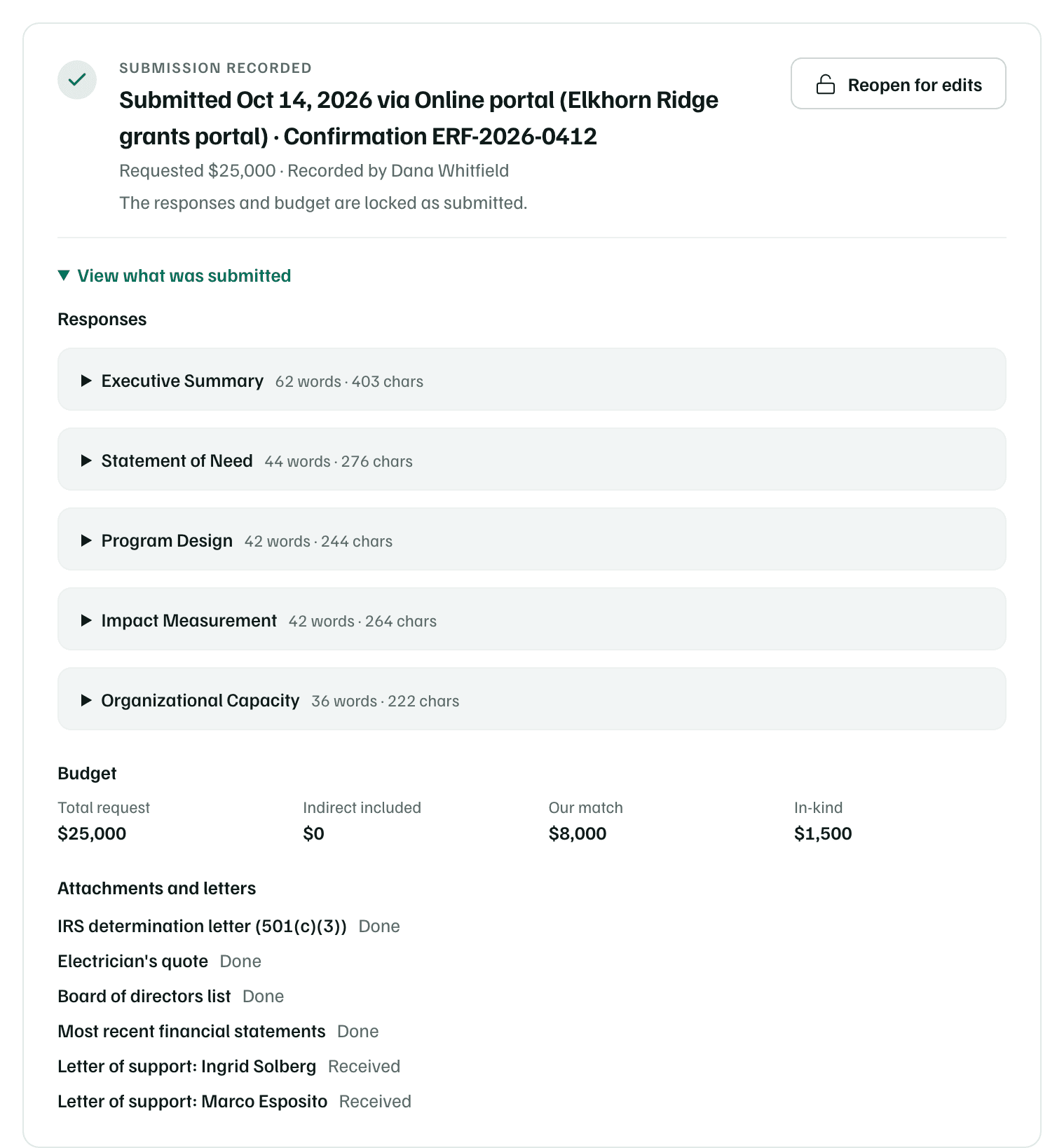
That copy never changes, even if you reopen the proposal. If you record a resubmission, earlier records stay listed under the latest one.
Reopen for edits
If the funder allows changes after you submit, select Reopen for edits on the Package tab or on the Draft tab's notice, and confirm. The sections and budget unlock. The pipeline stage and the recorded submission stay as they are.
When you send the changes, select Record the resubmission to record it again. Once you record the funder's decision, the proposal can't be reopened. It stays as it was submitted.