Billing and usage
Billing and usage shows your workspace's plan and what's left of its allowances. The workspace owner subscribes, updates payment details, switches plans and cancels there. Stripe handles every payment.
- 5 min
- Every plan
Screens from October 2026
In the app:Settings, then Billing and usage
In Settings, select Billing and usage. Everyone in the workspace can read it, but only the owner can change the plan or payment details. Everyone else sees a note to ask the owner.
Your plan and usage
- Current plan shows the plan, its price and its status, such as Active with the date it renews, and what it includes. On Free, it lists what upgrading adds.
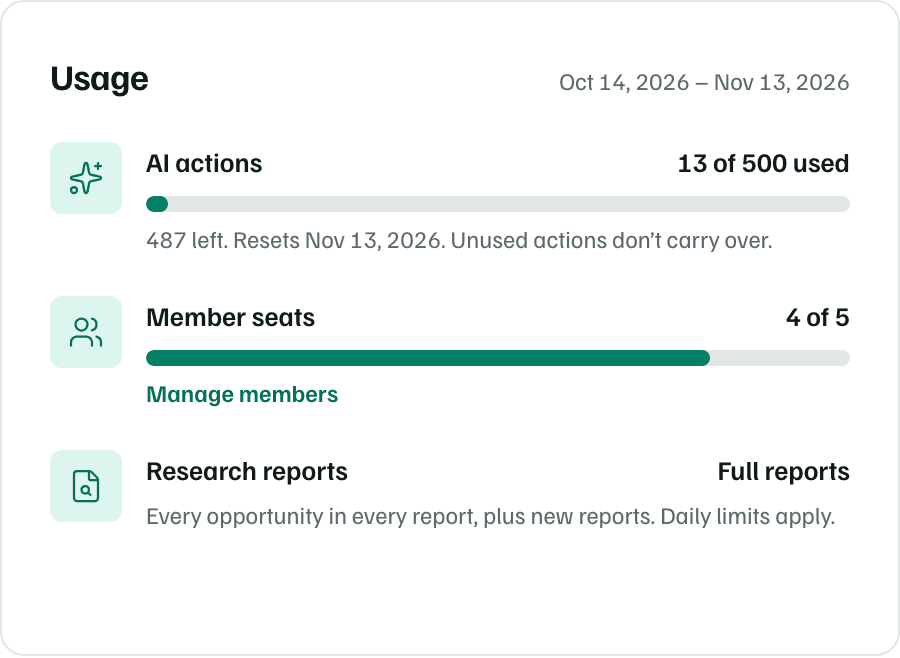
- Usage shows the AI actions used and when they reset, member seats, and whether research shows full reports.
- Plans compares the plans, with yours marked Current plan.
- Questions about billing answers the questions people ask before paying.
What each plan includes, and what counts as an AI action, is in Plans, seats and AI actions.
Subscribe to a plan
Compare the plans
On Free, Billing and usage starts with Choose a plan. The plan that suits the number of people in your workspace is marked Recommended.
Pay in Stripe
Select Choose Solo or Choose Team. Stripe's checkout opens, and GrantFlex never receives your card number.
Come back
Your plan changes once Stripe confirms the payment. Back in GrantFlex, the page says you're on your new plan, such as You’re on Team.
If you leave checkout before paying, nothing changes. While a checkout is still open, the page offers Resume checkout, Check payment status and Cancel checkout.
Payment details and invoices
On a paid plan, the owner sees Manage billing and Payment method under the plan. Both open Stripe. Invoices and receipts are in Manage billing.
Switch plans
Under Plans, select Switch to Team or Switch to Solo. Before an upgrade, Stripe shows the prorated charge for you to confirm. A downgrade takes effect at your next renewal.
Switching never deletes documents or removes members. If the workspace has more members than its plan includes, the page says so, and new AI work waits until you remove members or upgrade. Existing work stays available.
Cancel a plan
Select Cancel plan to open Stripe's cancellation screen. The plan stays active through the period you've paid for, and its status shows the date it ends. Until then, Renew plan undoes the cancellation.
When the paid period ends, the workspace returns to Free:
- Your saved work stays, including documents, records, proposals and reports.
- Reports go back to showing their top 3 opportunities.
- Free's limits apply. A workspace with more members than Free includes must remove members before starting more AI work.
Note
Payment problems
| Status | What it means |
|---|---|
| Payment past due | The last payment didn't go through. Update the payment method to keep the plan. |
| Payment needed | The subscription is waiting for a payment. Until then, the workspace has Free's limits. |
| Payment issue | New AI work is paused until the issue is resolved. Saved work, manual editing and exports still work. |
The owner sees Update payment method beside the notice, which opens Stripe.
Workspaces an agency manages
When an agency's plan pays for your workspace, Billing and usage shows Covered and the agency's name, with nothing to buy. Ask the agency about plan changes or invoices. If an agency manages your workspace but you pay for your own plan, ask the agency before you cancel it. See Agency billing.