Plan and track tasks
Tasks are the steps that move your funding work forward. Each one lives on a funding record, a proposal, a project or the workspace, and the Tasks view gathers them all, with who owns what.
- 5 min
- Every plan
Screens from October 2026
In the app:Pipeline, then Tasks
Select Tasks at the top of Pipeline. Open work is grouped by when it's due: Overdue, Due today, Due in the next 7 days, Due later and No due date. Each row says where the task lives, such as Funding request, Application or Project, and links there.
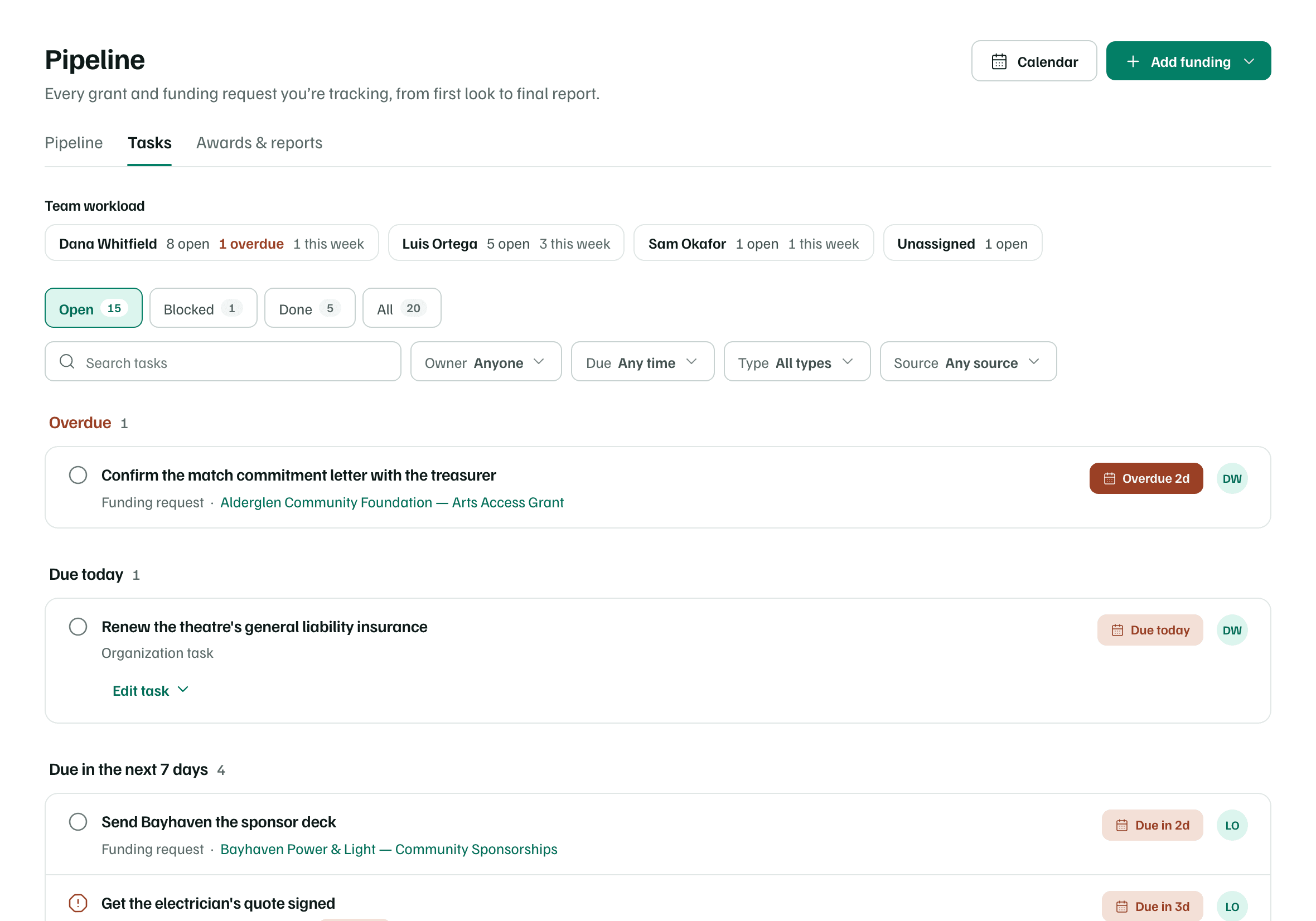
- Organization task is a task for the workspace itself, like renewing insurance. Select Edit task to change it in place.
- Award reports show here too, with their own statuses.
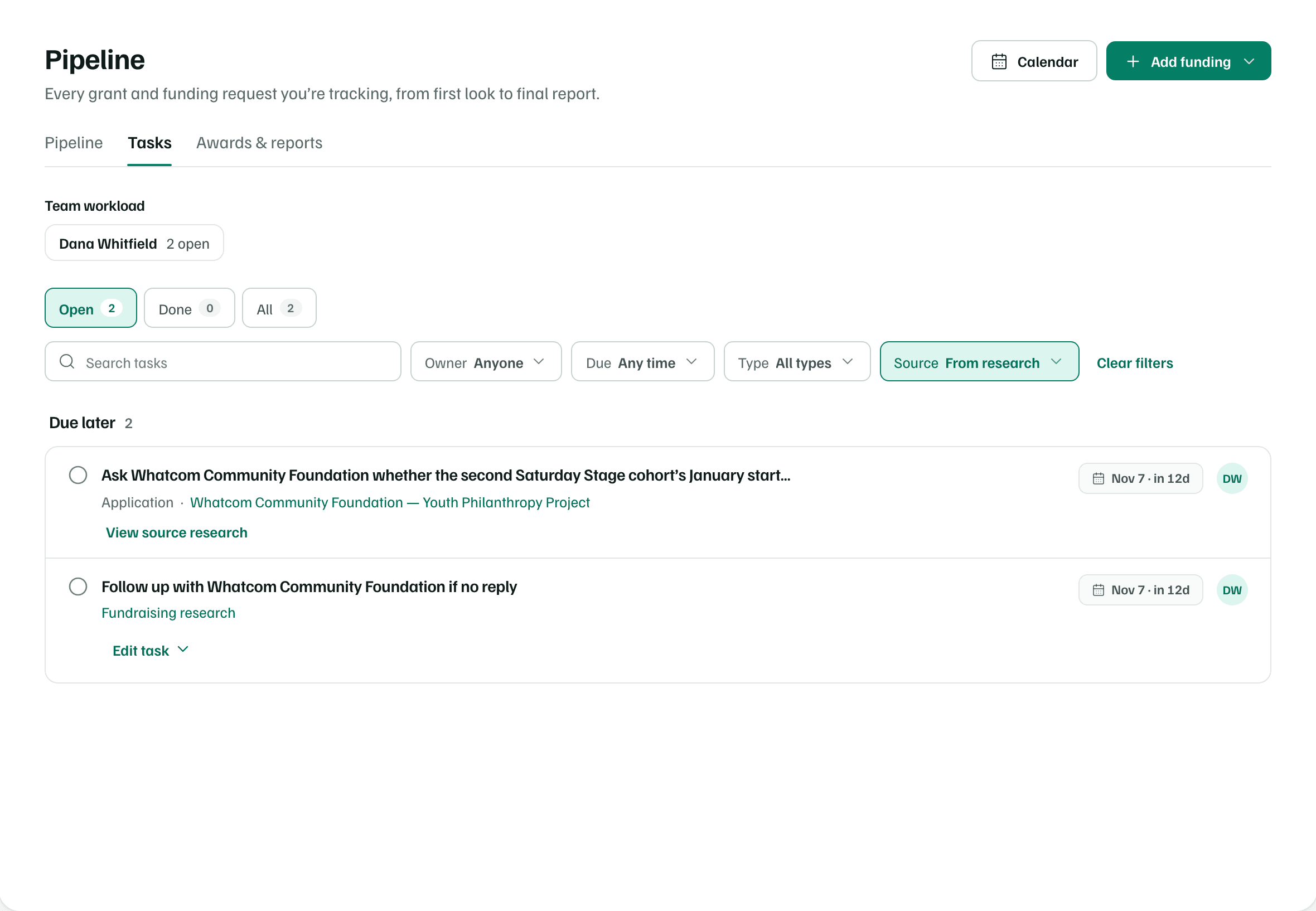
- Fundraising research marks a task that came from your research.
Statuses
| Status | What it means |
|---|---|
| To do | Not started. |
| In progress | Someone is working on it. |
| Blocked | Waiting on something before it can move. |
| Done | Finished. |
| Not submitted | An award report that hasn't gone to the funder yet. |
| Awaiting acceptance | An award report you've sent that the funder hasn't accepted yet. |
| Accepted | The funder accepted the report. |
Reports you've sent wait under Awaiting acceptance until the funder accepts them. Unfinished tasks whose record, proposal or project has closed become Inactive, with a note like Request declined. The Inactive and All chips show them. Reopen what they belong to and they're open again.
Team workload
When work is shared, Team workload shows each person's open tasks, how many are overdue and how many are due this week, meaning the next 7 days. Unassigned counts tasks with no owner. Select a person to see only their tasks.
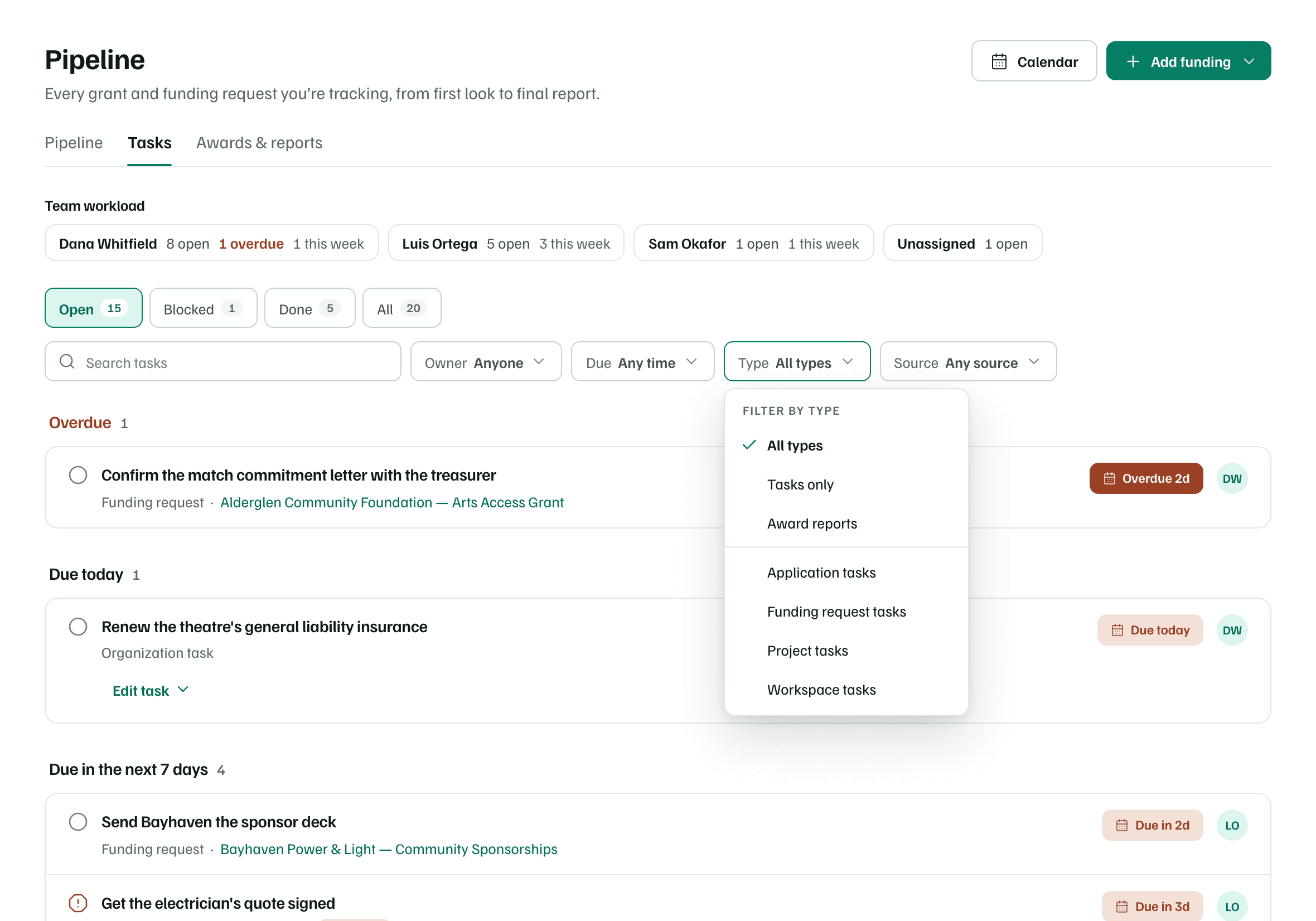
Filter and search
- Status chips: Open, Done and All. Chips such as Blocked appear when something is in them.
- Search tasks finds a task by its name or by where it lives.
- Owner: Anyone, Assigned to me, Unassigned or one person.
- Due: Any time, Overdue, Next 30 days or No due date.
- Type: from Tasks only and Award reports to Workspace tasks.
- Source: From research or Added by your team. It appears once you have tasks from research.
Select Clear filters to see everything again.
Add and edit tasks
Add a task where the work lives. On a funding record, open the Tasks tab and type the task. Add a target date if you have one, then select Add task. Target dates are your team's, not the funder's deadlines.
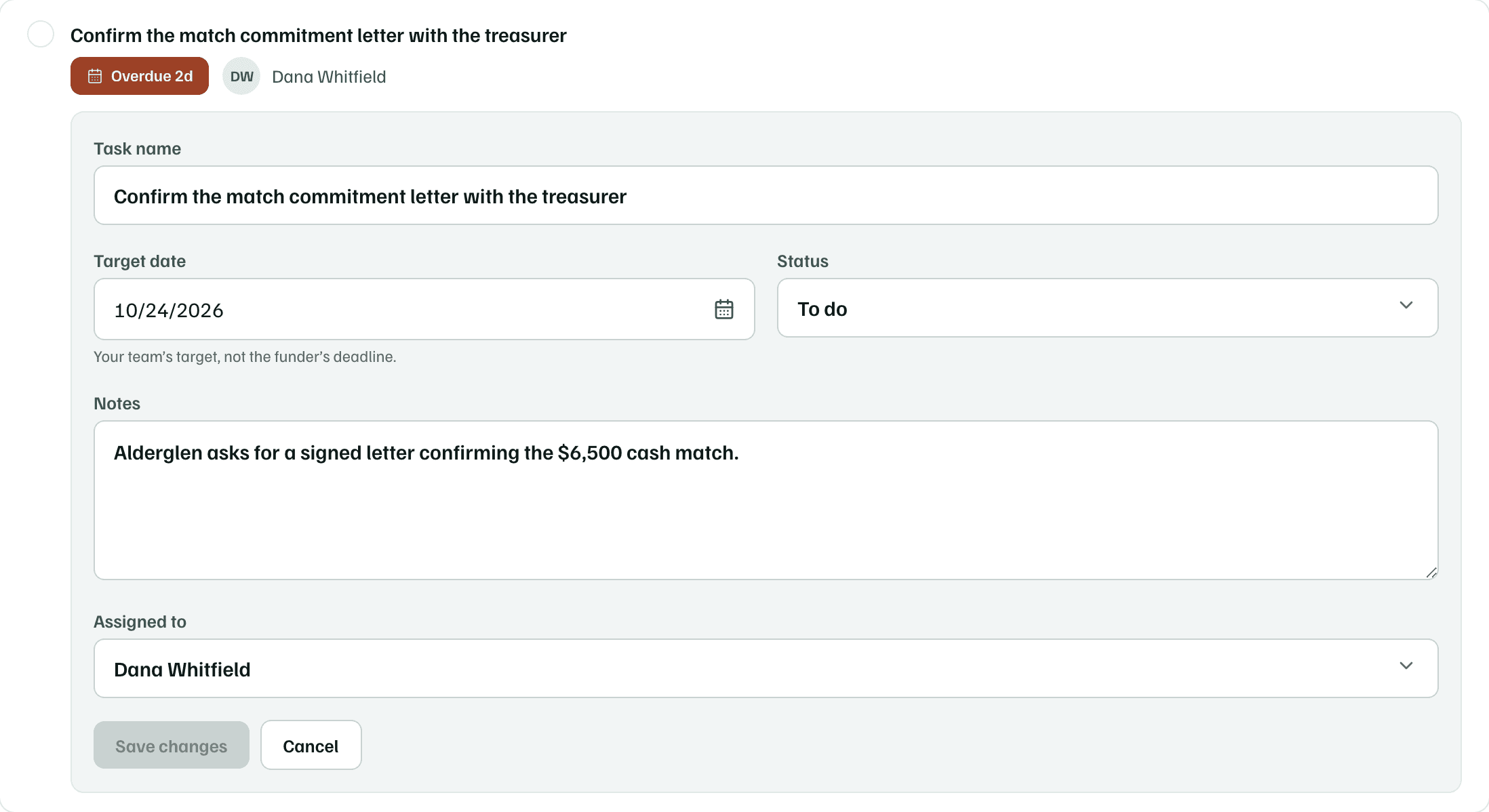
Select the circle beside a task to mark it done. Select the pencil to change its Task name, Target date, Status, Notes and Assigned to, then Save changes. Notes are for context, contacts and what you learned, and they show under the task.
Tip
Tasks from research
Set Source to From research to see tasks that came from a research report. Each one links back to the research it came from.
When you add steps from your report's plan with Add to tasks, the top of the view shows Work from research: how many of those steps are done, the next one and its date, and Read the strategy to go back to the plan. It stays while any step is still open.
A task from the plan links to its Research guidance. Under Needs first, it lists the steps that come before it, with their status. What done looks like opens its finish line and checklist.
Findings and questions
A research check, from choosing Check first on an opportunity, keeps what you find out. Open Record what you learned on the record, or Findings & questions in Tasks, and select Record findings. Fill in What you learned, Sources and contact notes and Questions still to ask, then select Save findings.
Findings are shared in the workspace. They don't confirm eligibility or change the research report. Your open questions go into your next Ask the funder email, which you review and send yourself.