AI coach and funder-specific sections
The AI coach reads a project's saved brief and suggests clearer wording and questions to answer. When the brief is right, your team approves it, and AI can then draft one section of a linked application from it.
- 6 min
- Every plan
- Uses 1 AI action
Screens pending
In the app:Projects, then Project, then AI brief coach
AI actions
Ask the coach
Open the coach
Select AI coach at the top of the project. The AI brief coach page has the request on the left, and your saved brief and its approval on the right.
Choose a focus
Under What should the coach look at?, choose Measurable outcomes, Tighter scope, Budget assumptions or Funder-ready. Each one fills in a question you can edit. You can also write your own under Your question or focus (optional).
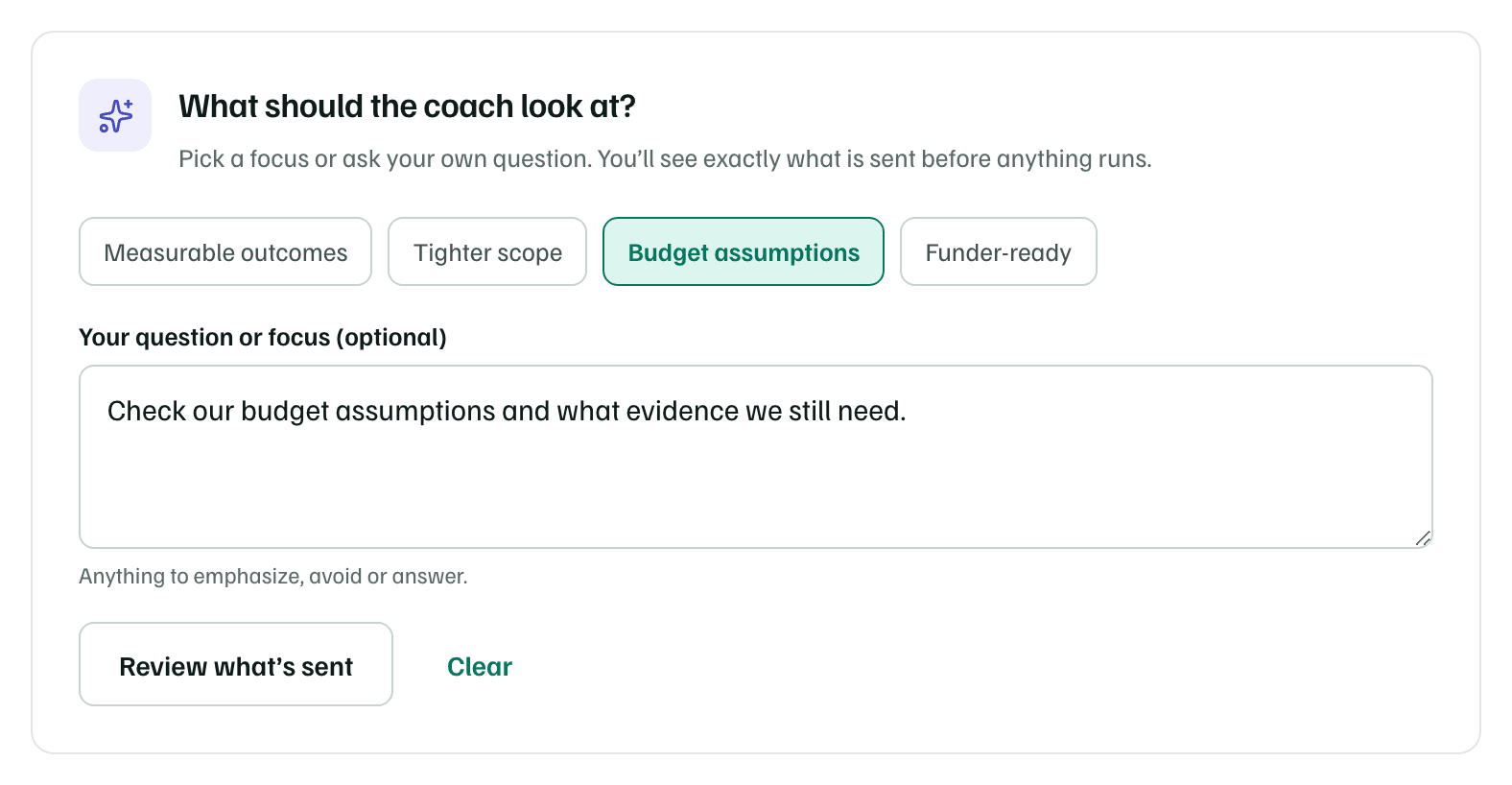
Example workspace · fictional data Review what's sent
Select Review what’s sent. The saved brief appears as Brief that will be reviewed, with your focus. Nothing has been sent yet.
These details go to OpenAI with web search off. Project files and task notes aren't included, and the request and its result are saved in your workspace.
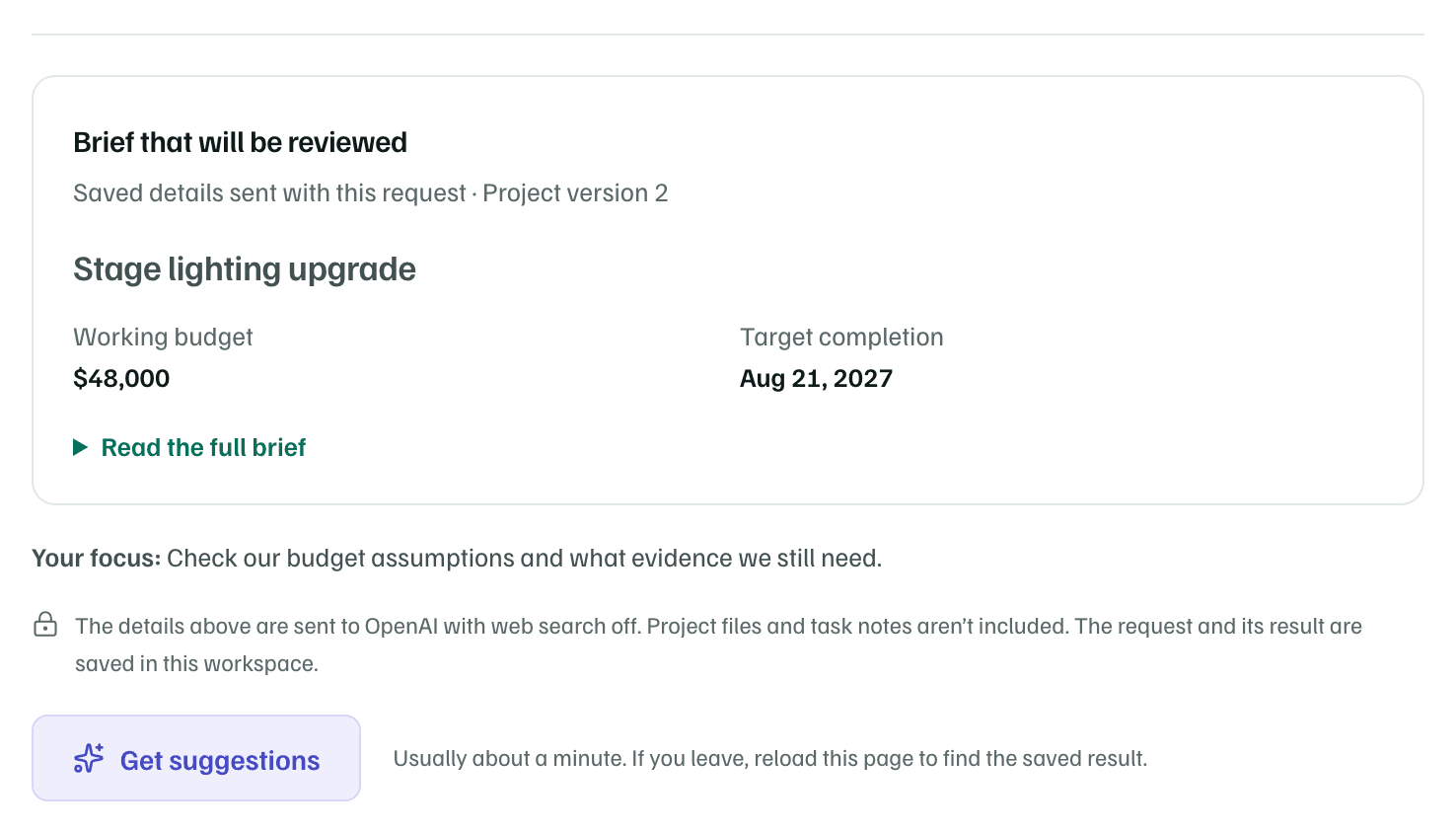
Example workspace · fictional data Get suggestions
Select Get suggestions. It usually takes about a minute. If you leave, reload the page later to find the result.
Read and apply suggestions
The result appears under the form as Coaching review, with the date it was saved. It starts with a summary, then notes and questions on Scope, Outcomes, Budget assumptions and Readiness.
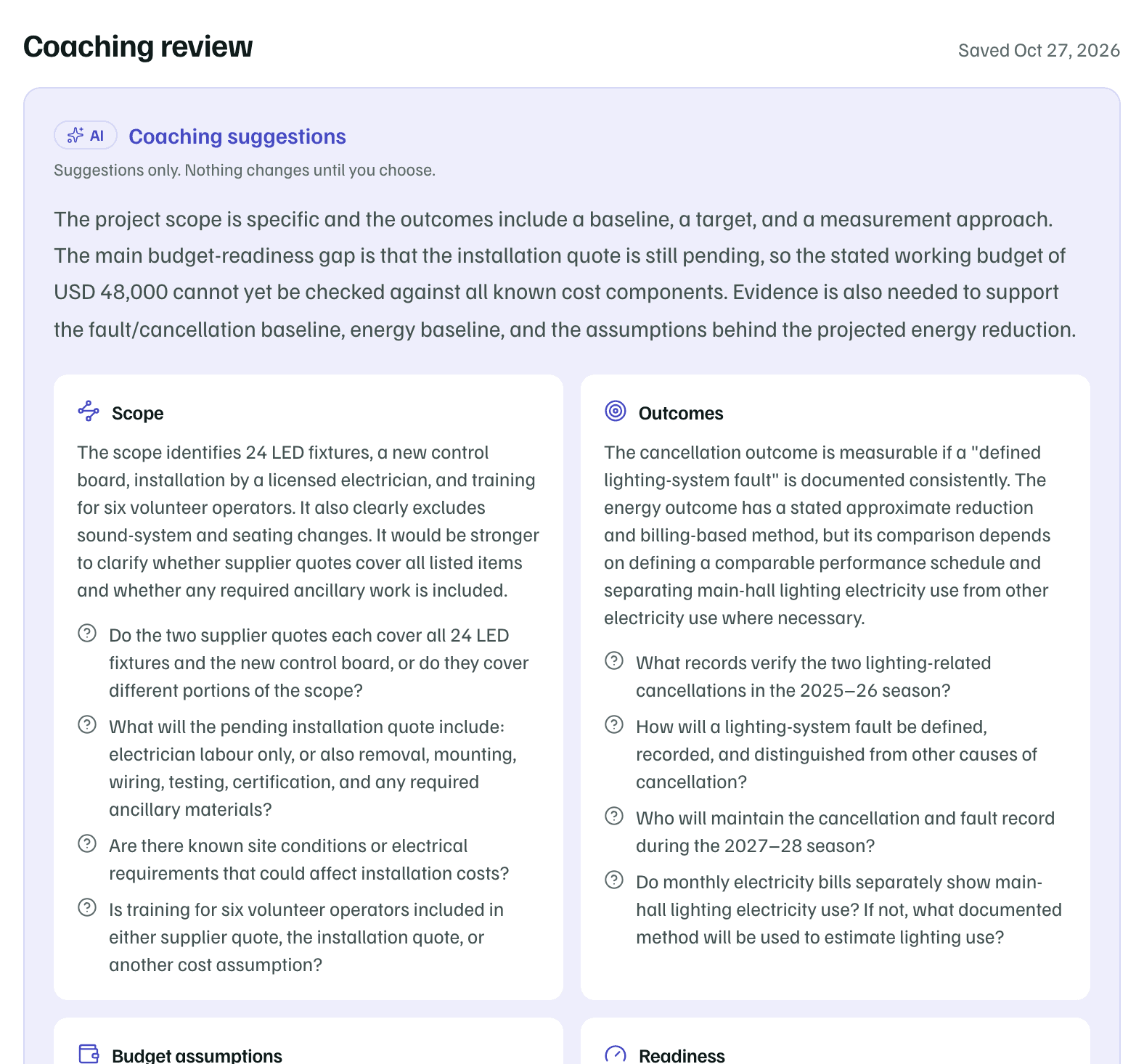
Under Suggested wording, each suggestion shows the brief's text Now beside the Suggested text. Tick the changes you want, such as Use suggested budget assumptions, edit the wording, and select Apply 1 selected change, or however many you chose. Only those fields change, and the working budget amount never does.
- Suggestions can include notes like [Confirm: …] for facts the coach couldn't know. Replace each one with a checked fact.
- What was sent for this result shows the exact brief and focus the coach read.
- Discard saved suggestion removes a result you won't use.
- If the brief has changed since the request, the result says The information has changed. Ask again before you apply anything.
- The page shows your latest result. A new request replaces it there.
Approve the brief for proposals
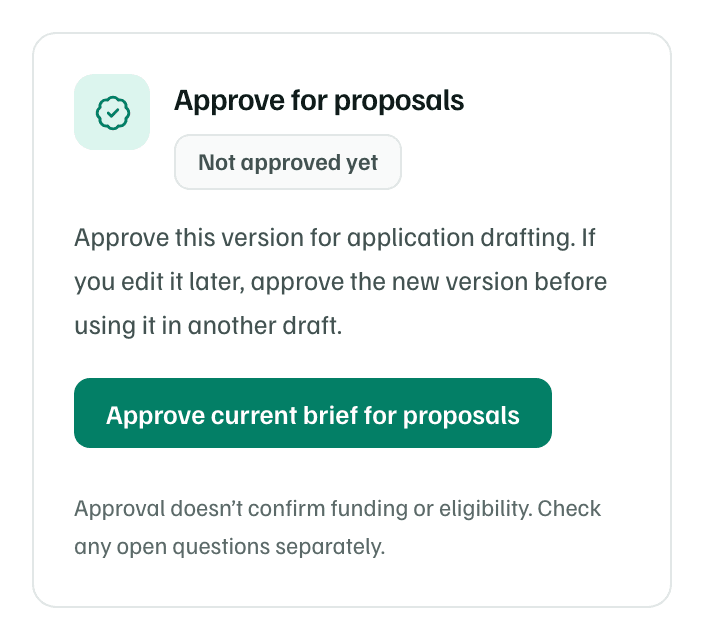
Approving saves this exact version of the brief as the one proposal drafts use. It's your team's decision, not a check by GrantFlex, and it doesn't confirm funding or eligibility.
- In Approve for proposals, select Approve current brief for proposals. The project's Overview links here with Review and approve.
- The panel then says Approved with the date, and the Overview's Brief cell says Approved too.
- If you edit the brief later, the panel says Brief changed and the Overview says Changed since approval. Approve the new version before you draft from it.
Draft a section of an application
With an approved brief, AI can adapt it into one section of an application linked to the project, such as the project description a funder asks for.
- The brief must be approved, with no edits since.
- Link the application itself on the project's Funding tab: choose it under Applications in Link a source. The tab then offers Draft an application section with Prepare a draft.
Choose the section
Select Prepare a draft. Under Choose a section to draft, pick the Linked application and the Section.
Add notes if you like
Choose Lead with impact, Plain and warm or Well under the limit, or write your own Drafting notes (optional).
Review what's sent
Review what’s sent shows the Approved brief for this draft and the section: its length limit, the funder's prompt, what this funding would support and this project's share, with the funder's requirements when GrantFlex has them.
Draft it
Select Draft this section. It usually takes about a minute.
The result, Draft to review, explains its approach and lists Information to confirm and Points to review. Edit the text under Review and edit the proposed text. The count shows the section's limit. If the section already has text, tick the box to replace it. The old text stays in the section's version history.
Select Accept into application section to put the text in the application. Then review and approve the section in the proposal, as in Draft sections.
Check first