Set up a workspace
Create a workspace and answer five short sets of questions about your work, your funding goals and who has supported you. The steps take about 10 minutes, and only the workspace name is required.
- 10 min
- Every plan
- No AI actions
Screens from October 2026
Before you start
- A GrantFlex account. Find your first opportunities shows how to create one.
- Your Facebook page, website or other public pages, if you have them.
- A sentence or two about what you'd like funding for, with rough amounts if you know them.
- The names of past funders and partners, if you have any.
Set up your workspace
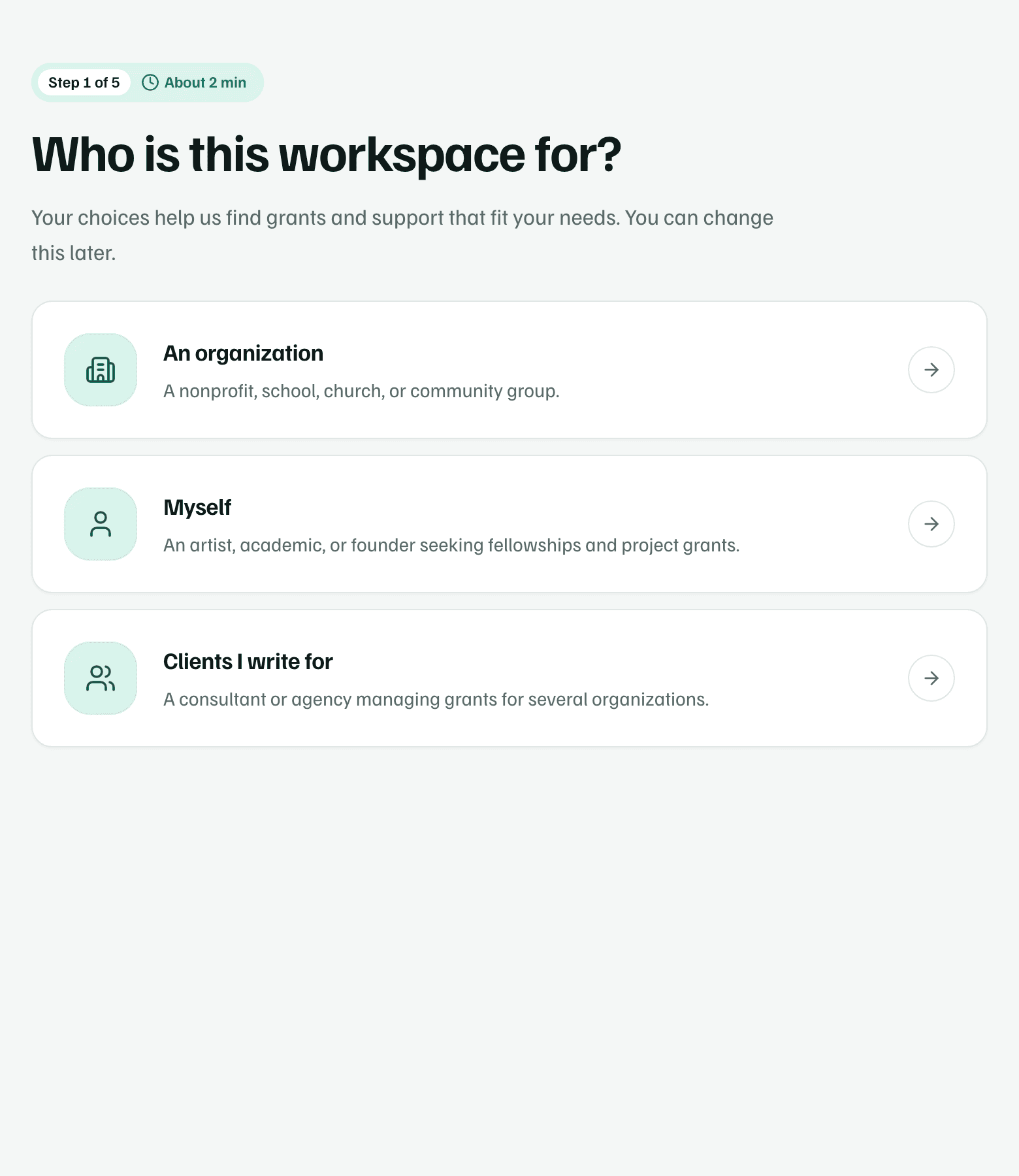
Choose who the workspace is for
Under Who is this workspace for?, choose An organization, Myself or Clients I write for. The questions that follow change to match.
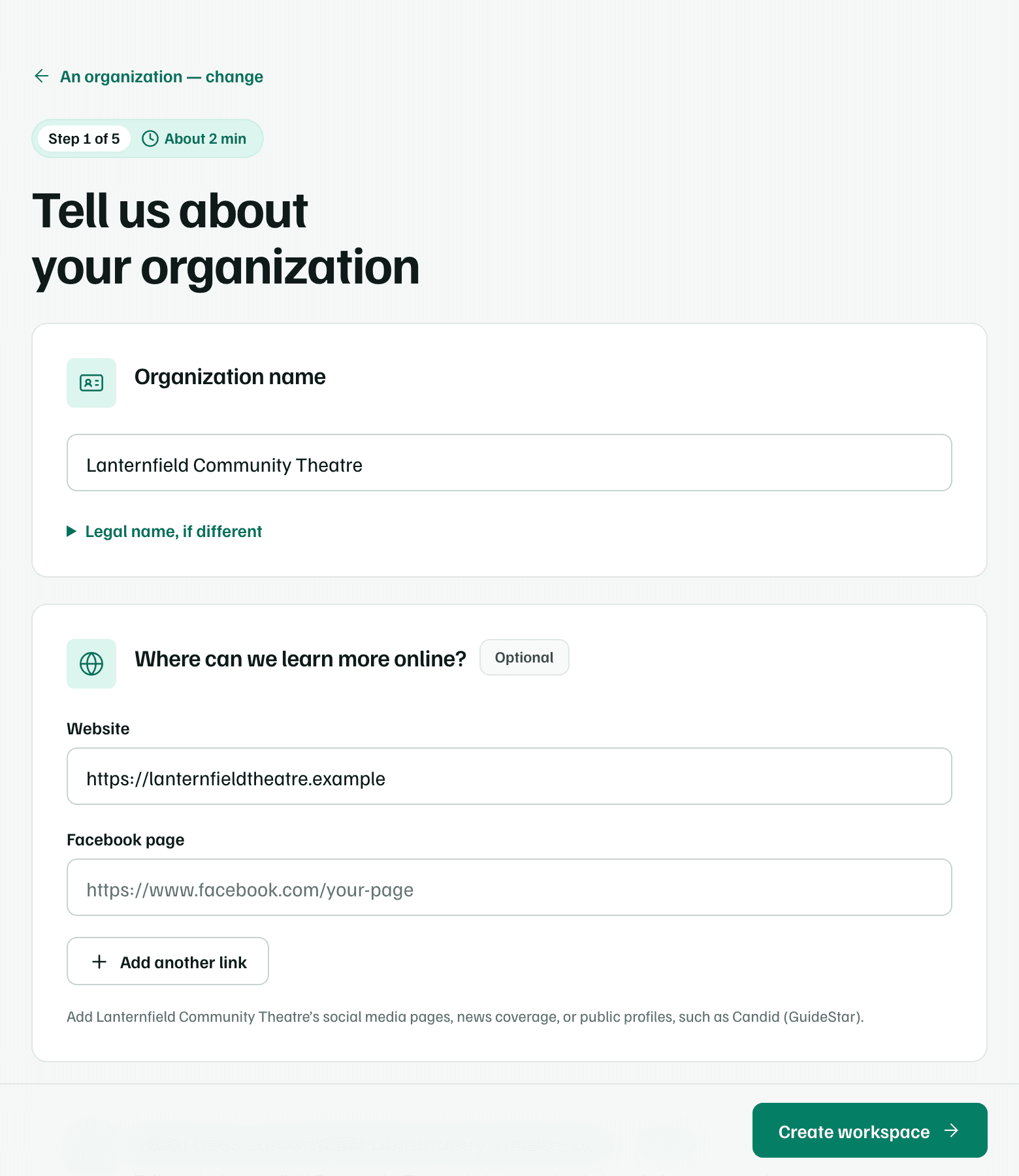
Example workspace · fictional data Name it and describe your work
Enter the Organization name, its Facebook page or website, and where it's based. The name is the only required answer.
Select Look up mission to have GrantFlex suggest a description from public pages, with its sources. Check it, then choose Yes, use these details, or write a sentence of your own. Select Create workspace.
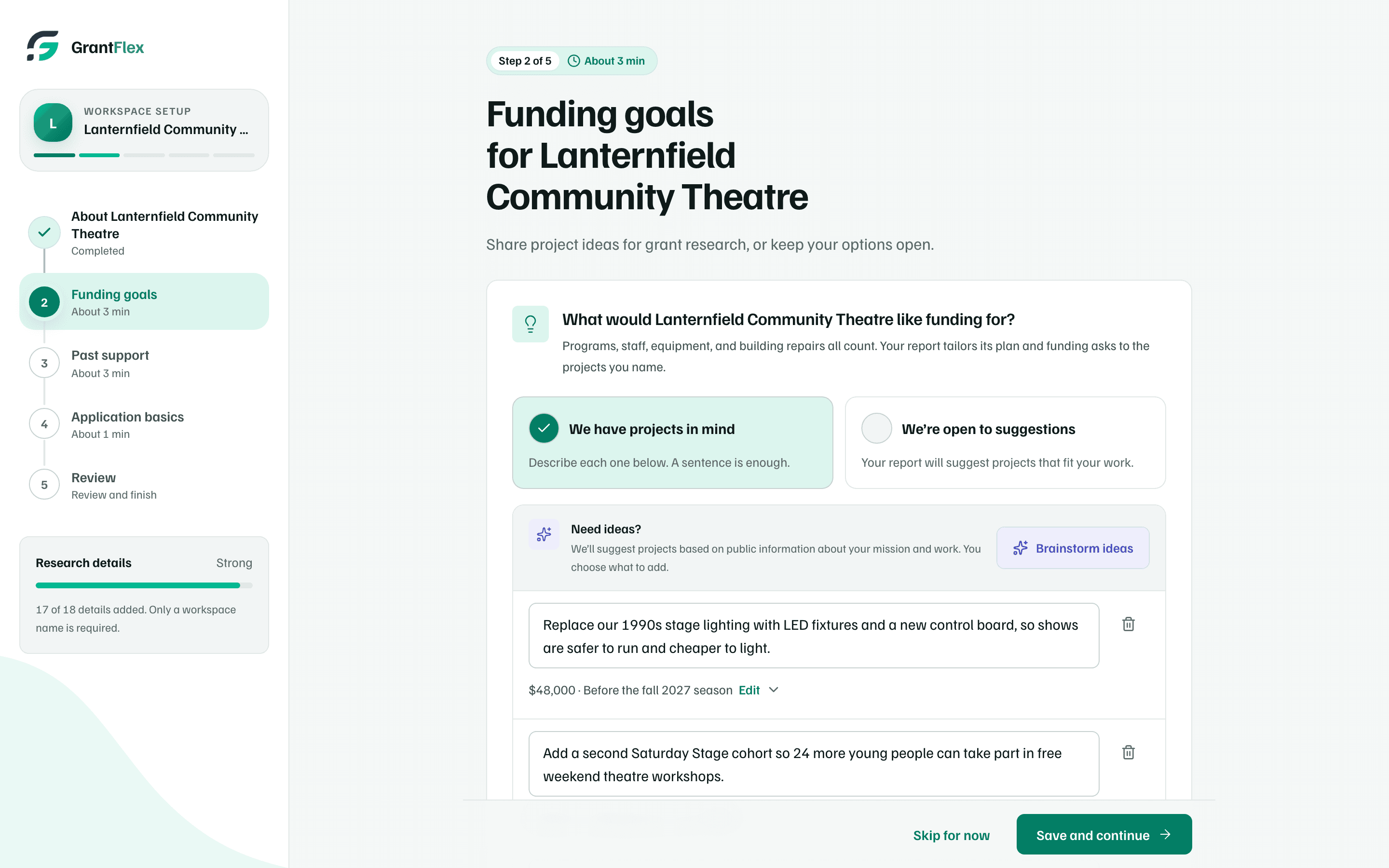
Example workspace · fictional data Add your funding goals
Choose We have projects in mind and describe each idea in a sentence. Add amount and timing takes a rough cost and when you need the money. Brainstorm ideas suggests projects, and you choose which to add.
Select Save and continue.
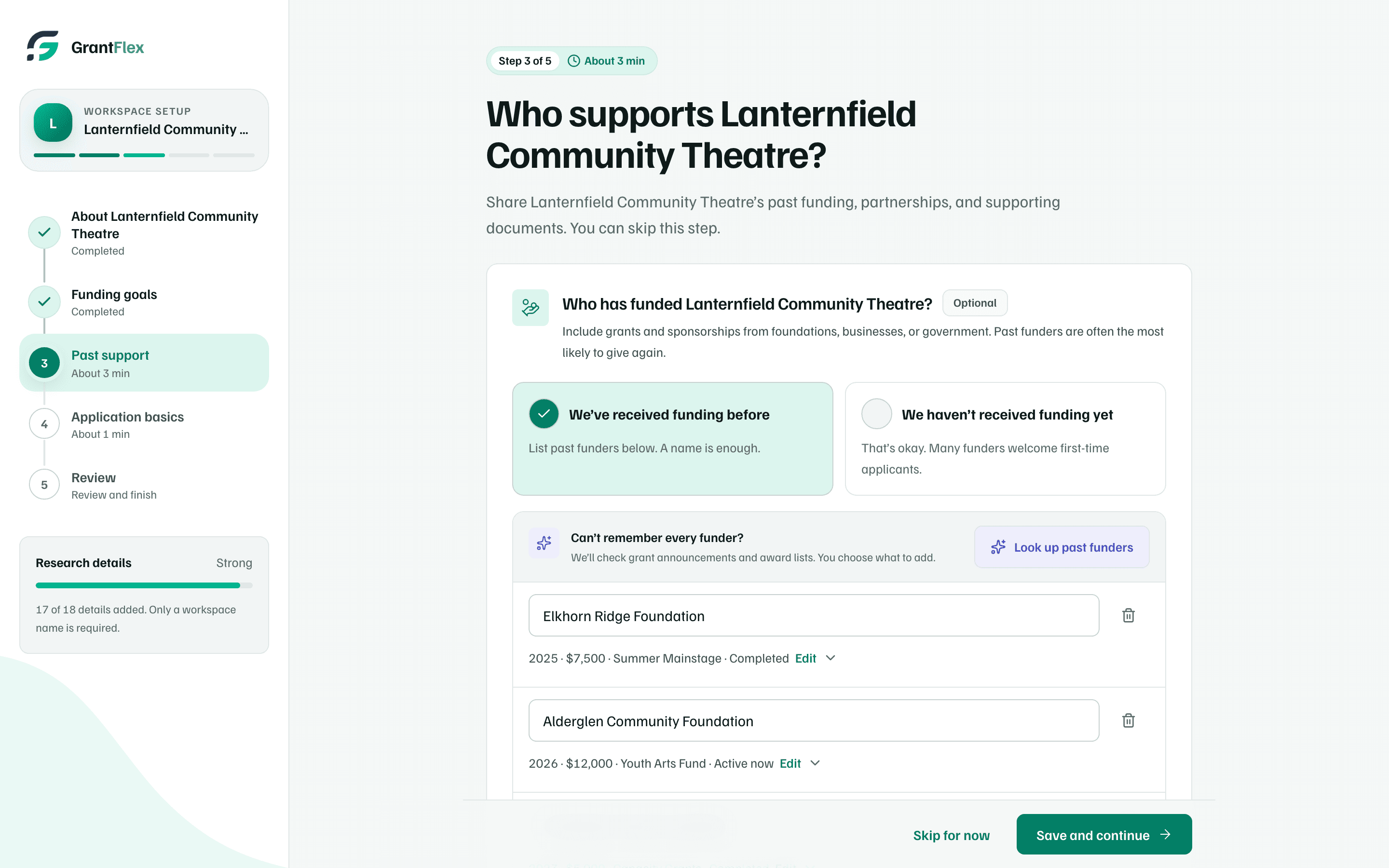
Example workspace · fictional data Add past support, or skip it
List past funders and partners, or select Look up past funders and Look up partners to search public announcements. Add only the ones you recognize.
Select Save and continue, or Skip for now.
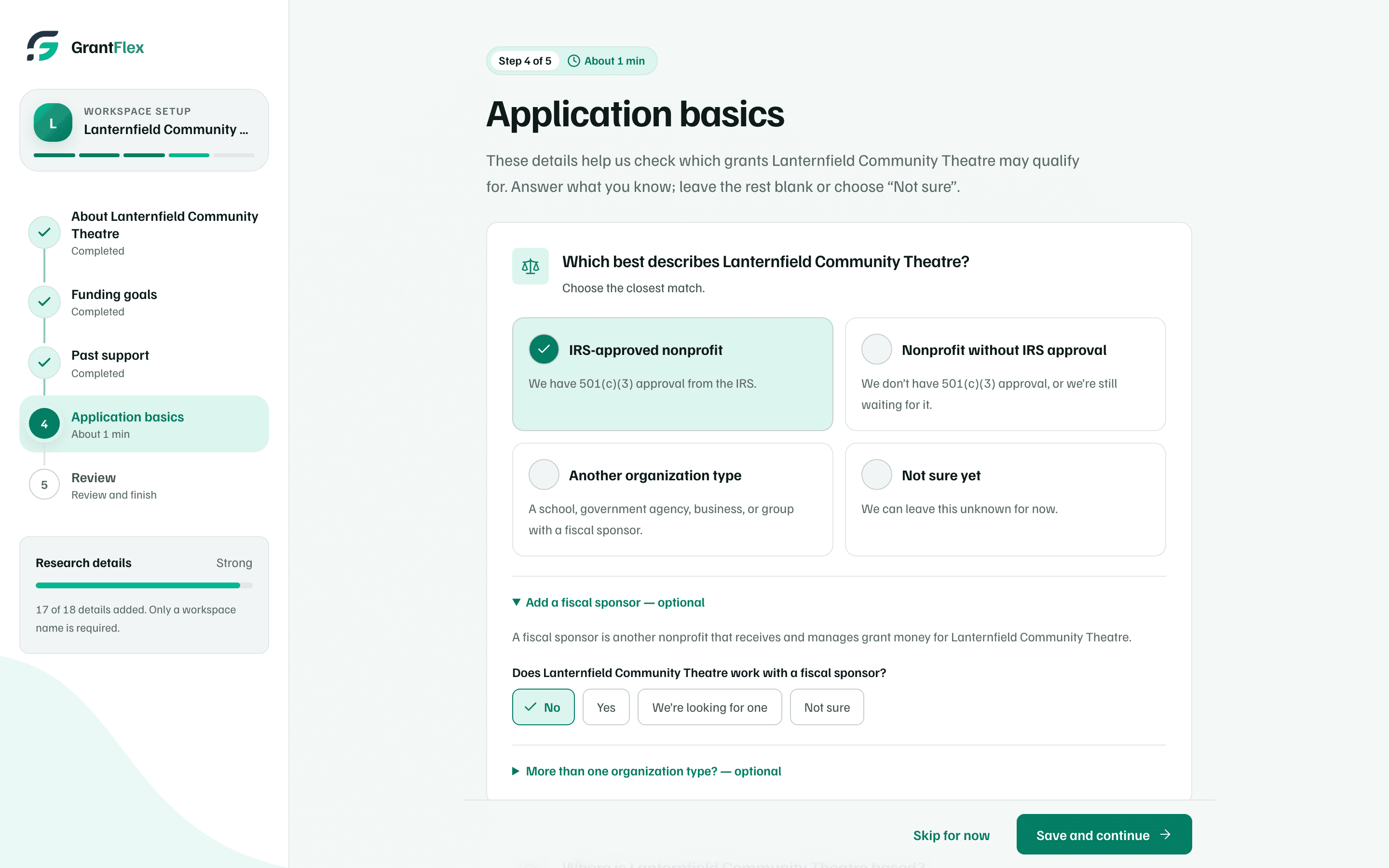
Example workspace · fictional data Confirm the application basics
Choose what best describes you, such as IRS-approved nonprofit, and where you're based. Add your EIN if you have one. If GrantFlex suggests one from public IRS records, it's used only if you select Accept EIN for research.
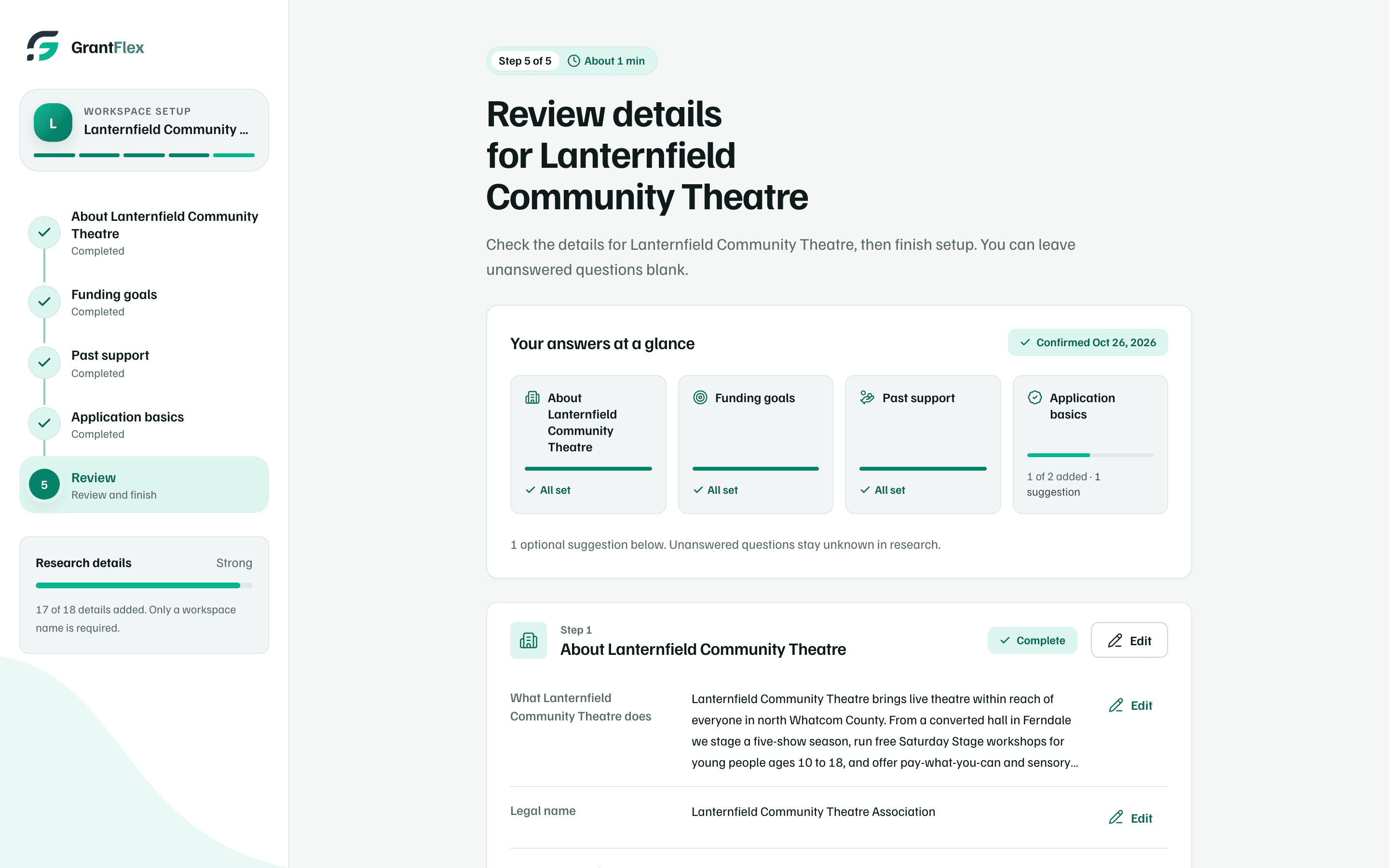
Example workspace · fictional data Review your answers
Your answers at a glance has a tile for each step. A card's Edit button changes its answers without leaving Review. When everything looks right, select Looks good.
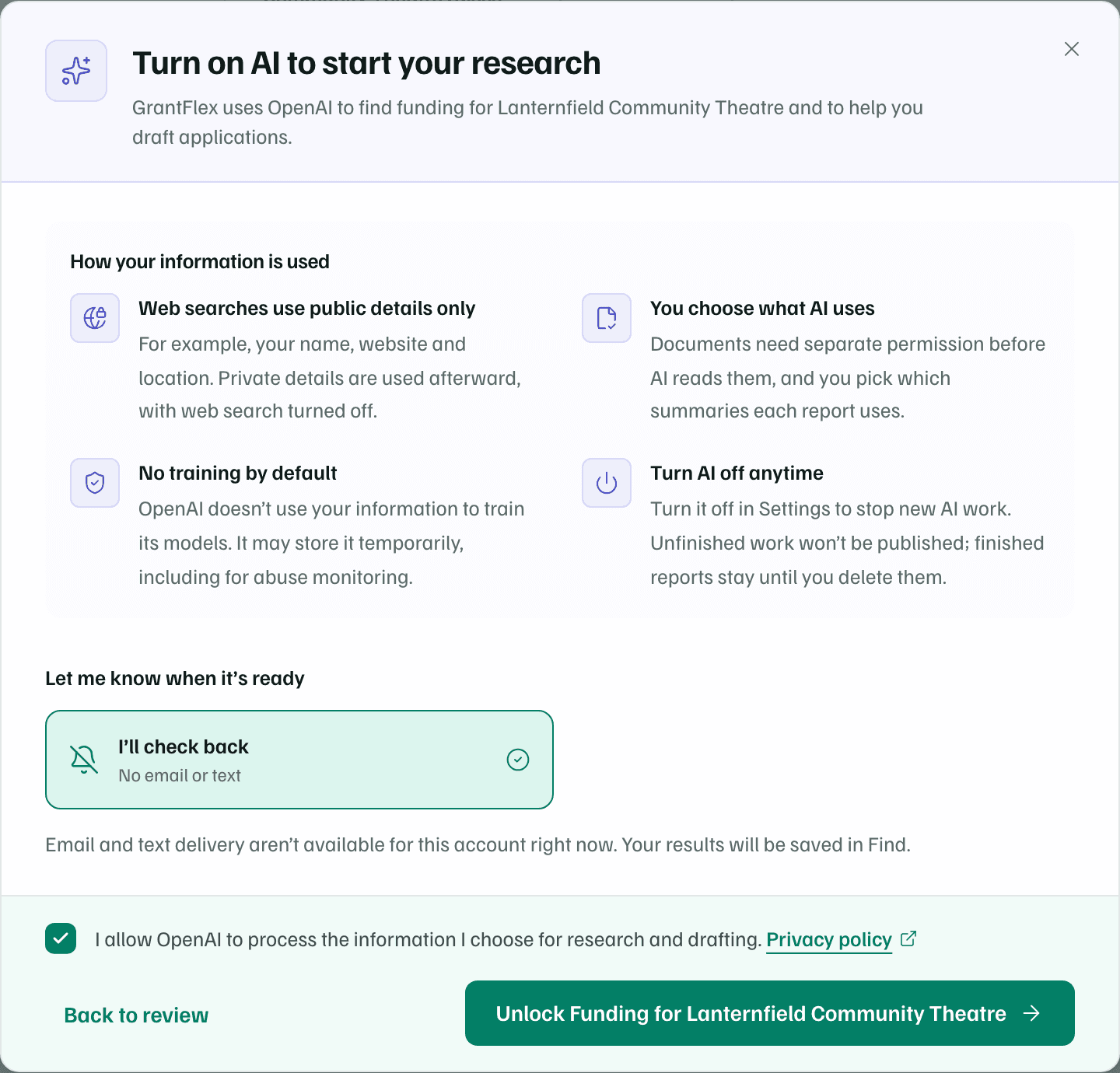
Example workspace · fictional data Turn on AI to start your research
A dialog explains how GrantFlex uses OpenAI and asks how to let you know when your results are ready. Keep the consent box checked and select the Unlock Funding button, which names your organization. Back to review closes the dialog without starting anything.
Example workspace · fictional data
For every field and lookup, see The five setup steps.
Note
Tip
What you get
A workspace set up for your work. Your free introductory research starts on its own and usually takes about 30 minutes. The lookups and the research don't use any of your AI actions. You can change every answer later on the About the Organization page.