Prepare materials
Materials are the pieces a funder asks for: written responses, budget pieces and files. Each funding record keeps its own checklist, so you can see what's ready.
- 5 min
- Every plan
Screens from October 2026
In the app:Pipeline, then Funding plan, then Materials
Open a record and select the Materials tab. Write what the funder asks for, attach supporting files and mark each piece ready once someone has reviewed it. Writing saves as you go.
Start with a suggested checklist
Until a record has materials, the tab suggests a checklist for its type. Select Add 11 suggested materials (the number depends on the checklist), then remove anything this funder doesn't ask for. Opening a record never adds materials on its own.
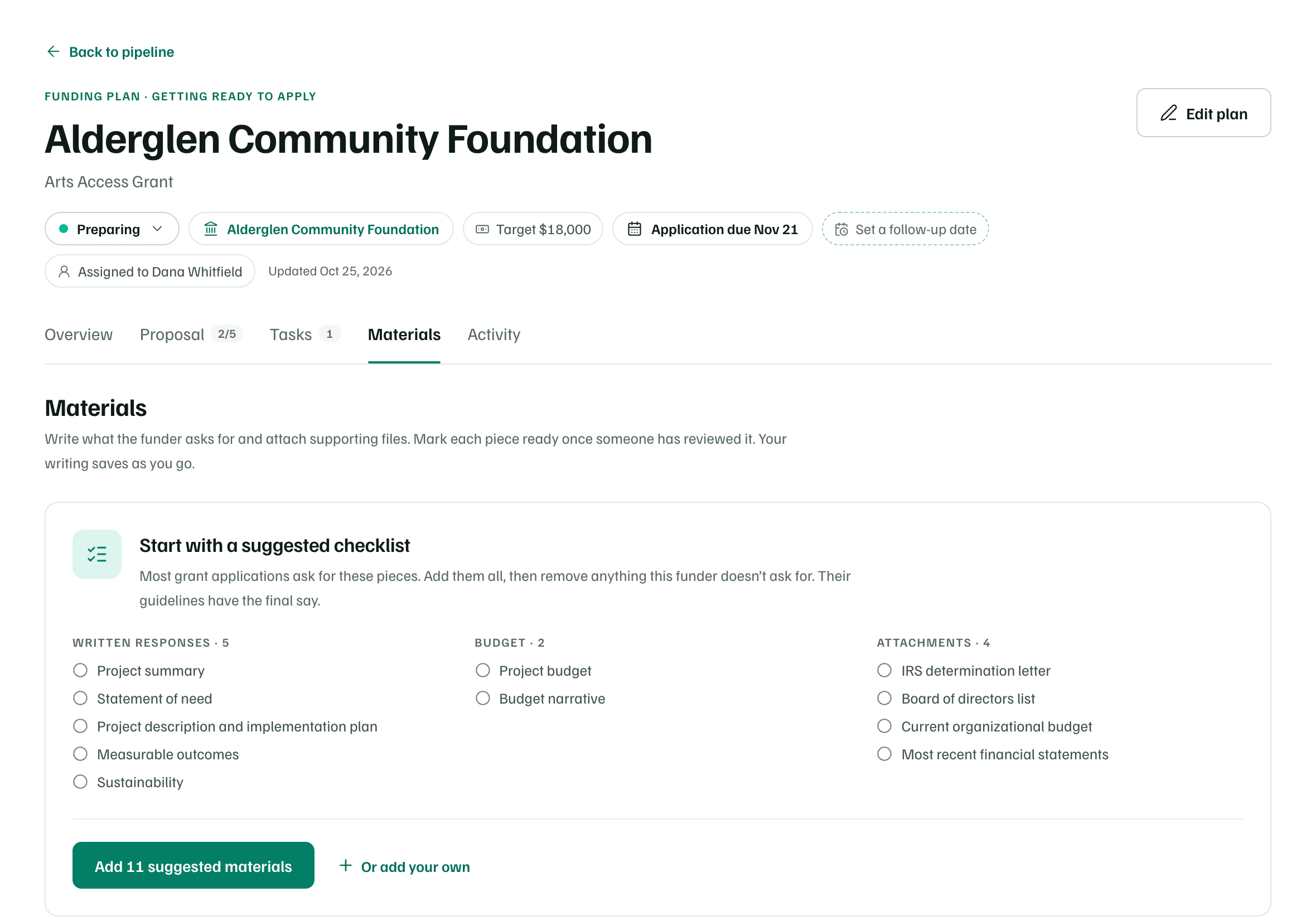
| Type | Suggested pieces |
|---|---|
| Grant | 11 pieces: Project summary, Statement of need, Project description and implementation plan, Measurable outcomes, Sustainability, Project budget, Budget narrative, IRS determination letter, Board of directors list, Current organizational budget, Most recent financial statements |
| Sponsorship or Corporate gift | 6 pieces: Sponsorship pitch, Recognition and benefits tiers, Audience and reach, Sponsorship levels, Organization one-pager, W-9 |
| Donated goods or services or Partnership | 6 pieces: The ask, Why this partner, What to offer in return, Wish list or scope, Organization one-pager, IRS determination letter |
| Individual gift or Other | 4 pieces: Case for support, Call to action, Follow-up plan, Organization one-pager |
| Building a funder relationship | 3 pieces: Introduction note, Organization overview, Contact and next steps |
If the record already says what you're requesting, the first written response starts with that text, ready for review.
Check first
Add your own pieces
Select Or add your own, or Add a material once the record has some. Give the piece a Name and choose its Type: Written response, Budget piece or File to attach. Then select Add material.
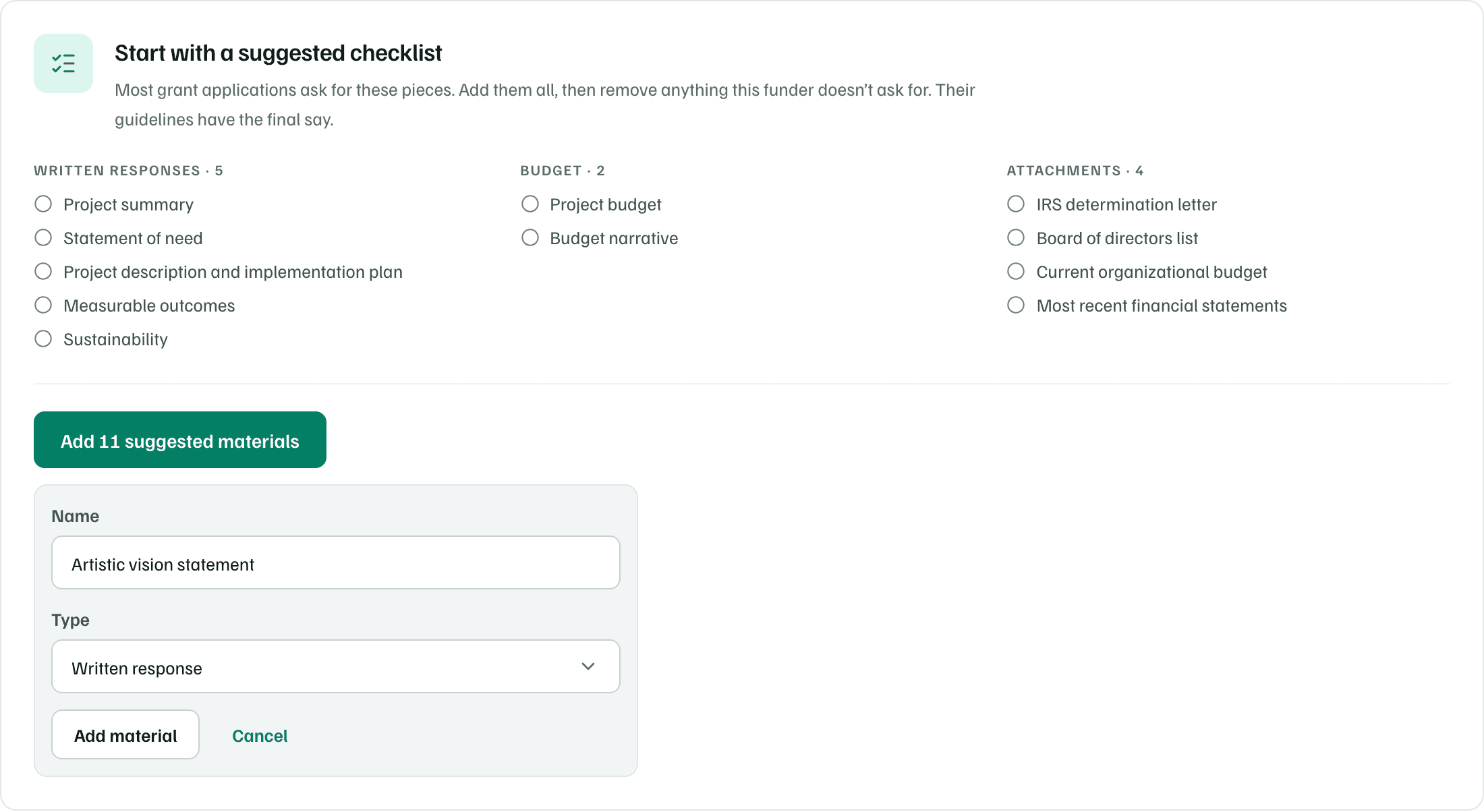
The list groups pieces as Written responses, Budget and Attachments, with how many in each are ready.
Write, attach and review
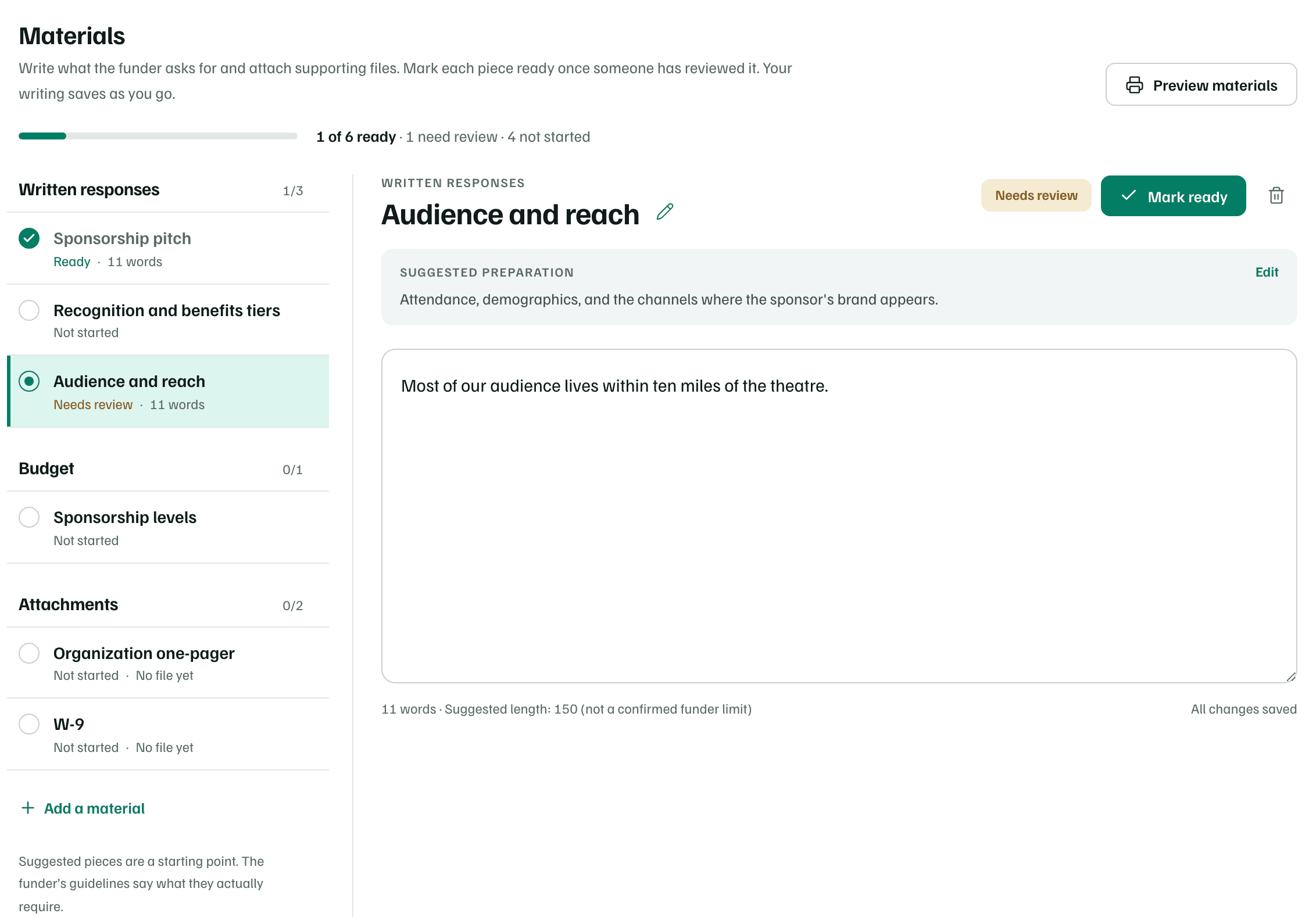
Select a piece to open it beside the list.
- A written piece has a box to write in. It counts your words, and a suggested piece shows a suggested length, which isn't the funder's limit.
- A file piece, such as the IRS determination letter, offers Upload file or Choose from documents. A file you upload is also added to your workspace's documents. See Documents and AI permissions.
- Under the title, guidance says what the piece should cover. Select Add guidance or Edit to note the funder's instructions.
- Rename a piece with the pencil, or remove it with the bin.
| Status | What it means |
|---|---|
| Not started | Nothing written or attached yet. |
| Needs review | Written or attached, or changed since someone last reviewed it. |
| Ready | Someone reviewed it and selected Mark ready. Select Reopen to take it back to Needs review. |
Any change to a piece's text sends it back to Needs review, even if it was ready. Mark ready works once a piece has text or a file.
Preview materials
The tab's header shows how many pieces are ready, need review or aren't started. Select Preview materials for a page with every piece in checklist order: written responses in full and attachments by name. Select Print to print it.
Until every piece is ready, the preview is marked as a draft package. Attached files aren't included in the printout, so open each one to review or download it.
Materials and the proposal
When you start a proposal from the Proposal tab, choose Use this plan’s materials to turn each written piece into a section, with your draft in it. Files become the proposal's requirements checklist. See Start a proposal.