The calendar
The calendar gathers every date in your workspace, from funder deadlines and award reports to tasks and expiring documents. See what's overdue, what's next and how sure each date is.
- 5 min
- Every plan
Screens from October 2026
In the app:Calendar
Dates appear here as soon as they're set anywhere in GrantFlex, so you never enter one twice. Each date's owner is reminded before it. See Reminders, weekly summary and notifications.
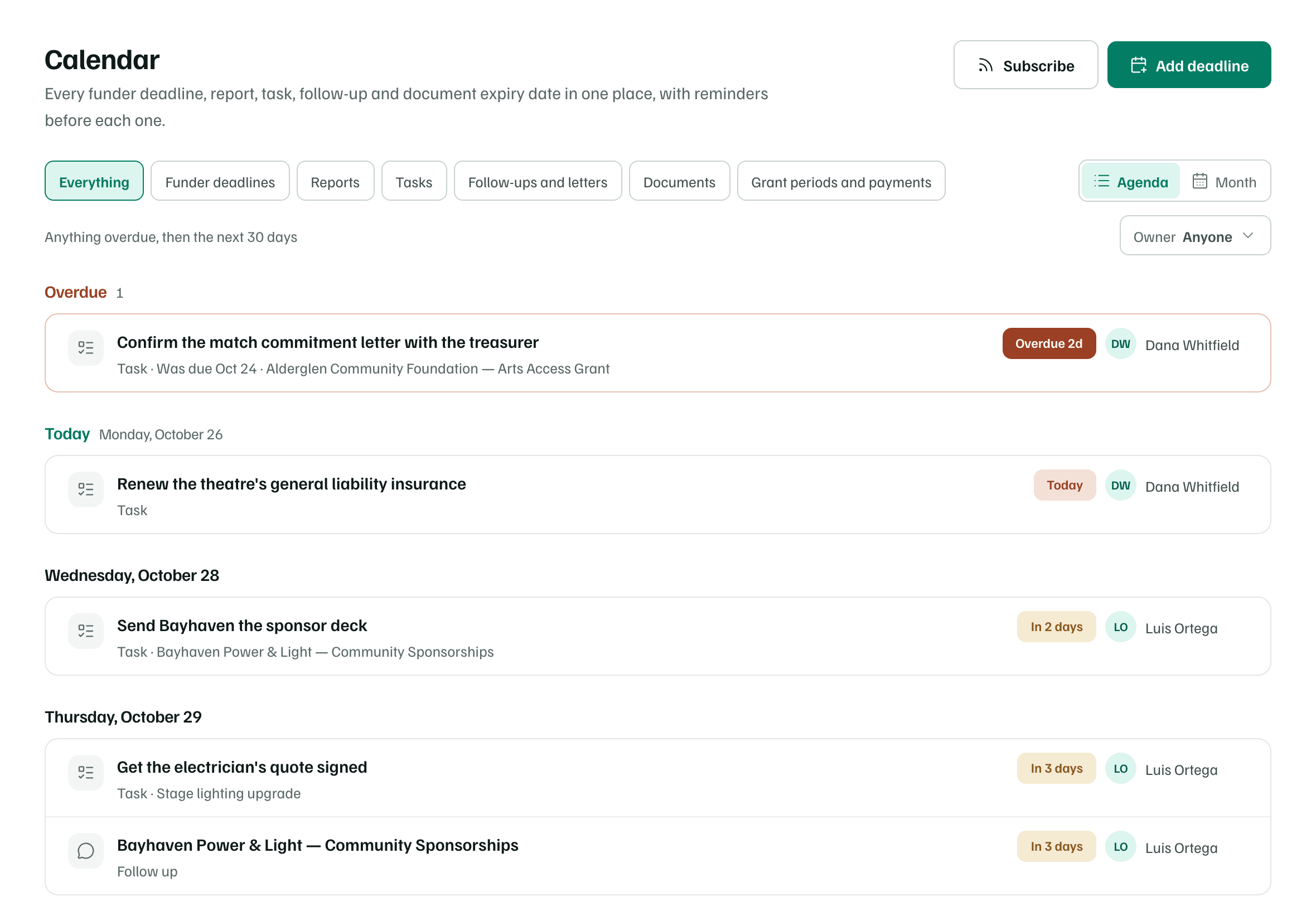
What's on the calendar
The chips at the top filter by kind. Everything shows them all. Each row starts with its kind, such as Application due or Payment expected.
| Filter | Kinds | Where the dates come from |
|---|---|---|
| Funder deadlines | LOI due, Application due, Decision expected, Renewal window opens, Funder event, Deadline | The Deadlines card on each funding record |
| Reports | Report due | The reports on each award |
| Tasks | Task | Tasks with a due date |
| Follow-ups and letters | Follow up, Letter of support due | Follow-up dates on funding records, and letters of support on proposals |
| Documents | Document expires | Expiry dates in the applicant file and on documents |
| Grant periods and payments | Grant period ends, Payment expected | Each award's grant period and its scheduled payments |
Finished work leaves the calendar: dates marked done, finished tasks, accepted reports and payments you've received. So do the dates on a declined or archived record, and a closed award's reports, payments and grant period.
Agenda and Month
Agenda is the default. It lists anything overdue, then the next 30 days, one day at a time. When more than ten things are overdue, the ones that slipped longest ago fold under a link that shows them.
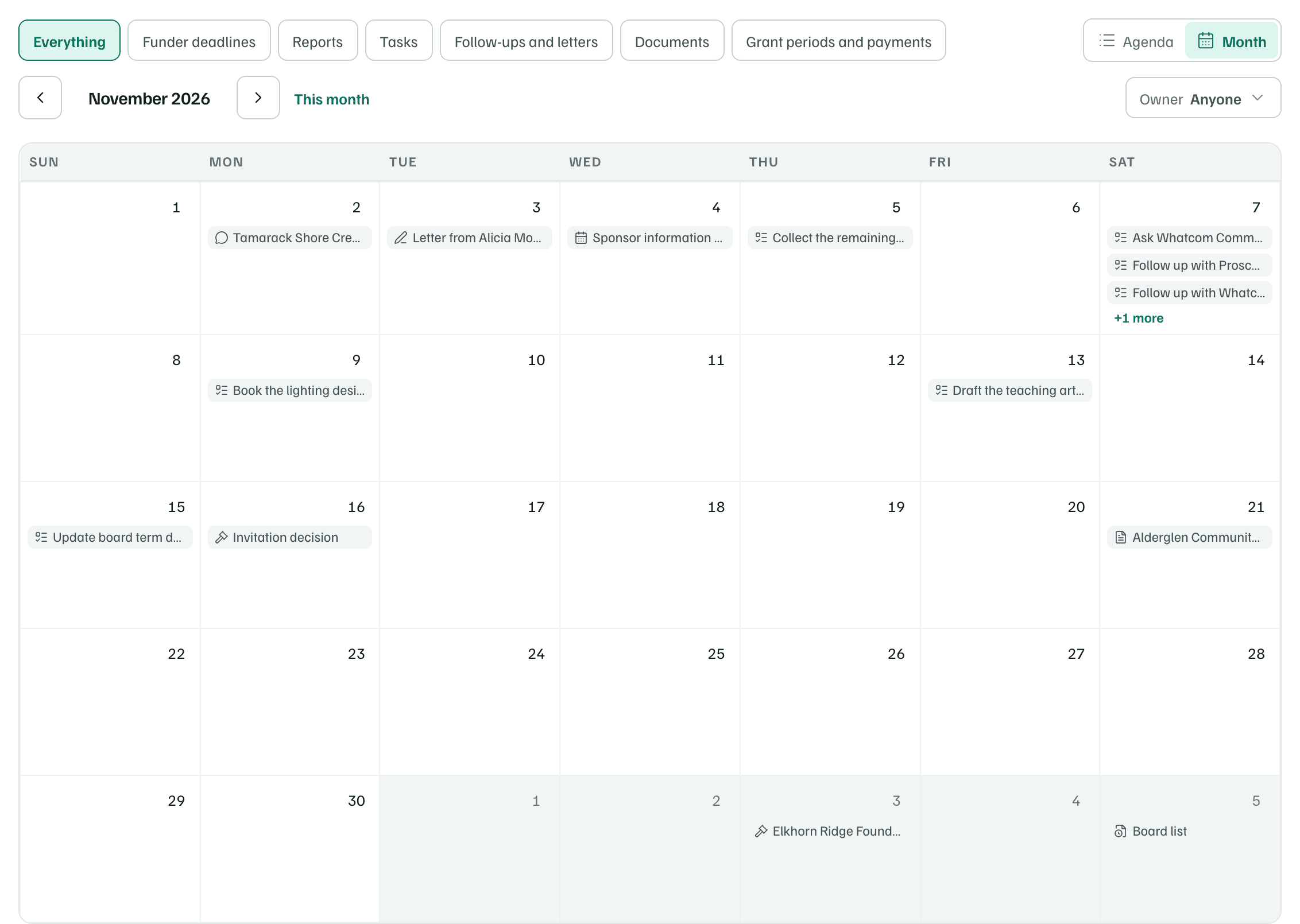
Month shows a month grid. Each day lists up to three items, and a busier day folds the rest under a link such as +1 more. Use the arrows beside the month to move, and This month to come back. On a phone, the month shows as a list.
Read a date
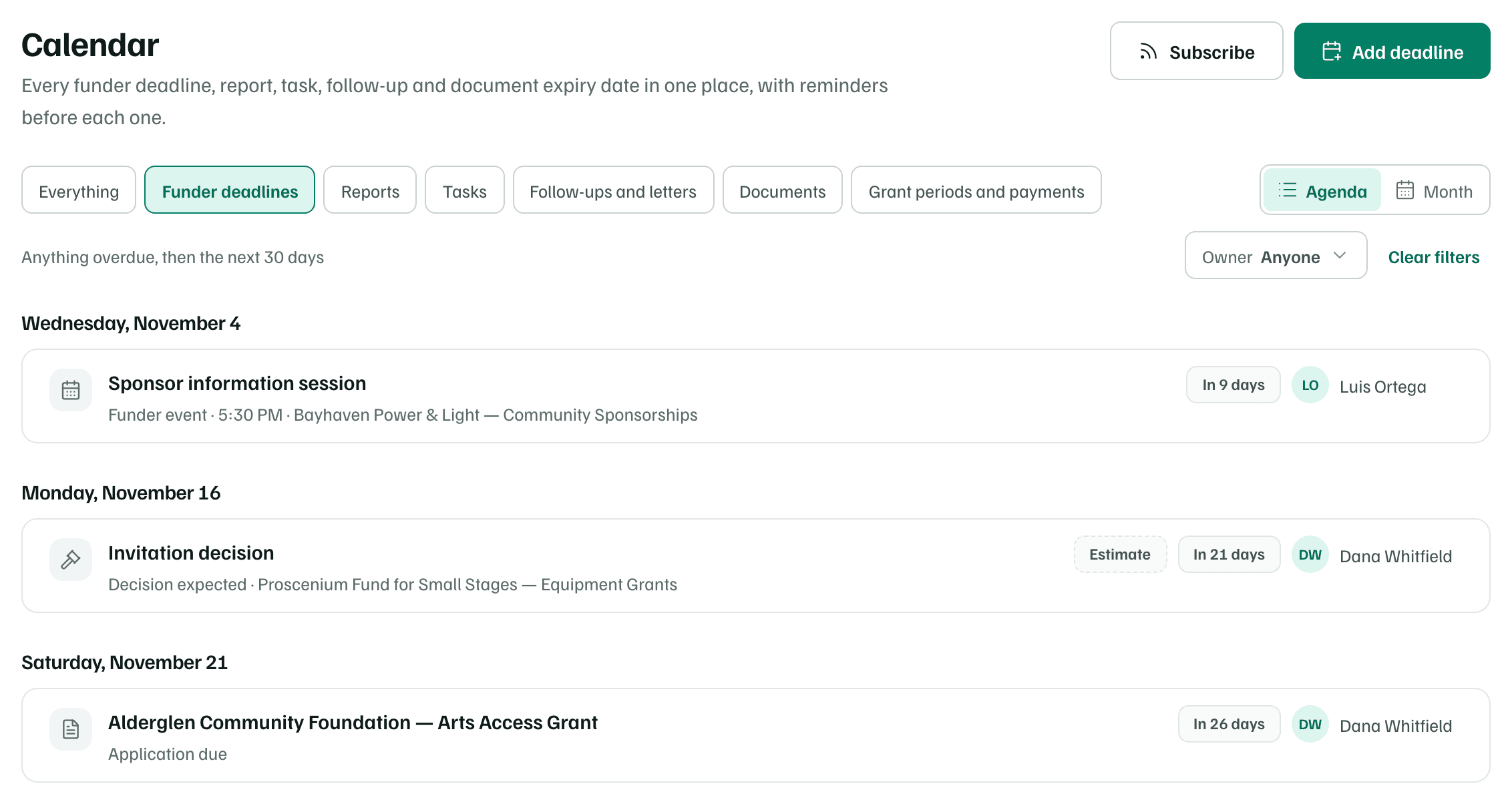
Each row shows what's due, its kind, the funder's stated time if there is one, and the record it belongs to. When a deadline keeps its type's own name, like Application due, the row leads with the record instead. Select a row to open where the date lives, such as the funding record or the award report.
| Chip | What it means |
|---|---|
| Overdue 2d | The date passed two days ago and isn't done. It shows in red. |
| Today, Tomorrow, In 5 days | How soon it's due. Dates in the next week stand out. |
| Passed | A date that can go by without anyone missing it, like a funder event, an expected decision or the end of a grant period. |
| Expired | A document past its expiry date. |
| Submitted | A report you've sent. Its date stops counting down. |
| From the report | Research found the date. Confirm it on the funder's page. |
| Estimate | An expected date that nobody has confirmed yet. |
Confirmed dates carry no chip on the calendar. A funding record's Deadlines card shows all three: Confirmed, From the report and Estimate.
The name on the right is the date's owner, who gets its reminders. A date without an owner of its own shows the record's owner. Unassigned means nobody owns it, so the workspace's owners and admins are reminded instead.
Filter by owner
Owner narrows the calendar to Me, Unassigned or one teammate. It appears when the workspace has more than one member. Clear filters resets the kind and the owner. Filters are part of the page's address, so you can bookmark a view you use often.
Note