Documents and AI permissions
Documents holds the files GrantFlex can learn from, such as past proposals, budgets and annual reports. You choose whether AI reads each file, and separately whether research can use its summary.
- 6 min
- Every plan
- Uses 1 AI action
Screens from October 2026
In the app:Organization, then Documents
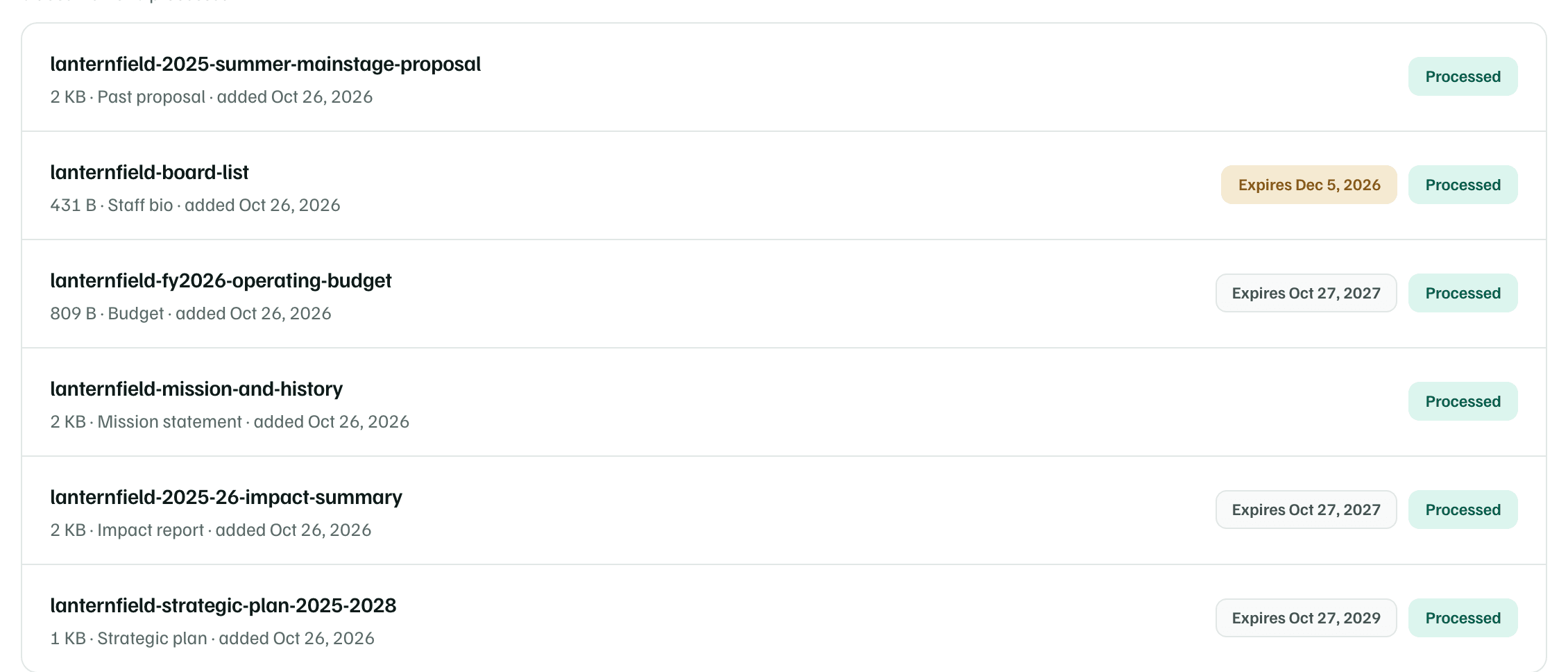
Upload files
Drag files onto Drag files here, or select Upload files. You can also select a category card below the list to upload straight into it.
- Accepted types: PDF, DOCX, XLSX, CSV and TXT, plus PNG and JPG for scanned pages.
- Up to 50 MB a file, and up to 20 files in one upload.

| Category | For |
|---|---|
| Past proposals | Funded and declined applications |
| Budgets | Organizational and project budgets |
| Impact reports | Annual reports, outcomes and evaluations |
| Mission & strategy | Mission, vision and strategic plans |
| Bios | Board, staff and key personnel |
| Other | IRS letters, financial records and anything else |
Without a category, GrantFlex guesses each file's type from its name. You can correct the type on the document's page.
Analyze with AI
When AI analysis is on, OpenAI reads a document's text to make it searchable, write a summary and suggest details. Drafts can then cite it. Leave analysis off to store the file only.
- On the Documents tab, turn on Analyze new uploads before you upload. The switch isn't saved, so check it each time.
- In setup and other upload boxes, tick Analyze these documents with AI.
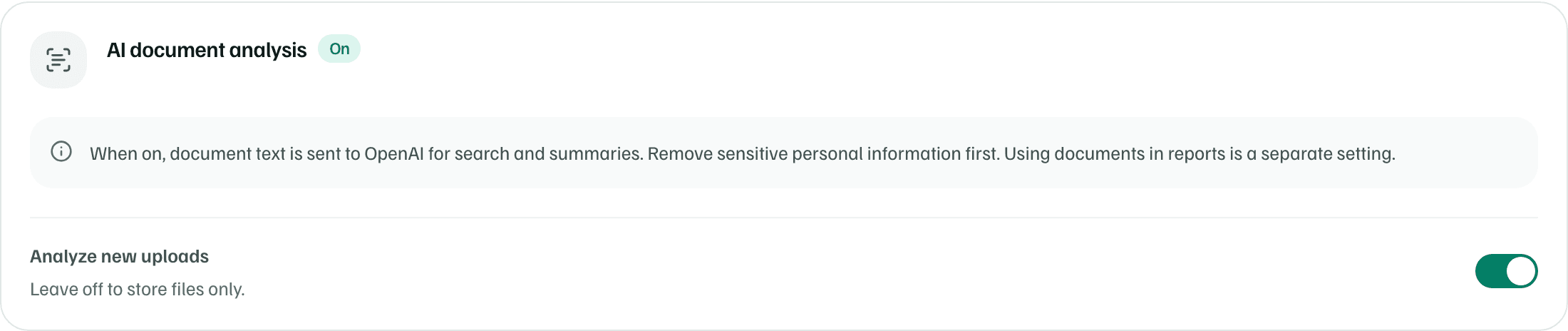
Analysis needs workspace AI to be on. If it's off, an owner or admin can turn it on in Settings. Processing a document doesn't use any AI actions.
Check first
While AI reads a file, its status shows the stage, such as Reading document. You can leave the page while it works.
A file stored without analysis shows Needs review. To analyze it later, open it and select Allow AI analysis. Processing starts right away.
The document page
Select a document to open it. Its page has four parts:
- Details: the type, the document's date, the fiscal year and when it expires. These dates tell the applicant file when the document needs replacing. Select Edit details to change them.
- AI permissions: whether AI may read the file, and whether research may use its summary. Stop AI analysis and Stop report use turn each one off.
- AI summary: a short summary and tags, written from the document's own text. Review it before you rely on it.
- Extracted text: the text GrantFlex read, split into the passages that drafts cite.
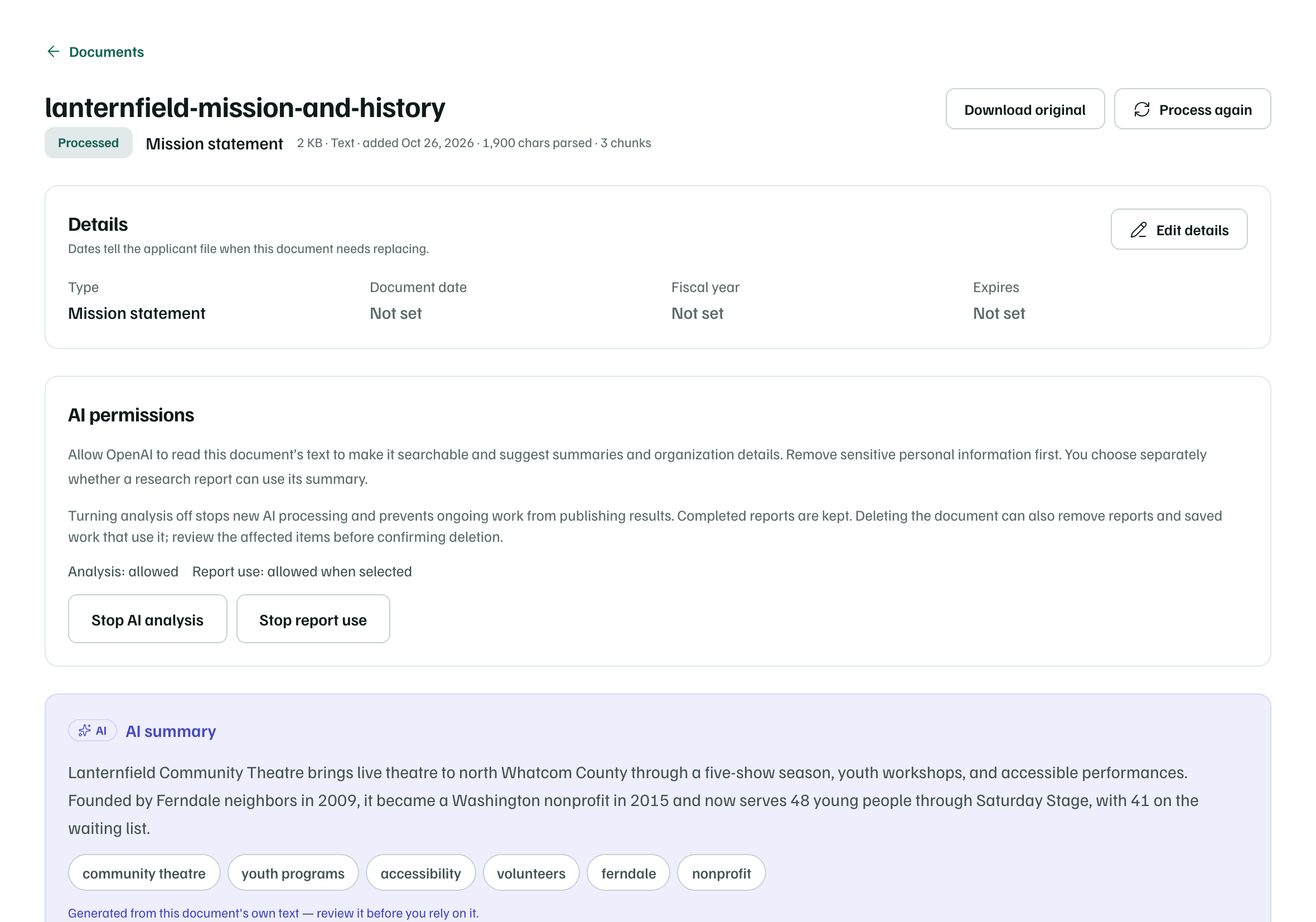
What happens in this clip
Select the mission and history document. Its page shows the details, the AI permissions and the AI summary. Then move down to the extracted text, passage by passage.
Turning analysis off stops new AI processing. Reports already finished are kept. Research uses a summary only when you choose it in your research setup.
Suggestions from your documents
Once a document is processed, Create suggestions reads your files and suggests details such as your mission, where you work, who you serve and your programs, each with the files it came from. It uses one AI action.
Use this copies a suggestion into your saved details. Nothing changes until you choose it. Refresh suggestions reads your files again after you add more.
Trash and restore
To remove a document, open it, select Delete document and confirm. It moves to the trash, and the Documents tab lists it under Trash. Select Restore within 30 days to bring it back.
Check first