Track requirements
The Requirements tab is your checklist of the documents and other steps the funder asks for. Attach the file that settles each one, or mark it done, before you submit.
- 4 min
- Every plan
Screens from October 2026
In the app:Pipeline, then Proposal, then Requirements
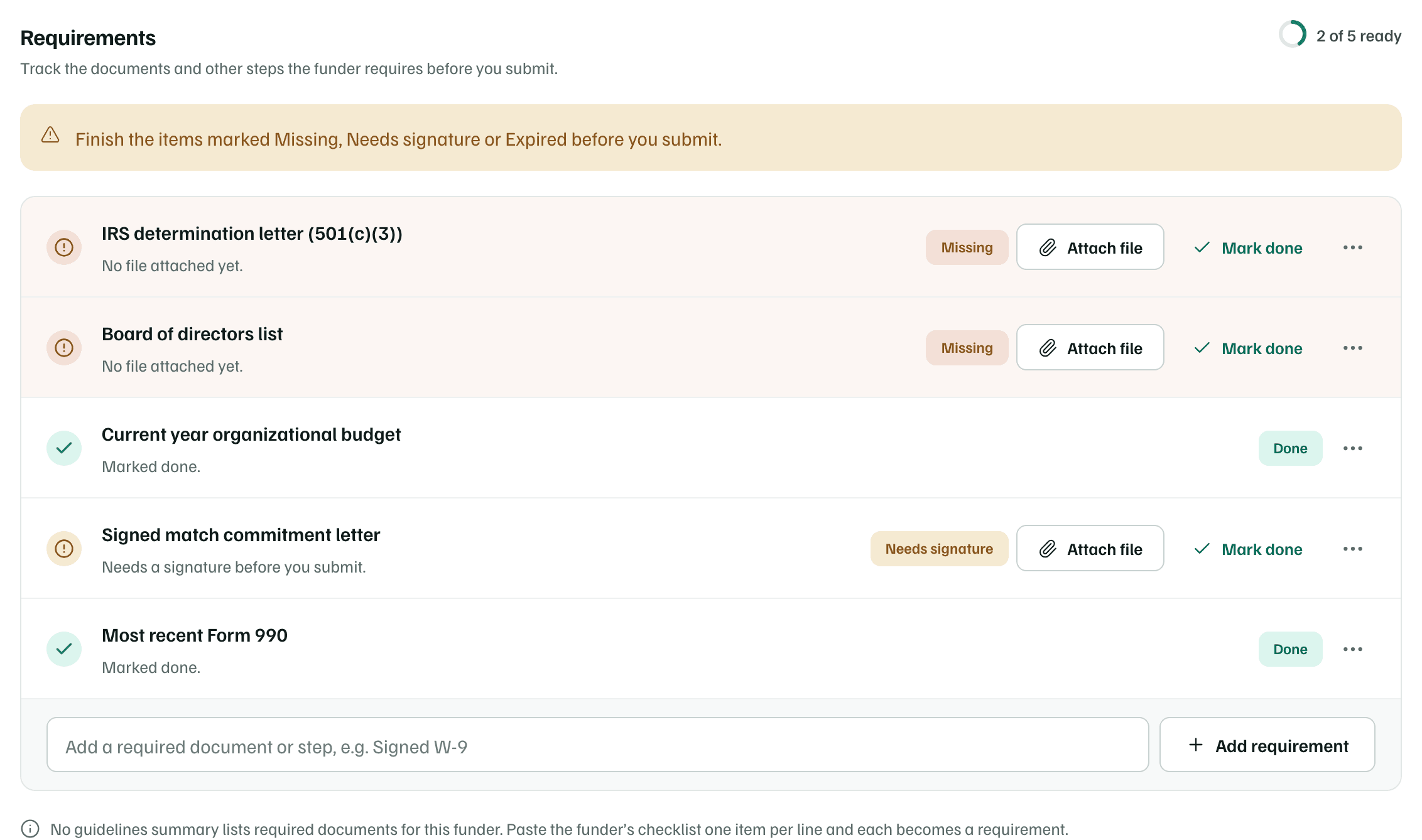
Each requirement shows its status and, once a file is attached, the file's name and size. The count at the top, such as 2 of 5 ready, counts the requirements that are attached, waived or done.
Build the list
If GrantFlex has summarized the funder's guidelines, the tab offers the attachments the summary lists. Select Build from the brief to add them. If the summary later lists documents your checklist doesn't have, the button reads, for example, Add 2 from the brief, and adds just those. Building the list copies it from the summary, so it doesn't use an AI action.
Items added this way link to the passage of the summary they came from. AI found them, so check them against the funder's own guidelines.
To add a requirement yourself, type it in the box at the end of the list, such as Signed W-9, and select Add requirement. You can also paste the funder's checklist with one item per line, and each line becomes a requirement, up to 30 at a time.
A proposal started from a record's materials already lists the files the record needed. See Start a proposal.
Statuses
| Status | What it means | Counts as ready |
|---|---|---|
| Missing | Nothing is attached yet. | No |
| Attached | A file from your documents is attached. | Yes |
| Needs signature | It needs a signature before you submit. | No |
| Expired | The version you have has expired. Attach a current one. | No |
| Waived | Not needed for this application. | Yes |
| Done | You finished it outside GrantFlex and marked it done. | Yes |
Until every item is ready, a note at the top asks you to finish the items marked Missing, Needs signature or Expired before you submit.
Attach a file or mark it done
- Attach file lists your workspace's documents. Choose one and select Attach file. If it isn't there, select Upload it to your documents and attach it once it's uploaded.
- Mark done is for steps you finish outside GrantFlex, such as registering on the funder's portal. The requirement then reads Done.
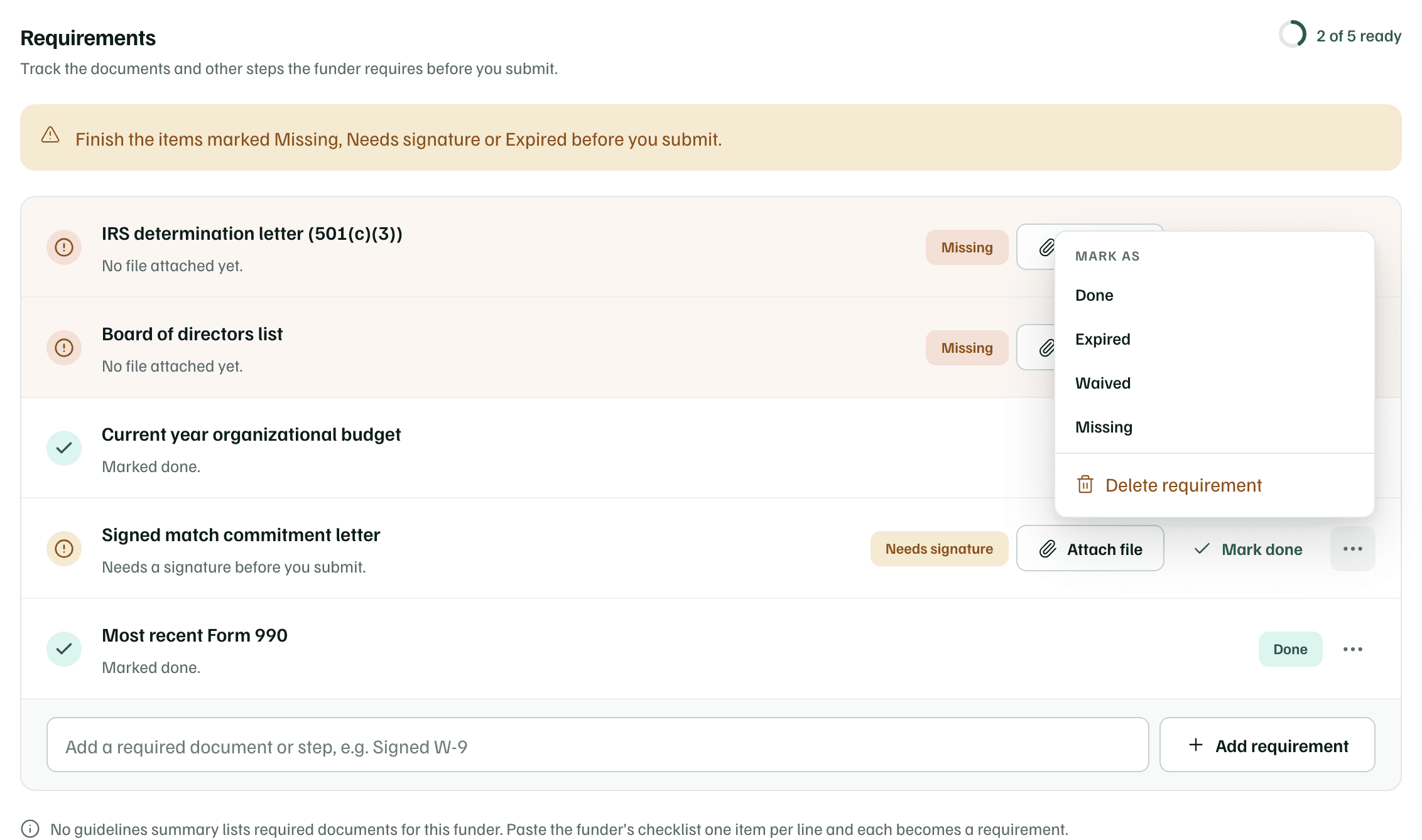
- Each row's ⋯ menu sets another status under Mark as, or removes the item with Delete requirement. Once a file is attached, Replace file swaps it.
A file you move to the trash stops counting, and its requirement asks you to restore the file or attach another.
Tip
Required documents is one of the readiness checks on the Package tab. It's met when every requirement is attached, waived or done, and every document the guidelines list is on your checklist.