Run a full research report
A full research report searches the web for grants, partners and donated support that fit your organization, checks the evidence and suggests what to do next. It usually takes about 30 minutes, and you can leave while it runs.
- 30 min
- Paid plans
- No AI actions
Screens pending
Before you start
Solo and Team
- You need to be an owner, admin or editor. Viewers can read reports but can't start one.
- Workspace AI must be on. If it's off, an owner or admin turns it on from Discover or Settings.
- Only one report runs at a time in a workspace.
Start a report
Open your latest report's More report actions menu and select New research, or select New research on Research history. Before a workspace's first report, Discover opens the form directly.
What happens in this clip
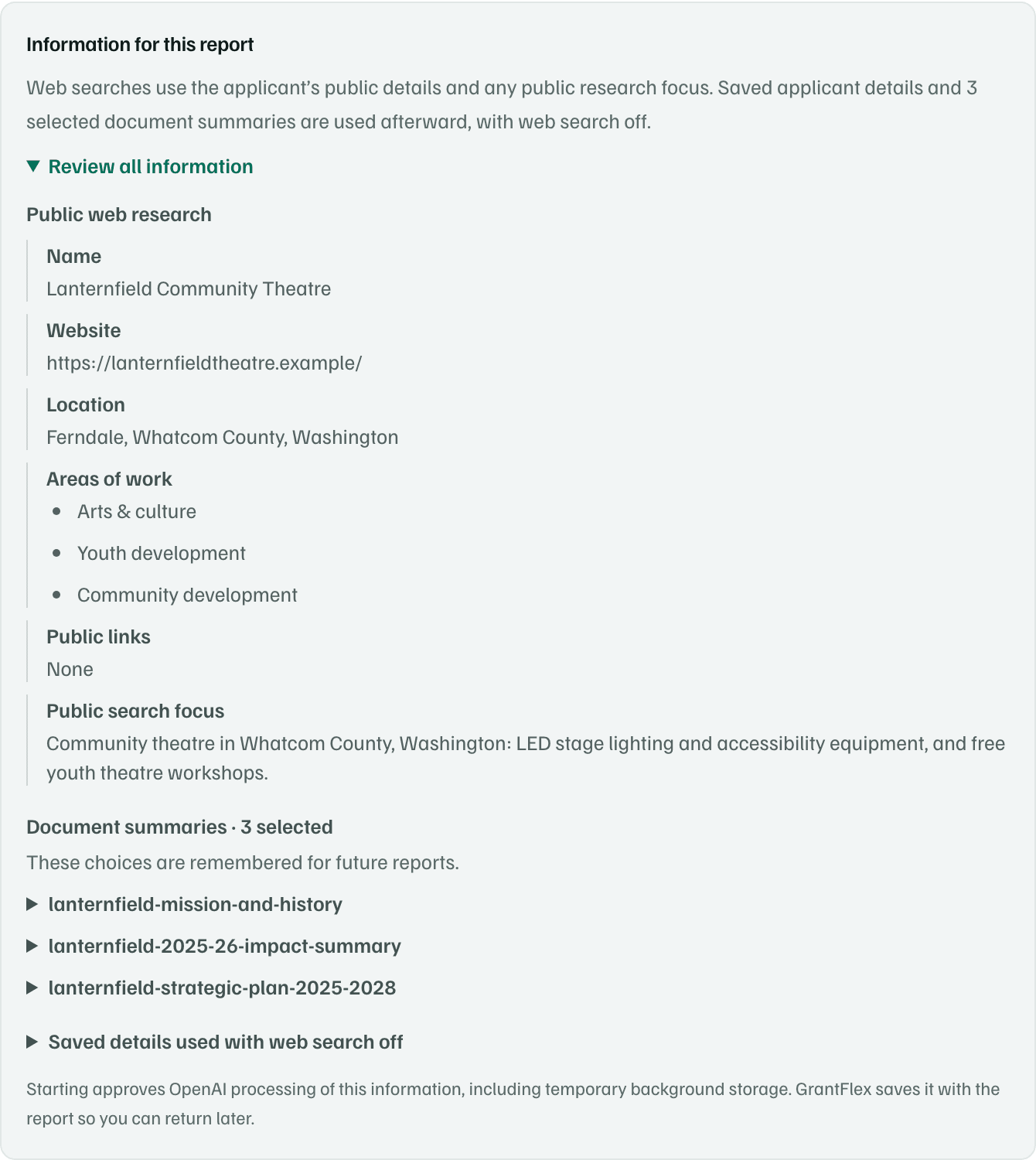
Select Full research report. The form appears with the focus question and Information for this report. Open Review all information, then Saved details used with web search off, and move to Start report without selecting it.
Choose Full research report
New research offers two kinds of research. Quick search looks for one specific need in about 2 minutes. Full research report covers grants, partners, steps to prepare and a 12-month plan in about 30 minutes.

Example workspace · fictional data Say what the search should focus on
Under What should the web search focus on?, describe what you're raising money for in a sentence or two. It's optional, and it starts with the focus your last report used.
This text may be sent to public search engines, so leave out private details.
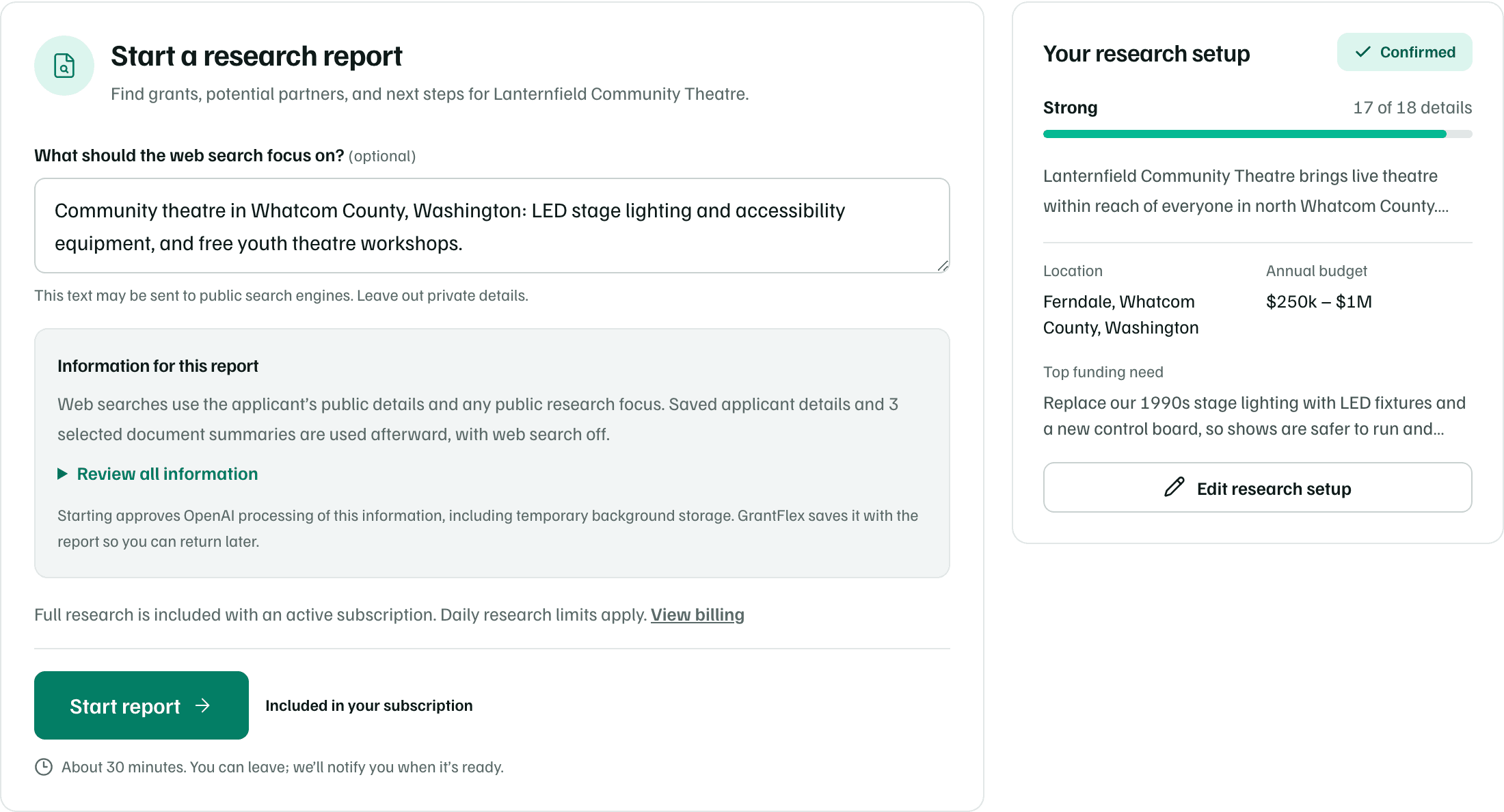
Example workspace · fictional data Review the information for this report
Information for this report says what the research uses. Web searches use your public details and the focus. Your saved details and the document summaries you chose are used afterward, with web search off.
Select Review all information to see every detail before you start.
Example workspace · fictional data Check your research setup
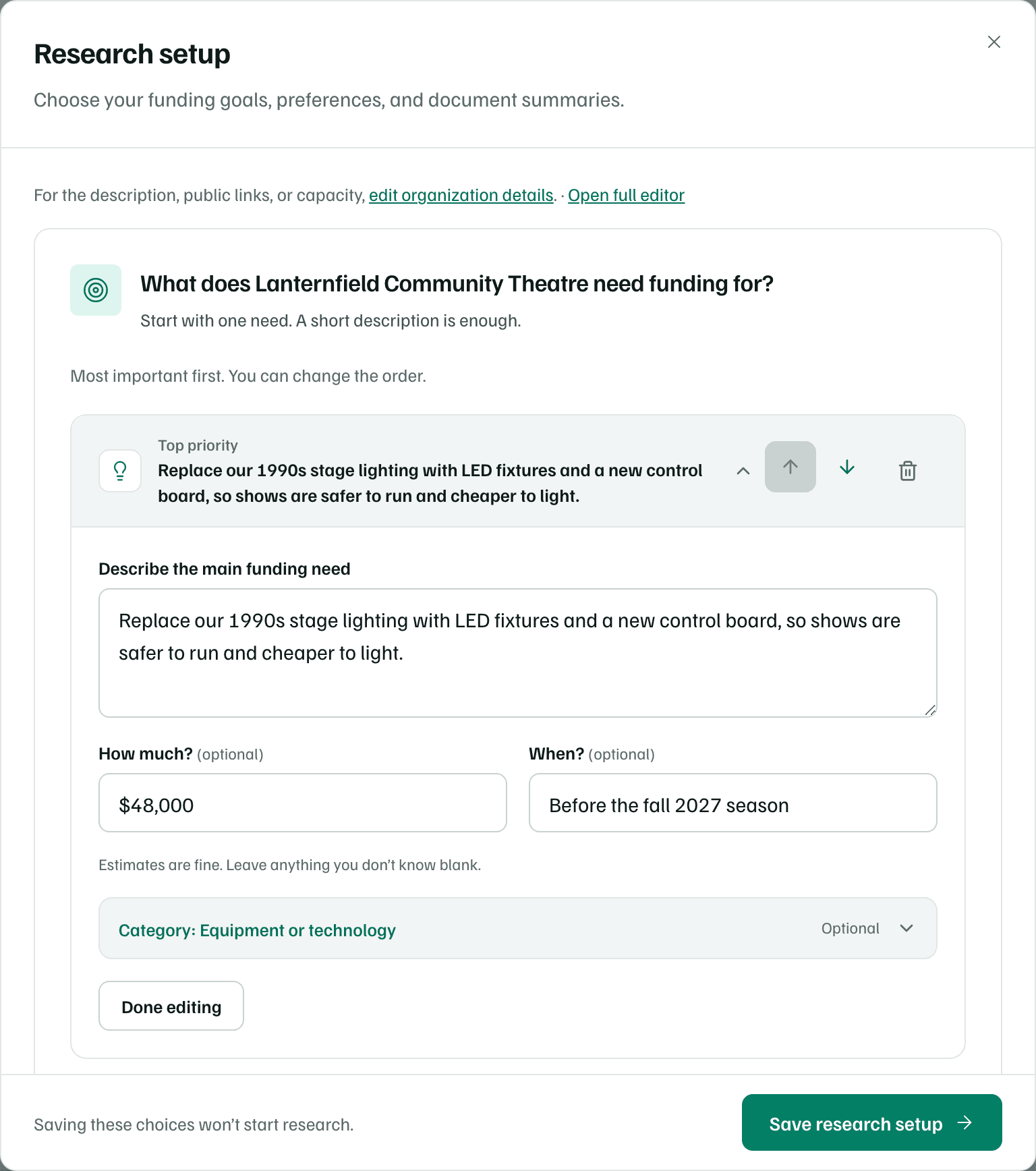
Your research setup shows how complete your details are, with your top funding need. Select Edit research setup to change your funding needs, preferences and which document summaries research may use.
Select Save research setup to keep your changes. Saving doesn't start research.
Example workspace · fictional data Start the report
Select Start report. Starting approves OpenAI processing of the information you reviewed. GrantFlex saves it with the report so you can come back to it.
While it runs
The page says We’re finding funding for your organization, with a status such as In the queue or Researching now. Four steps show how far it has got: Prepare your brief, Find opportunities, Check the evidence and Build your report.
- There's no percentage or time estimate. The steps move only when the research does.
- Checking details again means some findings need stronger evidence, so they're being checked before the report is ready.
- Paused for setup means research is waiting on GrantFlex's own setup. It picks up on its own, and nothing is lost.
- You can close the tab. The page updates on its own, and the report is saved in Opportunities.
To stop the run, select Cancel research. Your research setup stays saved, so the next report starts from it.
When it's ready
The person who started the report gets a notification, Fundraising research is ready, and a note in the corner of any GrantFlex page with View report. GrantFlex also emails them, unless they turned off Research reports in their notification settings.
In the app:Settings, then Notifications
If research doesn't finish