Search for one specific need
Quick search looks for grants and donations for one specific need, such as stage lighting or volunteers, in about two minutes. You choose which results to keep.
- 5 min
- Every plan
- Uses 1 AI action
Screens pending
Uses 1 AI action
Start a quick search
In a report, select Search for one specific need under More ways to find funding. You can also open New research and choose Quick search.
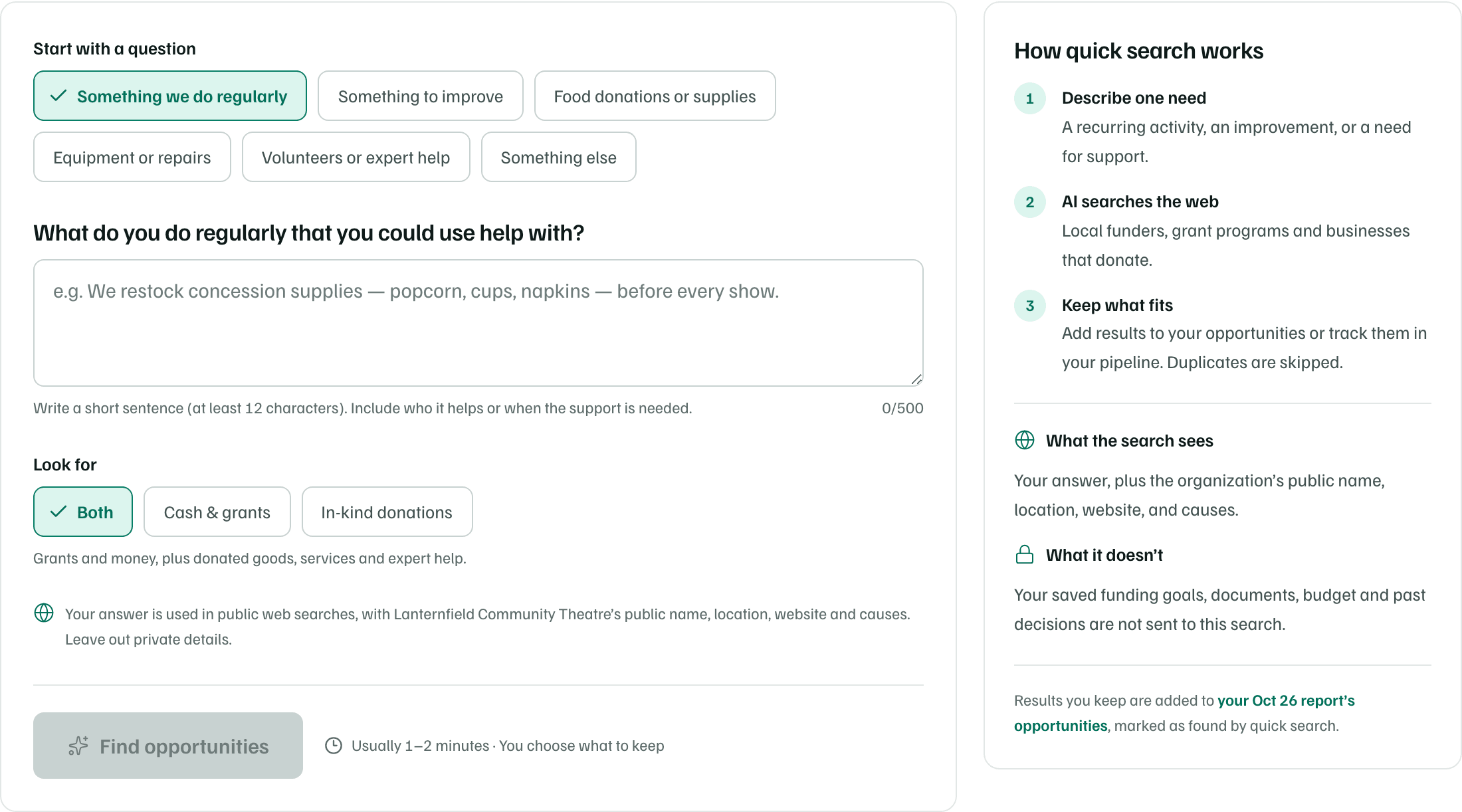
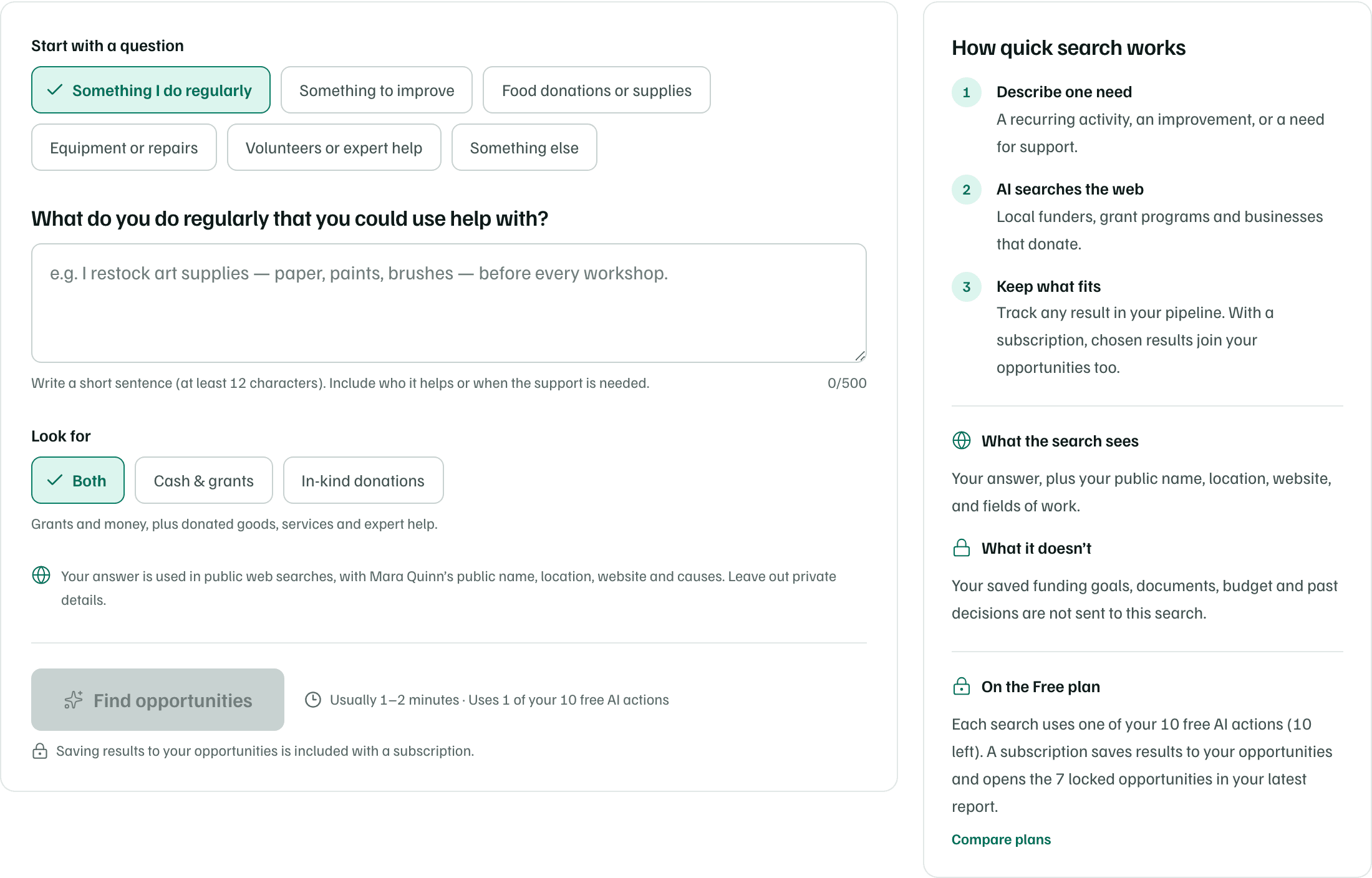
- Under Start with a question, choose the closest match: Something we do regularly, Something to improve, Food donations or supplies, Equipment or repairs, Volunteers or expert help or Something else. The question above the box changes to match.
- Describe the need in a short sentence, between 12 and 500 characters. Say who it helps or when you need it.
- Under Look for, choose what kind of support to find.
- Select Find opportunities. The search usually takes 1–2 minutes, and you can work in another tab meanwhile.
- Both: Grants and money, plus donated goods, services and expert help.
- Cash & grants: Grants, sponsorships and business giving.
- In-kind donations: Donated goods, services, equipment and expert help.
What happens in this clip
Choose Equipment or repairs, and the question above the box changes. Type the need, choose In-kind donations, then Both, and stop at Find opportunities without selecting it.
What the search sees
Your answer goes into public web searches with your organization's public name, location, website and causes. Your saved funding goals, documents, budget and past decisions aren't sent. Leave private details out of your answer.
Keep what fits
The results say how many opportunities fit your need, and Where to start suggests which to look at first. Each finding shows the kind of support, its status, why it fits, the amount, timing and who can apply, a next step and its source.
- Tick the findings you want, then select the add button, such as Add 3 to opportunities. They join your latest report, marked Added from quick search, and you decide on them like any other opportunity.
- Or select Track in pipeline to add them to Pipeline as prospects. This works without a report too.
- A finding already in your opportunities says Already in your opportunities, and one that looks like it says Looks similar to one you have.
- After adding, Undo takes them back off the list.
Until you start work on an added finding, you can also remove it from the report with Remove from list in its More options menu.
Check first
On the Free plan
Each search uses one of your free AI actions, and the form says how many are left, such as Uses 1 of your 10 free AI actions. Saving results to your opportunities is included with a subscription. You can still track results in your pipeline.