Export data, transfer ownership or delete a workspace
Download everything a workspace holds as one ZIP file, hand the workspace to another member, or delete it. A deleted workspace can be restored for 14 days.
- 5 min
- Every plan
Screens from October 2026
Export all data
In the app:Settings, then Data controls
Owners and admins can select Export all data. GrantFlex builds a ZIP file named for the workspace and the date, and your browser downloads it. For editors and viewers, the button is turned off.
| Folder or file | Holds |
|---|---|
| README.txt | What's in the export, and any documents it couldn't include |
| data/ | Every record as JSON, one file for each kind. Amounts are in cents, and whole-day dates read YYYY-MM-DD. |
| documents/ | The original files you uploaded |
The data folder holds:
- Pipeline records, with their materials, deadlines, submissions, notes and activity.
- Proposals, with their sections, budget lines, checklists and letters of support.
- Tasks, and awards with their payments and reports.
- Funders, with their contacts and interactions.
- The answer library, applicant file, financial years, people and programs.
- Projects, with their milestones and funding links.
- Each document's details and AI summary.
- Your own saved searches. Saved searches are personal, so nobody else's are included.
Research reports
If a document is too large to include or can't be read, README.txt lists it. Download it from the Documents tab instead.
Transfer ownership
In the app:Settings, then Ownership and deletion
Only the owner can transfer a workspace, and only to someone who's already a member. If nobody else is, invite someone first.
Start the transfer
Select Transfer ownership. A warning says you'll become an admin, and that only the new owner can transfer it back, delete the workspace or change billing.
Choose the new owner
Choose a member under New owner, then select Confirm transfer.
The workspace keeps its plan, and from then on only the new owner can change billing. To give a client its workspace and end your agency's link in one step, use Hand over to client. See Hand a client over or leave.
Delete a workspace
Only the owner can delete a workspace. Select Delete workspace, type the workspace's name exactly, then select Delete workspace again.
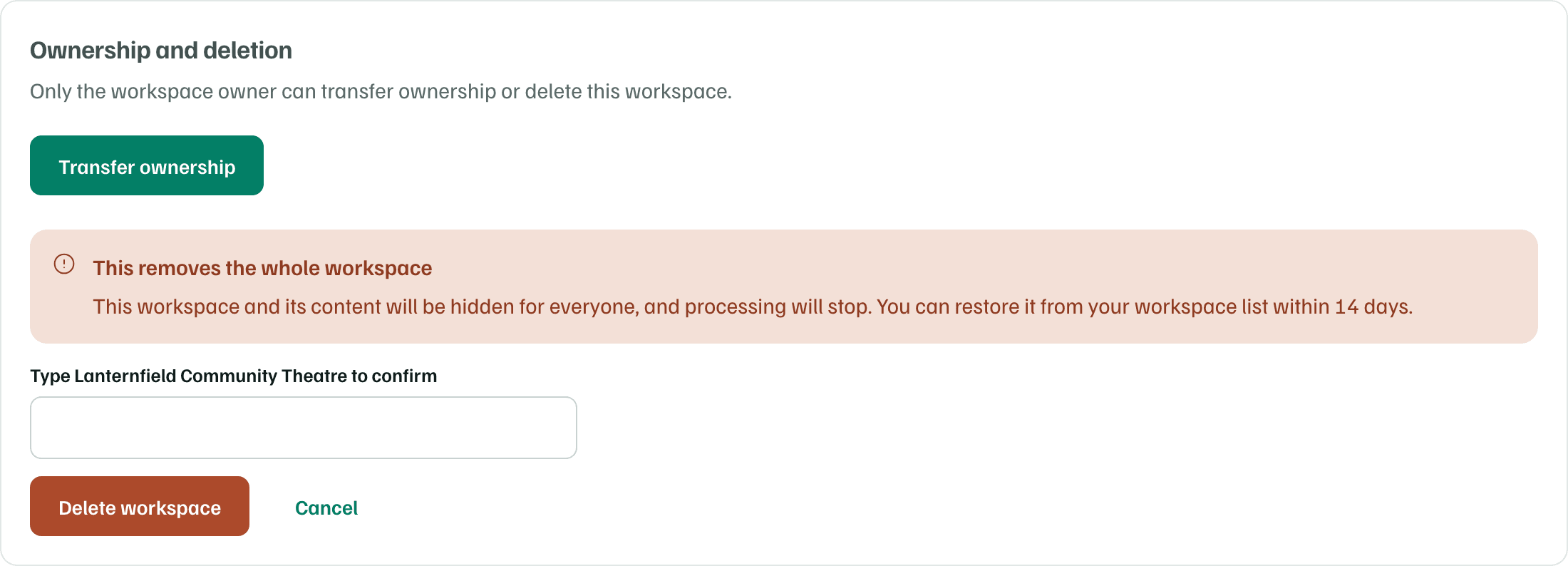
- The workspace and its content are hidden for everyone, and its processing stops.
- You can restore it from your workspace list within 14 days.
- Files people downloaded stay with them.
Paid plans
Deleting a client workspace takes it off its agency's bill. Deleting an agency workspace stops managing every client, and the staff it added leave them.
Restore a deleted workspace
On All workspaces, Recently deleted lists the workspaces you deleted, with the date to restore each one by. Select Restore to bring one back. Restoring an agency workspace doesn't link its clients again.
Delete your account
Open Your account from the account menu, or select Account on All workspaces. Under Delete your account, select Delete account. Type what the form asks for, such as your email address, then select Delete my account.
- Account deletion is immediate and permanent, with no recovery period.
- You lose access to every workspace. Shared workspaces and their content are kept.
- If you're the only owner of a workspace, transfer ownership or delete it first. The page names each one, with a link to its settings.
How GrantFlex keeps and deletes information, including backups, is in How GrantFlex uses AI and your information.