How GrantFlex uses AI and your information
GrantFlex uses OpenAI to research funding, draft text and read the documents you choose. Web searches use only public details, you decide what AI can use, and nothing trains AI models without your permission.
- 6 min
- Every plan
Screens from October 2026
Workspace AI
In the app:Settings, then AI processing
AI is off in a new workspace until an owner or admin turns it on. At the end of setup, a consent dialog asks the owner to turn it on. After that, an owner or admin can select Turn off workspace AI or Turn on workspace AI in Settings.
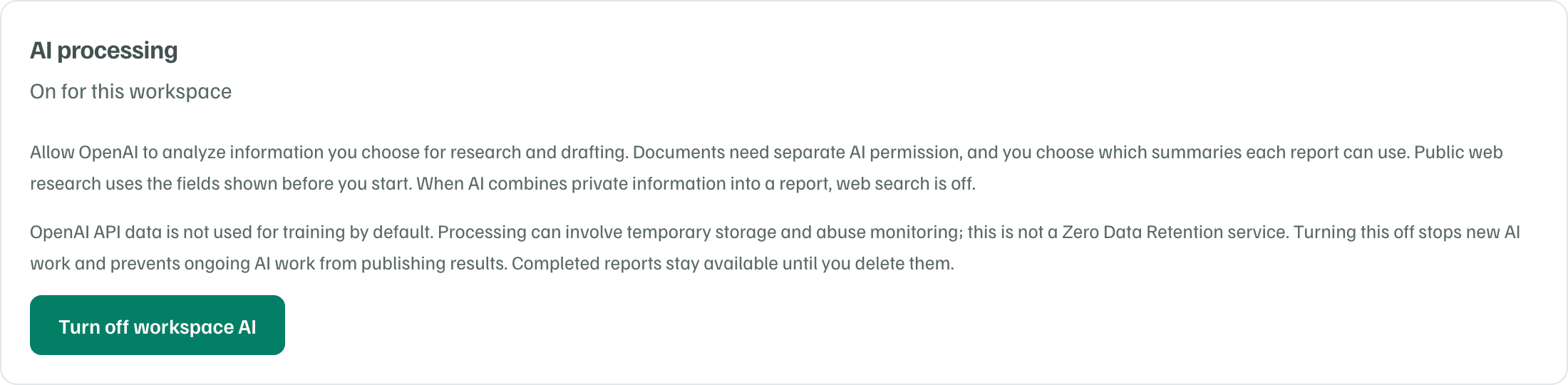
Turning AI off:
- Stops new AI work, such as drafts, reviews, quick searches and research.
- Stops research that's running, so its results aren't published.
- Keeps finished reports until you delete them.
You can still store files and edit your work by hand.
Your documents
Each document has two AI permissions, and both start off:
- Analysis lets OpenAI read the document's text to make it searchable and suggest summaries and organization details.
- Report use lets a research report use the document's summary, when you choose that summary for the report.
You can allow analysis as you upload, with Analyze these documents with AI, or with the Analyze new uploads switch on the Documents tab. Workspace AI has to be on first. Leave analysis off to store a file without AI reading it.
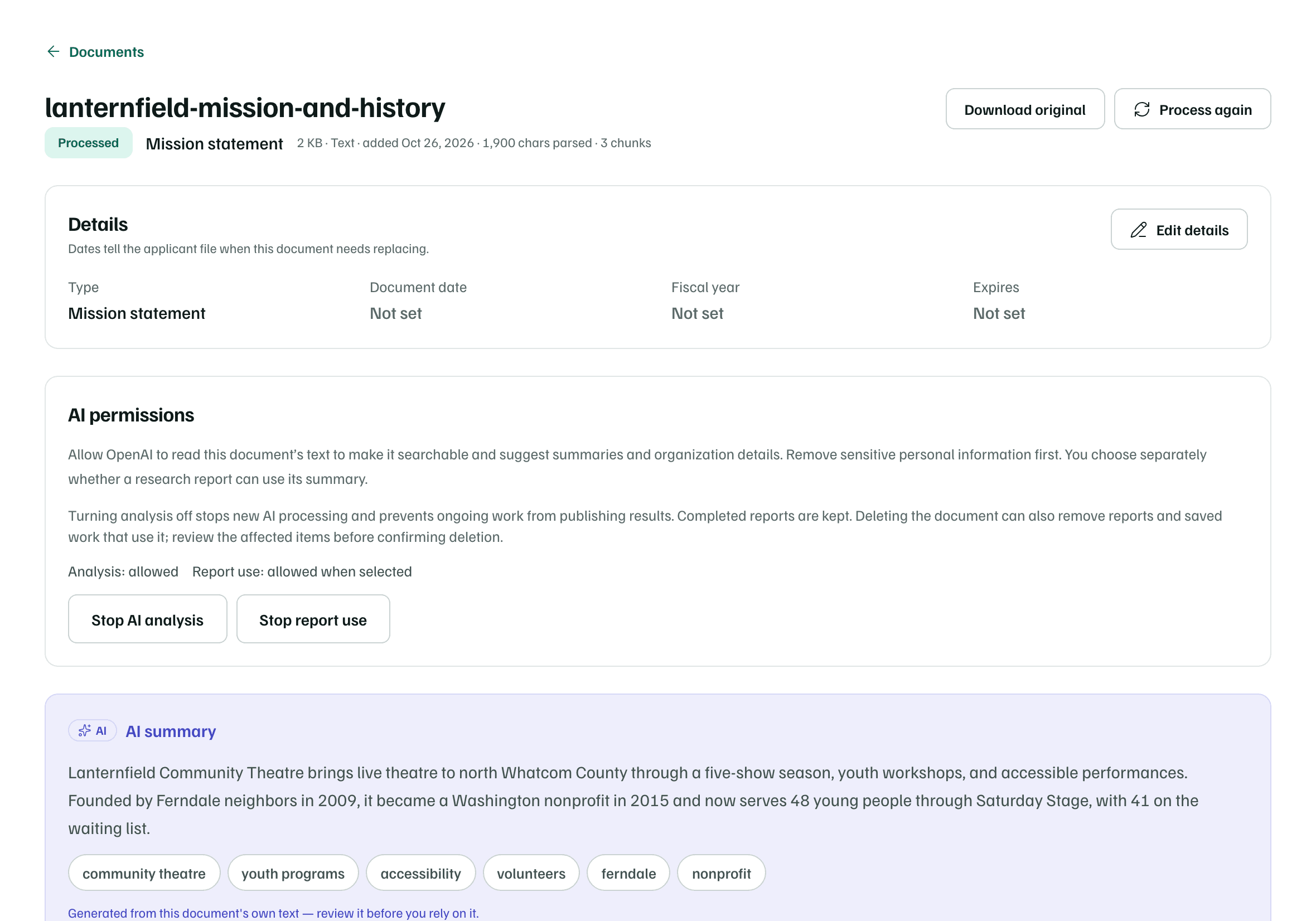
On a document's page, AI permissions shows both choices. Stop AI analysis stops new AI processing of the document, and Stop report use keeps its summary out of reports. Reports already finished are kept. Anyone who can edit the workspace can change these choices.
You choose which summaries a report uses, up to eight, when you set up your research. OpenAI reads them after the web search, with web search turned off.
Before you upload
What web research sees
Research works in two parts. First, web searches use only public details: the applicant's name, website and public links, broad location, areas of work, and any public research focus you add. Then OpenAI combines what it found with your saved details and the document summaries you chose, with web search turned off.
Private here means kept out of public web searches. OpenAI still reads those details to write your report.
Before a full report starts, Information for this report lists what it will use. Select Review all information to see every detail. Starting the report approves OpenAI processing of that information, including temporary storage while it runs.
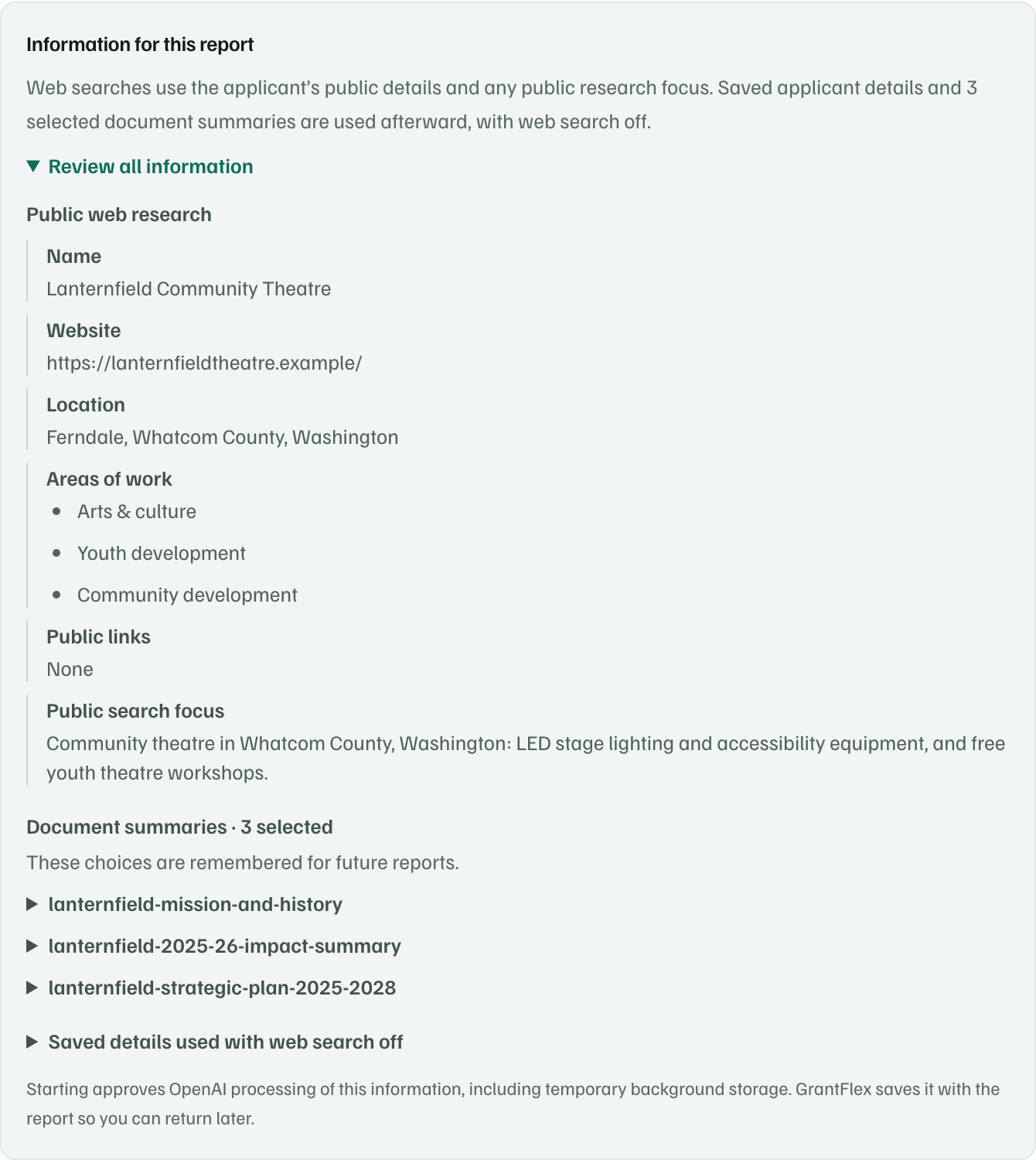
A few details are yours to share or hold back:
- Project ideas you add during setup stay out of public web searches.
- A public research focus may be sent to public search engines, so leave out private details.
- Your EIN goes to research only while Use this EIN for research is checked. It helps research tell your organization apart from others with similar names.
- If no EIN is saved, Application basics may look up your organization's name and city in public IRS records through ProPublica and suggest one. It isn't saved or used unless you select Accept EIN for research.
- The setup lookups, such as Look up mission, search public sources with the name, location and links you've entered. You review each suggestion before it's added.
Training and storage
Nothing trains AI models without your permission. OpenAI doesn't use your information to train its models by default. GrantFlex doesn't use your documents or reports to train models unless you give separate permission.
OpenAI may store information temporarily, including for abuse monitoring, and background research needs temporary storage while it runs. How long depends on OpenAI's terms, and GrantFlex doesn't promise zero data retention. GrantFlex saves each finished report with the information it used, so you can come back to it.
Note
Export and delete
In the app:Settings, then Data controls
- Export all data downloads a ZIP with every record as JSON and your original documents. Owners and admins can export.
- Deleted documents and reports can be restored for 30 days.
- Only the owner can delete the workspace: under Ownership and deletion, select Delete workspace and type its name. It's hidden for everyone and its processing stops. The owner can restore it from All workspaces within 14 days. A paid plan must be cancelled first.
- To delete your account, select Delete account on Your account. If you're a workspace's only owner, transfer ownership or delete that workspace first. Work you shared stays with your collaborators.
Files you've downloaded stay with whoever has them. Deleting something in GrantFlex doesn't immediately erase copies in backups or held by service providers. The privacy policy has the details.
To ask for a copy of your information, a correction or deletion, email contact@grantflex.com.