Organization details and eligibility
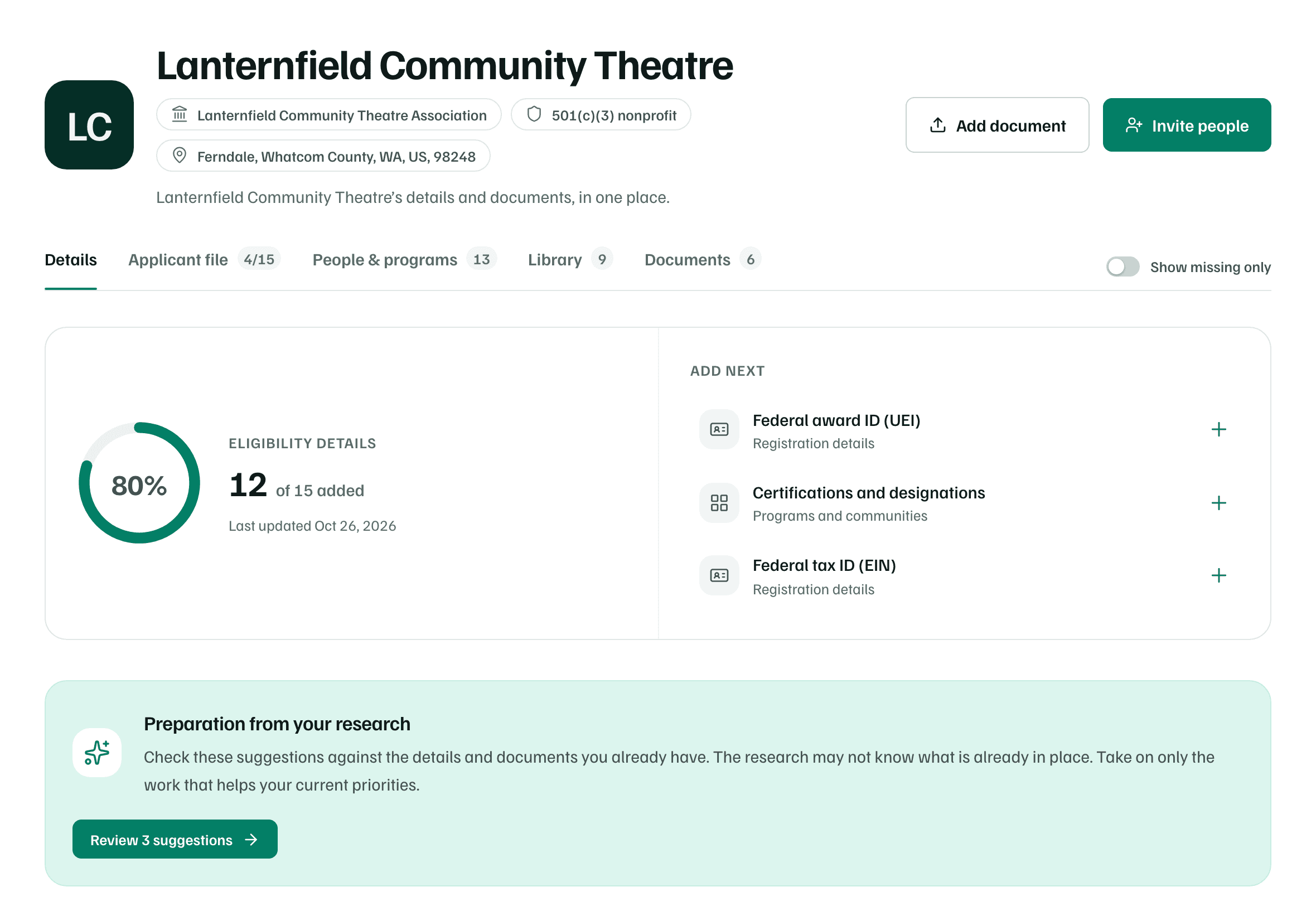
The Details tab holds the facts funders and research check first, such as your organization type, location, budget and registrations. A band at the top counts what's filled in and suggests what to add next.
- 5 min
- Every plan
Screens from October 2026
In the app:Organization, then Details
Setup fills in most of these details. Owners, admins and editors can change them here at any time. Viewers can read them.
Eligibility details
The band's Eligibility details count shows how many of 15 details you've added, such as 12 of 15. They're the facts funders usually check before anything else.
| Section | Details |
|---|---|
| Organization type | Organization type, 501(c)(3) status, fiscal sponsorship |
| Registration details | Federal tax ID (EIN), federal award ID (UEI), SAM.gov registration |
| Location and reach | Main office, areas served |
| Finances and funding | Annual operating budget, annual revenue, usual grant request, matching funds available |
| Programs and communities | Programs and services, people and communities served, certifications and designations |
Beside the count, Add next lists three missing details, starting with the ones that matter most for matching opportunities. Select one to open the editor for its section. Once all 15 are in, it says All eligibility details added.
Note
The four sections
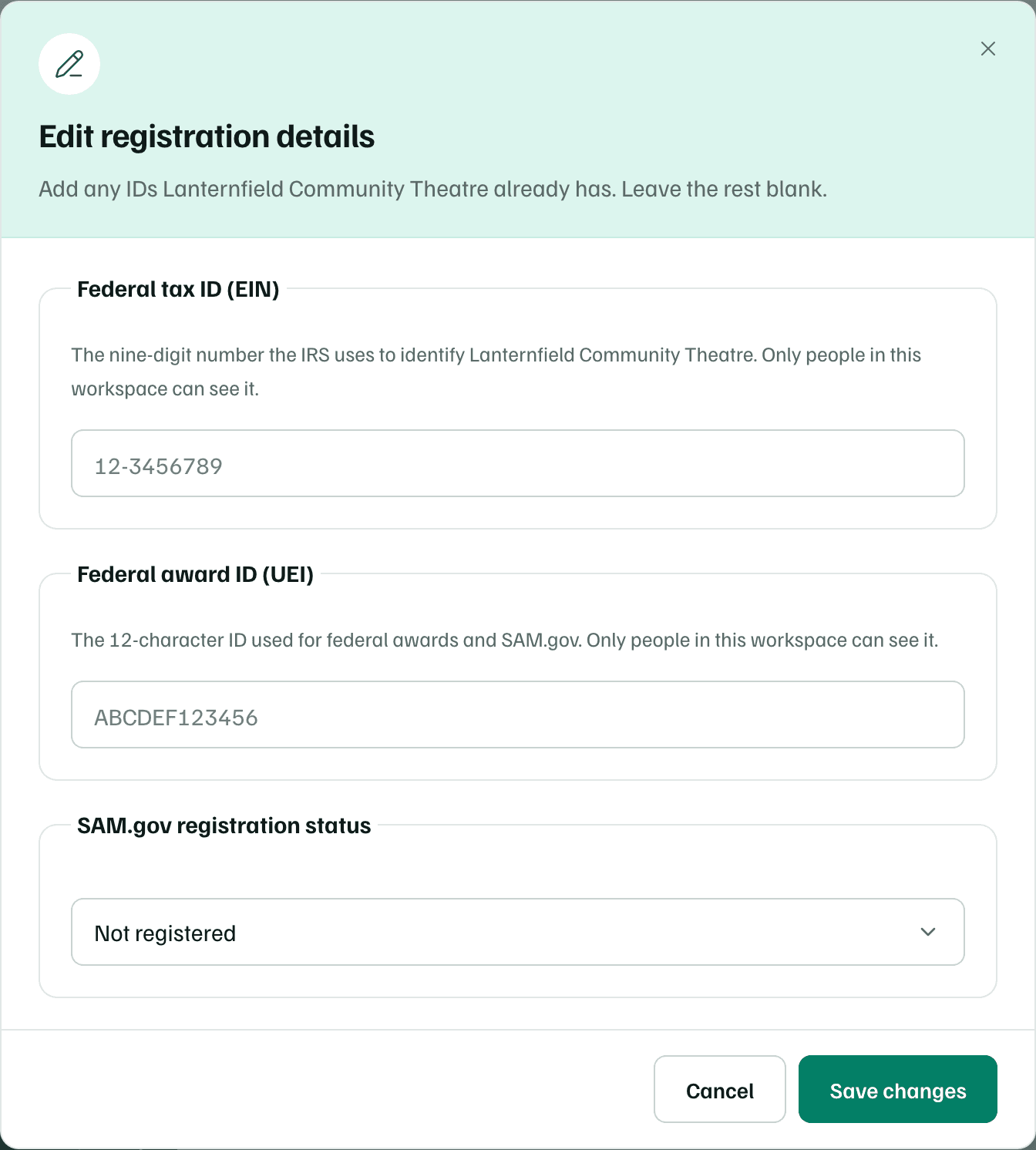
Below the band, the details fall into four sections. Use the Profile, Eligibility, Capacity and Readiness buttons to jump to one.
- Profile: how funders and research see you. It has the organization overview, your legal name and public links, and your research setup.
- Eligibility: the 15 details in the table above.
- Capacity: staff and fundraising time, buildings and equipment, past funders and partners, and how you raise money.
- Readiness: governance, such as board size and signing authority, and Document readiness.
Each card shows how many of its questions are answered, such as 2 of 3 answered. Select Edit on a card, or Add beside a missing detail, to open its editor. Nothing changes until you select Save changes.
Show missing only
Turn on Show missing only, beside the tabs, to hide the cards and details that are complete. What's left is what's missing. Turn it off to see everything again.
Document readiness
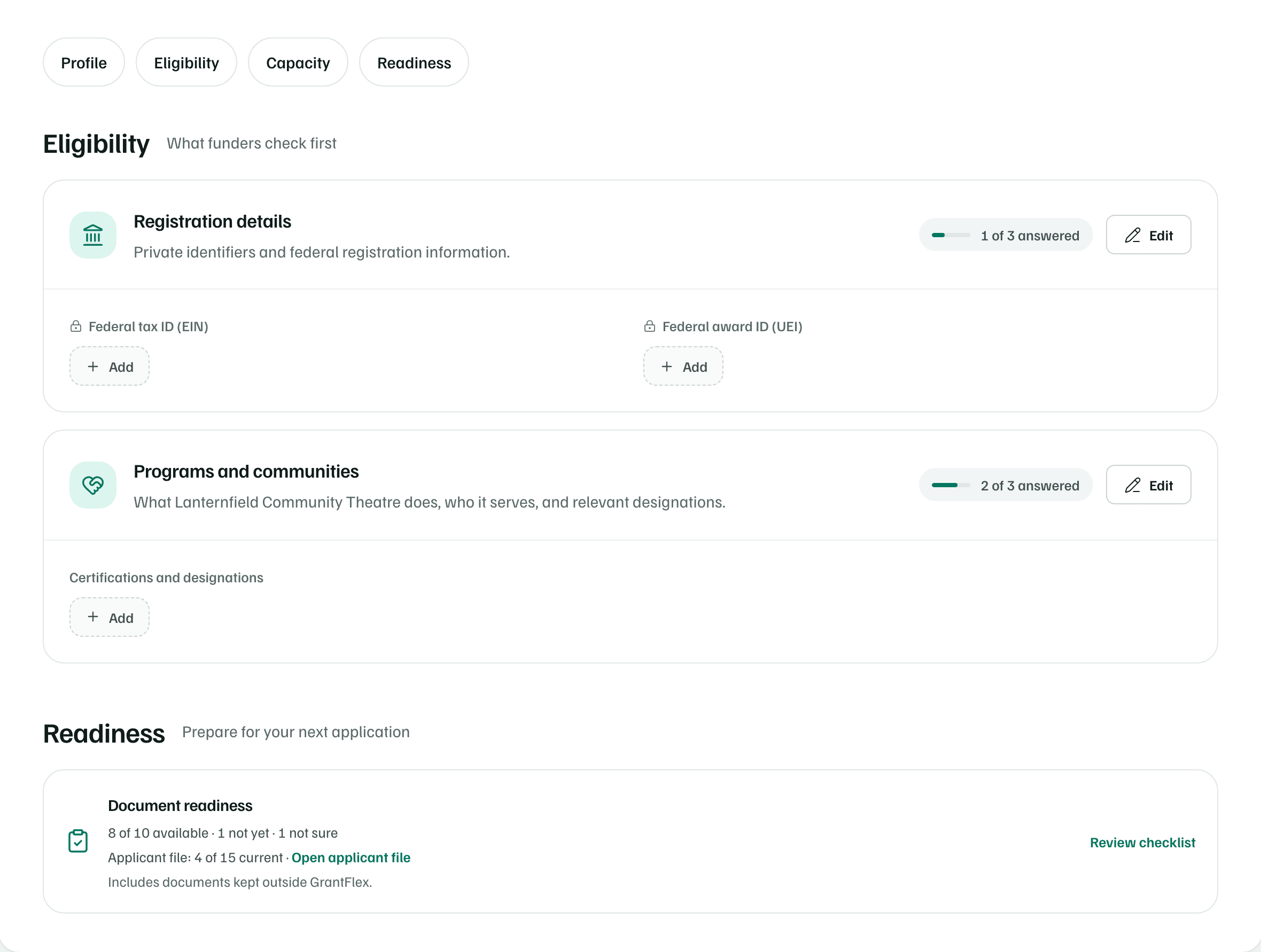
The Document readiness card is a checklist of the documents funders often ask for, such as an IRS approval letter and a board-approved budget. Select Review checklist and mark each one Available, Not yet or Not sure. Count documents you keep outside GrantFlex too.
The card also shows how much of your applicant file is current.
Preparation from your research
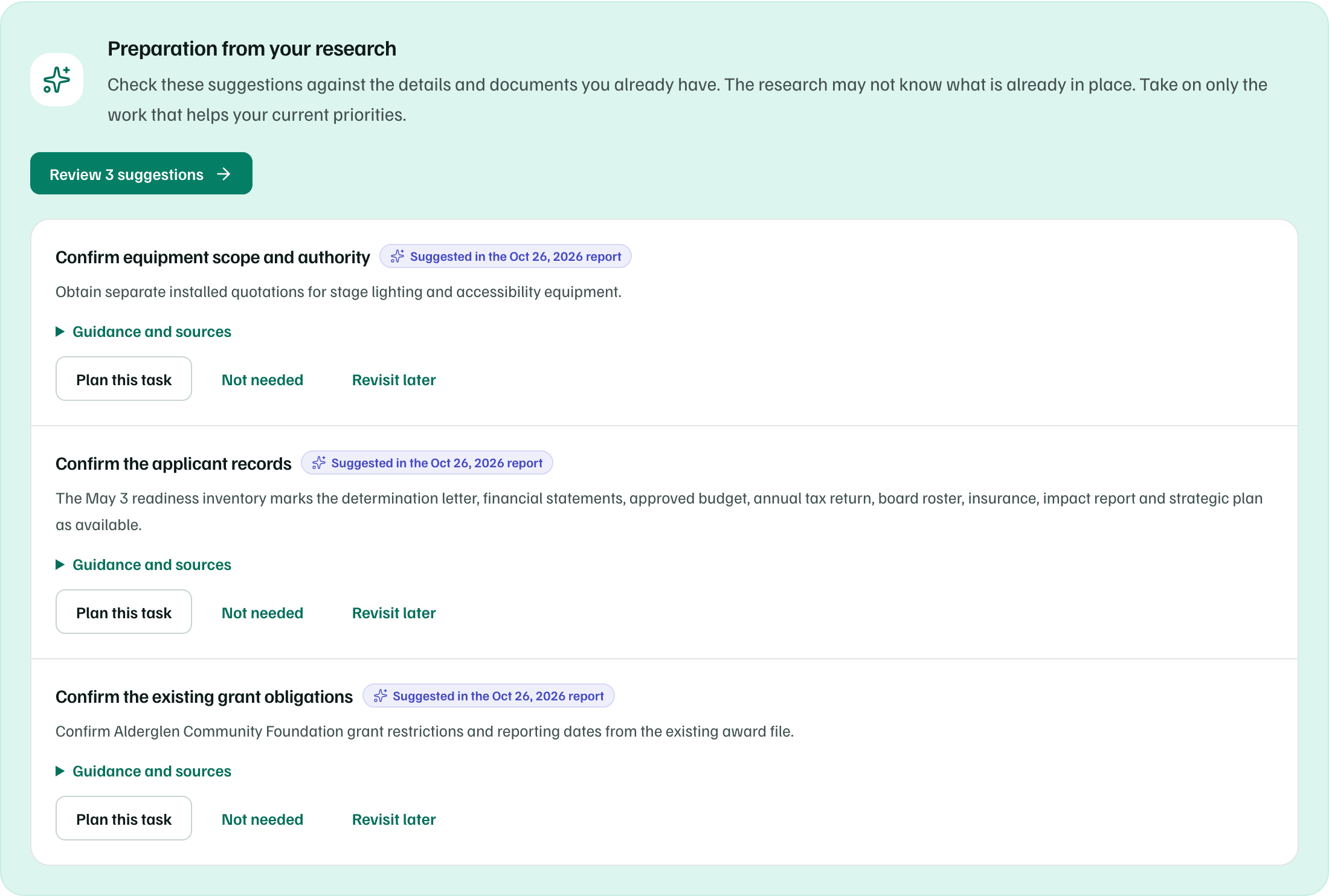
After a research report, this band can list preparation work the report suggests, such as confirming your records before you apply. The research may not know what's already in place, so check each suggestion against what you have.
Select Review 3 suggestions (the number varies) to open them. For each, choose Plan this task, Not needed or Revisit later. Guidance and sources shows what the report based it on.
Tip