Find your first opportunities
Set up a workspace for your organization, then read the opportunities GrantFlex's free introductory research finds. Setup takes about 10 minutes. The research usually takes about 30 more and runs on its own while you do something else.
- 15 min
- Every plan
- No AI actions
Screens from October 2026
Free to start
Create your account
On grantflex.com, select Find your funding or Start free. Then sign in or start free with your email address. New accounts go straight to workspace setup, unless someone has invited you to their workspace.
Set up your workspace
Setup has five steps. Each one shows how long it usually takes, and the progress rail keeps your place. Only the workspace name is required. You can skip the other steps with Skip for now, but each answer makes your research more specific.
What happens in this clip
Choose An organization and enter Lanternfield Community Theatre as the name, then select Create workspace. Skip steps 2, 3 and 4 with Skip for now, and on the Review step select Looks good. The Turn on AI to start your research dialog opens. The recording stops there, before anything is confirmed.
Choose who the workspace is for
Under Who is this workspace for?, choose An organization for a nonprofit, school, church or community group. Choose Myself if you're applying as an individual, or Clients I write for if you write grants for other organizations. Organization, yourself, or clients you write for explains what changes.
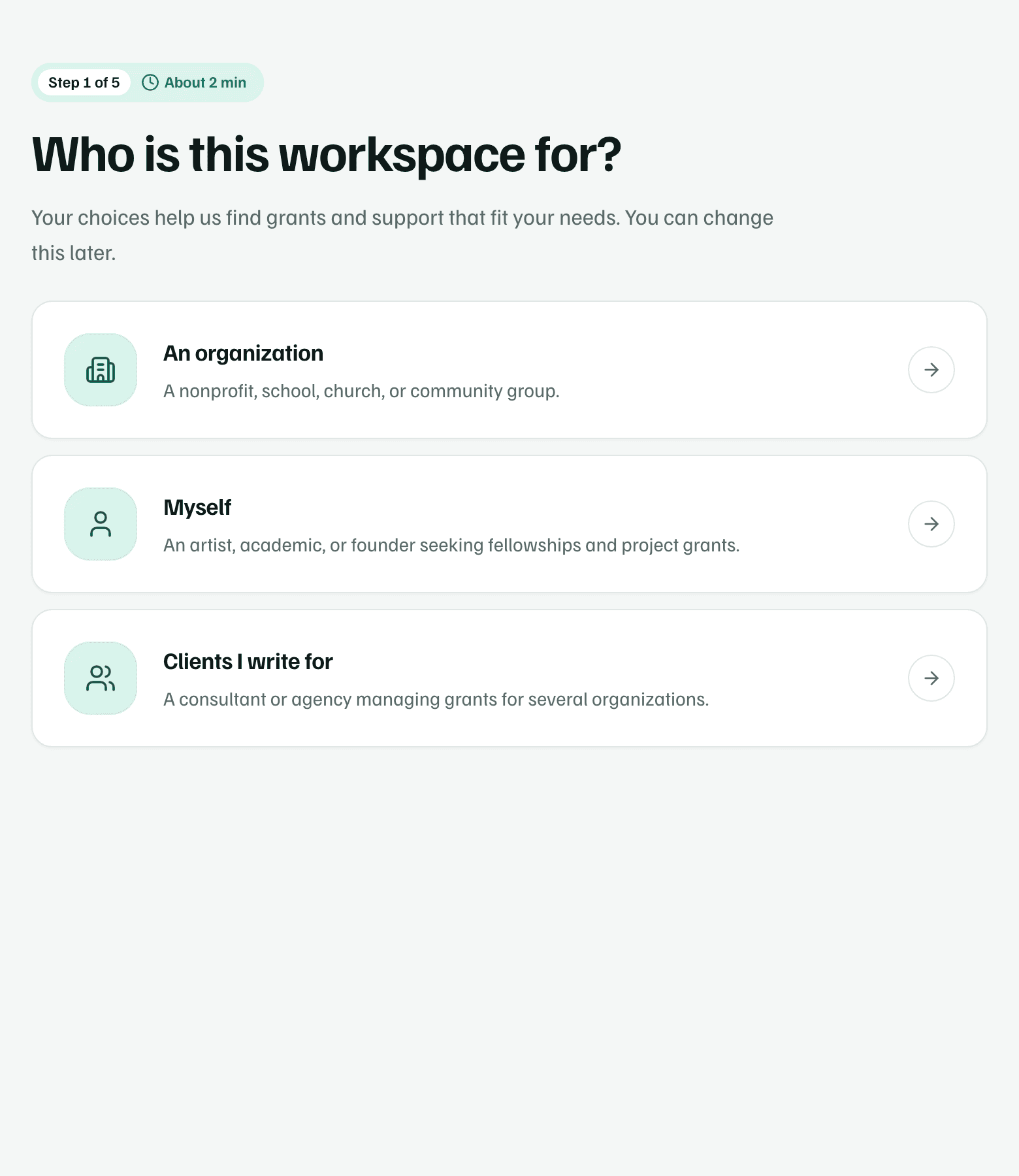
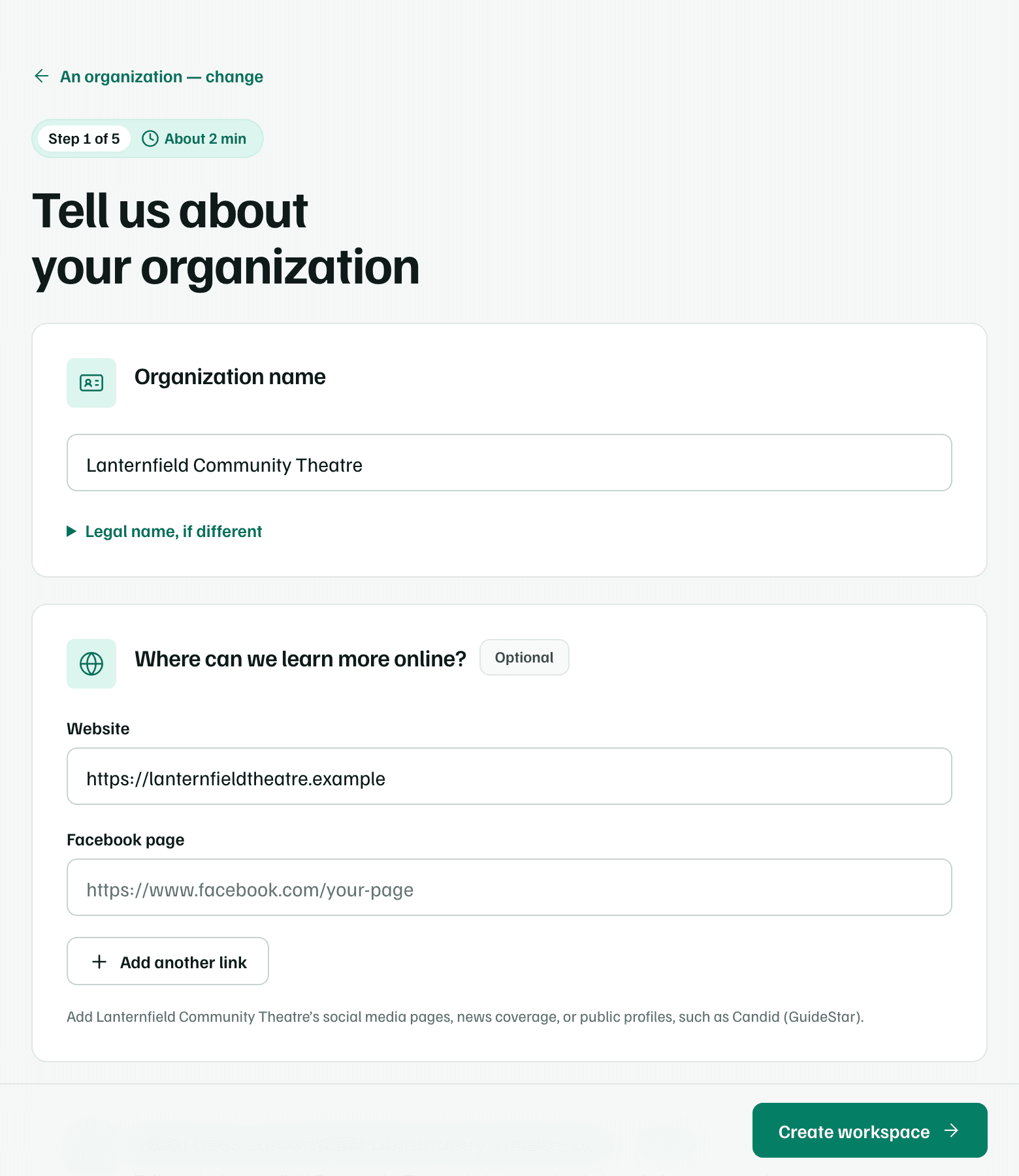
Example workspace · fictional data Tell GrantFlex about your organization
Enter the Organization name and, if you have them, its Facebook page or website. Select Look up mission to have GrantFlex search public sources and suggest a description, with its sources. If it finds one, check it and choose Yes, use these details. If it doesn't, write a sentence of your own.
Select Create workspace to continue.
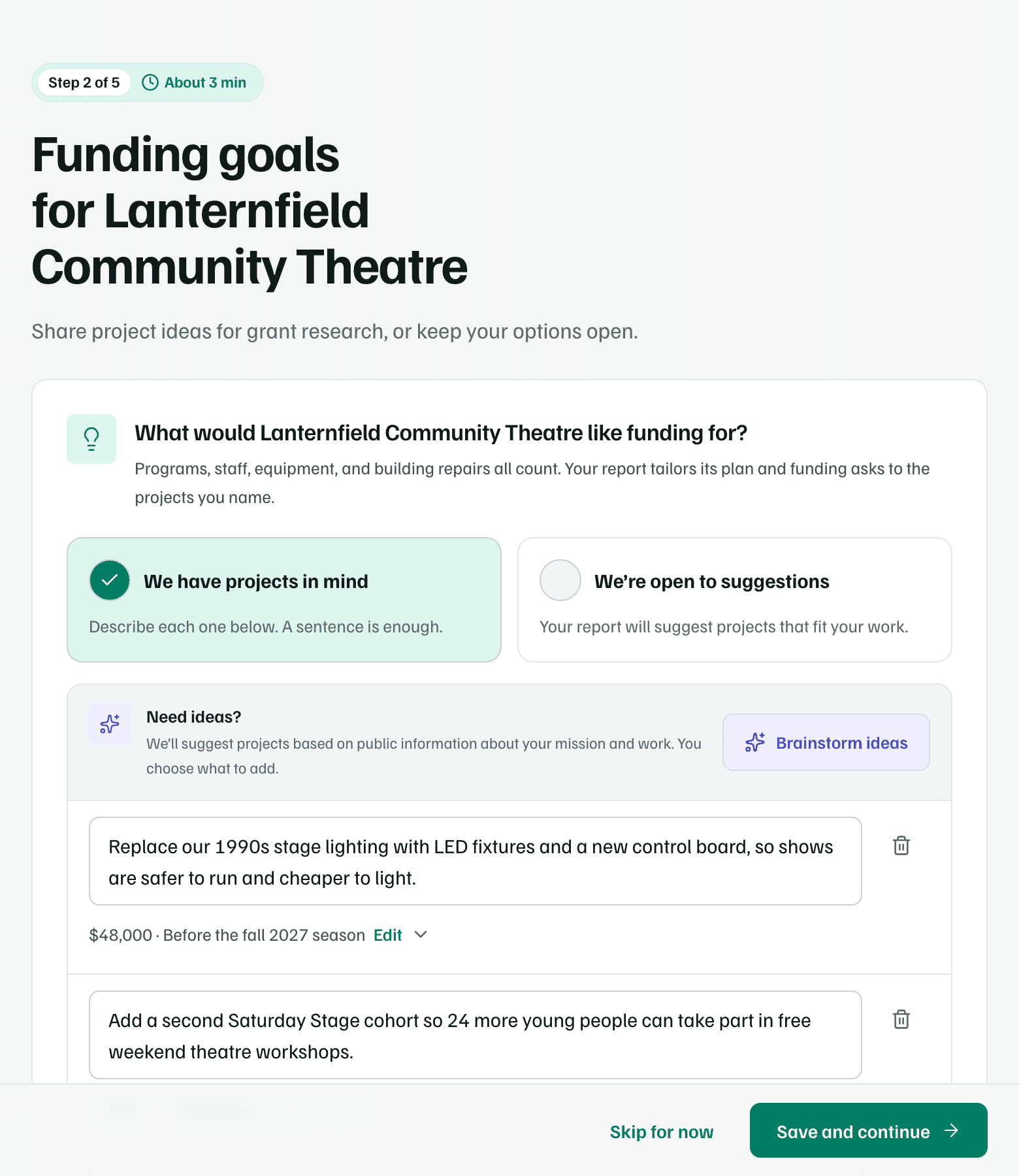
Example workspace · fictional data Describe your funding goals
Choose We have projects in mind and describe each project idea, with an amount and timing if you know them. Brainstorm ideas suggests some from public information about your work, and you choose what to add. If you'd rather hear suggestions, choose We’re open to suggestions. Project ideas stay out of public web searches.
Select Save and continue.
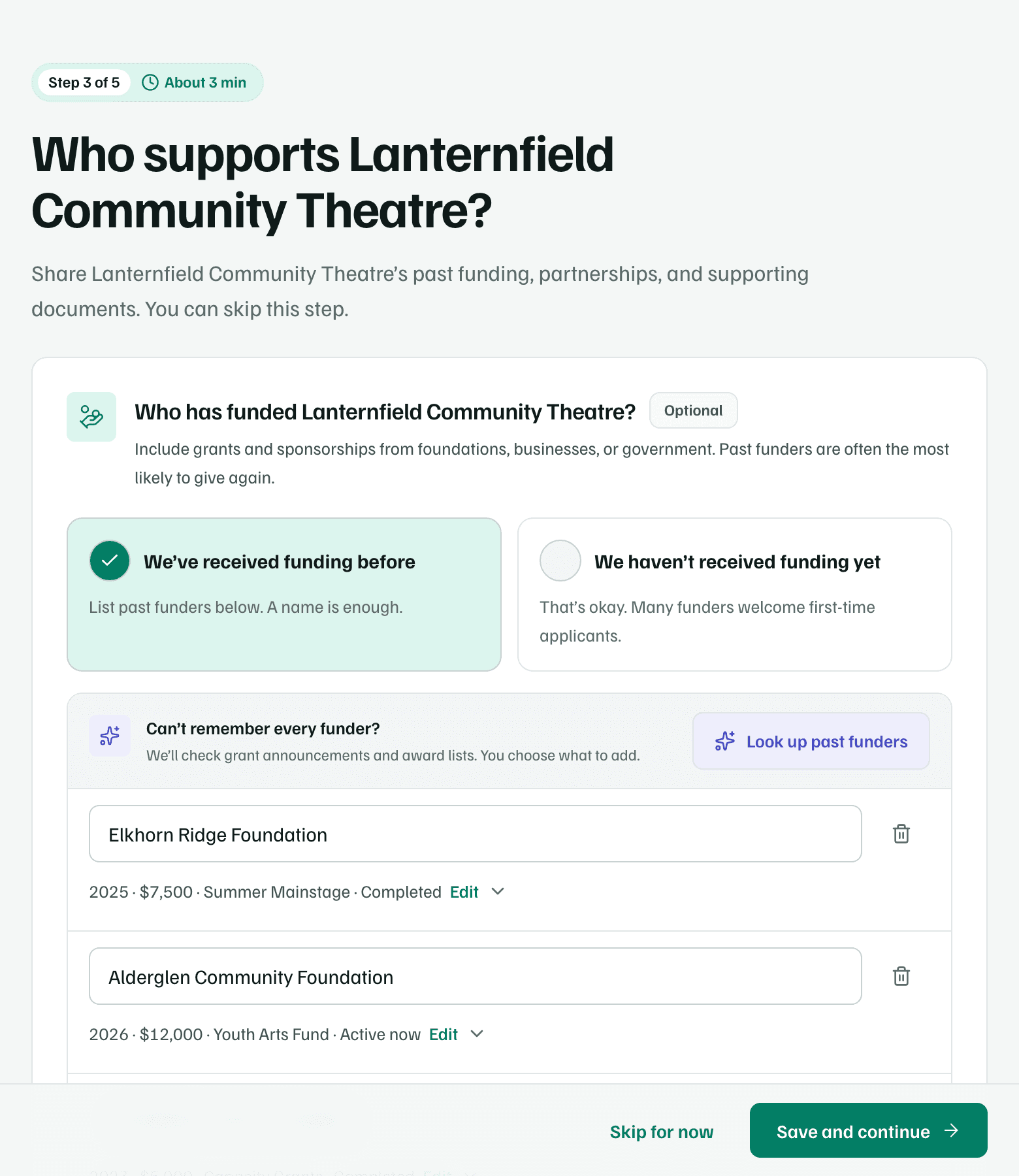
Example workspace · fictional data Add past support, or skip it
The Past support step asks who has funded you, who you work with, and how you raise money now. Look up past funders checks grant announcements and award lists, and you choose what to add. You can also add documents, such as a budget or an annual report.
Select Save and continue, or Skip for now.
Example workspace · fictional data Confirm the application basics
Choose which best describes the organization, such as IRS-approved nonprofit, and where it's based. A federal tax ID (EIN) is optional. If GrantFlex finds a likely match in public IRS records, it shows it to you, and it's only used if you select Accept EIN for research.
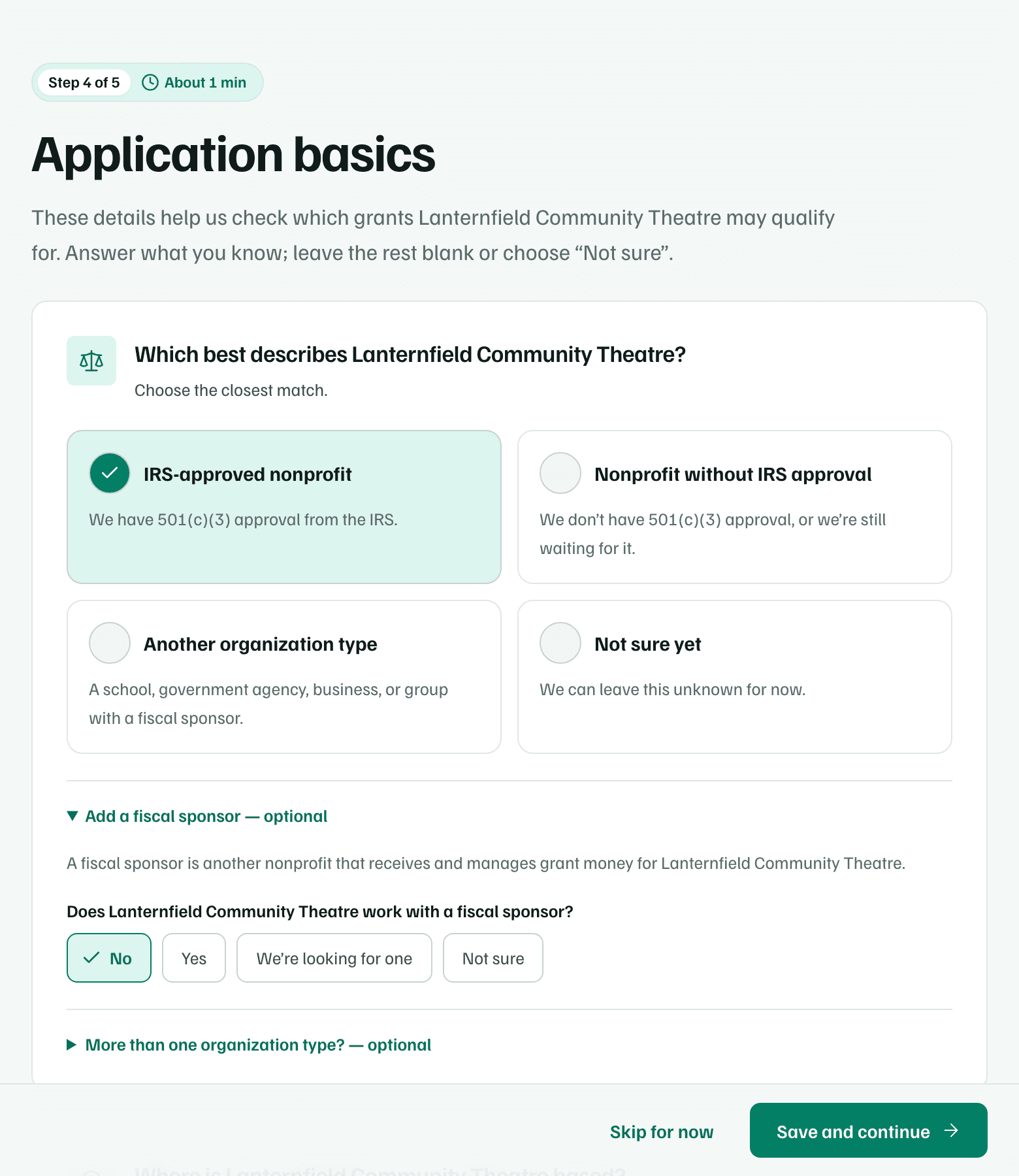
Example workspace · fictional data Review your answers
The Review step starts with Your answers at a glance, then lists each step's answers with an Edit button. When the details look right, select Looks good at the bottom of the page. It opens the AI consent dialog and doesn't start anything yet.
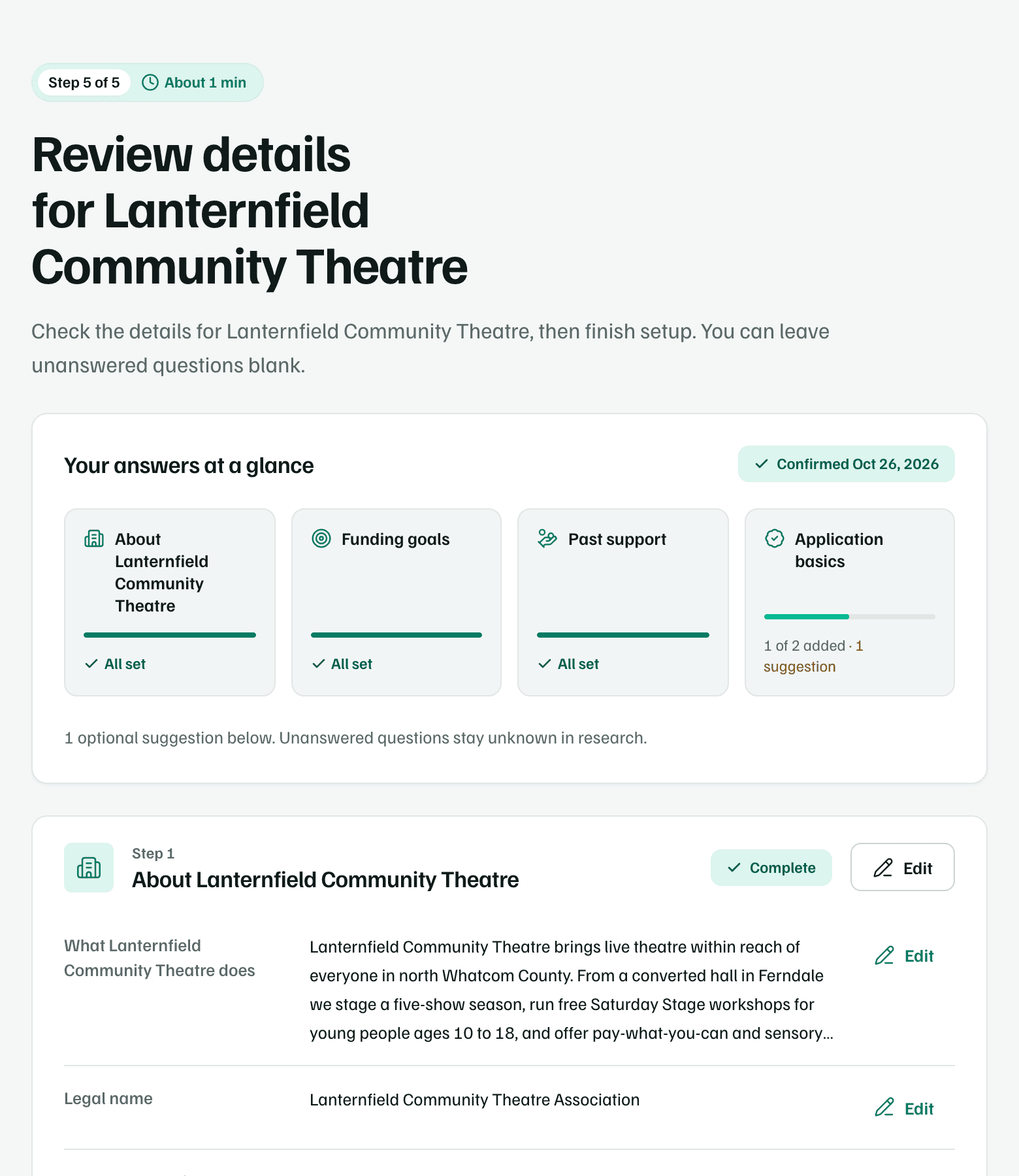
Example workspace · fictional data
Allow AI for your research
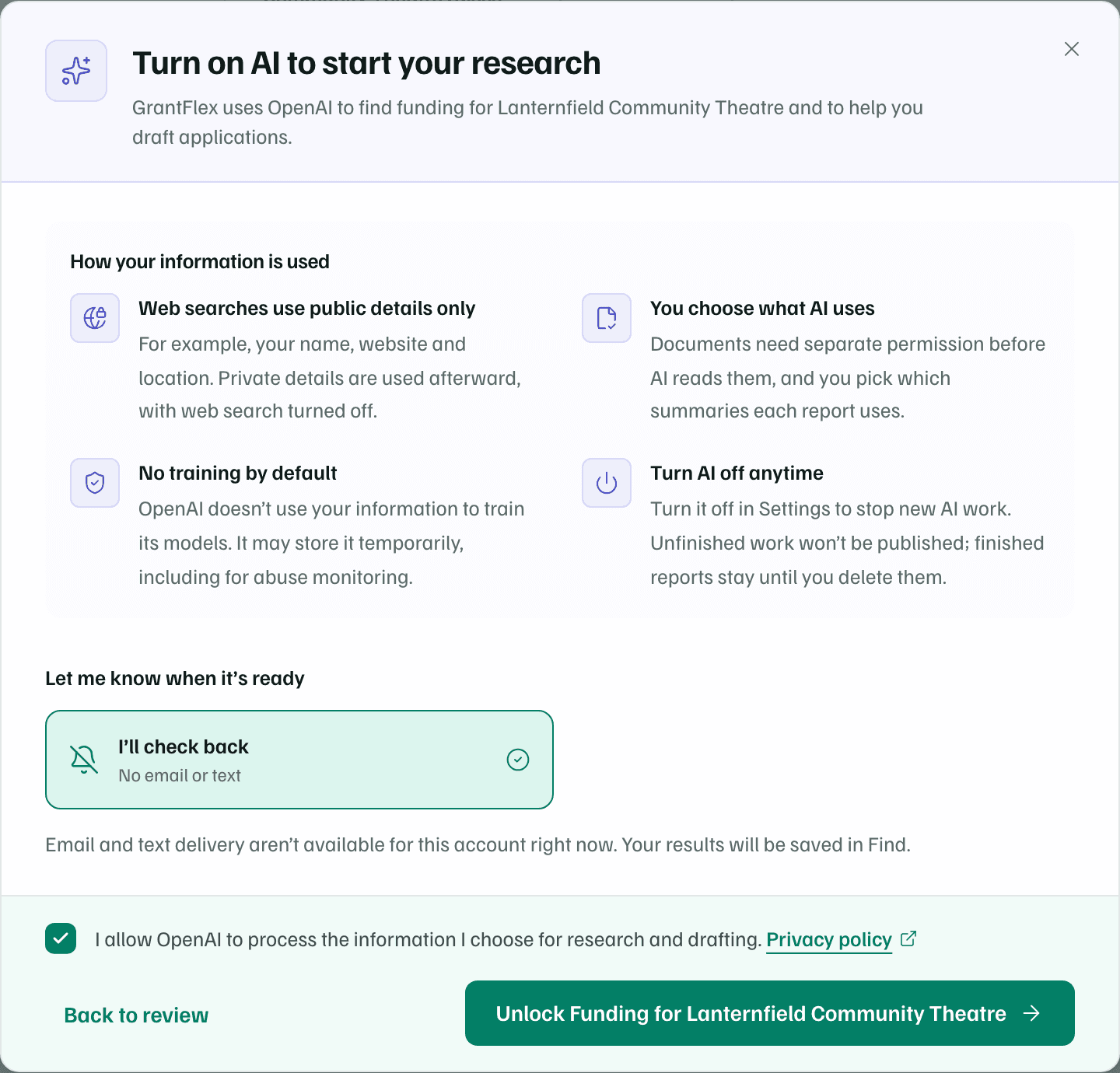
A dialog titled Turn on AI to start your research explains how GrantFlex uses OpenAI: web searches use only public details, you choose what AI can use, and nothing trains AI models without your permission. If AI is already on for the workspace, the dialog is titled Before we start your research instead.
- Under Let me know when it’s ready, choose how to hear back: Email me, Text me or I’ll check back. Email and text are offered for the address and number your account has verified.
- Keep the consent box checked. You can't start the research without it.
- Select the Unlock Funding button, which names your organization. Back to review closes the dialog without starting anything.
Note
Read your first opportunities
While research runs, the page says We’re finding funding for and your organization's name. There's nothing you need to do, and you can close the tab. When it finishes, you hear back the way you chose, and the page becomes Funding opportunities for your organization.
A Free preview band at the top says how many results the research found. Up to three of them are open to read, ranked by fit, each with its funder, its status and, when the research found them, an amount and a deadline.
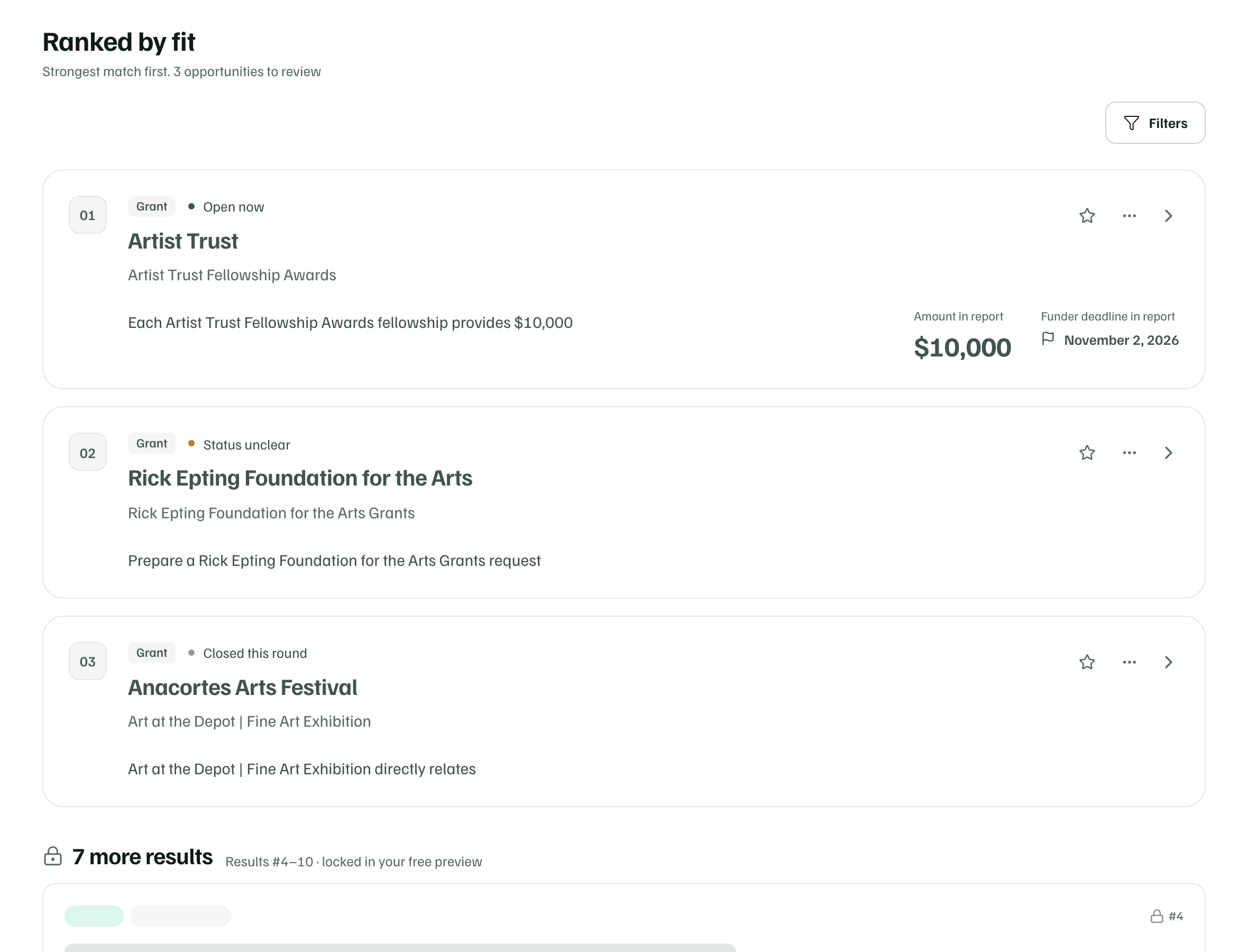
Open an opportunity
Select an opportunity's name. Overview says Why this could fit and Why we’re not sure, and Sources lists the pages the research read.
Check the source
Select Open funder’s site and confirm the deadline, the amount and who can apply. The research can be out of date or wrong.
Choose a next step
The buttons at the bottom suggest what to do next, such as Start application or Set aside until…. Select the star on an opportunity to shortlist it. Nothing is sent to the funder.
Seeing more
What you get
A workspace set up for your organization, and a free preview of up to three researched opportunities, each with sources you can check.