Build a budget with match and in-kind
List what the project costs and who pays for each part: this funder, your organization's cash match or donated in-kind support. GrantFlex adds up the totals, and AI can draft the budget explanation from your lines.
- 15 min
- Every plan
- Uses 1 AI action
Screens from October 2026
Before you start
You need a proposal for the request. Its budget is on the proposal's Materials tab, under Budget. What goes in a budget? at the top of the tab explains each category and who pays.
Build the budget
Add what you'll ask the funder for
Enter a cost under Description, choose its Category, and choose Request under Who pays. Enter the Qty and the Unit cost, and GrantFlex works out the Line total.
Select Add justification under a line to say how you worked out the cost.
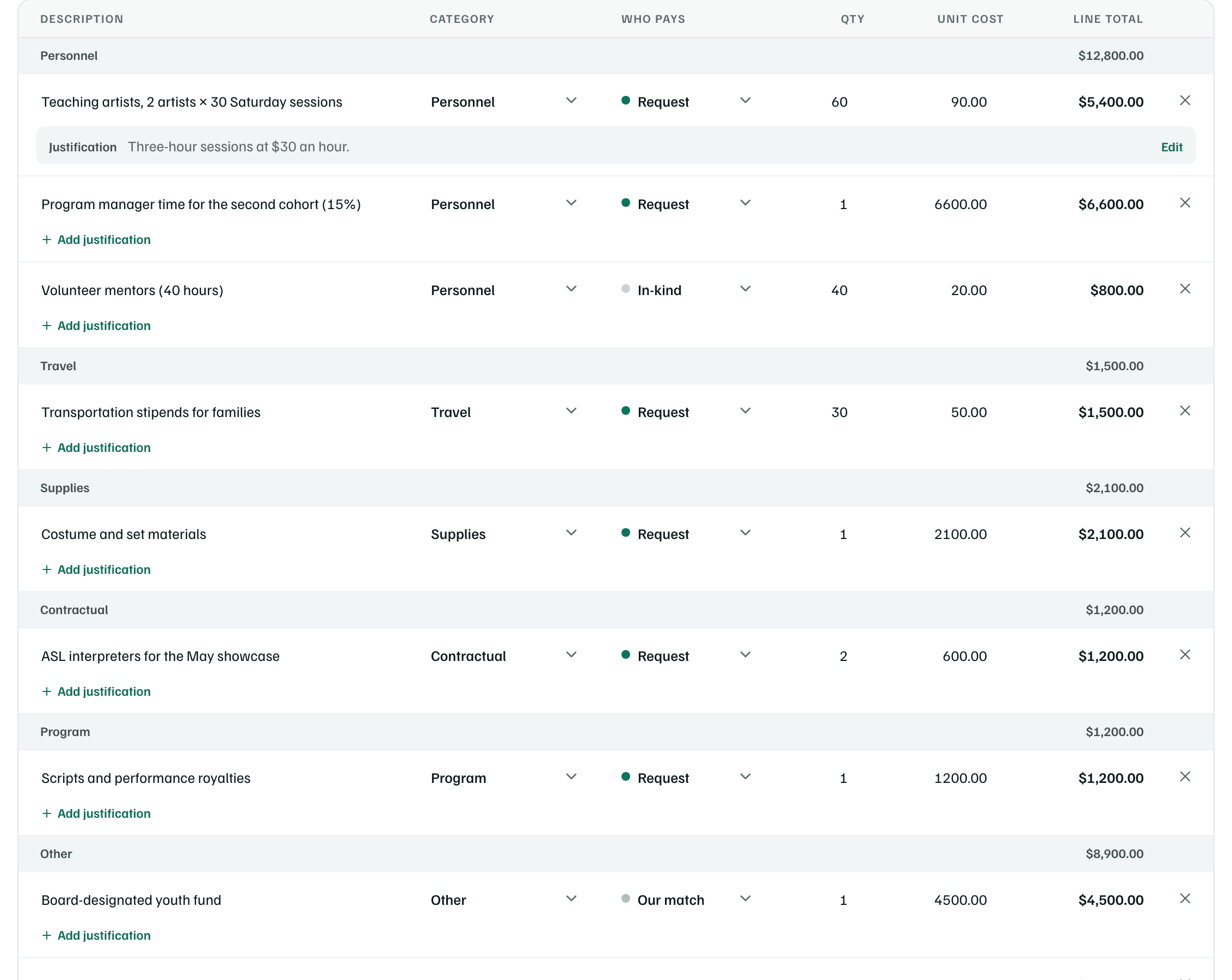
Example workspace · fictional data Add your match and in-kind support
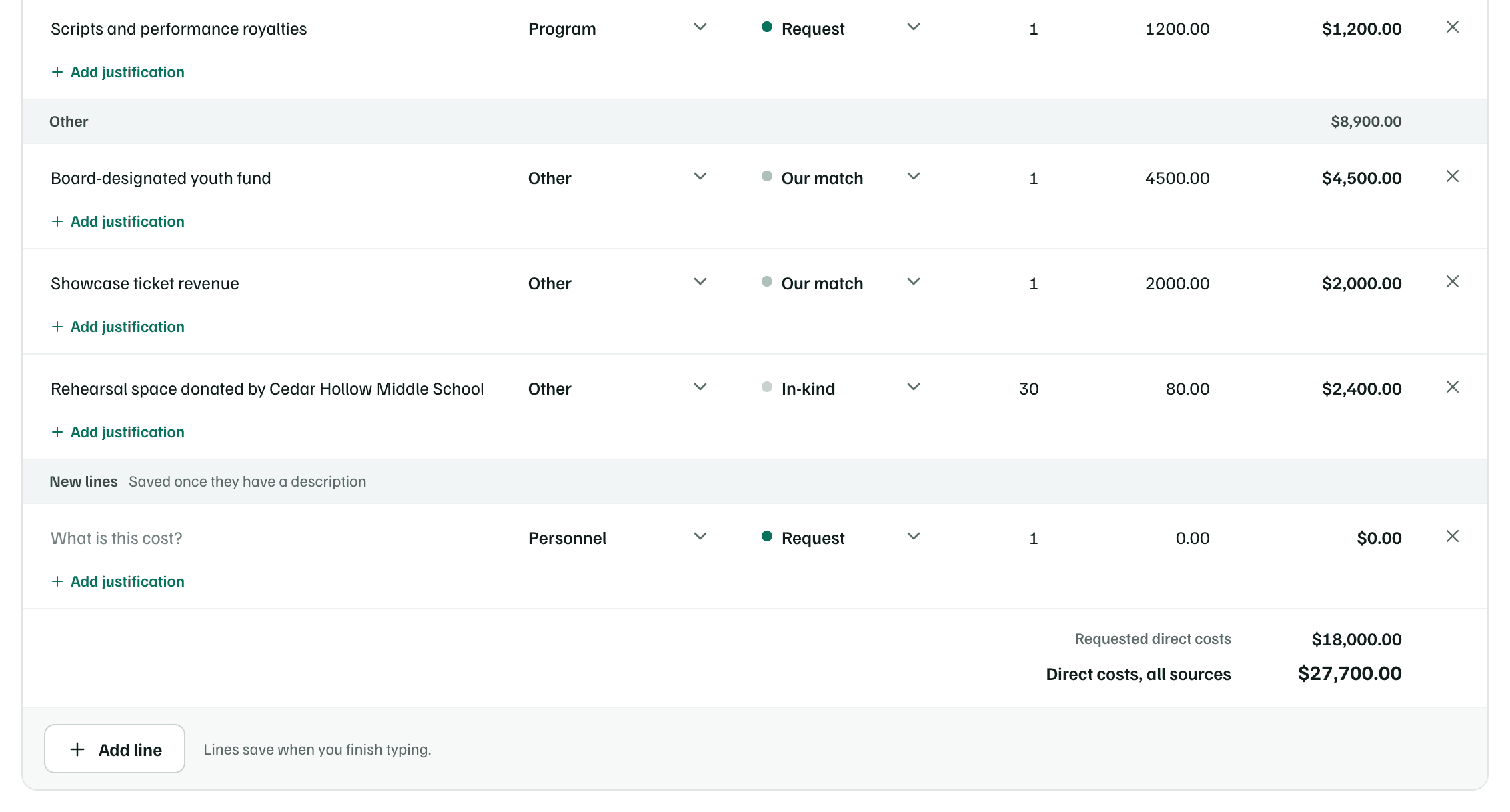
Select Add line for each cost your organization or another funder pays in cash, and choose Our match. For donated goods, space or volunteer time, choose In-kind and enter what it's worth. See match and in-kind support.
Lines save when you finish typing, once they have a description.
Example workspace · fictional data Check the totals
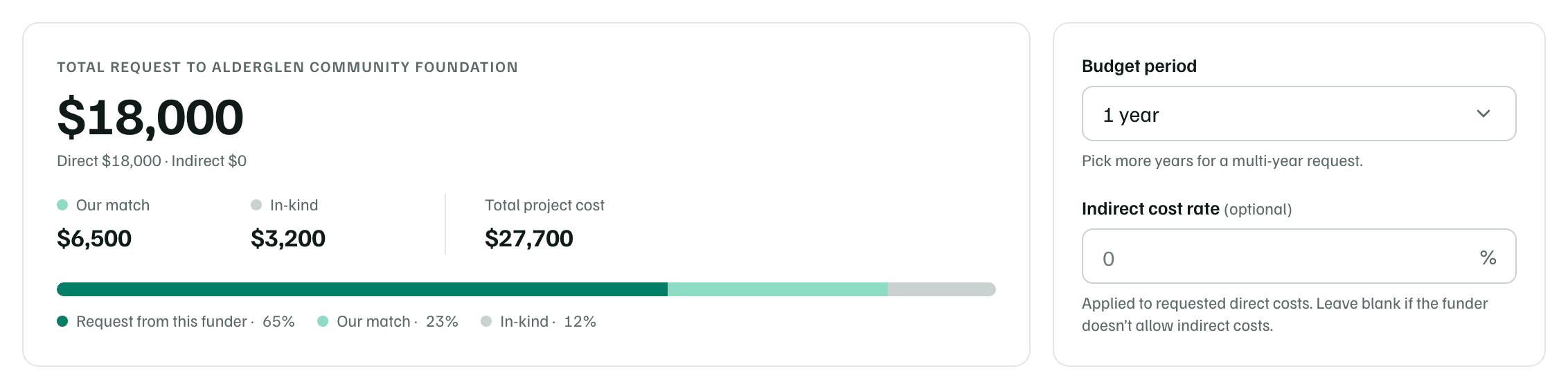
The totals show your request to this funder, Our match, In-kind and Total project cost, with each one's share. If the funder allows indirect costs, enter its rate under Indirect cost rate. For a request over several years, choose them under Budget period.
Example workspace · fictional data Draft the budget explanation
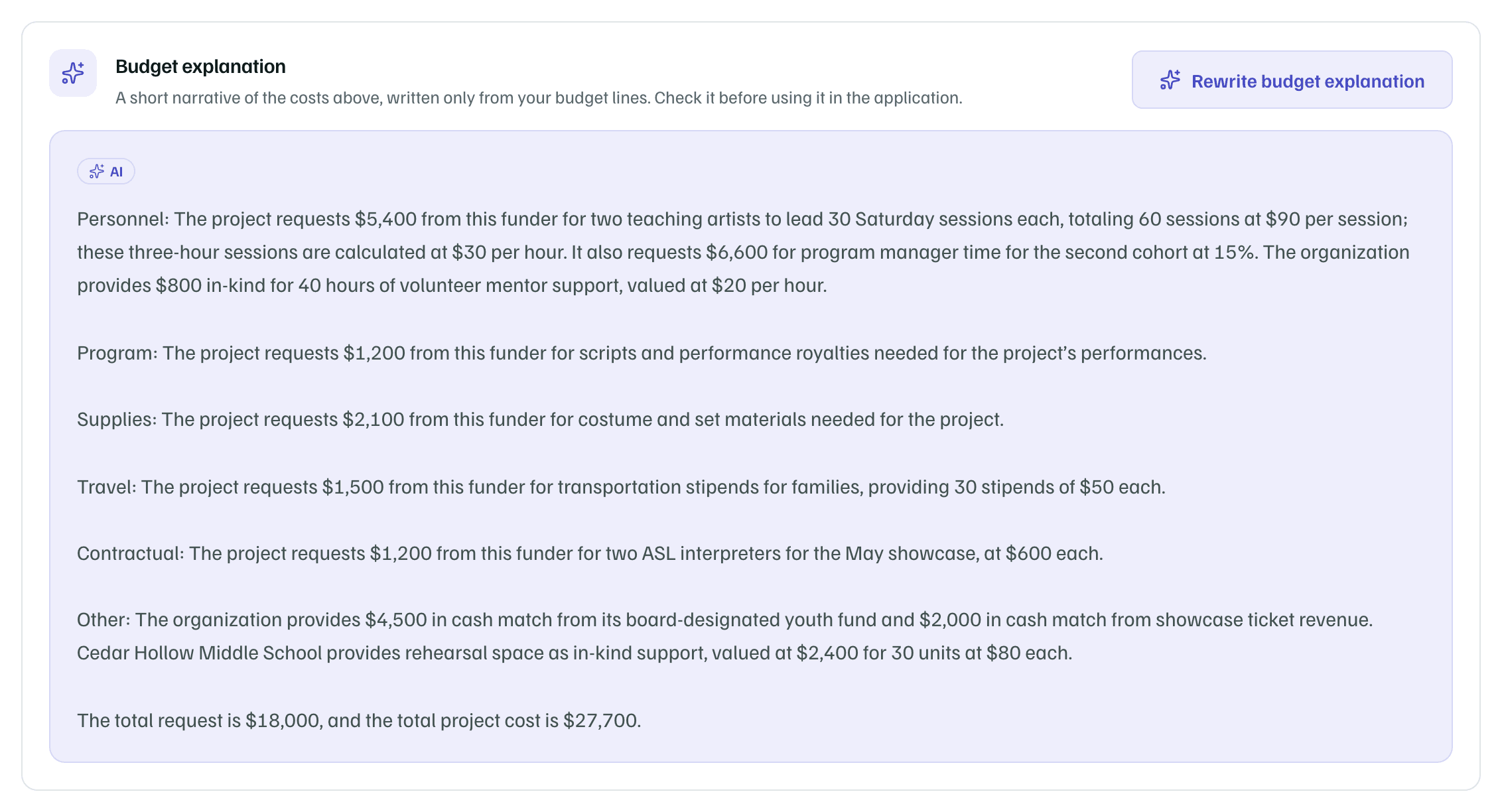
Select Draft budget explanation. AI writes a paragraph for each category from your budget lines only, saying who pays for what. It uses one AI action.
Check each figure against your lines. If you change the lines later, select Rewrite budget explanation for a new one.
Example workspace · fictional data
For every category and multi-year budgets, see Build the budget.
What you get
A budget that shows the funder its share of the whole project, with your match and in-kind support beside it. The budget explanation is ready to copy from the Package tab. Select Download (Excel) or CSV for a copy of the budget.