Move your spreadsheet into the pipeline
Move the grant tracker you keep in Excel, Google Sheets or a CSV file into Pipeline. You match its columns and check every row before anything is saved.
- 10 min
- Every plan
Screens pending
Before you start
- Save the list as a .xlsx or .csv file under 1 MB. In Google Sheets, use File › Download.
- Put column names in the first row, like Funder, Amount, Deadline and Status.
- Keep it to 1,000 rows, or split a longer list into several files.
- You need to be an owner, admin or editor of the workspace.
Import your tracker
Open the import
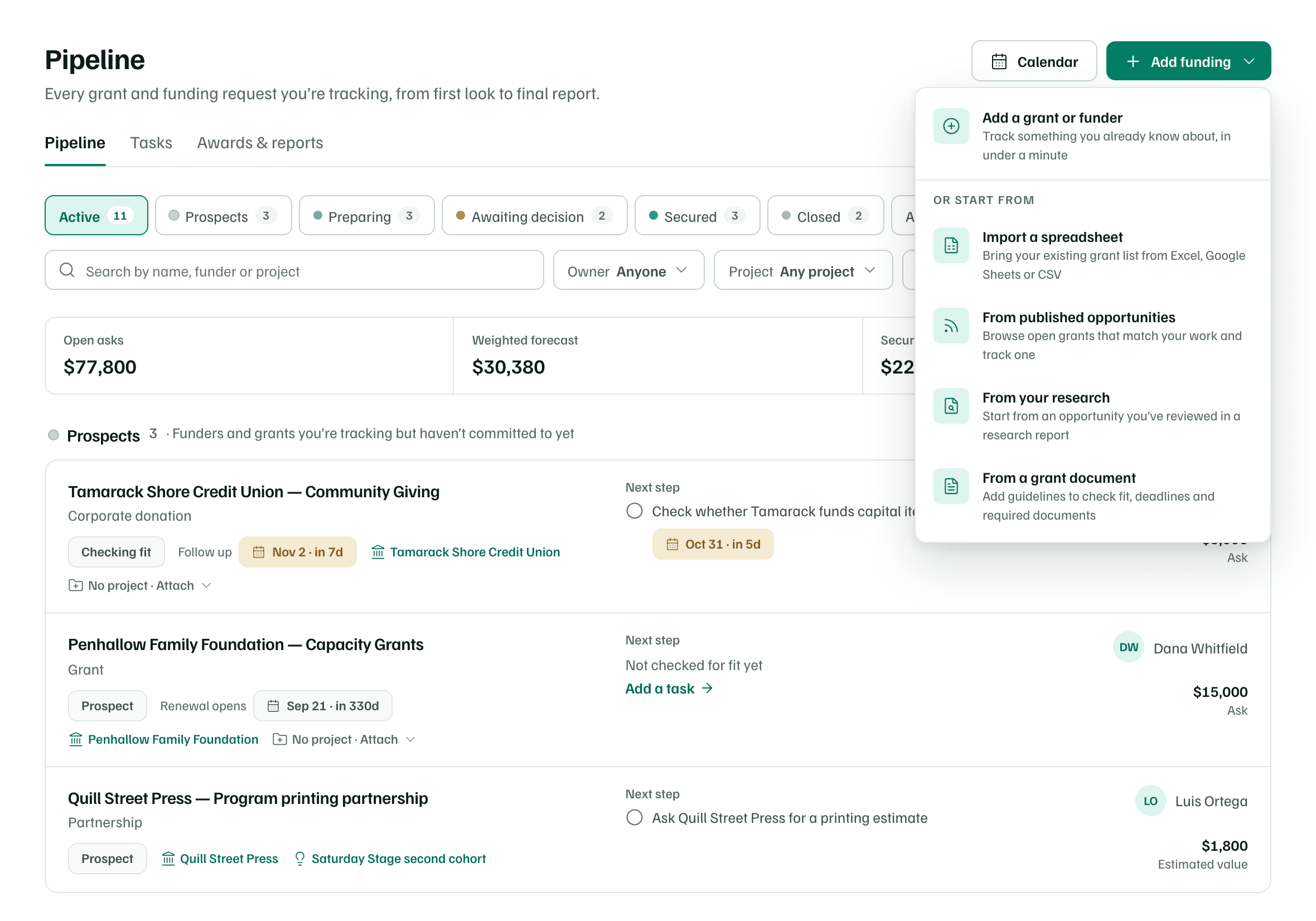
In Pipeline, select Add funding, then Import a spreadsheet.
Example workspace · fictional data Upload your file
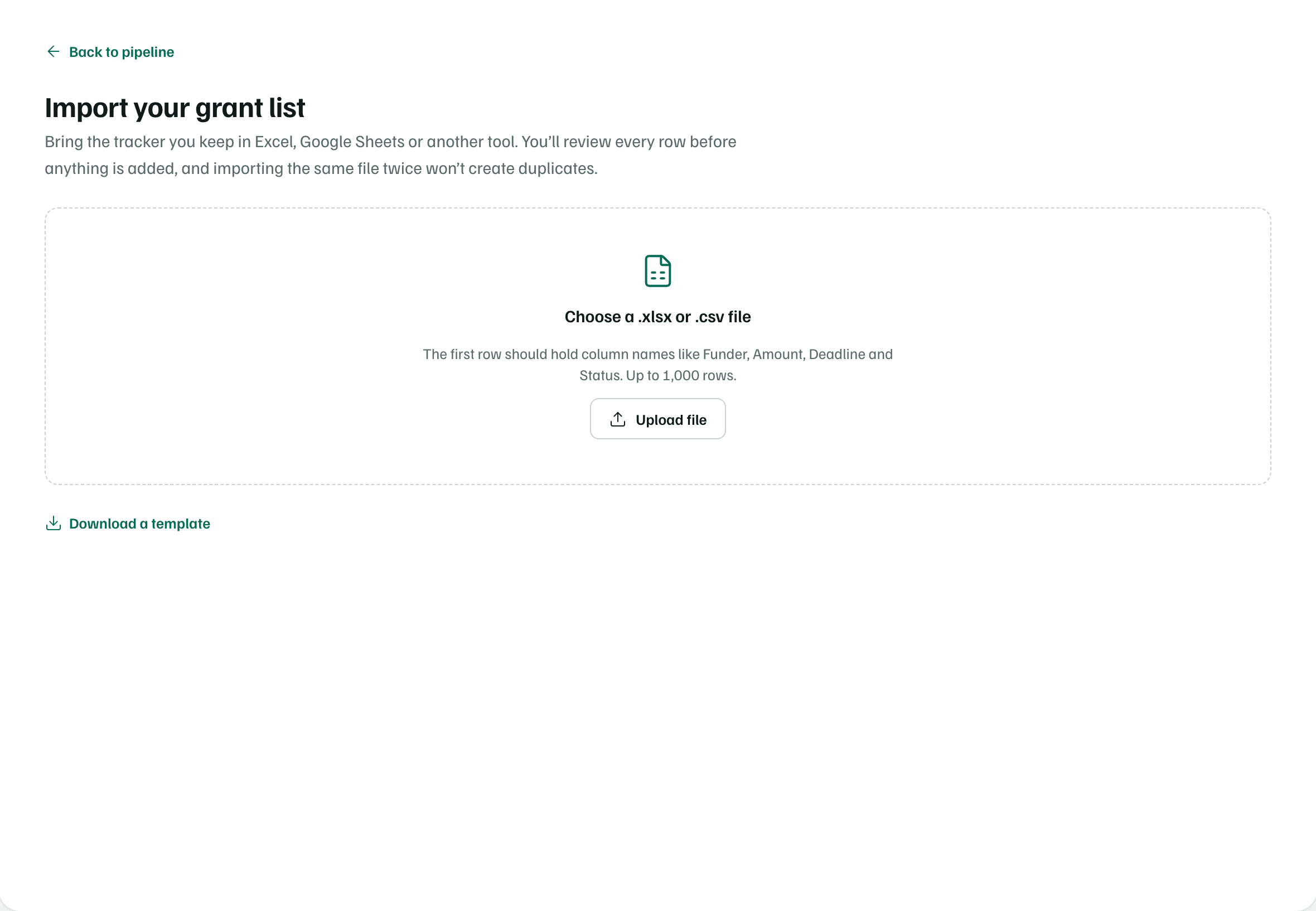
Select Upload file and choose your file. GrantFlex shows the file's name and how many rows it found. Nothing is saved yet.
Starting from scratch? Select Download a template for a CSV file with column names and an example row.
Example workspace · fictional data Match your columns
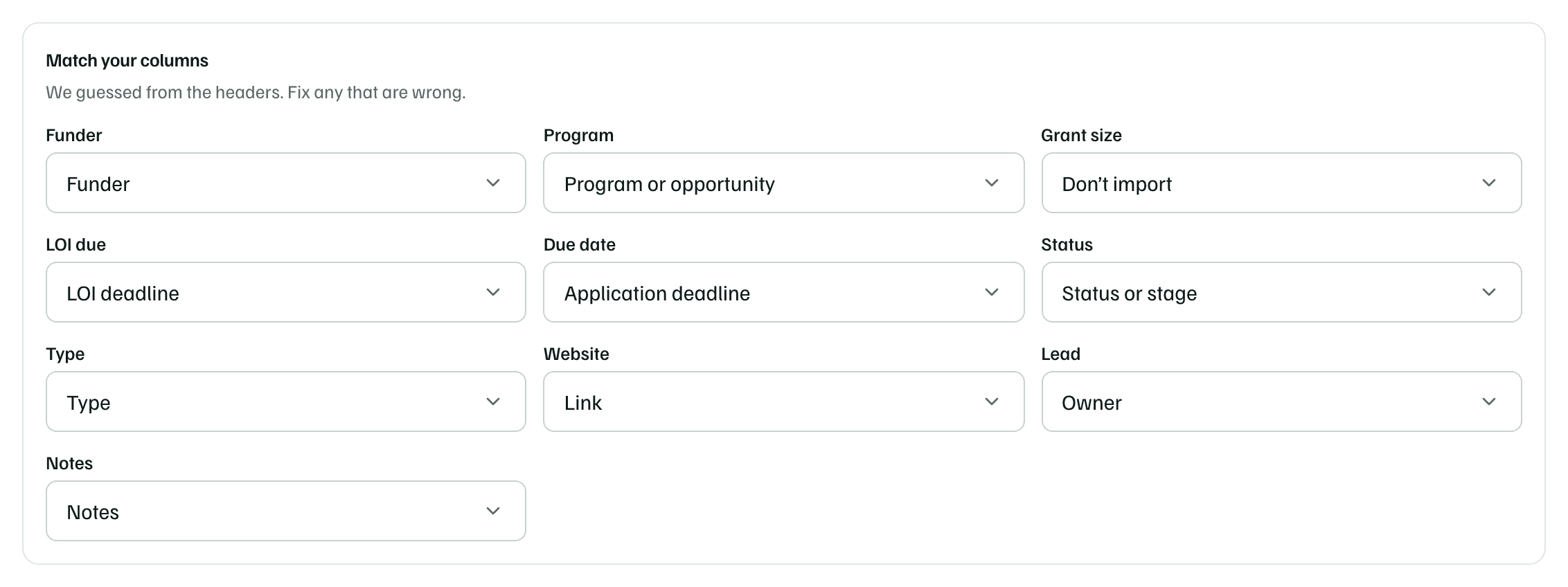
Under Match your columns, GrantFlex guesses each column's type from its header, so check every one. Choose the right type, or Don’t import for a column you don't need.
Example workspace · fictional data Review the rows
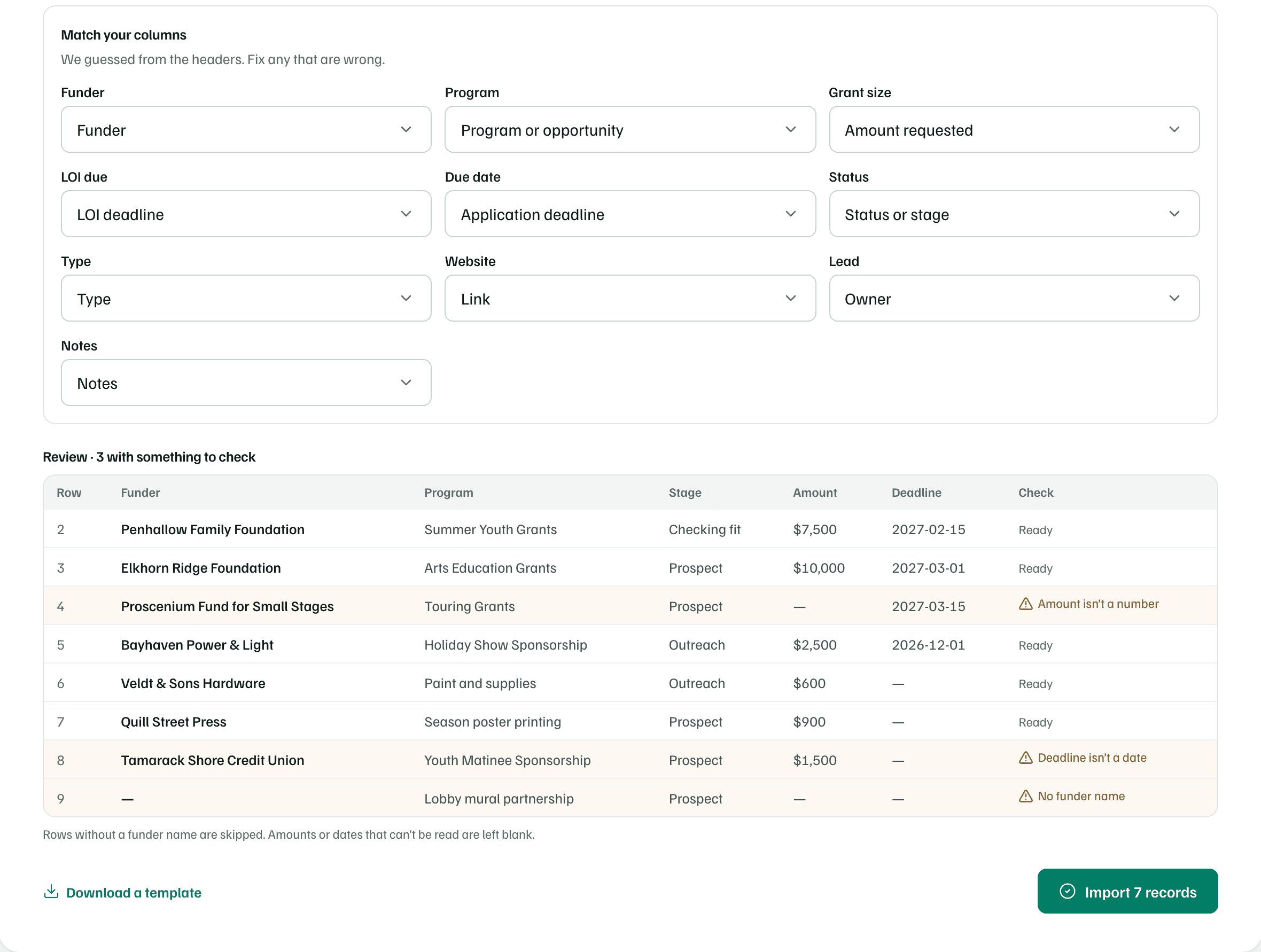
The Review table shows each row as it will be imported. The Check column says Ready, or what to look at. Look over every date, since each one goes on your calendar as GrantFlex reads it.
Example workspace · fictional data Import the rows
Select the import button, which counts the rows, such as Import 7 records. This is the first step that saves anything. When it's done, select Open the pipeline.
Check first
For the column types and how status words become stages, see Import a spreadsheet.
What you get
Each row becomes a funding record with its stage, amount, owner and notes. Its deadlines are on your calendar, and funders you don't track yet are added to Funders. Importing the same file again skips the rows it already imported.