Record a submission
After you send a proposal through the funder's own process, record it in GrantFlex. The proposal is kept exactly as sent, and its funding record moves to Awaiting response.
- 5 min
- Every plan
Screens from October 2026
Before you start
GrantFlex never submits for you
Record the submission
Check the package
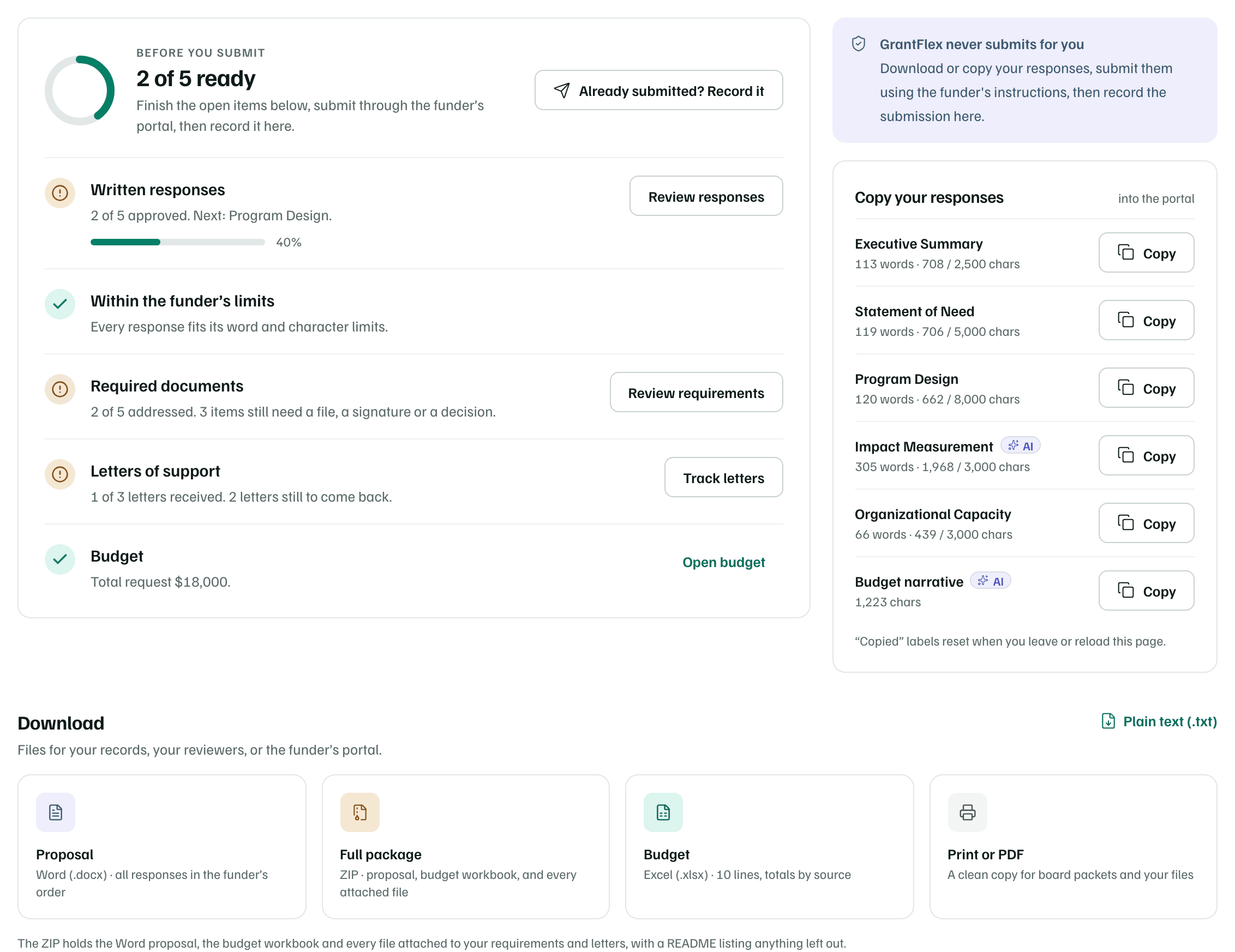
On the proposal's Materials tab, select Package. Before you submit lists each check with a button to fix it. Copy your responses gives each section as plain text for the funder's portal, and Download has the Word, ZIP, Excel and print versions.
Example workspace · fictional data Record what you sent
Once the funder has your proposal, select Record submission. While some checks are still open, it reads Already submitted? Record it.
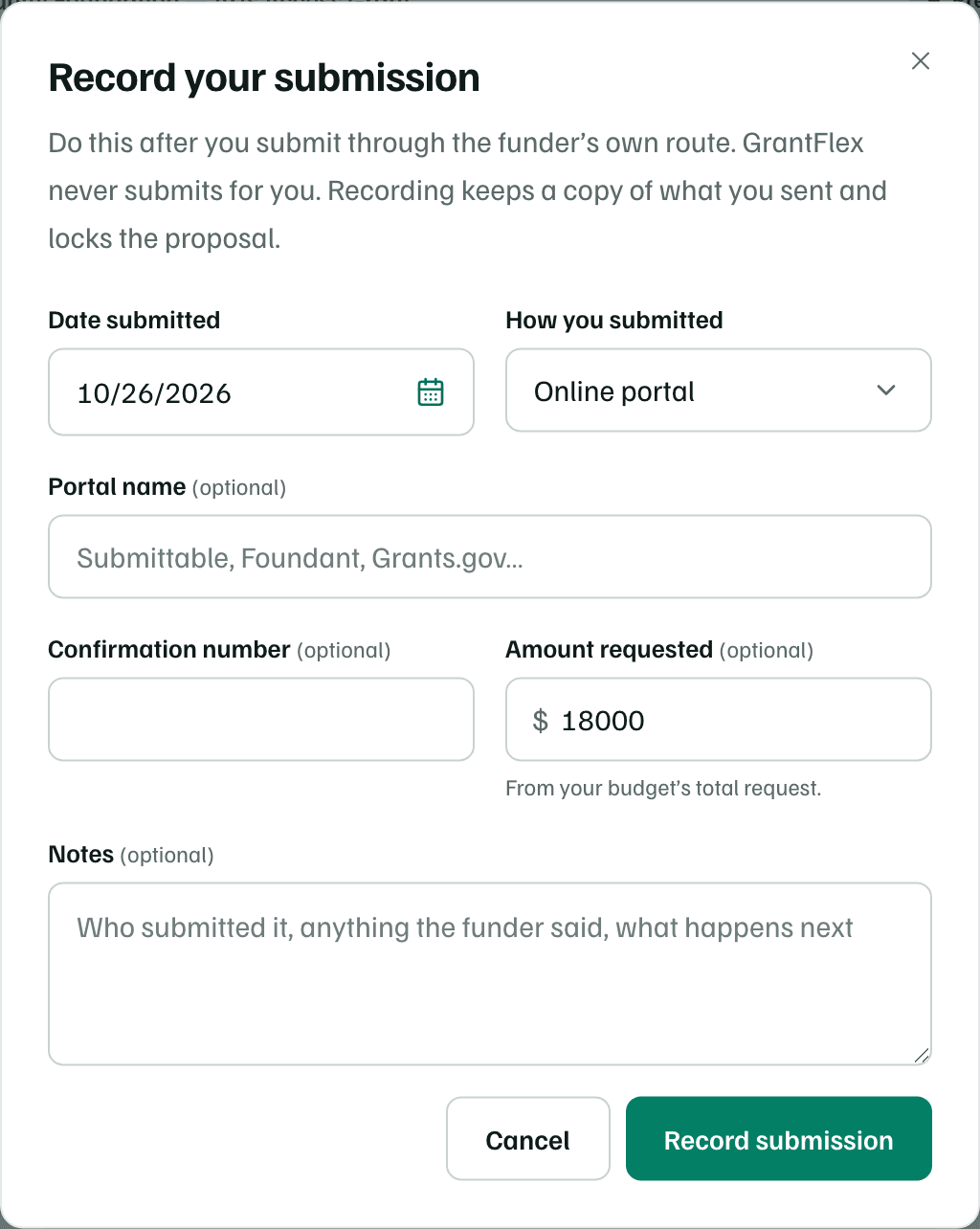
Enter the Date submitted and choose How you submitted: Online portal, Email, Mail, In person or Other. Add the Portal name and the Confirmation number if you have them. Amount requested starts at the budget's total request. Select Record submission.
Example workspace · fictional data Check the record
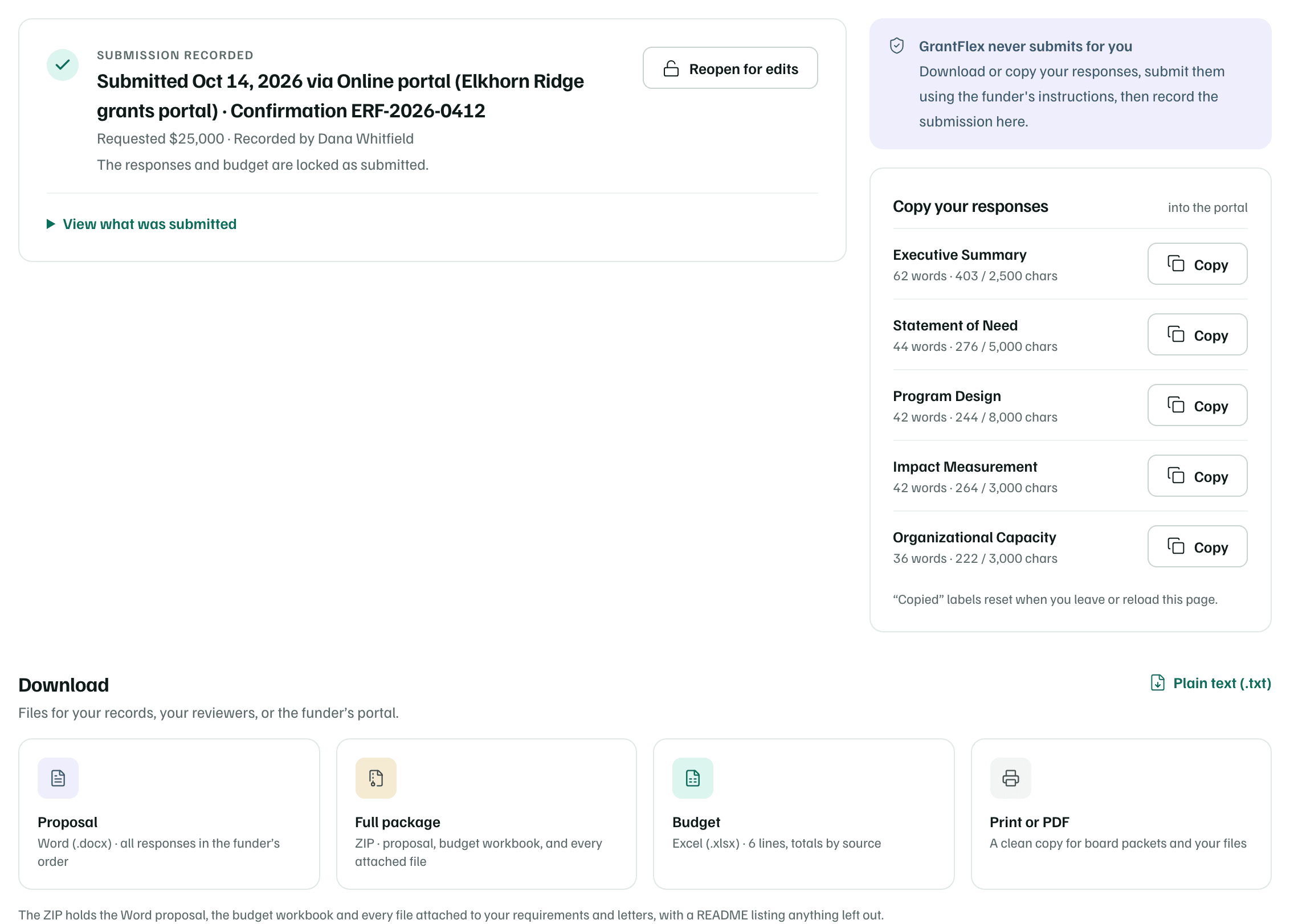
The Package tab shows Submission recorded, with the date, how it went in and the confirmation number. Select View what was submitted to read each response as sent.
The sections and the budget are locked, so they stay exactly as sent.
Example workspace · fictional data See it in your pipeline
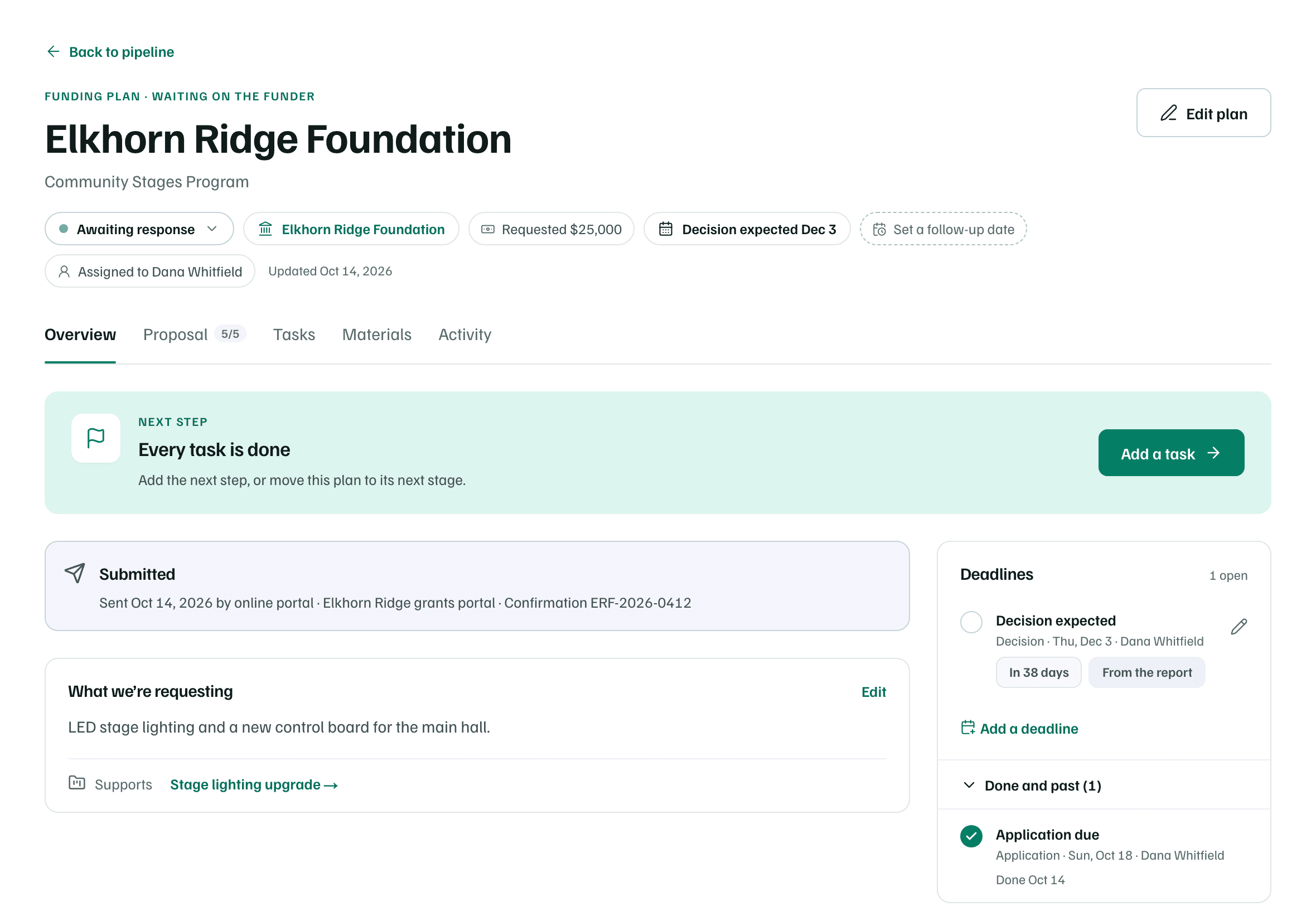
The funding record moves to Awaiting response, shows the amount requested, and marks the application deadline done. If the funder gave a decision date, select Add a deadline so it's on your calendar.
Example workspace · fictional data
If the funder allows changes after you submit, Reopen for edits unlocks the sections. For that and resubmissions, see Package and record your submission.
What you get
A proposal marked Submitted, with a submission record that keeps a copy of what went in, and a funding record that shows you're waiting on the funder.