Write an executive summary from your documents
Have AI draft a proposal's executive summary from your own documents, check every fact against its source, and approve the final text. The draft uses one AI action.
- 15 min
- Every plan
- Uses 1 AI action
Screens pending
Before you start
- A proposal with an Executive Summary section. The standard five sections start with one. Otherwise, select Add section on the Draft tab.
- Documents about your work, such as a mission statement, an impact summary or a past proposal, uploaded with AI analysis on. See Documents and AI permissions.
- You need to be an owner, admin or editor of the workspace.
Write the summary
Open the Executive Summary
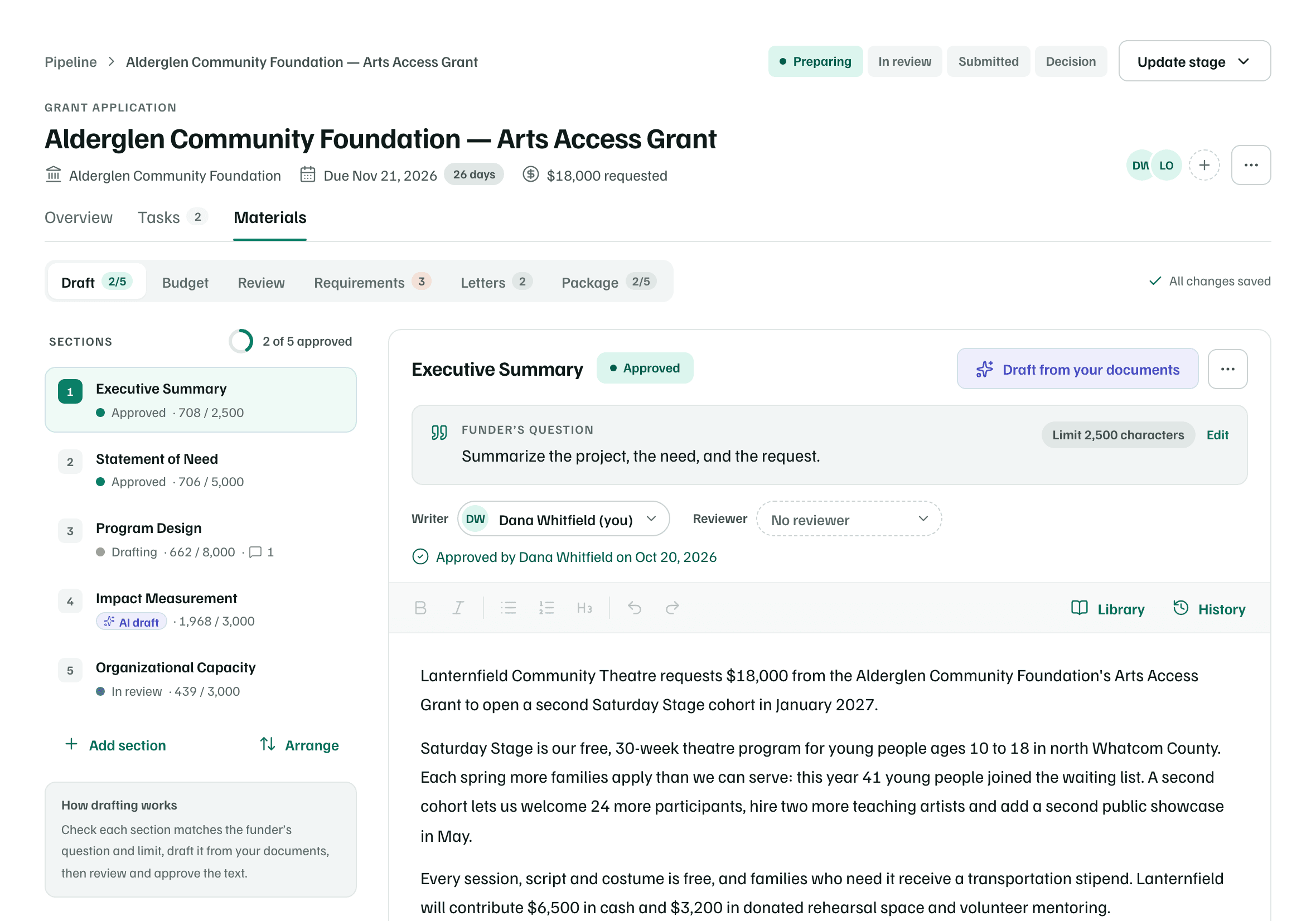
On the proposal's Materials tab, select Draft, then Executive Summary in the list of sections.
Example workspace · fictional data Check the question and the limit
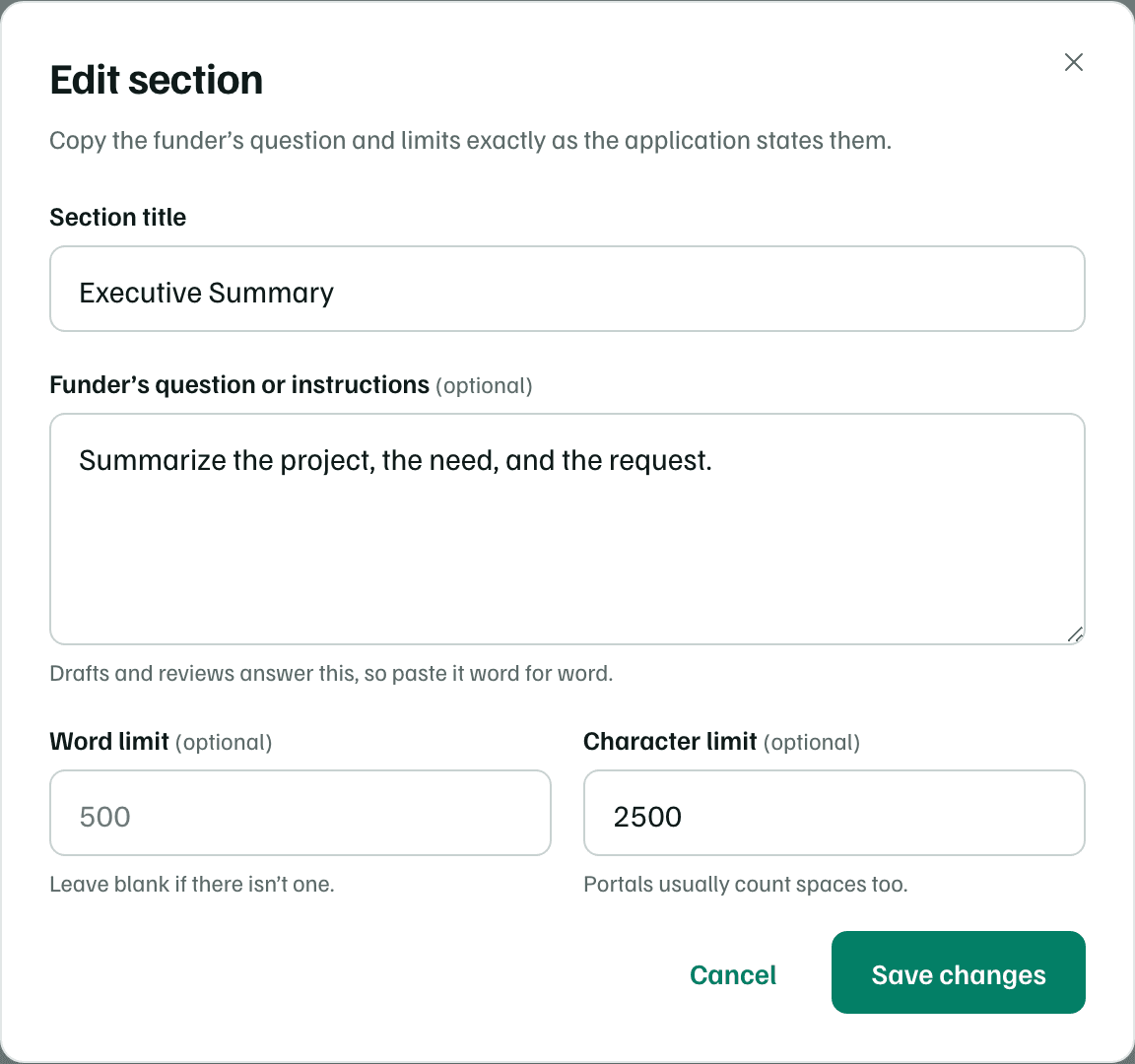
Funder’s question shows what the section answers, and the chip beside it shows the limit, such as Limit 2,500 characters. Select Edit to paste the funder's own question and limit, word for word. The draft answers this question.
Example workspace · fictional data Draft it from your documents
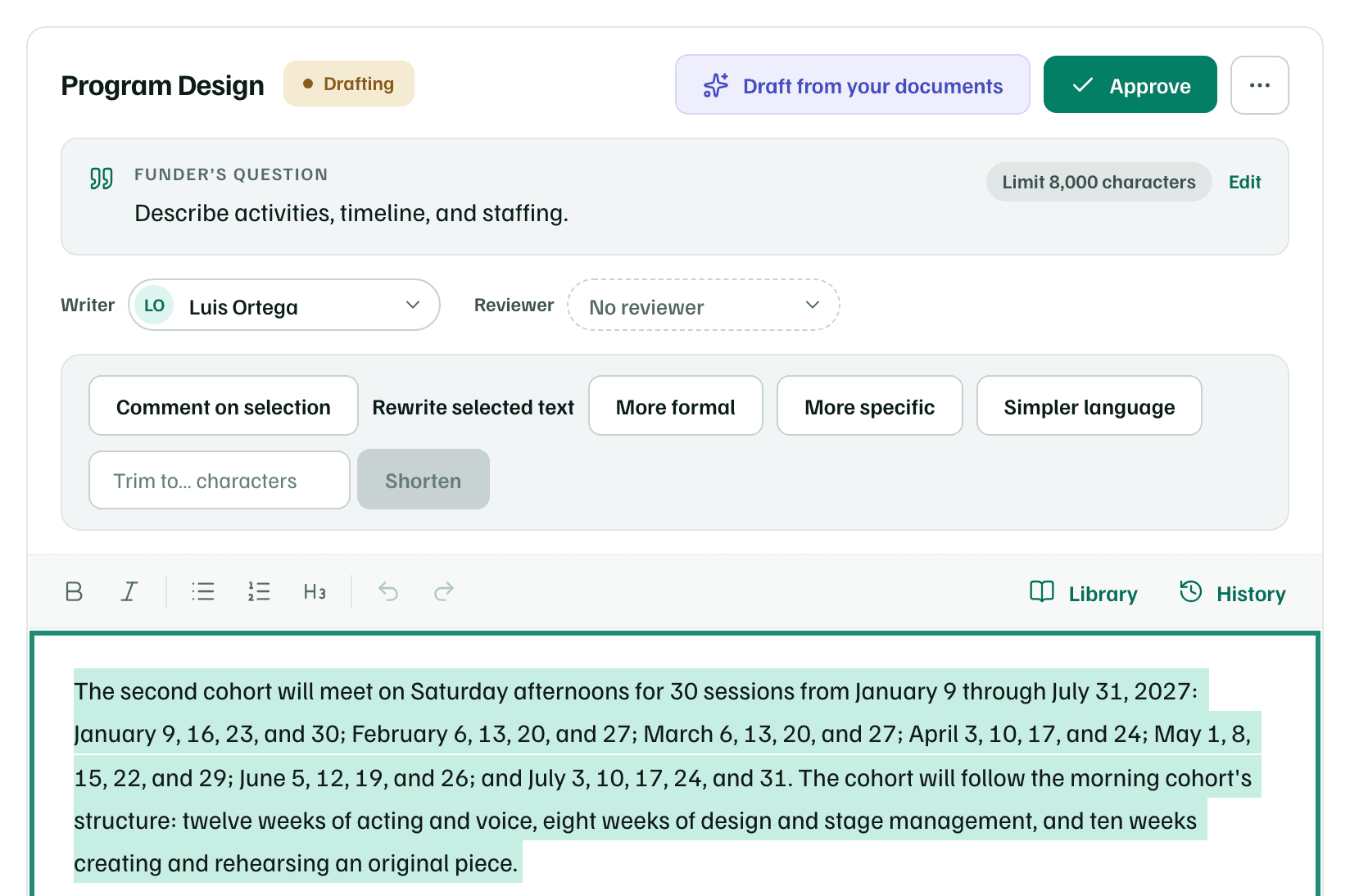
Select Draft from your documents, or Create first draft if the section is empty. AI reads the passages of your documents that best match the question, plus your saved details and the other sections. It uses one AI action.
When it's done, the panel reads Draft ready — review before use, with chips naming the documents it drew on.
Insert it and make it yours
Check each figure against the documents named under the draft first, since the chips go away once you insert it. Then select Insert into editor. If the section has text, GrantFlex asks first and keeps the old text in version history.
Fill every [ADD: …] placeholder and take out the [Source] markers. To rework a passage, select it and choose Rewrite selected text. Each rewrite uses one AI action.
Example workspace · fictional data Get it reviewed and approve it
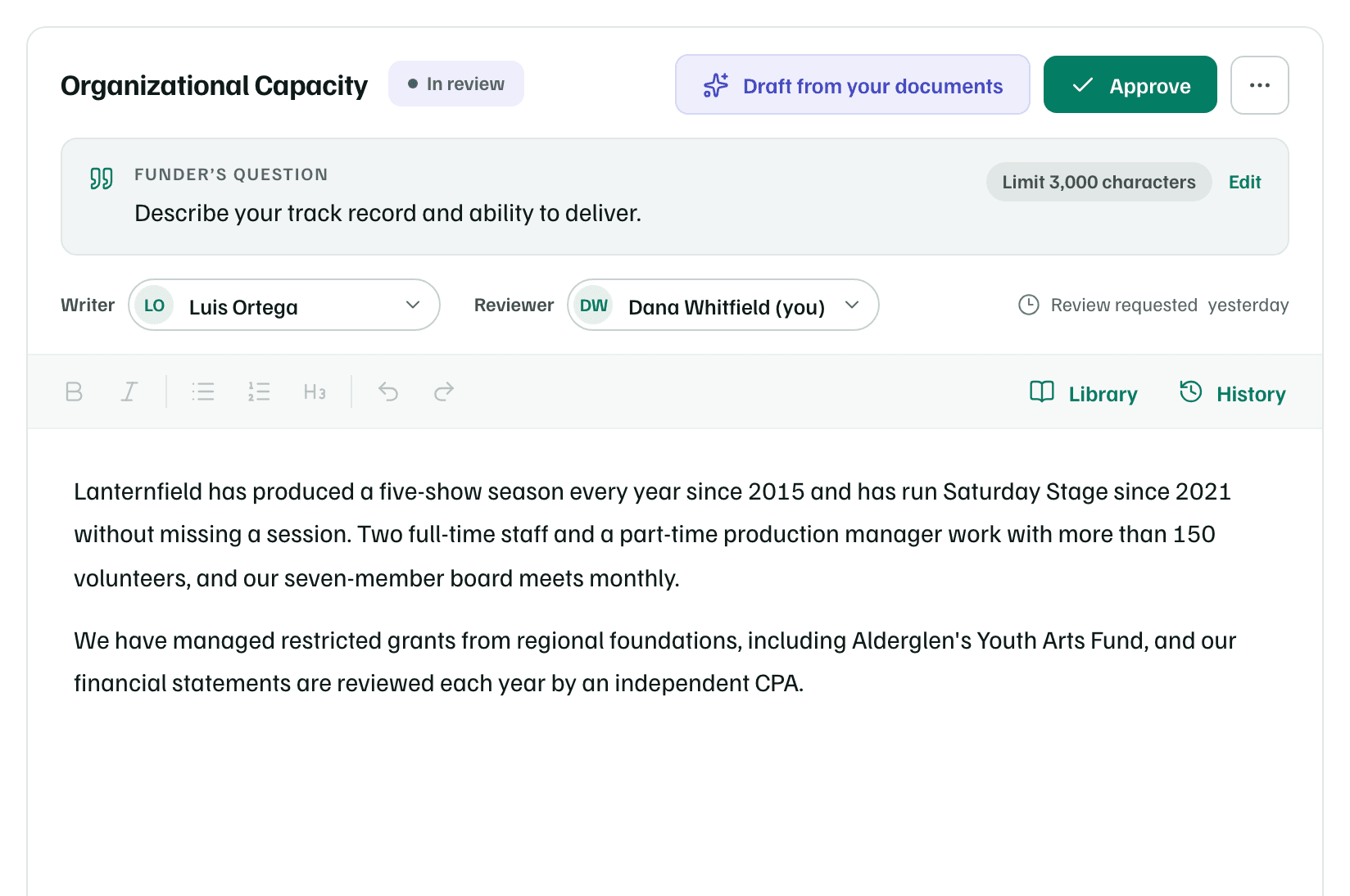
Choose a Reviewer under the question, then select the button that asks them, such as Ask Dana to review. When the text is final and within the limit, select Approve.
Example workspace · fictional data
For comments, versions and the other sections, see Draft sections.
What you get
An executive summary that answers the funder's question within its limit, marked Approved. GrantFlex keeps a version each time a draft is inserted or the text is approved.