Record an award and extract its terms
When a funder says yes, record the award on its funding record. Then attach the award letter, and AI pulls out its report dates, payments and conditions for you to check. Extracting uses one AI action.
- 10 min
- Every plan
- Uses 1 AI action
Screens pending
Before you start
- The funding record for the request.
- The award letter or agreement as a file, such as a PDF.
Record the award
Choose Secured
On the funding record, select the stage chip, the first chip under its title, and choose Secured. On a proposal, select Update stage and choose Record award… instead.
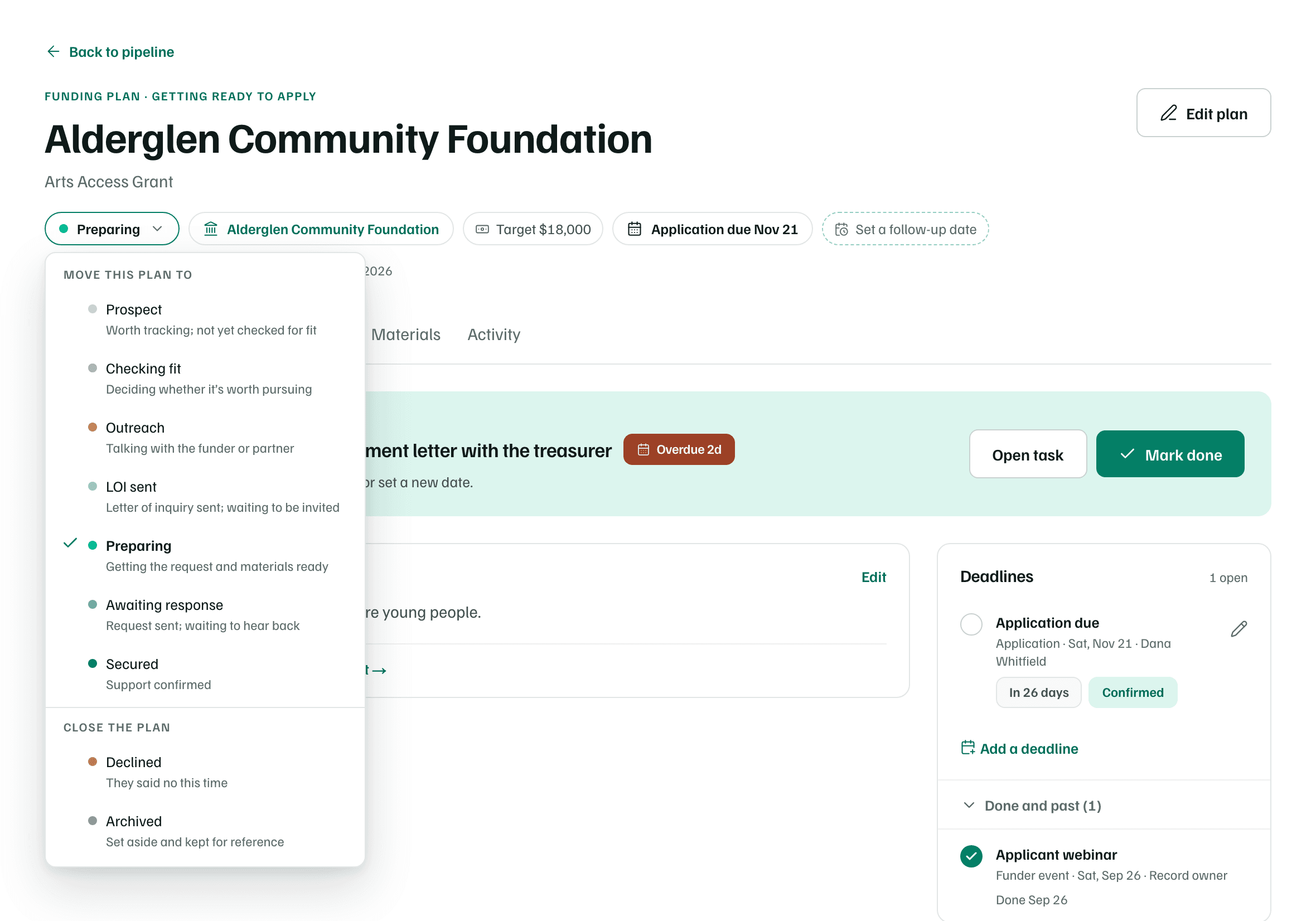
Example workspace · fictional data Fill in the award
Check the Amount awarded and the Award date, and add the grant period if you know it. Under Use of funds, choose Restricted to a purpose, Unrestricted (general support) or Not sure yet. Then select Record award.
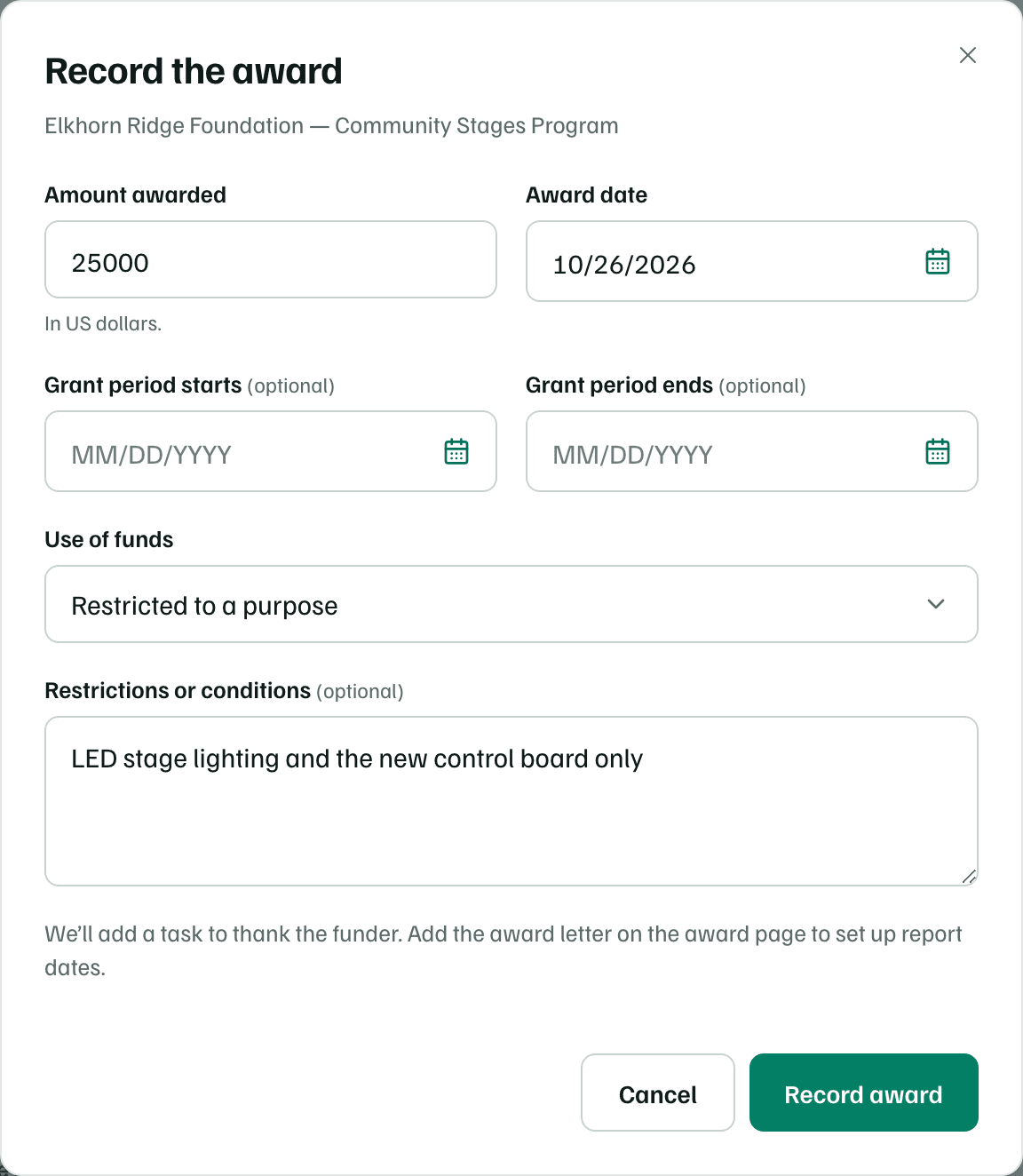
Example workspace · fictional data Upload the award letter
In About the Organization, open Documents and upload the letter with Analyze new uploads turned on. Leave its category blank: a file whose name includes the word award is typed as an award letter.

Example workspace · fictional data Extract the terms
Back on the funding record, select Payments, reports and terms to open the award's page. Under Attach the award letter, choose the letter and select Extract terms. GrantFlex reads only that document, and it uses one AI action.
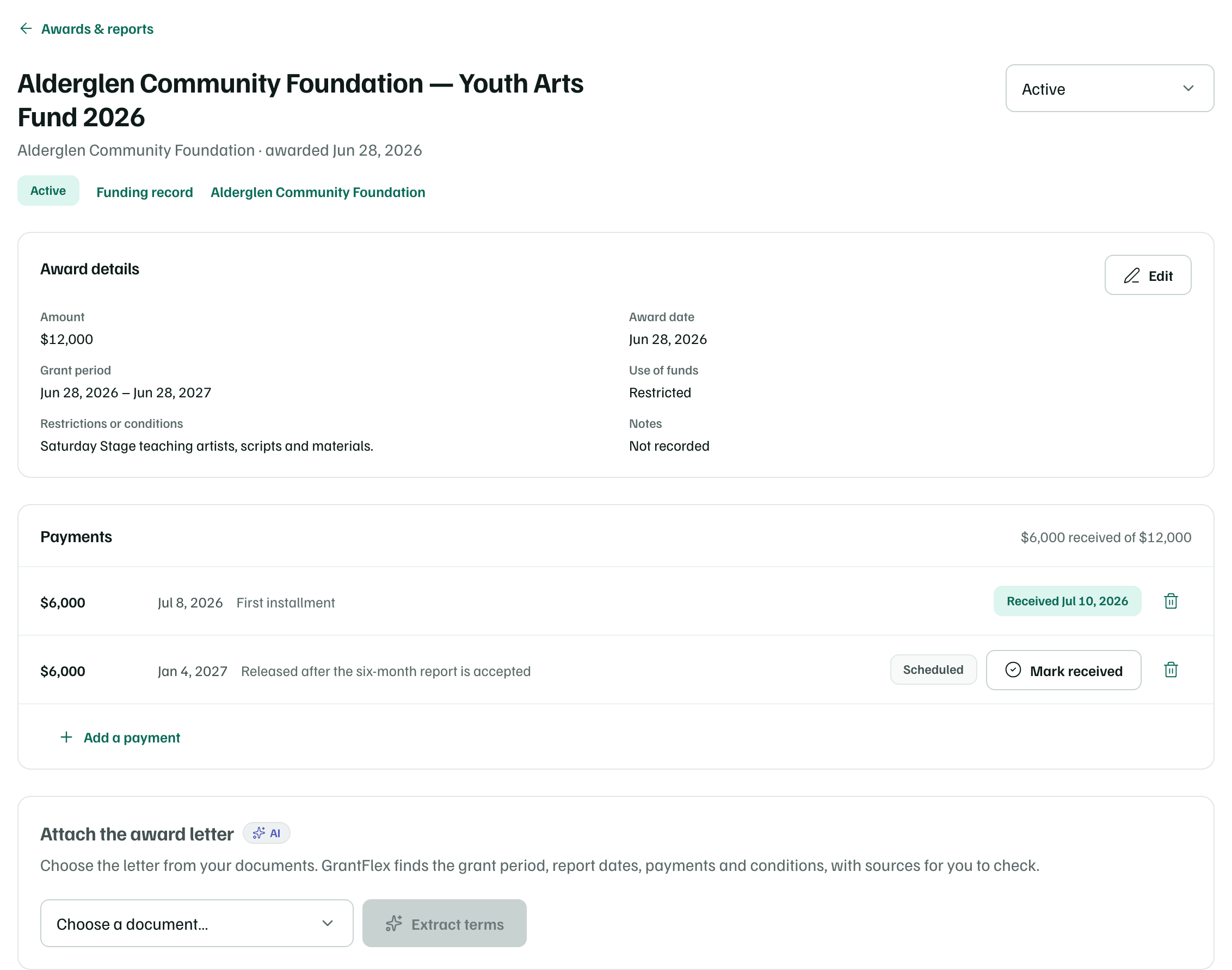
Example workspace · fictional data Check the terms and add the dates
The terms are labeled Extracted by AI — verify against the letter, and each line shows the passage it came from. Check every date, amount and condition against the letter.
Under From the award letter, select the button that adds what's missing, such as Add 2 report dates. The dates go on your calendar, with reminders before each one.
Check first
For payments, reports and award statuses, see Award letters, terms and payments.
What you get
A funding record at Secured, a task to thank the funder, and an award page with the letter's award terms. The reports it requires are on your calendar.